The Treasure AI Voice connector lets Treasure AI Studio agents read the conversations your organization has already captured with Treasure AI Voice — recordings, AI summaries, action items, and speaker-separated transcripts — directly inside a chat. It turns meetings into working material: an agent can draft a follow-up email from this morning's client call, pull every commitment made across a week of sales conversations, or line transcripts up against the rest of your customer data without anyone exporting a file.
The connection is read-only. The agent can list and read recordings; it cannot delete them, edit their tags, or start an export. And it reads exactly what you can read — the connector inherits Treasure AI Voice's own role-based scoping and has no way to widen it.
Read Connections first for the general model — the difference between a connector and a connection, and the administrator vs. user roles. This page covers the Treasure AI Voice-specific steps.
Enable the Treasure AI Voice connector for your account and authorize a connection, so the agent can read your recordings, summaries, and transcripts during a chat.
- Account administrator privileges in Treasure AI Studio — needed for Step 1 only (enabling the connector)
- A Treasure AI Voice account with recordings you want the agent to work with. The agent reads as the Treasure AI Voice account you authorize, so its reach follows that account's role — see Which Recordings the Agent Can See
Treasure AI manages the OAuth client for Treasure AI Voice, so there is nothing to register on a vendor console and no client ID or secret to enter. The only choice an administrator makes is which Treasure AI Voice deployment hosts the organization.
- In Treasure AI Studio, open Settings → Connector Settings (under Organization).
- Click Add Connector (or Add your first connector) and choose Treasure AI Voice.
- In AI Voice Deployment, select the Treasure AI Voice API host serving your organization. This is a fixed list, not a free-text field — production accounts have a single choice today,
ci-rest.ap01.treasure.ai. - Click Save. The connector appears in the list with an enable toggle.
- Make sure the connector is enabled so users can authorize connections to it. Treasure AI Voice then appears under Available on every user's Connections tab.
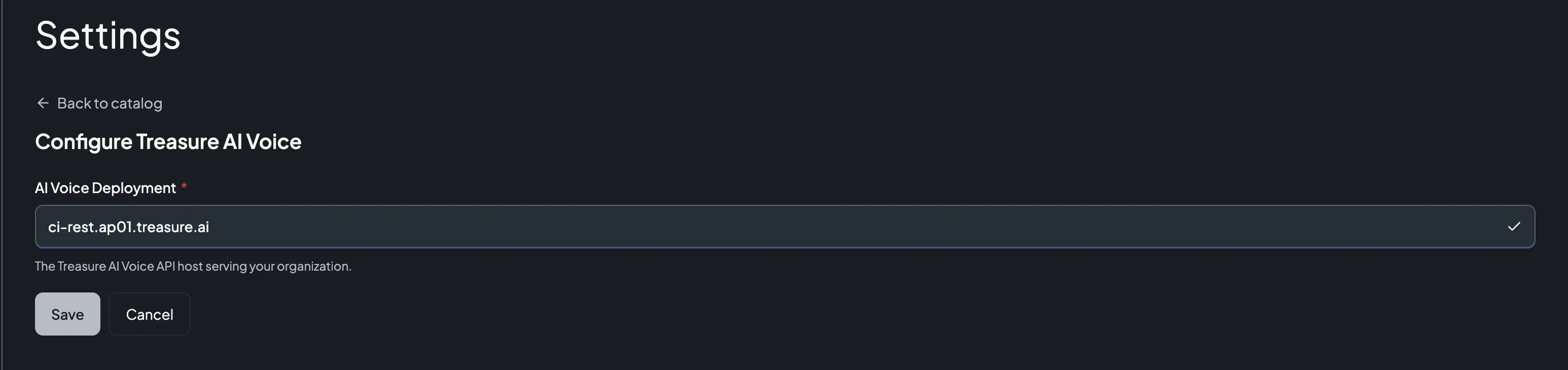
The form has no client ID or secret to enter and no Setup Guide panel beside it, because there is no OAuth application to create on a vendor console.
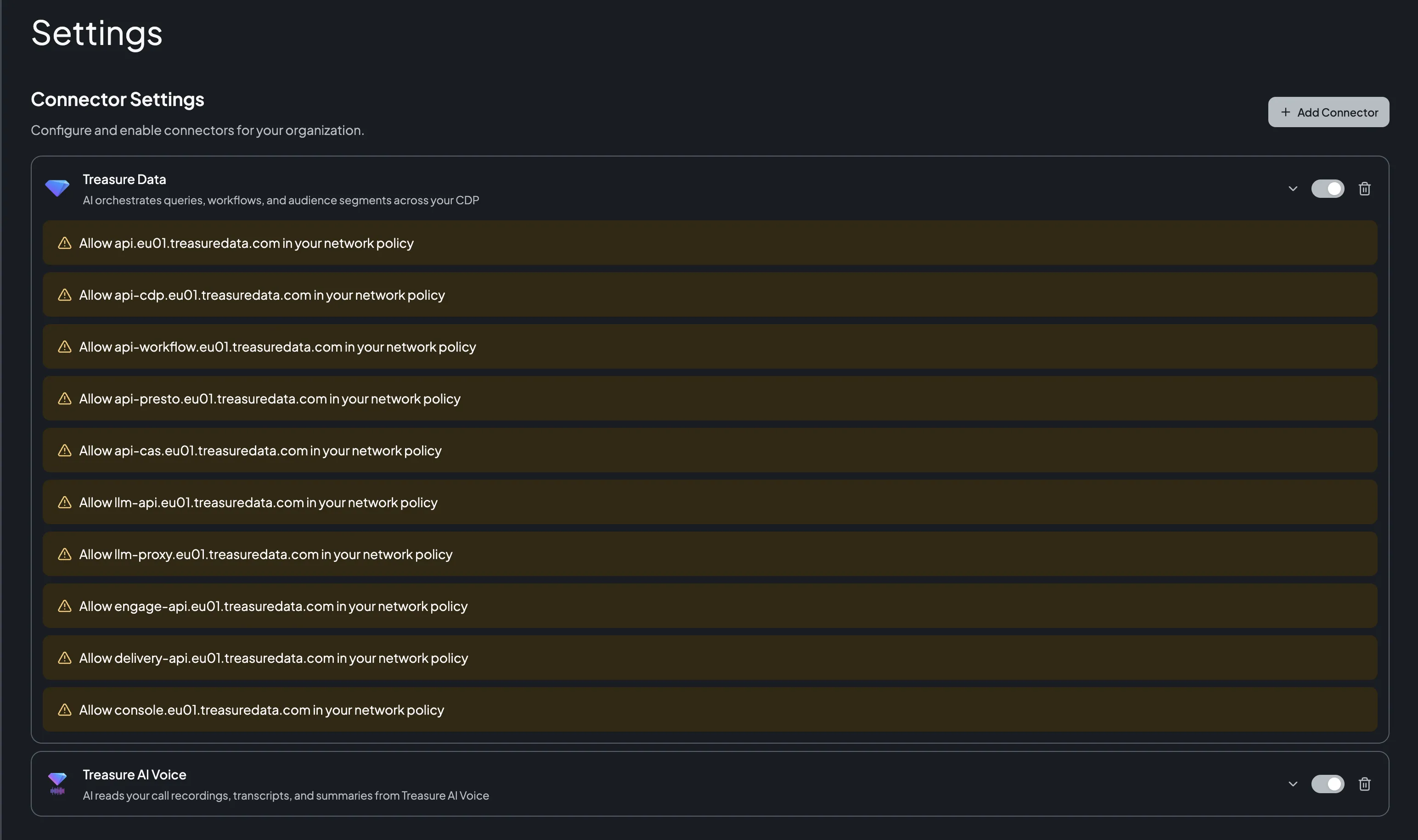
Unlike the Databricks, Snowflake, GitHub, and Treasure Data connectors, the Treasure AI Voice connector lists no egress domains, and Connector Settings shows no "allow this domain" reminder for it. That is deliberate: the agent's sandbox never calls the Treasure AI Voice API. The request is made by Treasure AI's connector service outside the sandbox, so your network policy — which governs sandbox egress — does not apply to it and does not need a new rule.
Read that as a limit on control, not on visibility. These requests are still recorded in the Network Audit Log, showing the Treasure AI Voice API host as the destination with an allow action, attributed to the user and chat that triggered them. What the policy cannot do is stop them: a Block rule for that host has no effect, because the policy is never evaluated for this traffic. To cut off access, disable or delete the connector in Connector Settings.
The saved connector row shows the difference directly. The Treasure Data connector below lists a reminder for each domain it needs the sandbox to reach; the Treasure AI Voice row carries none:
Each user who wants the agent to read Treasure AI Voice authorizes their own connection. You can do this ahead of time from Settings, or on demand from a chat.
- Open Settings → Connections.
- Under Available, find Treasure AI Voice and click Connect.
- Sign in with your Treasure AI Voice account in the popup and approve the requested access. Use the same sign-in method you use for the Treasure AI Voice app or console, including Sign in with Google if your organization uses it.
- When the popup closes, Treasure AI Voice appears in your connected list with the date you connected it.
To remove the connection later, click the delete (trash) icon next to it. The agent immediately loses access; your recordings in Treasure AI Voice are untouched.
You don't have to authorize in advance. If you ask the agent about your recordings before you've connected, it shows a Connection Required card in the chat — click Connect there to run the same authorization without leaving the conversation. See Connect from a chat.
The agent reads as the Treasure AI Voice account you authorize, not as your Treasure AI Studio account. If you sign in to Treasure AI Voice with a different account than you use for Studio, the agent sees that account's recordings — and its role in that account decides the scope. If you're unsure which account you connected, delete the connection and authorize again with the account you want.
Once connected, ask the agent about your conversations in plain language — no commands and no configuration in the chat. For example:
- "Summarize my client meetings from this week and list every commitment I made."
- "Draft a follow-up email from my most recent sales call."
- "Which recordings are tagged
renewal? Pull the action items from each." - "In yesterday's kickoff, who agreed to own the migration plan? Quote the exact passage."
The agent chooses its reads on its own. It usually starts with the recording list, which already carries the AI summary and action items, and fetches a full transcript only when the summary isn't enough. When speaker attribution matters — the last example above — it reads the speaker-separated transcript instead.
If you haven't connected yet, the agent asks for the connection first. The Connection Required card names the connector by its internal id, ai_voice, rather than by its display name — that is the Treasure AI Voice connector card:
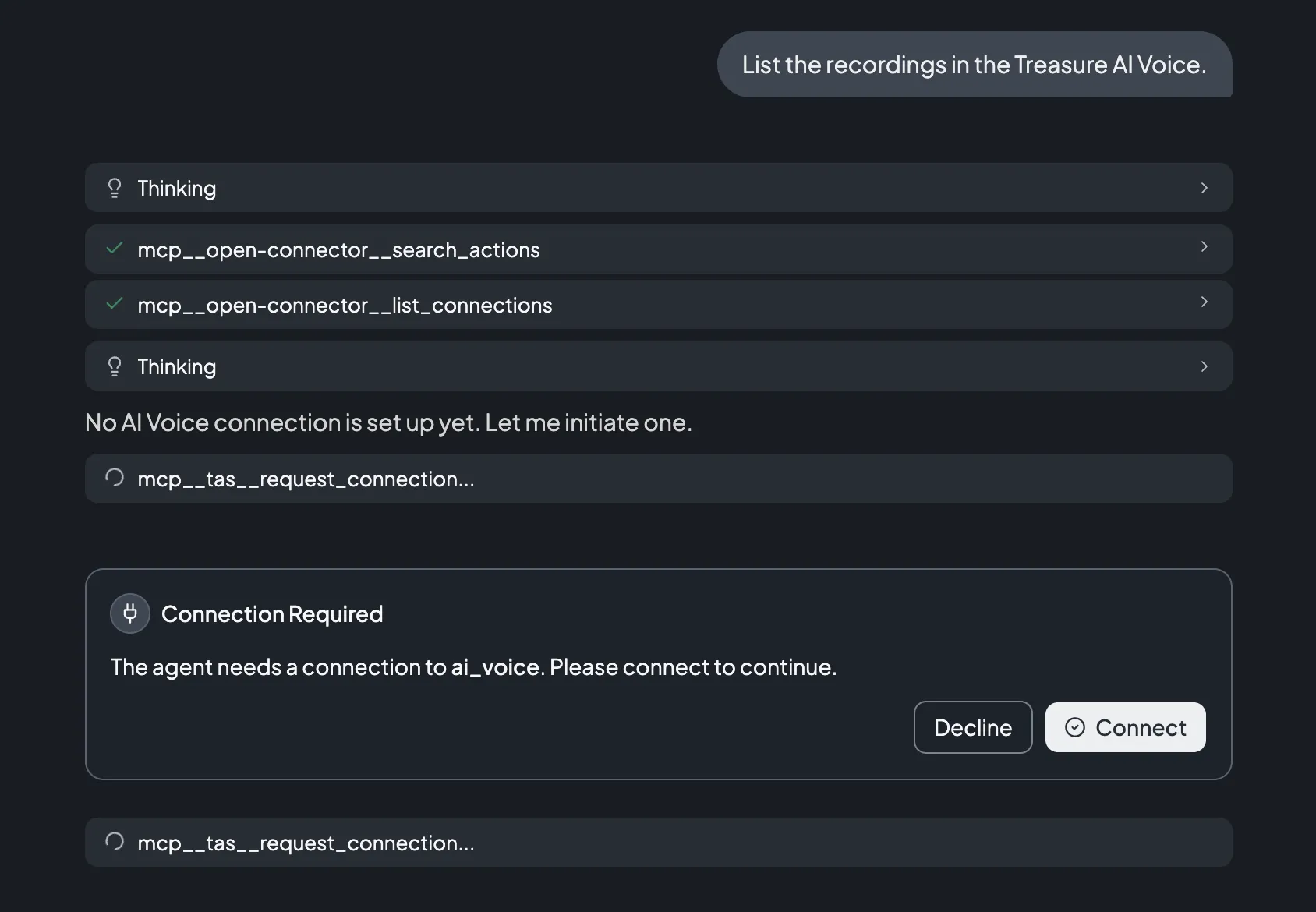
Treasure AI Voice is a separate connector from Treasure Data, even though both are Treasure AI products: connecting Treasure Data CDP does not give the agent access to your recordings.
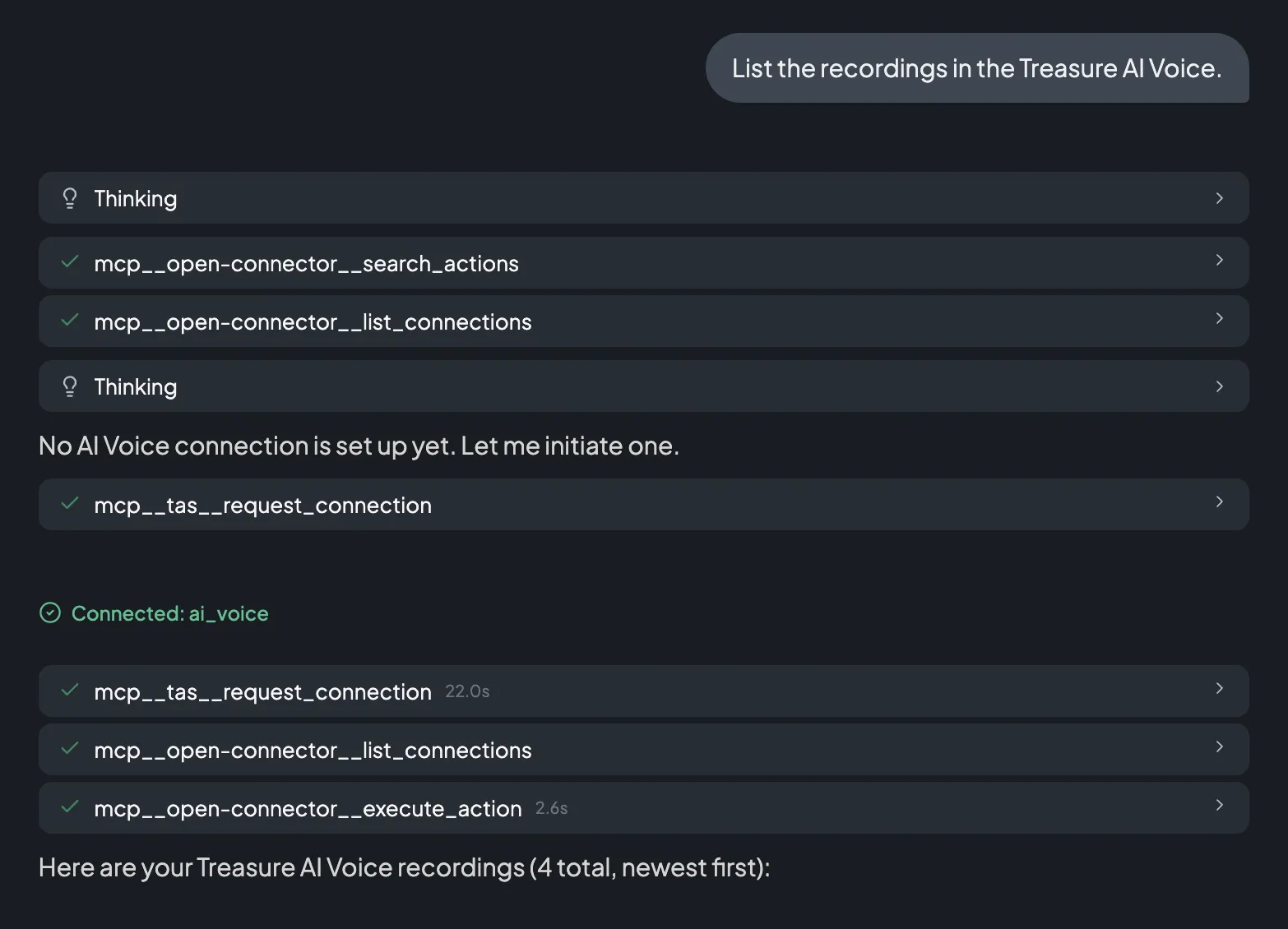
Click Connect, authorize as in Step 2, and the agent continues on its own — it confirms the connection and returns the recordings in the same reply:
The Treasure AI Voice connector exposes four read operations, and nothing else. The agent calls them on its own; you never invoke them by name.
| Operation | What It Returns | Limits and Filters |
|---|---|---|
ai_voice.list_recordings | A page of recordings, newest first, each with its AI summary, action items, tags, and a short transcript preview. | 10 recordings per read by default, 100 at most. Filterable by free-text search, tag, pipeline status, capture device, and device session. Pages through a continuation token. |
ai_voice.get_recording | One recording, including the full transcript as plain text. | Used when the summary is not enough. This transcript has no speaker attribution or timestamps. |
ai_voice.list_recording_tags | The distinct tags available to you. | Used to narrow a later list — for example, to find the exact spelling of a tag before filtering on it. |
ai_voice.get_transcript_segments | The speaker-separated transcript as timestamped turns, each with a speaker label, start and end offset, text, and detected language. | Used when who said what matters. Up to 500 turns per read by default; a longer transcript is reported as truncated. |
Each recording carries its recording id, inferred title, recording time, duration in seconds, pipeline status (with a failure reason if it failed), the owner's name and email, the AI summary, action items, applied and suggested tags, a transcript preview, the detected transcript language, and the capture device's serial number and session id. Only recordings with a status of COMPLETED carry a summary.
The Treasure AI Voice connector is deliberately narrower than the Treasure AI Voice API:
- No writes. The agent cannot delete a recording, change its tags or speaker labels, or trigger the Treasure Data CDP export. Those stay in the Treasure AI Voice app and console.
- No audio. Text only — transcripts and summaries. The agent never receives the recorded audio file.
- No internal storage details. Fields such as storage keys, the capture device's local file path, and raw ownership records are filtered out before anything reaches the agent, rather than passed through.
The Treasure AI Voice connector applies Treasure AI Voice's own scoping rules, so your Treasure AI Voice role decides what the agent reads:
| Your Treasure AI Voice Role | What the Agent Can Read |
|---|---|
| Regular User | Only the recordings you own. |
| Enterprise Admin | Every recording in your Treasure AI Voice organization. |
Treasure AI Voice enforces this when the request arrives, not Treasure AI Studio, and no filter or prompt can escalate it. A manager cannot read a direct report's recordings through the agent unless that manager is an Enterprise Admin — in which case they can read the entire organization, not just their team. The agent can narrow the view (an Enterprise Admin can ask for only their own recordings), but never widen it.
When an Enterprise Admin authorizes a connection, their agent can read every recording in the organization — including conversations recorded by other people. Treat authorizing as an Enterprise Admin the same way you treat opening the Recordings page in the Treasure AI Voice console.
| Item | Value |
|---|---|
| Connector | Treasure AI Voice |
| Authentication | OAuth 2.0 Authorization Code with PKCE (user-to-machine), platform-managed client |
| OAuth scopes | openid, email, profile |
| Required configuration | AI Voice Deployment — the API host serving your organization, chosen from a fixed list. Production: ci-rest.ap01.treasure.ai |
| Access | Read-only — four list and read operations, no writes |
| Agent identity | Acts as the authorizing Treasure AI Voice account, with that account's role-based scope |
| Where requests are made | Treasure AI's connector service, outside the agent's sandbox |
| Egress domains | None — the sandbox never reaches the Treasure AI Voice API, so no network policy rule is required |
| Recordings returned per read | 10 by default, 100 maximum |
| Transcript turns returned per read | 500 by default; a longer transcript is returned in part and reported as truncated |
Treasure AI Voice serves its API from a single deployment today, in the Japan region — ci-rest.ap01.treasure.ai. Every account reaches that endpoint, whichever region your Treasure AI Studio account itself runs in, and it is the same endpoint the Treasure AI Voice apps already use. This is why AI Voice Deployment currently offers one choice; if Treasure AI Voice adds a deployment later, the list grows and an administrator picks the one hosting your organization. Connecting from Studio creates no second copy of your recordings: the connector is read-only, so nothing is exported and nothing is written back. What the agent reads — summaries and transcript text — is returned into your chat, the same as any other connector result.
| Issue | Solution |
|---|---|
| Treasure AI Voice isn't listed on the Connections tab | An administrator must add the Treasure AI Voice connector in Connector Settings and enable it. |
The Connection Required card says ai_voice, not Treasure AI Voice | Expected. The card names the connector by its internal id. Accepting it authorizes the Treasure AI Voice connection, and it appears as Treasure AI Voice in Settings → Connections afterwards. |
| The agent asks to connect Treasure Data instead of Treasure AI Voice | Decline the card and ask again, naming Treasure AI Voice explicitly. They are separate connectors: a Treasure Data CDP connection does not grant access to recordings. |
| The connection authorizes but the agent finds no recordings | The agent reads as the Treasure AI Voice account you signed in with. Confirm that account owns recordings (or is an Enterprise Admin), and that it belongs to the organization you expect. |
| The agent can't see a colleague's recording | Expected for a Regular User — Treasure AI Voice scopes non-admins to their own recordings, and the connector cannot widen that. See Which Recordings the Agent Can See. |
| A recording has no summary or action items | Only recordings with a status of COMPLETED carry a summary. A recording still transcribing, or one that failed, returns its status and failure reason instead. |
| A long meeting's transcript looks incomplete | One read returns up to 500 speaker turns and reports that it was truncated. Ask the agent to continue from where it stopped, or to read the plain-text transcript instead. |
| The agent says the connection needs to be reconnected | The authorization expired or was revoked on the Treasure AI Voice side. Reconnect from Settings → Connections. |
| An administrator changed the deployment and connections stopped working | The deployment determines which sign-in pool issued your authorization. After a change, each user reconnects from Settings → Connections. |
- Connections — The general connection model and administrator controls
- Treasure AI Voice — What Treasure AI Voice captures and how recordings are produced
- Treasure Data CDP Integration — Push recordings and transcripts into your CDP for segmentation and analytics
- Connect Treasure Data CDP — Enable the connector and authorize a Treasure Data connection
- Security Overview — How access control works in Studio