A network policy is the account-level rule set that decides which external domains a Treasure AI Studio agent may reach from its sandbox. Every request that leaves the sandbox — a tdx call to Treasure Data CDP, a git clone, a package install, most connector requests — is evaluated against the policy before it leaves the platform, and a blocked request never reaches its destination. Configure it when your organization needs agent activity confined to reviewed destinations, or when a skill or connector fails because the host it needs is not yet permitted.
The boundary is the sandbox, which is why "most" rather than "all": a connector whose requests are made outside the sandbox is not governed by this policy. See Connectors That the Policy Does Not Govern.
Review and edit the ordered egress rules that govern where Treasure AI Studio agents can send outbound traffic, and choose what happens to requests no rule matches.
- Signed in to Treasure AI Studio (Getting Started)
- The account administrator role — regular users cannot see or change the network policy
- The list of external hosts your organization's skills and connectors need to reach
Treasure AI Studio evaluates a network policy as an ordered, first-match-wins rule list, then falls back to a default action. For each outbound request from the agent's sandbox:
- Rules are checked from the top of the list down.
- The first rule whose domain pattern matches the request host decides the outcome — Allow or Block. No later rule is consulted.
- If no rule matches, the default action for unmatched requests applies.
Because the first match wins, rule order is meaningful: a broad Allow placed above a narrow Block makes the Block unreachable. Put your most specific rules first.
Network policy is enforced by Treasure AI Studio at the platform's network boundary, outside the agent's sandbox. The agent cannot read, disable, or route around the policy, and neither prompt text nor a custom skill can grant itself an exception.
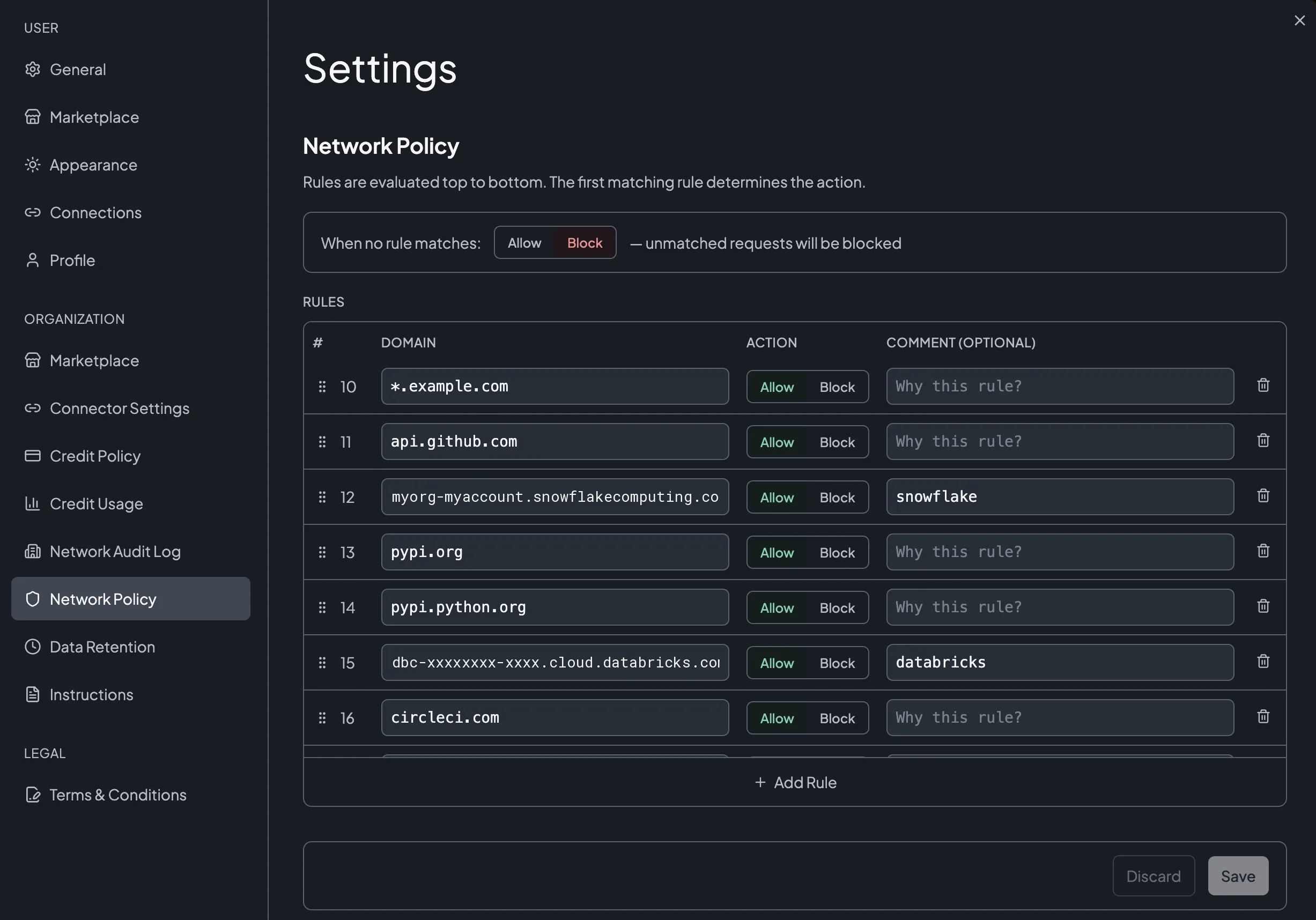
Each rule matches on a single domain pattern. Two forms are accepted:
| Pattern | Matches |
|---|---|
example.com | Exactly that host. Does not match subdomains. |
*.example.com | Any host under example.com, including nested subdomains such as a.b.example.com. Does not match the bare host example.com. |
Patterns are stored in lowercase, and the editor rejects anything that is not a plain host or a single leading *. wildcard. Other wildcard positions, IP ranges, ports, and URL paths are not supported — a network policy matches on hostname only.
*.github.com permits api.github.com and raw.github.com, but it does not permit github.com itself. Operations that contact the bare host — git clone https://github.com/... and marketplace registration among them — need their own github.com rule. This is why the default rule set ships both entries.
Every Treasure AI Studio account starts with the default action set to Block and a seeded allowlist covering the hosts the product itself needs: Treasure AI and Treasure Data CDP endpoints, GitHub (for skills and plugin marketplaces), and the Debian, npm, Node.js, PyPI, and Bun package registries the sandbox installs from.
A new account is therefore deny-by-default with a working baseline: the agent can run tdx, load skills, and install packages, but anything else is blocked until an administrator allows it. You can delete or reorder the seeded rules like any other rule.
The seeded rules are not decorative. Deleting the Treasure AI or Treasure Data CDP entries stops the agent from querying your CDP; deleting the GitHub entries stops skills and plugin marketplaces from loading; deleting a package-registry entry makes the agent unable to install the libraries a skill needs. Remove a seeded rule only when you intend to disable the capability it supports.
- Open Settings — click your user avatar in the sidebar footer.
- In the left navigation, under Organization, click Network Policy.
- Click Add Rule. An empty row appears at the bottom of the Rules list.
- Enter the hostname or wildcard pattern in Domain.
- Set Action to Allow or Block.
- Record why the rule exists in Comment (optional).
- Click Save. The status bar changes from Unsaved changes to Saved, and the row's highlight clears.
Saved rules take effect for new agent requests without restarting Studio or the chat. If you decide against the edit before saving, click Discard to revert every pending change.
The Comment field is the only place a rule records why it exists ("Snowflake connector egress", "vendor API for the weekly report skill"). Six months later it is the difference between confidently removing a stale rule and leaving it in place because nobody remembers what it was for.
The When no rule matches toggle at the top of the page decides what happens to any request no rule covers. Set it to Allow or Block, then click Save. The help text beside the toggle confirms the choice — "unmatched requests will be blocked".
With the default set to Allow, an agent can reach any host that is not explicitly blocked — including hosts added by a skill you have not reviewed. Keep the default at Block and grant access with Allow rules unless you have a specific reason not to.
Because the first matching rule wins, order is part of the policy:
- To reorder, drag a rule by its handle to a new position. The number in the first column is its evaluation position.
- To remove, click the rule's delete (trash) icon.
Both actions need Save to take effect.
A connector declares the external egress domains it needs, shown next to the configured connector in Settings → Connector Settings. Adding a connector does not add those domains to your network policy — allow them yourself, or the connection fails at runtime when the agent first calls the service. See Connections for the full connector workflow.
Skills have the same requirement. A skill that fetches a vendor API needs that vendor's host allowed, and the plugin marketplace needs the exact host github.com in addition to *.github.com. See Plugin Marketplace.
A network policy governs the agent's sandbox. A connector whose requests are made outside the sandbox — by Treasure AI's connector service rather than by the agent itself — is therefore outside its reach. Treasure AI Voice is the connector that works this way today.
For such a connector:
- It declares no egress domains, so Connector Settings shows no "allow this domain" reminder beside it and there is nothing for you to add.
- Its requests still appear in the Network Audit Log — the API host as the destination, an
allowaction, attributed to the user and chat that triggered them. You keep visibility. - A Block rule does not stop them. The policy is not evaluated for this traffic, so blocking the host has no effect.
Control these connectors where they are configured rather than in the policy: disable the connector to stop new authorizations, or delete it to remove every existing connection at once. See Connections.
- The Network Policy page lists your rules in evaluation order with the expected Allow or Block action
- The When no rule matches toggle shows the default action you intend
- After saving, the status bar shows Saved and no rows remain highlighted
- A test chat exercising the newly allowed host succeeds, and the Network Audit Log shows the request with action
allow
| Issue | Solution |
|---|---|
| An agent operation fails to reach an external service | Open the Network Audit Log and filter by the destination domain. A block entry means no rule allowed it — add an Allow rule for that host. No entry at all usually means the failure is not network policy (check the connector's authorization instead). |
| A rule looks correct but has no effect | A broader rule above it matched first. Evaluation stops at the first match, so move the specific rule above the broad one. |
| Requests to a subdomain work but the bare domain is blocked | *.example.com does not match example.com. Add a separate rule for the bare host. |
| The domain field shows "Must be a domain (example.com) or wildcard (*.example.com)" | The pattern contains an unsupported form — a port, a path, an IP range, or a wildcard that is not a single leading *.. Enter the hostname alone. |
| You cannot find Network Policy in Settings | The page is visible only to account administrators. Confirm your role with your organization administrator. |
- Network Audit Log — Confirm what the policy allowed and blocked
- Security Overview — Sandbox isolation, encryption, and data residency
- Connections — Connector egress domains and per-user authorization
- Access Control — Permissions, IP allowlists, and per-user Studio access