The Google Search Console connector lets Treasure AI Studio agents read how your site performs in Google Search. An agent can pull clicks, impressions, click-through rate, and average position for any property you have access to, break them down by query, page, country, device, or search appearance, check whether a specific URL is indexed, and read what Google reports about your submitted sitemaps. Use it when a question about organic search — which queries are losing position, which pages Google has not indexed, whether last week's sitemap was picked up — needs an answer alongside the rest of your data rather than a separate tab and a CSV export.
This connection is read-only. The agent cannot add or remove a property, submit or delete a sitemap, or change anything else in Search Console. Treasure AI requests a read-only Google scope, so a write is refused by Google before it reaches your account. See What the Agent Can Do for the full list.
Read Connections first for the general model — the difference between a connector and a connection, and the administrator vs. user roles. This page covers the Google Search Console-specific steps.
Enable the Google Search Console connector for your account and authorize a connection, so the agent can query search performance data, inspect URLs, and read sitemap status for your properties during a chat.
- Account administrator privileges in Treasure AI Studio — needed for Step 1 only (enabling the connector)
- A Google account with access to at least one Search Console property. The agent reads as this account, so its reach follows that account's own Search Console permissions — see What the Agent Can See
- The property you care about is already verified in Google Search Console. An unverified property returns no data, and the connector cannot add or verify one
Setting up Google Search Console touches two roles, each doing its part once. There is nothing to configure on the Google Cloud side — Treasure AI manages the OAuth application.
| Role | What They Do | How Often |
|---|---|---|
| Treasure AI Studio administrator | Adds the Google Search Console connector in Connector Settings and saves it. There are no fields to fill in. | Once for the organization |
| Each member | Authorizes their own connection from Connections, choosing which Google account to use and approving the requested access. | Once per person |
There is no OAuth application to register, no service account to create and grant access to a property, and no network policy rule to add. Each member's own Google account is the authorization.
Treasure AI manages the Google OAuth application for this connector, so there is nothing to create in the Google Cloud console and no client ID or secret to enter. The configuration form is empty.
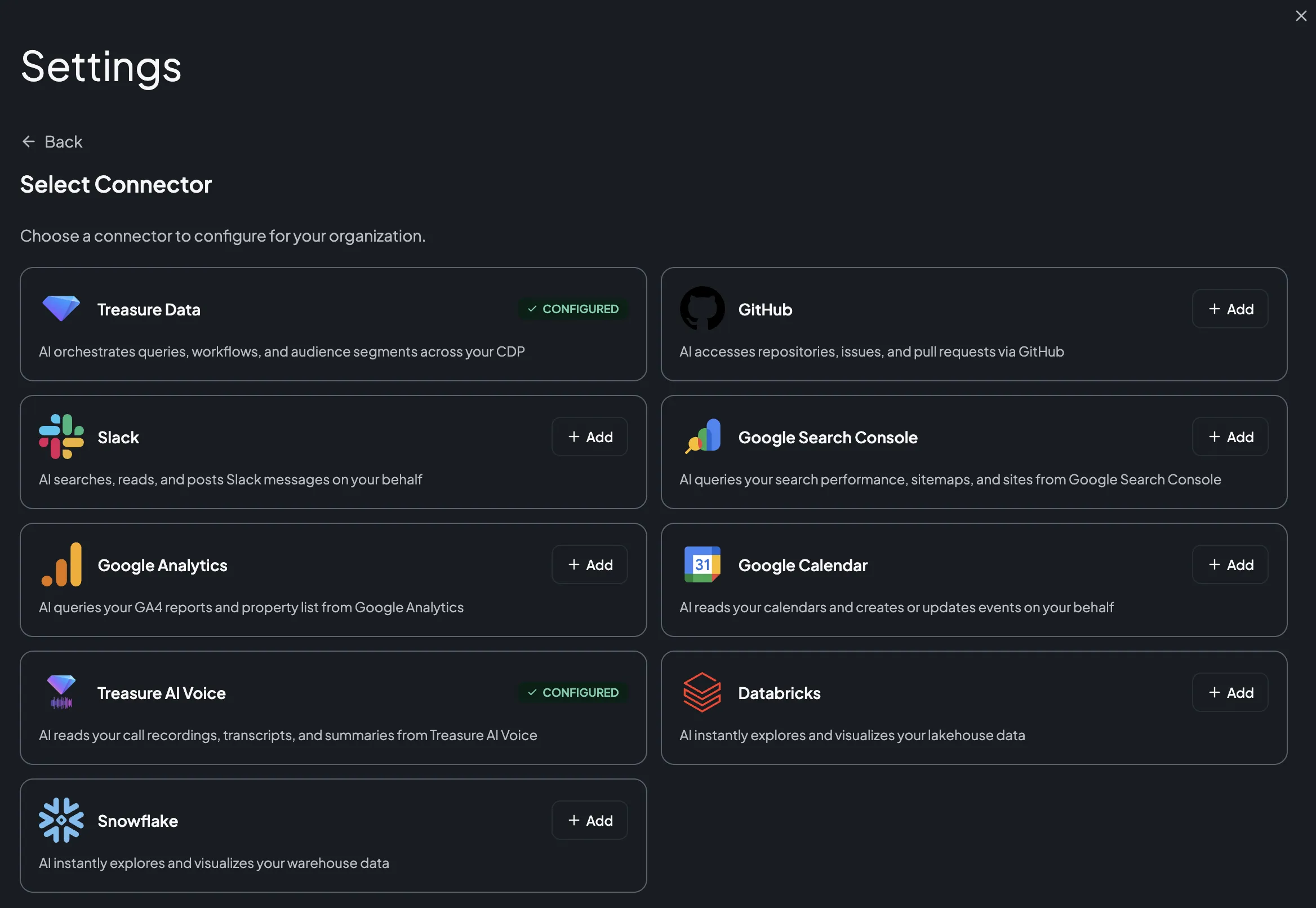
- In Treasure AI Studio, open Settings → Connector Settings (under Organization).
- Click Add Connector (or Add your first connector) and choose Google Search Console.
- Click Save. There are no fields to fill in. The connector is saved already enabled, so Google Search Console appears under Available on every user's Connections tab straight away.
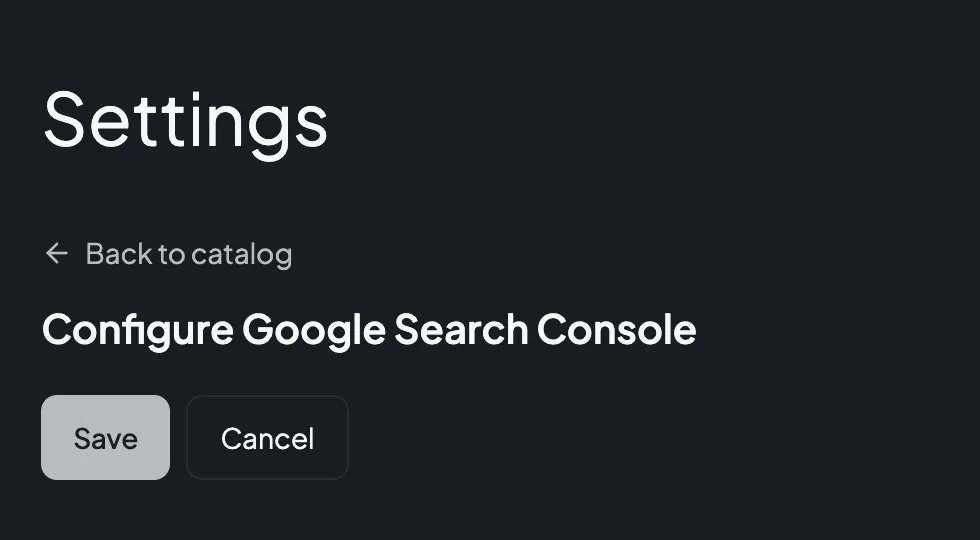

That is the whole administrator setup. The saved row carries an enable toggle, and turning it off does more than stop new authorizations: it withdraws Google Search Console from the agent's permitted actions at once, in chats that are already running as well as new ones. A chat in flight is not interrupted, but the next operation the agent attempts is refused, so every existing connection stops working until you turn it back on. Members keep their connections while it is off.
Every member who connects gives the agent the ability to read their Search Console data — performance metrics, index status, and sitemap reports for every property that member can reach. It grants nothing else. The agent cannot add or remove a property, submit or delete a sitemap, or change who has access to a property. Treasure AI requests only Google's read-only Search Console scope, so Google refuses a write regardless of what a member asks the agent to do, and the write operations are separately blocked by account policy. What the member's own Google account can read is the only thing to weigh before enabling it.
The Google Search Console connector lists no egress domains, and Connector Settings shows no "allow this domain" reminder for it. That is deliberate: the agent's sandbox never calls the Search Console API. The request is made by Treasure AI's connector service outside the sandbox, so your network policy — which governs sandbox egress — does not apply to it and does not need a new rule.
Each member who wants the agent to work with Search Console data authorizes their own connection. You can do this ahead of time from Settings, or on demand from a chat.
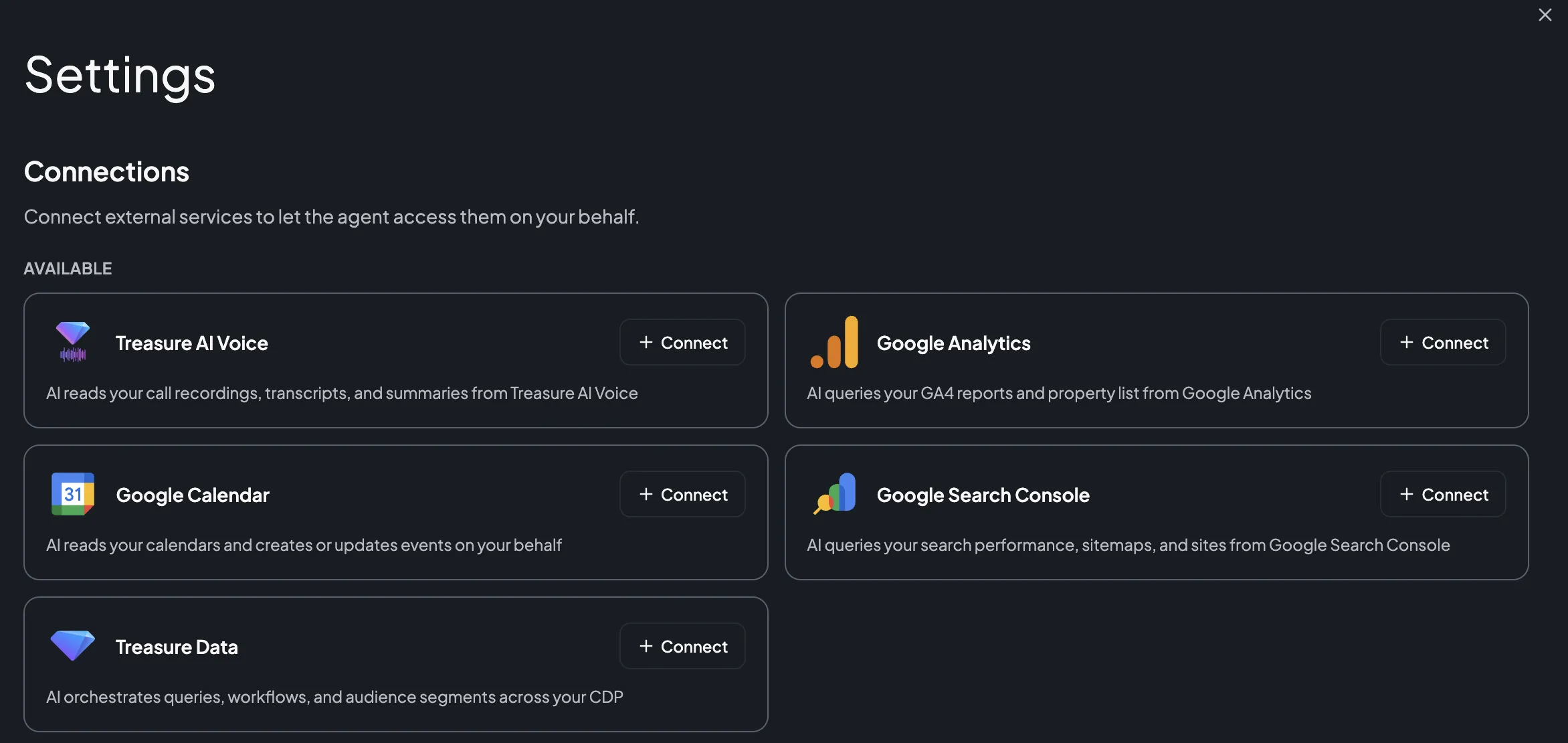
- Open Settings → Connections.
- Under Available, find Google Search Console and click Connect.
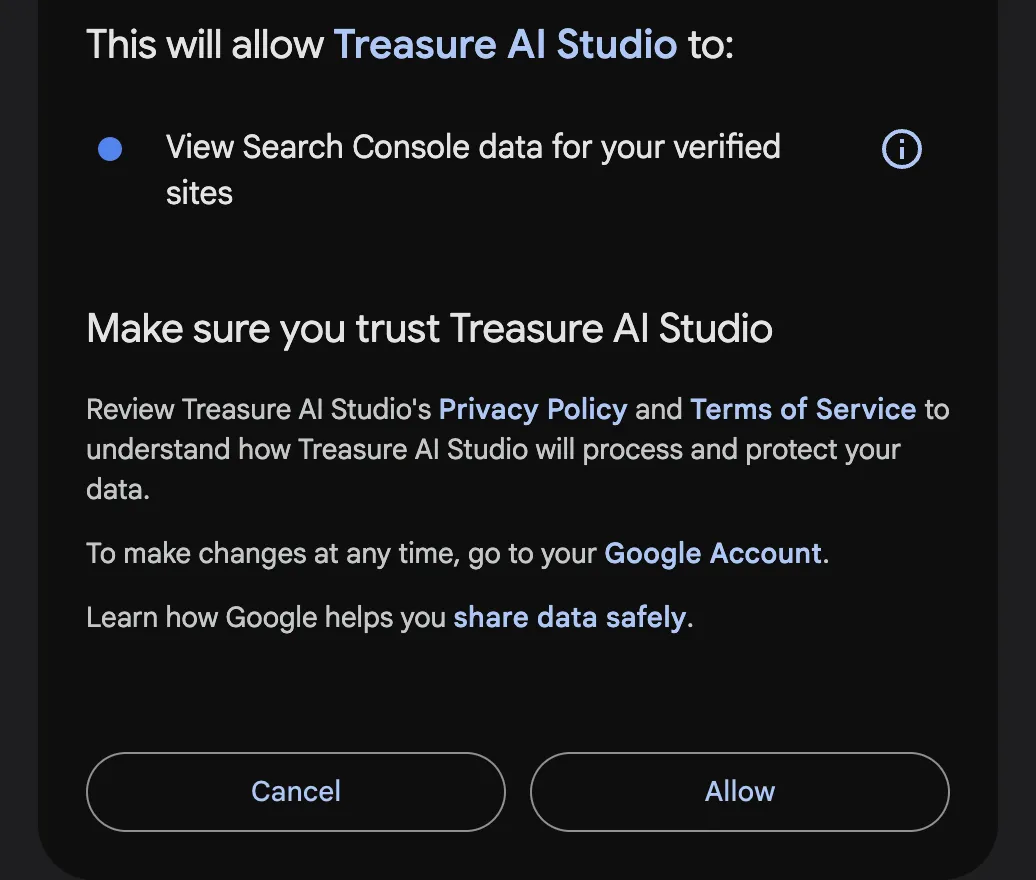
- In the Google popup, choose the Google account that holds your Search Console access. If you are signed in to more than one, pick deliberately — the connection carries whichever account you choose here.
- Review the requested access and approve it. Google asks for a single permission — viewing Search Console data — covering every property that account can reach.
- When the popup closes, Google Search Console appears in your connected list with the date you connected it.
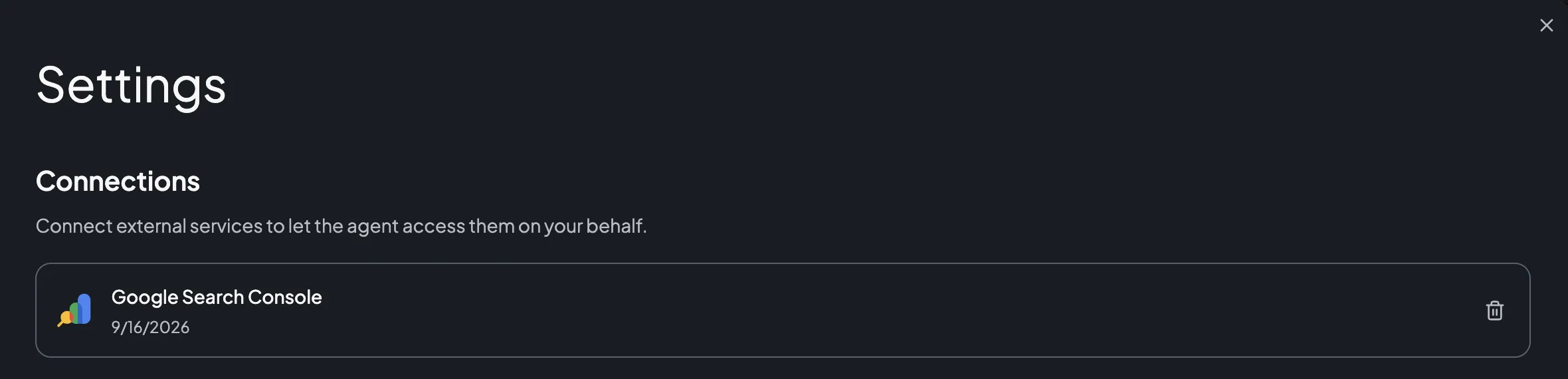
A connection authorizes one Google account, and through it every Search Console property that account has access to. Studio holds one Google Search Console connection per member at a time, so to switch to a different Google account you delete the connection and authorize again.
To remove the connection later, click the delete (trash) icon next to it. The agent immediately loses access. Because the connection never writes, there is nothing in Search Console to undo. Google still lists Treasure AI Studio under your account's third-party access until you remove it there as well.
You don't have to authorize in advance. If you ask the agent about your search performance before you've connected, it shows a Connection Required card in the chat — click Connect there to run the same authorization without leaving the conversation. The card names the connector by its internal id, google_search_console. See Connect from a chat.
Once Google Search Console is connected, ask the agent in plain language — no commands and no configuration in the chat. For example:
- "Which queries lost the most clicks on
https://www.example.com/over the last 28 days compared with the 28 days before?" - "List my Search Console properties and tell me which ones I only have restricted access to."
- "For the blog section, show me the pages with high impressions and a position worse than 10 — the ones almost ranking."
- "Is
https://www.example.com/pricingindexed? If not, tell me what Google reports as the reason." - "Compare mobile and desktop click-through rate for our top 20 queries this month."
- "Which sitemaps has Google downloaded for this property, and are any reporting errors?"
The agent chooses its own operations. It typically lists your properties first, then queries performance data for the one you named. Because Search Console identifies a property by an exact string, name the property the way Search Console stores it — https://www.example.com/ for a URL-prefix property (with the scheme and the trailing slash) or sc-domain:example.com for a domain property. If you are not sure, ask the agent to list your properties first and pick from what it returns.
Search performance data is not real time. Google finalizes it with a lag of a few days, so a date range that ends today typically returns nothing for its most recent days. The agent can ask for fresh, not-yet-final data instead, and Search Console returns the first date whose data is still incomplete alongside the rows — so ask the agent to state that date when a recent trend matters.
Anything that changes Search Console itself stays a human task. Adding a property, verifying ownership, submitting a sitemap, and requesting indexing are all done in Search Console; the agent can tell you what it sees and what looks wrong, and you act on it there.
These are the operations the agent can use. It picks them itself from what you ask for — there is no command syntax for running one directly, though naming an operation in your message does steer the agent toward it.
| Area | Operations | What They Do |
|---|---|---|
| Properties | google_search_console.list_sites | List the Search Console properties the connected Google account can see, each with that account's permission level for it. |
| Search performance | google_search_console.query_search_analytics | Query clicks, impressions, click-through rate, and average position for a property over a date range. Groups by date, hour, query, page, country, device, or searchAppearance; filters by the same dimensions with contains, equals, notContains, notEquals, includingRegex, or excludingRegex; and covers the web, image, video, news, discover, and googleNews search types. Up to 25,000 rows per request, paged. |
| URL inspection | google_search_console.inspect_url | Inspect one URL under a property with Google's URL Inspection API — index status, the canonical Google picked, the referring sitemaps, and mobile usability, AMP, and rich-results findings when Google reports them. |
| Sitemaps | google_search_console.list_sitemaps, google_search_console.get_sitemap | List the sitemaps submitted for a property, or read one, with submission and download timestamps, pending state, warning and error counts, and submitted/indexed URL counts per content type. |
Nothing in Search Console changes through the agent. The cases worth knowing about:
- No property changes. The agent cannot add a property to your Search Console or remove one. Adding a property also means verifying ownership — the DNS record, HTML file, or tag — which only a person can do in Search Console.
- No sitemap changes. The agent reads what Google reports about a sitemap, but cannot submit a new one or unsubmit an existing one.
- No indexing requests. The agent cannot ask Google to crawl or reindex a URL. It can inspect what Google already knows; requesting indexing is a Search Console action you take yourself.
- No manual actions, security issues, or page experience data. The agent cannot read the Manual Actions or Security Issues reports, or the Core Web Vitals and page experience reports.
- No access management. The agent cannot add or remove the people who have access to a property, or change their permission levels.
- No other Google products. This connector reaches Search Console only. Google Calendar is a separate connector with its own authorization.
The Google Search Console connector carries your own Google authorization, so the connected Google account's Search Console permissions decide its reach:
- Every property that account can open in Search Console, and no others — there is no way to restrict a connection to one property.
- The data each property's permission level allows. Search Console assigns an account a permission level per property, and the agent inherits exactly that. The agent reports the level alongside each property, so you can ask it which ones it has full access to.
- Nothing beyond reading. The authorization carries no write capability at all, on any property, whatever the account's permission level is.
Google enforces this when the request arrives, not Treasure AI Studio, and no prompt can widen it. The agent can narrow the view — tell it to look at one property, or one section of a site — but never widen it.
| Item | Value |
|---|---|
| Connector | Google Search Console |
| Internal id | google_search_console — the id the Connection Required card shows in a chat |
| Authentication | OAuth 2.0 Authorization Code with PKCE (user-to-machine), platform-managed Google OAuth application |
| Google scope requested | One: https://www.googleapis.com/auth/webmasters.readonly. The read-write webmasters scope is deliberately not requested |
| Required configuration | None. The administrator saves the connector with no fields to fill in |
| Access | Read-only — listing properties, querying search performance, inspecting a URL, and reading sitemap reports. Nothing in Search Console can be changed through the agent: the read-only scope refuses every write, and the write operations are blocked by account policy as well |
| Google APIs used | Search Console API v3 (https://www.googleapis.com/webmasters/v3) and the URL Inspection API (https://searchconsole.googleapis.com/v1) |
| Agent identity | Reads as the authorizing Google account. Nothing is written, so nothing is recorded in Search Console as that account's action |
| Where requests are made | Treasure AI's connector service, outside the agent's sandbox |
| Egress domains | None — the sandbox never reaches the Search Console API, so no network policy rule is required |
| Property identifier | The exact string Search Console stores: https://www.example.com/ for a URL-prefix property, or sc-domain:example.com for a domain property |
| Search performance rows per request | 25,000 maximum, paged with a zero-based row offset. When the agent does not specify a limit, the Search Console API's own default applies |
| Data freshness | Google finalizes performance data with a lag of a few days. The agent can request fresh data instead of final-only, and the response reports the first date (or hour) whose data is still incomplete |
| Hourly data | Available by grouping on the hour dimension together with the hourly data state |
| Token lifetime | Short-lived access tokens, refreshed automatically, so a connection keeps working across sessions without reconnecting |
| Connections per member | One, covering one Google account and every Search Console property that account can access |
| Quotas | Google's Search Console API quotas apply per property and per project, including a separate, much smaller daily quota for URL inspection. A long run of inspections or a very broad performance query can exhaust them; see Search Console API quotas |
| Issue | Solution |
|---|---|
| Google Search Console isn't listed on the Connections tab | An administrator must add the Google Search Console connector in Connector Settings and enable it. |
| The agent finds none of your properties | Confirm you authorized the Google account that actually holds the Search Console access — the popup's account picker is easy to click through. Delete the connection and reconnect with the right account. A property that has never been verified in Search Console does not appear at all. |
| The agent reports a property as not found | The property string must match what Search Console stores, including the scheme and trailing slash (https://www.example.com/) or the sc-domain: prefix for a domain property. Ask the agent to list your properties and use the string it returns. |
| A performance query returns no rows for the last day or two | Expected. Search Console finalizes data over roughly a few days. Ask the agent to include fresh, not-yet-final data, and to report the first incomplete date with the results. |
| Numbers don't match the Search Console UI | Check that the date range, search type, and property match. Google also caps how many rows a single query returns and anonymizes rare queries, so query-level totals are legitimately lower than property totals. |
| You asked the agent to submit a sitemap and it refused | Expected. The connection is read-only: submitting and deleting sitemaps are blocked, and the read-only scope would refuse them anyway. Submit the sitemap in Google Search Console instead. |
| You asked the agent to add or remove a property and it refused | Expected. Adding and removing properties are blocked for every account. Do it in Google Search Console instead — adding a property also requires verifying ownership, which is a manual step. |
| A URL inspection fails after several in a row | Google's URL Inspection API has a much smaller daily quota than the rest of the Search Console API. Ask the agent to inspect fewer URLs, or retry the next day. |
| The agent says the connection needs to be reconnected | The authorization expired or was revoked on the Google side — including by removing Treasure AI Studio from your Google account's third-party access. Reconnect from Settings → Connections. |
| The connector disappeared from the Connections tab | An administrator may have disabled it. Your connection is kept, but the agent cannot use Google Search Console until the connector is enabled again. |
- Connections — The general connection model and administrator controls
- Connect Treasure Data CDP — Enable the connector and authorize a Treasure Data connection
- Connect Slack — Let the agent search, read, and post Slack messages as you
- Skills & Marketplace — How skills give the agent domain expertise
- Security Overview — How access control works in Studio