Connections let Treasure AI Studio agents work with data in external services — like a Databricks lakehouse — during a chat. An administrator enables a connector for the organization, and each user authorizes their own connection to it through a secure OAuth sign-in. Once connected, the agent can access that service on the user's behalf without anyone handling raw credentials.
A connector is the integration to a vendor (for example, Databricks). An administrator configures and enables it once for the organization in Connector Settings. A connection is an individual user's authorization to an enabled connector, created from the Connections tab. One connector can have many connections — one per user.
Understand what connections are, the difference between the administrator and user roles, how authorization works, and how the agent uses a connection during a chat.
- Signed in to Treasure AI Studio (Getting Started)
- Account administrator privileges to configure and enable connectors (administrators only)
- Credentials for the external service's OAuth application (administrators — see the per-connector page, e.g. Connect Databricks)
Connections use OAuth 2.0, so the agent never stores or sees your service password. The flow has three roles:
- Administrator configures a connector. In Connector Settings, an administrator registers the vendor's OAuth application details (such as a workspace URL, client ID, and client secret) and enables the connector for the organization.
- User authorizes a connection. A user clicks Connect and signs in to the vendor in a popup. The vendor returns an authorization that Treasure AI stores securely, scoped to that user. You can start this from the Connections tab, or directly from a chat when the agent asks for a connection it needs (see Connect from a chat).
- The agent uses the connection. During a chat, the agent accesses the connected service on the user's behalf. Its sandbox holds only a placeholder token; when it makes a request to the service, the platform swaps in the real access token at the network boundary (refreshing it automatically as it expires). The real credential is never visible to the agent.
The agent's environment only ever contains a placeholder token — never your real credential. When the agent calls the connected service, the platform substitutes the real access token at the network boundary, so the secret is never exposed to the agent or your chat. Tokens are refreshed automatically, so a connection keeps working across sessions until you disconnect it or revoke it on the vendor side.
Connections are managed in Settings on Web and Desktop:
- Settings → Connections — your personal view, where you authorize and remove your own connections.
- Settings → Connector Settings — visible to account administrators under the Organization section, where connectors are configured and enabled for everyone.
Open Settings → Connections. The page lists the connectors your administrator has enabled and any connections you have already created.
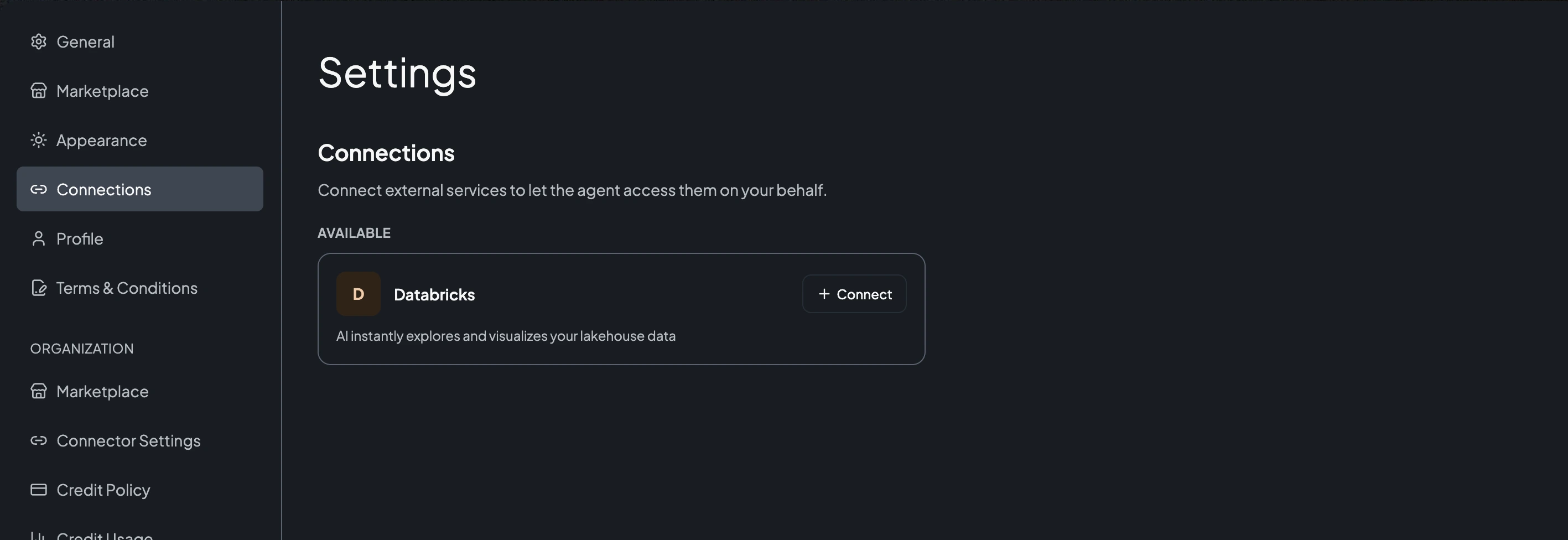
- Under Available, find the connector you want and click Connect.
- A popup opens the vendor's sign-in page. Sign in and approve the requested access.
- When the popup closes, the service appears in your connected list with the date you connected it.
You don't have to set up a connection in advance. If the agent needs a service you haven't connected yet — for example, Databricks or Snowflake — it shows a Connection Required card right in the conversation, so you can authorize without leaving the chat.
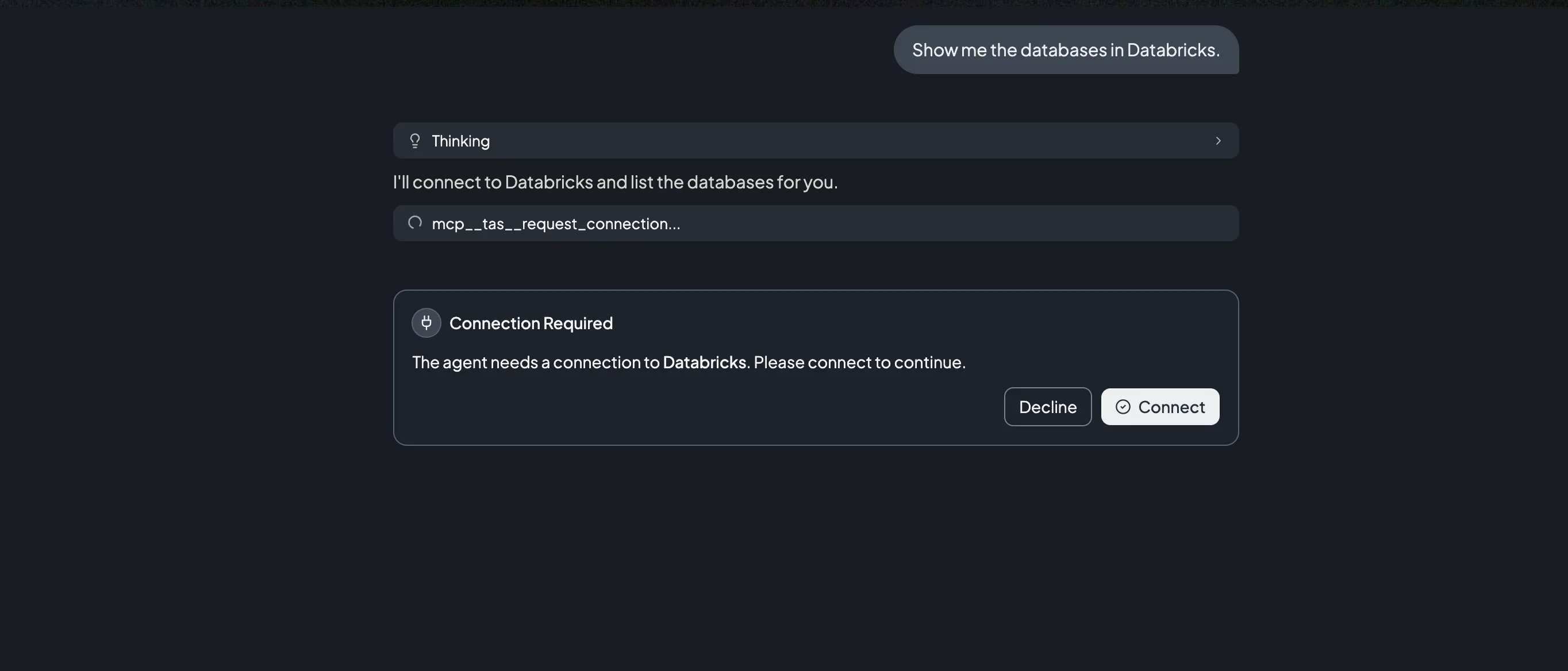
- When the agent needs a connection, a card appears in its reply: "The agent needs a connection to [service name]. Please connect to continue."
- Click Connect to open the vendor's sign-in popup, then sign in and approve the requested access — the same OAuth authorization you'd do from the Connections tab. Or click Decline if you don't want to connect.
- When authorization completes, the card updates to show the service as connected and the agent continues.
The connection created this way is a normal connection: it appears in Settings → Connections, is reused for later chats, and can be removed there at any time.
The card shows Connection declined if you decline, or Connection timed out if the request isn't completed in time. Just ask the agent again, or connect the service from Settings → Connections, to retry.
Click the delete (trash) icon next to a connected service to remove it. The agent immediately loses access through that connection; you can reconnect at any time.
If the Connections page shows "No connectors have been enabled for this account," ask an administrator to configure and enable a connector in Connector Settings.
Open Settings → Connector Settings (under Organization). This page lists the connectors configured for your account and lets you add, enable, and remove them.
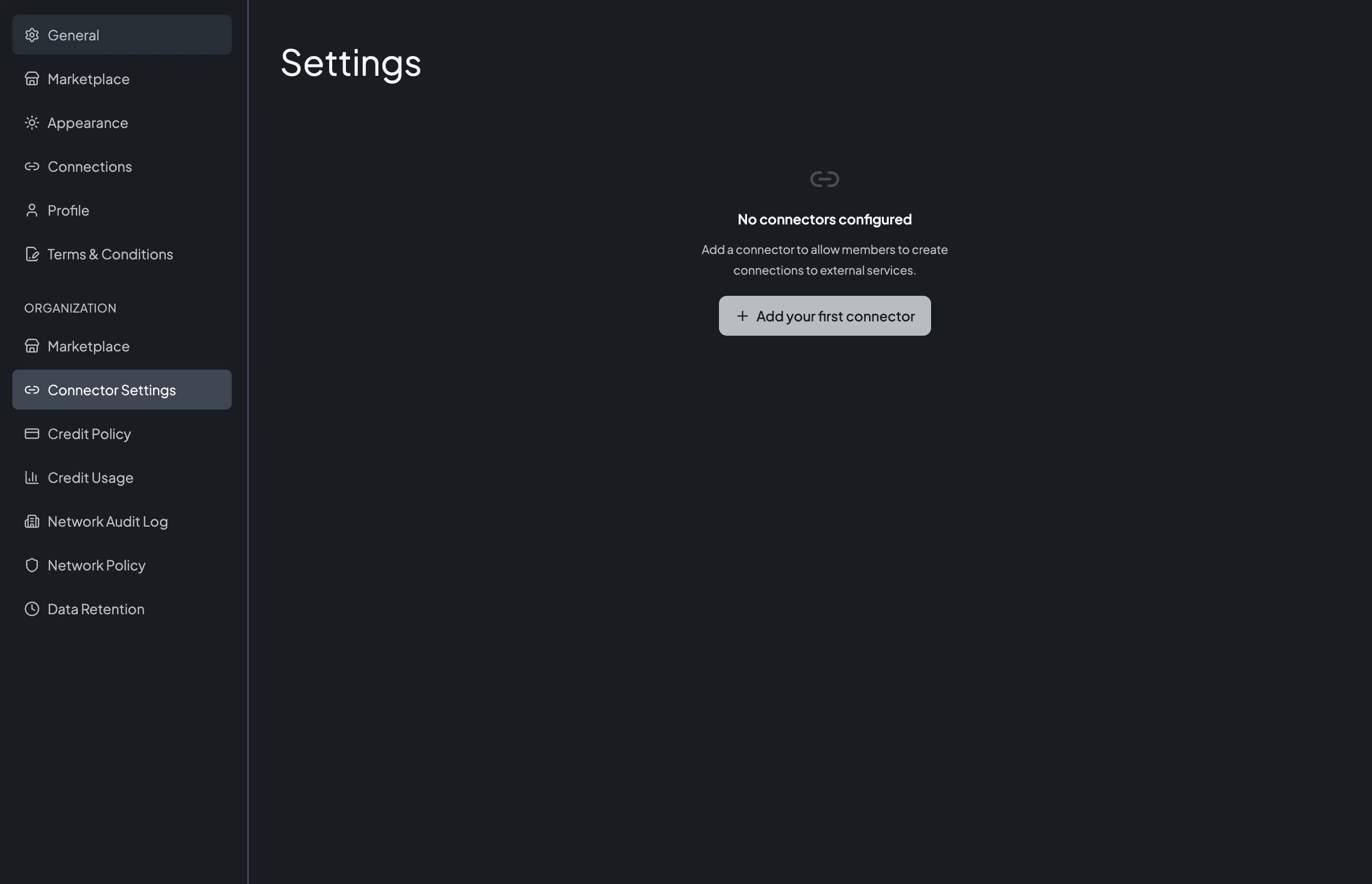
- Click Add Connector (or Add your first connector).
- In Select Connector, choose the connector you want to configure.
- Fill in the configuration form. Fields are specific to each connector — typically the service's URL and an OAuth application's client ID and client secret. Required fields are marked with an asterisk, and secrets are entered as masked password fields.
- Follow the Setup Guide shown on the form to create the OAuth application on the vendor's side and obtain those values. See the per-connector page for details (for example, Connect Databricks).
- Click Save.
- Each configured connector has an enable/disable toggle. Only enabled connectors appear to users on the Connections tab.
- Disabling a connector hides it from users and prevents new authorizations. Existing connections are preserved and keep working — to revoke them, delete the connector instead.
- Expand a connector to review its configured values (secrets stay masked), and use the delete (trash) icon to remove it. Deleting a connector also removes the connections people have made to it.
Disabling a connector stops new authorizations but does not interrupt connections that already exist — the agent can still use them. To cut off access immediately, delete the connector (this removes every connection to it). You can also revoke the authorization on the vendor side.
A connector lists the external egress domains it needs to reach. Because a new account is deny-by-default, you must allow those domains in your network policy — otherwise connections fail at runtime when the agent first calls the service. The required domains are shown next to each configured connector.
A connector whose requests are made outside the agent's sandbox lists no domains and shows no reminder — Treasure AI Voice and Slack are two. There is nothing to allow for those, because the network policy governs sandbox egress only.
| Connector | What It Enables |
|---|---|
| Treasure Data | The agent runs queries, workflows, and audience segments across your Treasure Data CDP. |
| Databricks | The agent explores and visualizes data in your Databricks lakehouse. |
| Snowflake | The agent explores and visualizes data in your Snowflake warehouse. |
| GitHub | The agent works with your repositories, issues, and pull requests using the gh CLI and git. |
| Treasure AI Voice | The agent reads your Treasure AI Voice recordings, AI summaries, action items, and transcripts. |
| Slack | The agent searches, reads, and posts Slack messages as you, across the channels, DMs, threads, and files you can see. |
Additional connectors are planned. Connectors that are not yet available do not appear in the catalog.
- One connection per connector, per user. Each user can hold a single connection to a given connector at a time. To switch accounts or workspaces, disconnect and reconnect.
- You can connect on demand. If the agent needs a service you haven't connected, it prompts you in the chat — you don't have to visit Settings → Connections first. See Connect from a chat.
- Connector configuration is per account. An administrator configures a connector once for the organization; every user authorizes against that same configuration.
- Tokens refresh automatically. Connections keep working across sessions; you only need to reconnect if the authorization is revoked on the vendor side.
- Disabling preserves existing connections. Turning a connector off hides it from new authorizations but does not delete connections users already have.
After reading this guide, you can:
- Explain the difference between a connector and a connection
- As a user, authorize and remove a connection from Settings → Connections
- As an administrator, add, configure, enable, and remove a connector in Settings → Connector Settings
- Describe how the agent uses a connection during a chat and why raw credentials are never exposed
| Issue | Solution |
|---|---|
| Connections page shows no connectors | Ask an administrator to configure and enable a connector in Connector Settings. |
| A connection fails when the agent uses it | Confirm the connector's egress domains are allowed in your network policy, and that the connection is still authorized on the vendor side. The Network Audit Log shows a block entry when the policy is the cause. |
| A connector disappeared from the Connections tab | An administrator may have disabled it. Existing connections are preserved and keep working; the connector reappears if it's re-enabled. |
- Connect Treasure Data CDP — Enable the connector and authorize a Treasure Data connection
- Connect Databricks — Configure and authorize a Databricks connection
- Connect Snowflake — Configure and authorize a Snowflake connection
- Connect GitHub — Authorize a connection and install the GitHub App
- Connect Treasure AI Voice — Let the agent read your recordings, summaries, and transcripts
- Connect Slack — Let the agent search, read, and post Slack messages as you
- Skills & Marketplace — How skills give the agent domain expertise
- Security Overview — How access control works in Studio