The Google Calendar connector lets Treasure AI Studio agents work with your schedule during a chat. An agent can read the calendars your Google account can see, search months of events for the one you half-remember, compare several people's busy time to find a slot that works, and then create or adjust the event itself. Use it when scheduling is the last step of something the agent already did — booking the review after it finished the analysis, or putting the campaign milestones on a calendar — so the work and the calendar entry don't live in two windows.
This connection can write, within a narrow surface: the agent creates events and updates existing ones. It cannot delete an event, create or delete a calendar, or change who a calendar is shared with. A created or updated event can carry guests, and Google invites them — see Guests and Notifications.
Read Connections first for the general model — the difference between a connector and a connection, and the administrator vs. user roles. This page covers the Google Calendar-specific steps.
Enable the Google Calendar connector for your account and authorize a connection, so the agent can read your calendars, find open time, and create or update events during a chat.
- Account administrator privileges in Treasure AI Studio — needed for Step 1 only (enabling the connector)
- A Google account with the calendars you want the agent to work with. The agent reads and writes as this account, so its reach follows that account's own calendar access — see What the Agent Can See
- Any calendar you want the agent to read must already be in that account's calendar list. The agent cannot subscribe to a calendar or add one to the list
Setting up Google Calendar touches two roles, each doing its part once. There is nothing to configure on the Google Cloud side — Treasure AI manages the OAuth application.
| Role | What They Do | How Often |
|---|---|---|
| Treasure AI Studio administrator | Adds the Google Calendar connector in Connector Settings and saves it. There are no fields to fill in. | Once for the organization |
| Each member | Authorizes their own connection from Connections, choosing which Google account to use and approving the requested access. | Once per person |
There is no OAuth application to register, no service account to create and share a calendar with, and no network policy rule to add. Each member's own Google account is the authorization.
Treasure AI manages the Google OAuth application for this connector, so there is nothing to create in the Google Cloud console and no client ID or secret to enter. The configuration form is empty.
- In Treasure AI Studio, open Settings → Connector Settings (under Organization).
- Click Add Connector (or Add your first connector) and choose Google Calendar.
- Click Save. There are no fields to fill in. The connector is saved already enabled, so Google Calendar appears under Available on every user's Connections tab straight away.
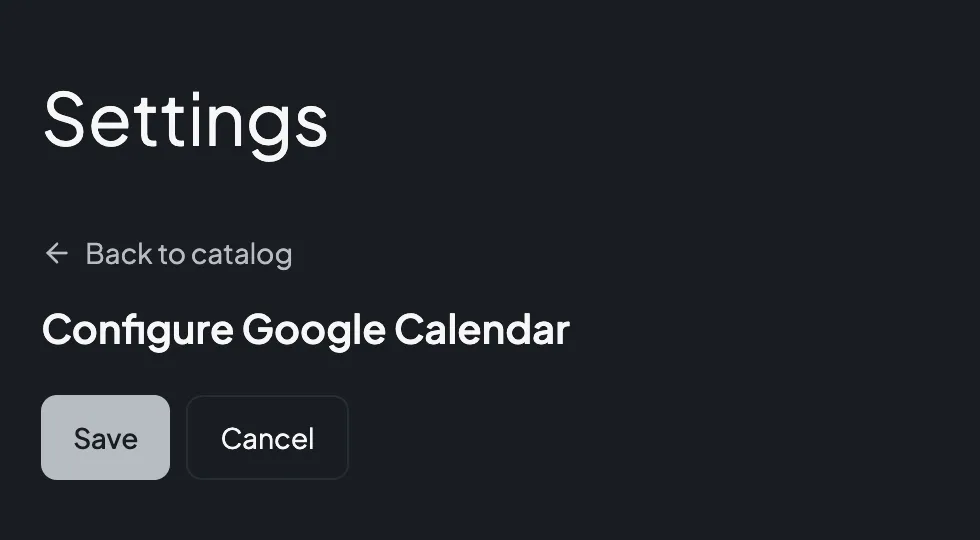

That is the whole administrator setup. The saved row carries an enable toggle, and turning it off does more than stop new authorizations: it withdraws Google Calendar from the agent's permitted actions at once, in chats that are already running as well as new ones. A chat in flight is not interrupted, but the next operation the agent attempts is refused, so every existing connection stops working until you turn it back on. Members keep their connections while it is off.
There is no read-only mode. Every member who connects gives the agent the ability to create and update events as them, and an event the agent creates can name guests — who then see it on their own calendar and, depending on the notification setting, receive an invitation email from Google. The guests can be anyone the member could invite themselves, inside or outside the organization.
The agent cannot delete an event, create or delete a calendar, or change a calendar's sharing. Decide that event creation on the member's behalf is acceptable before you enable it, and tell members that the agent's invitations arrive under their name.
The Google Calendar connector lists no egress domains, and Connector Settings shows no "allow this domain" reminder for it. That is deliberate: the agent's sandbox never calls the Calendar API. The request is made by Treasure AI's connector service outside the sandbox, so your network policy — which governs sandbox egress — does not apply to it and does not need a new rule.
Each member who wants the agent to work with their calendar authorizes their own connection. You can do this ahead of time from Settings, or on demand from a chat.
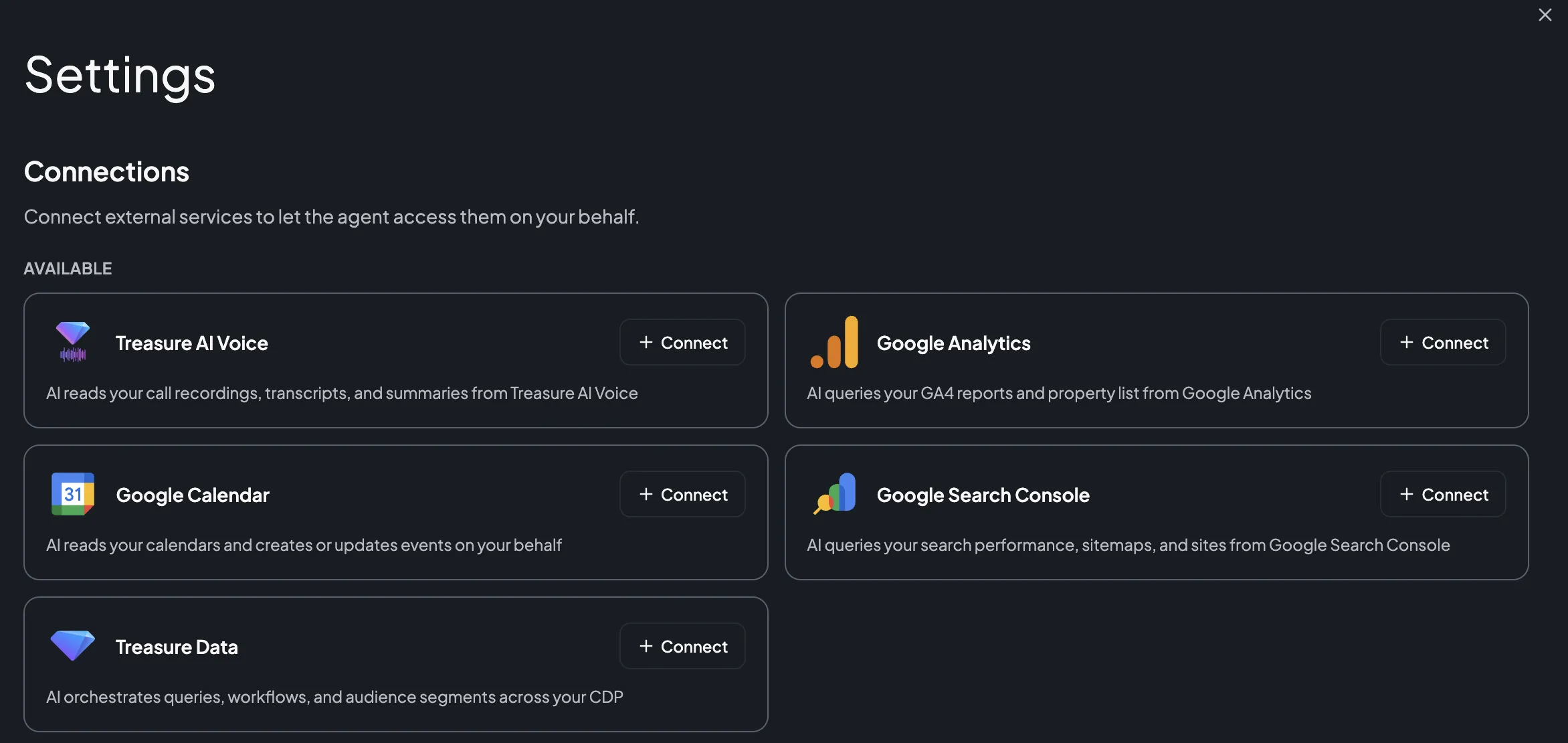
- Open Settings → Connections.
- Under Available, find Google Calendar and click Connect.
- In the Google popup, choose the Google account whose calendars you want the agent to work with. If you are signed in to more than one, pick deliberately — the connection carries whichever account you choose here.
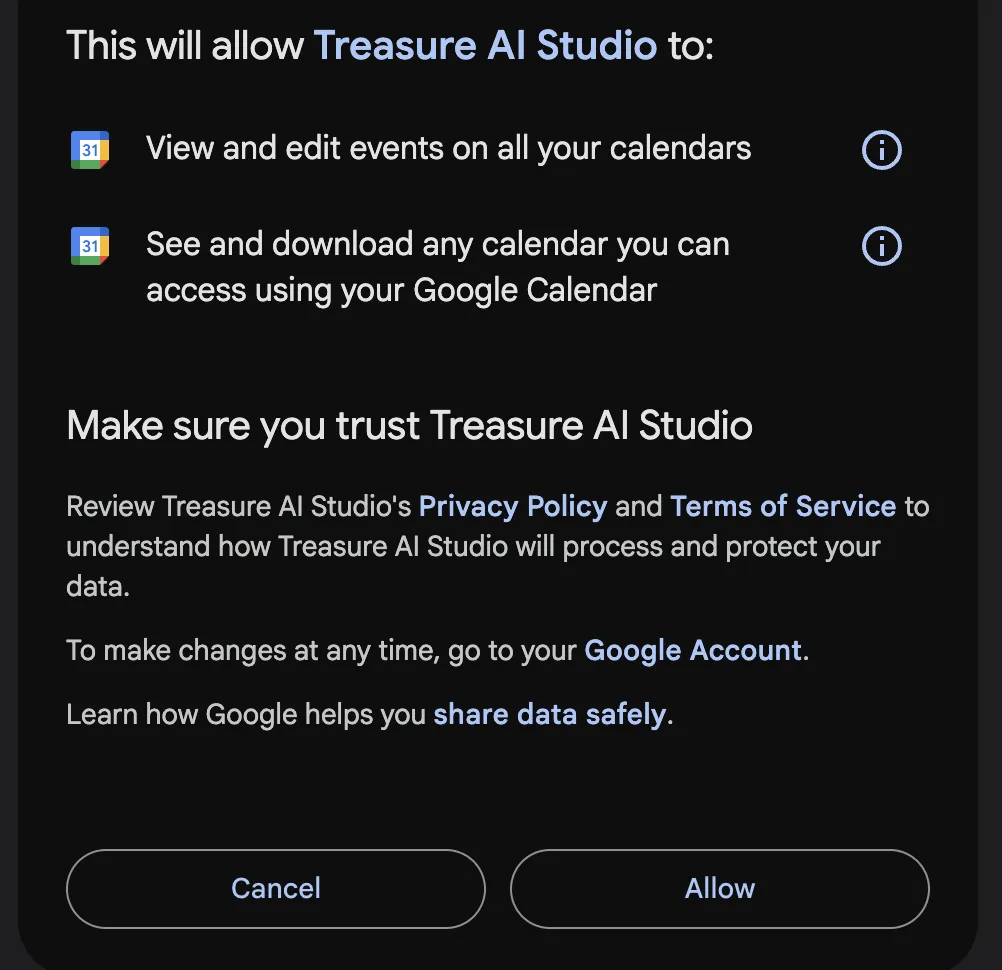
- Review the requested access and approve it. Google asks for two permissions: viewing your calendars, and managing events on them.
- When the popup closes, Google Calendar appears in your connected list with the date you connected it.
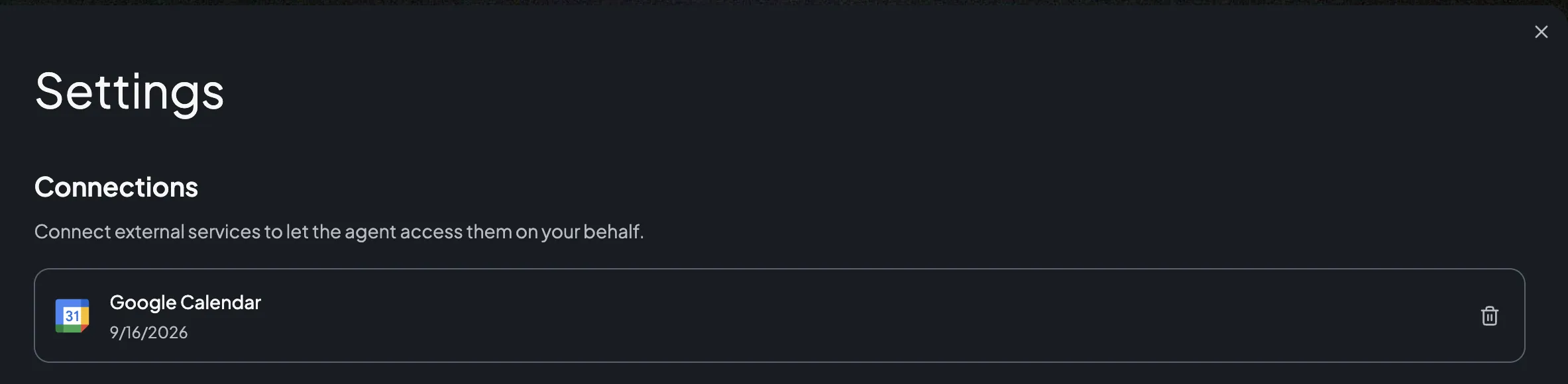
A connection authorizes one Google account, and through it every calendar in that account's calendar list. Studio holds one Google Calendar connection per member at a time, so to switch to a different Google account you delete the connection and authorize again.
To remove the connection later, click the delete (trash) icon next to it. The agent immediately loses access. Events it already created or changed stay exactly as they are — including invitations guests have already accepted — because they are ordinary events owned by your account. Google still lists Treasure AI Studio under your account's third-party access until you remove it there as well.
You don't have to authorize in advance. If you ask the agent about your schedule before you've connected, it shows a Connection Required card in the chat — click Connect there to run the same authorization without leaving the conversation. The card names the connector by its internal id, googlecalendar. See Connect from a chat.
Once Google Calendar is connected, ask the agent in plain language — no commands and no configuration in the chat. For example:
- "What's on my calendar tomorrow? Group it by which project each meeting belongs to."
- "Find a 45-minute slot next week where I,
taro@example.com, andhanako@example.comare all free, in Asia/Tokyo." - "Find the event where we reviewed the Q3 segment counts — I think it was in August."
- "Book the analysis review for Thursday at 2pm with the marketing ops team, and put the query results in the description."
- "Move my 3pm to 4pm and let the guests know."
- "Which of my recurring 1:1s did I actually hold last month?"
The agent chooses its own operations. For scheduling it typically checks busy time across the people you named, proposes a slot, and creates the event once you agree. Give it the time zone when it matters — Google stores an event's time with an IANA time zone such as Asia/Tokyo, and an all-day event as a plain date instead.
An event the agent creates is indistinguishable from one you created: it lands on every guest's calendar, and Google may email them an invitation immediately. Ask the agent to show you the title, time, time zone, and the exact guest list before it writes, especially when guests are outside your organization. The agent cannot delete the event afterwards — it can only update it — so a wrong invitation has to be cleaned up in Google Calendar by you.
An event the agent creates or updates can carry guests, and Google treats them exactly as it treats guests you added yourself. Two things follow.
Guests always see the event. Adding someone as a guest puts the event on their calendar. The notification setting only controls whether Google also sends them an invitation email — it does not control whether they get the event. The agent can request that all guests be notified, that only guests outside your organization be notified, or that nobody be notified; if it does not ask for a particular behavior, Google applies its own default.
Changing the guest list means sending the whole list. Google stores an event's guests as one list, so an update replaces it rather than adding to it. When you ask the agent to add one person to an existing meeting, it has to read the event's current guests and send them back along with the new one. Say "add X, keep everyone else" rather than "invite X" when the meeting already has guests, and check the result — the agent has the operations it needs to get this right, but the instruction removes the ambiguity.
Every other field behaves the other way round: an update only changes what the agent actually specifies. Asking it to shift a meeting by an hour does not clear the description, the recurrence, or the conference link.
These are the operations the agent can use. It picks them itself from what you ask for — there is no command syntax for running one directly, though naming an operation in your message does steer the agent toward it.
| Area | Operations | What They Do |
|---|---|---|
| Calendars | googlecalendar.list_calendars | List the calendars in the connected account's calendar list, with that account's access role for each. Up to 250 per request, paged. |
| Reading events | googlecalendar.list_events, googlecalendar.list_events_all_calendars, googlecalendar.get_event, googlecalendar.list_event_instances | List events on one calendar or across several at once (the multi-calendar form aggregates the results and reports per-calendar errors), read one event in full, and expand the instances of a recurring event. Filters include a time window, a full-text query, event types, and whether to expand recurrences. Up to 2,500 events per request, paged. |
| Searching events | googlecalendar.find_event | Search a calendar's events by a full-text query string, optionally bounded by a time window and sorted. Up to 2,500 results, paged. |
| Open time | googlecalendar.free_busy_query, googlecalendar.find_free_slots | Read busy intervals for a set of calendars or groups over a time window, or have the connector derive the free slots from them. Groups expand to at most 100 calendars each, and at most 50 calendars are returned after expansion. |
| Writing events | googlecalendar.create_event, googlecalendar.update_event | Create an event, or update an existing one. Writable fields are the title, description, location, start and end, guests, recurrence rules, conference data, reminders, color, visibility, whether it blocks time, status, attachments, extended properties, and source. Both take a guest-notification setting. An update reads the event first and changes only the fields it is given. |
Everything below is blocked by account policy and cannot be enabled per account or per member:
- No event deletion. The agent creates and updates events; removing one is your job in Google Calendar. It can still mark an event canceled through an update, which is how Google represents a canceled event — the entry stays on the calendar rather than disappearing.
- No moving, importing, or one-line event creation. The agent cannot move an event to another calendar, import one, or create an event from a single line of natural-language text. It builds an event from the fields it was given, on the calendar you named.
- No calendar management. The agent works with the calendars already in your list. It cannot create, delete, rename, or wipe a calendar, and it cannot add one to your list or take one out of it.
- No sharing changes, and no reading who has access. The agent cannot grant anyone access to a calendar, change what they can do, or take access away — and it cannot tell you who already has access.
- No calendar settings. Time zone, working hours, color definitions, and the rest of your Google Calendar settings are out of reach.
- No other Google products. This connector reaches Google Calendar only. Google Search Console and Google Analytics are separate connectors, each with its own authorization.
- No reliable Google Meet link. The agent is not a dependable way to mint a new Meet link for an event. Create the event in Google Calendar when the conference link is the point.
The Google Calendar connector carries your own Google authorization, so the connected Google account's calendar access decides its reach:
- Every calendar in that account's calendar list — your own calendars, plus the ones other people or your organization have shared with you and you have added. Calendars you have never added are out of reach, and the agent cannot add them.
- The detail each calendar's sharing level allows. A calendar shared with you as free/busy only returns busy blocks, not titles or guests; the agent sees exactly what you see in Google Calendar and no more.
- Busy time for anyone you can query. Free/busy lookups follow Google's own rules — you can see whether a colleague is busy at a time without being able to read the event.
- Writes only where that account could write. Creating or updating an event on a calendar needs the same access Google requires of a person doing it by hand. On a calendar shared with you read-only, writes fail on Google's side.
Google enforces this when the request arrives, not Treasure AI Studio, and no prompt can widen it. The agent can narrow the view — tell it to look at one calendar, or one week — but never widen it.
The authorization covers every calendar in your list, including personal ones you have added and events whose titles are sensitive. An agent searching for a topic can surface one of those in your chat, and a chat you share with a colleague shows them what it found. If that is not acceptable, remove the calendar from that Google account's list, or connect a Google account that only holds work calendars.
| Item | Value |
|---|---|
| Connector | Google Calendar |
| Internal id | googlecalendar — the id the Connection Required card shows in a chat |
| Authentication | OAuth 2.0 Authorization Code with PKCE (user-to-machine), platform-managed Google OAuth application |
| Google scopes requested | Two: https://www.googleapis.com/auth/calendar.readonly and https://www.googleapis.com/auth/calendar.events. Scopes for calendar management, settings, and sharing are deliberately not requested |
| Required configuration | None. The administrator saves the connector with no fields to fill in |
| Access | Read plus event writes — reading calendars and events, free/busy lookups, and creating or updating events. Calendar management, calendar sharing, and event deletion are not available |
| Google API used | Google Calendar API v3 |
| Agent identity | Acts as the authorizing Google account. Events it creates show that account as the organizer, and invitations arrive under that person's name |
| Where requests are made | Treasure AI's connector service, outside the agent's sandbox |
| Egress domains | None — the sandbox never reaches the Calendar API, so no network policy rule is required |
| Events per read | 2,500 maximum, paged. The multi-calendar read applies that limit per calendar |
| Calendars per read | 250 maximum, paged |
| Free/busy expansion | At most 100 calendars expanded per group, and at most 50 calendars returned after expansion |
| Time format | An RFC 3339 timestamp plus an IANA time zone (for example Asia/Tokyo) for a timed event, or a plain YYYY-MM-DD date for an all-day event |
| Guest notification | Chosen per write: notify all guests, notify only guests outside your organization, or notify nobody. Google's own default applies when the agent does not specify one. Guests receive the event on their calendar either way |
| Concurrent edits | An update sends the event's current version tag. If someone else changed the event in between, the connector re-reads and retries once, then fails rather than overwriting their change |
| Token lifetime | Short-lived access tokens, refreshed automatically, so a connection keeps working across sessions without reconnecting |
| Connections per member | One, covering one Google account and every calendar in its list |
| Issue | Solution |
|---|---|
| Google Calendar isn't listed on the Connections tab | An administrator must add the Google Calendar connector in Connector Settings and enable it. |
| The agent can't see a calendar you use | The calendar must be in the connected Google account's calendar list. Add it in Google Calendar, then ask again — the agent cannot subscribe to a calendar itself. Also confirm you authorized the Google account that actually holds the calendar; the popup's account picker is easy to click through. |
| The agent sees a meeting but not its title or guests | The calendar is shared with you as free/busy only. The agent inherits your view, so there is nothing to widen on the Treasure AI side. Ask the calendar's owner for fuller access. |
| Guests disappeared from an event the agent updated | An update replaces the guest list rather than adding to it. Re-add the missing guests, and next time tell the agent to keep the existing guests — see Guests and Notifications. |
| The agent invited someone you didn't intend to invite | Update the event to the correct guest list. The agent cannot delete the event, so remove it in Google Calendar if the whole event was wrong. Ask for a confirmation of the guest list before the write next time. |
| A guest says they got no email | Google sends invitation emails according to the notification setting used for that write, and the event still appears on their calendar without an email. Ask the agent to update the event and notify all guests. |
| The agent says the event changed while it was updating | Someone else edited the event at the same moment. The connector re-reads and retries once before failing, so simply ask again. |
| The agent can't create an event on a calendar | It writes as you, so it can only write where you could write yourself. Check your access to that calendar in Google Calendar, or ask the agent to use your primary calendar instead. |
| You asked the agent to delete an event and it refused | Expected. Deleting an event is blocked for every account. Delete it in Google Calendar, or ask the agent to update it instead. |
| You asked the agent to share a calendar and it refused | Expected. Every access-control operation is blocked, including reading who has access. Change sharing in Google Calendar. |
| The agent says the connection needs to be reconnected | The authorization expired or was revoked on the Google side — including by removing Treasure AI Studio from your Google account's third-party access. Reconnect from Settings → Connections. |
| The connector disappeared from the Connections tab | An administrator may have disabled it. Your connection is kept, but the agent cannot use Google Calendar until the connector is enabled again. |
- Connections — The general connection model and administrator controls
- Connect Google Search Console — Let the agent read your Google Search performance data
- Connect Slack — Let the agent search, read, and post Slack messages as you
- Skills & Marketplace — How skills give the agent domain expertise
- Security Overview — How access control works in Studio