The GitHub connector lets Treasure AI Studio agents work with your GitHub repositories during a chat — cloning code, reading and editing files, opening and reviewing pull requests, and managing issues on your behalf. The agent uses the gh CLI and git over HTTPS inside its sandbox, authenticated by your connection. Like the Treasure Data connector, there is no OAuth application to create on the vendor side.
Setup has three parts, each done by a different role: a Studio administrator enables the connector, someone with rights on a GitHub account or organization installs the Treasure AI GitHub App on the repositories the agent may access, and each user authorizes their own connection. The middle part happens entirely on GitHub's side and is not tied to your Studio account — see GitHub App Installations Are Separate From Your Studio Account.
Read Connections first for the general model — the difference between a connector and a connection, and the administrator vs. user roles. This page covers the GitHub-specific steps.
Enable the GitHub connector, install the Treasure AI GitHub App on the repositories the agent may access, and authorize a connection so the agent can work with your code, issues, and pull requests. You'll also see exactly which actions the GitHub App is permitted to perform.
- Account administrator privileges in Treasure AI Studio — needed for Step 1 only (enabling the connector)
- Rights on GitHub to install a GitHub App where you want the agent to work — needed for Step 2 only. You can install on a personal account you own; installing on an organization requires organization owner rights. This is a GitHub permission and has nothing to do with your Studio role.
Because Treasure AI manages the GitHub App and its OAuth client, there is nothing to register on the vendor side and no client ID or secret to enter — enabling the connector just makes GitHub available on the Connections tab.
- In Treasure AI Studio, open Settings → Connector Settings (under Organization).
- Click Add Connector (or Add your first connector) and choose GitHub.
- The GitHub connector has no configuration fields to fill in — click Save to add it.
- Make sure the connector is enabled so users can authorize connections to it. GitHub then appears under Available on every user's Connections tab.
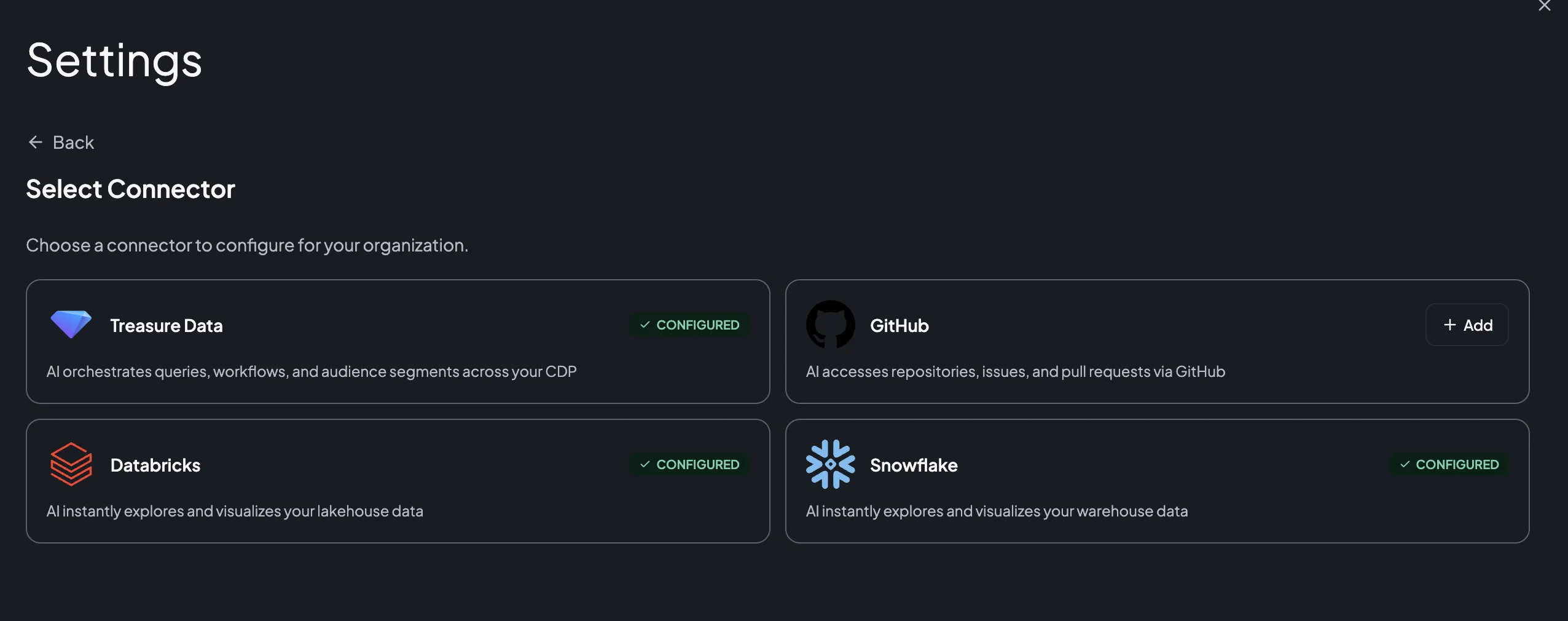
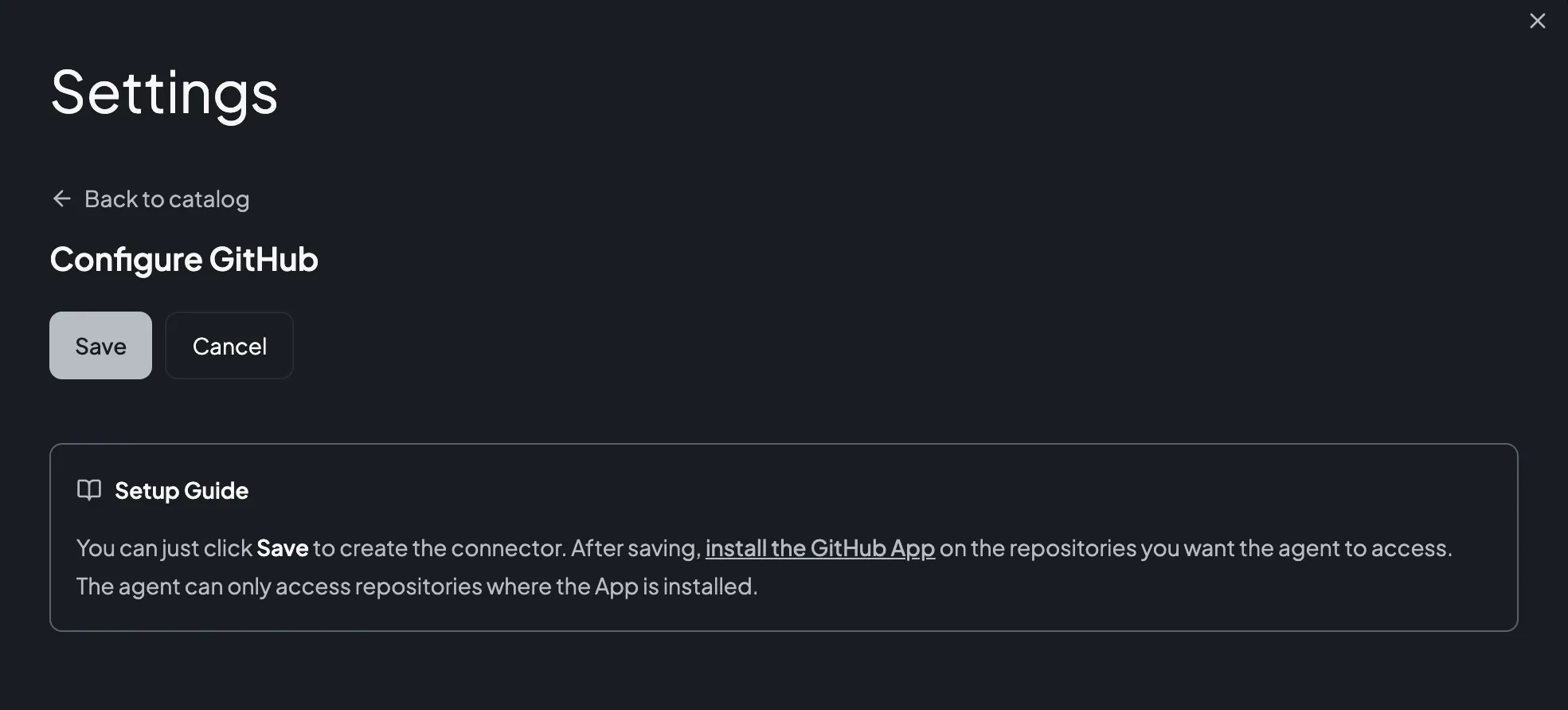
The Setup Guide panel beside the form links to the GitHub App installation page. The panel itself belongs to the add-connector form and appears only while you are adding the connector — but the link it carries does not disappear with it. After you click Save, the saved connector row offers an expander (which shows the connector's stored configuration fields, of which GitHub has none), an enable toggle, and a delete button.
Below those, the row shows a reminder for each domain the connector needs to reach and, at the bottom, an always-visible note linking to the GitHub App installation page:
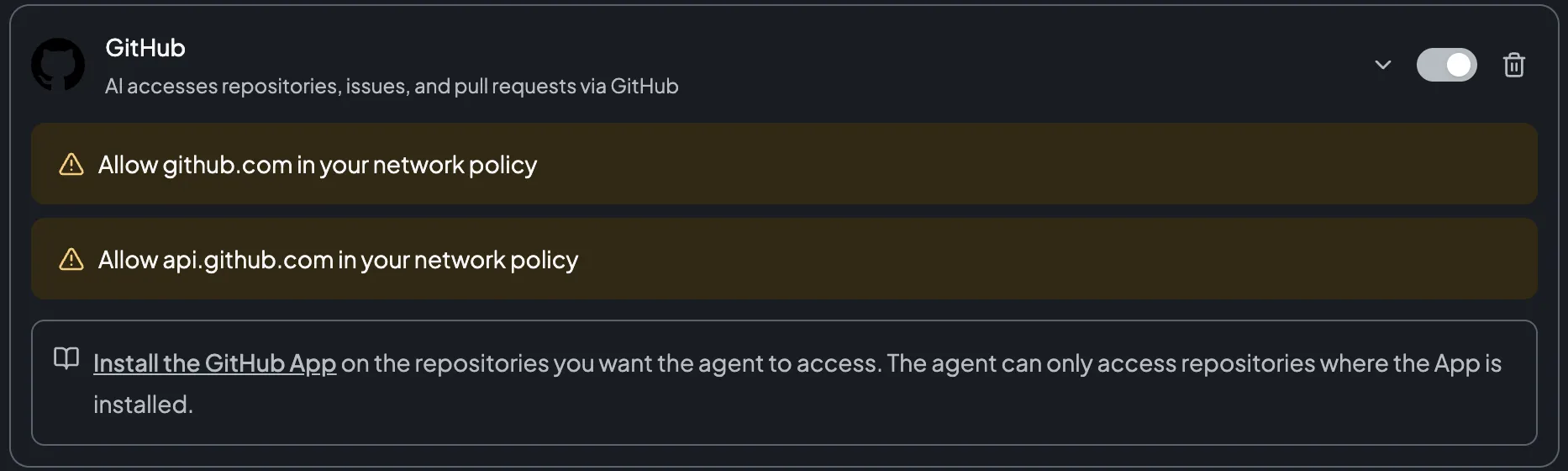
The reminders are listed for every connector that declares egress domains, and stay visible whether or not your network policy already allows them — they tell you what the connector requires, not that something is misconfigured. The note below them repeats the installation-page link, so you can reach it at any time — not only while adding the connector. (It's a public GitHub URL in any case, given in full in Step 2.)
The Databricks and Snowflake connectors require an administrator to create an OAuth application in the vendor's console and paste its client ID and secret. The GitHub connector skips all of that — the GitHub App and its OAuth client are provided and managed by Treasure AI, so the configuration form is empty.
If your account uses a network policy, allow the connector's egress domains — github.com and api.github.com — so the agent's sandbox can reach GitHub. Connector Settings shows the domains each connector requires.
Installing the App is what actually grants access: the agent can only reach repositories where the Treasure AI GitHub App is installed. This is the control that scopes what the agent can touch — install it only on the repositories you want the agent to work with.
The App is published on GitHub as Treasure AI GitHub Integration, owned by the treasure-data organization:
| Page | URL |
|---|---|
| App listing (description and permissions) | https://github.com/apps/treasure-ai-github-integration |
| Install (choose an account or organization) | https://github.com/apps/treasure-ai-github-integration/installations/new |
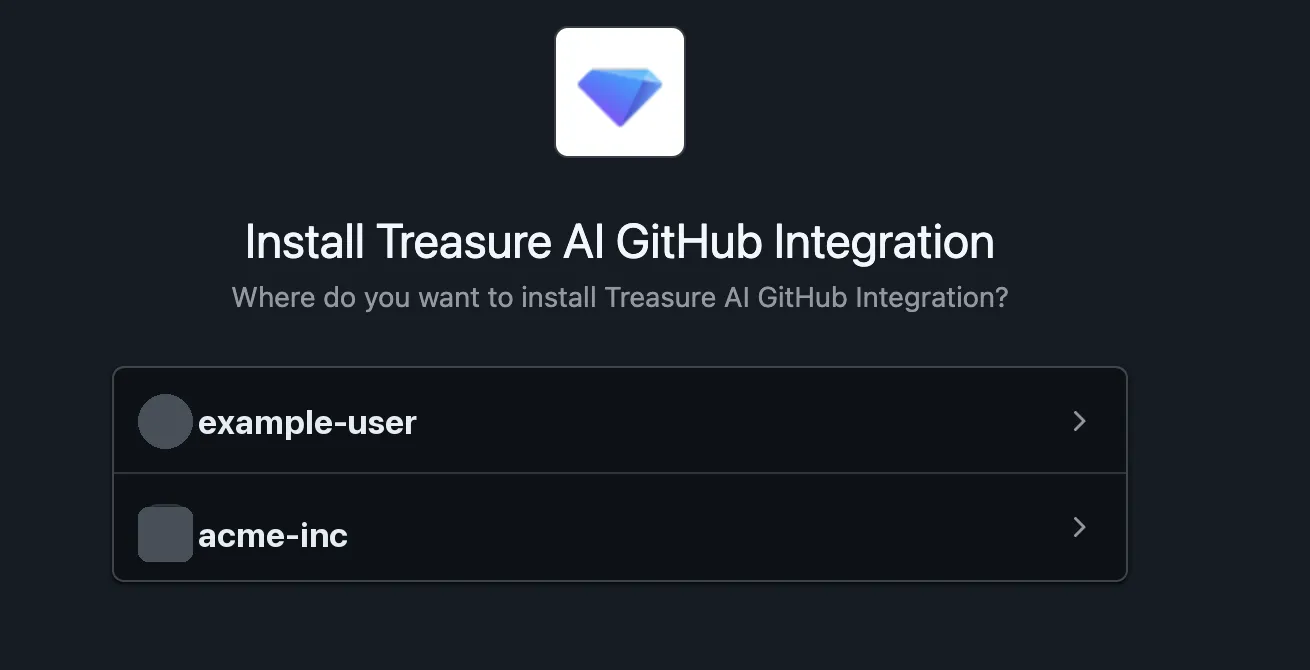
- Open the installation page. You must be signed in to GitHub.
- Choose the organization or personal account to install into. GitHub lists only the accounts where you are allowed to install an App — your own personal account, plus any organization you have install rights in. If the organization you need is missing, ask an organization owner to install it (GitHub also lets organization members send an installation request to the owners).
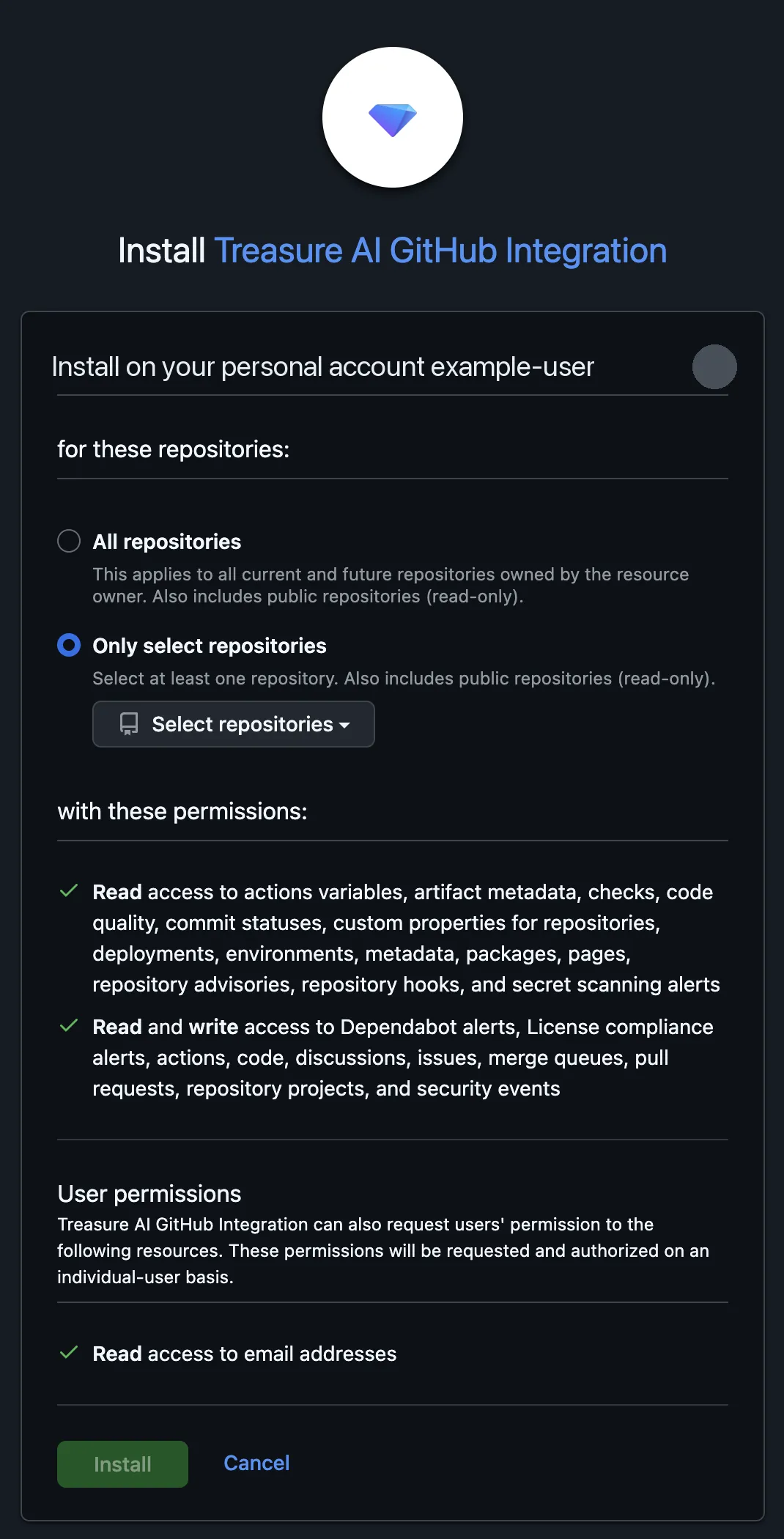
- Select All repositories or Only select repositories, and pick the repositories you want the agent to access. GitHub's own notes on this screen are worth reading: All repositories applies to all current and future repositories owned by that account, and either choice "also includes public repositories (read-only)".
- Review the permissions (see What the GitHub App Can Access below) and click Install. The screen also lists User permissions — the access requested from each user individually when they authorize their connection in Step 3.
You can repeat this for as many accounts and organizations as you need — see Installation Examples.
To change which repositories the agent can reach later, or to remove access entirely, go to the installation's Configure page on GitHub: Your organizations → Settings → GitHub Apps for an organization, or Settings → Applications → Installed GitHub Apps for a personal account. Nothing needs to change in Studio when you do.
Installing the App and authorizing your connection are independent, so you can do them in either order. This page installs the App first because that makes the access boundary easier to see. Either way, the agent can work with a repository only once both are in place.
With the connector enabled and the App installed, each user who wants the agent to access GitHub authorizes their own connection. You can do this ahead of time from Settings, or on demand from a chat.
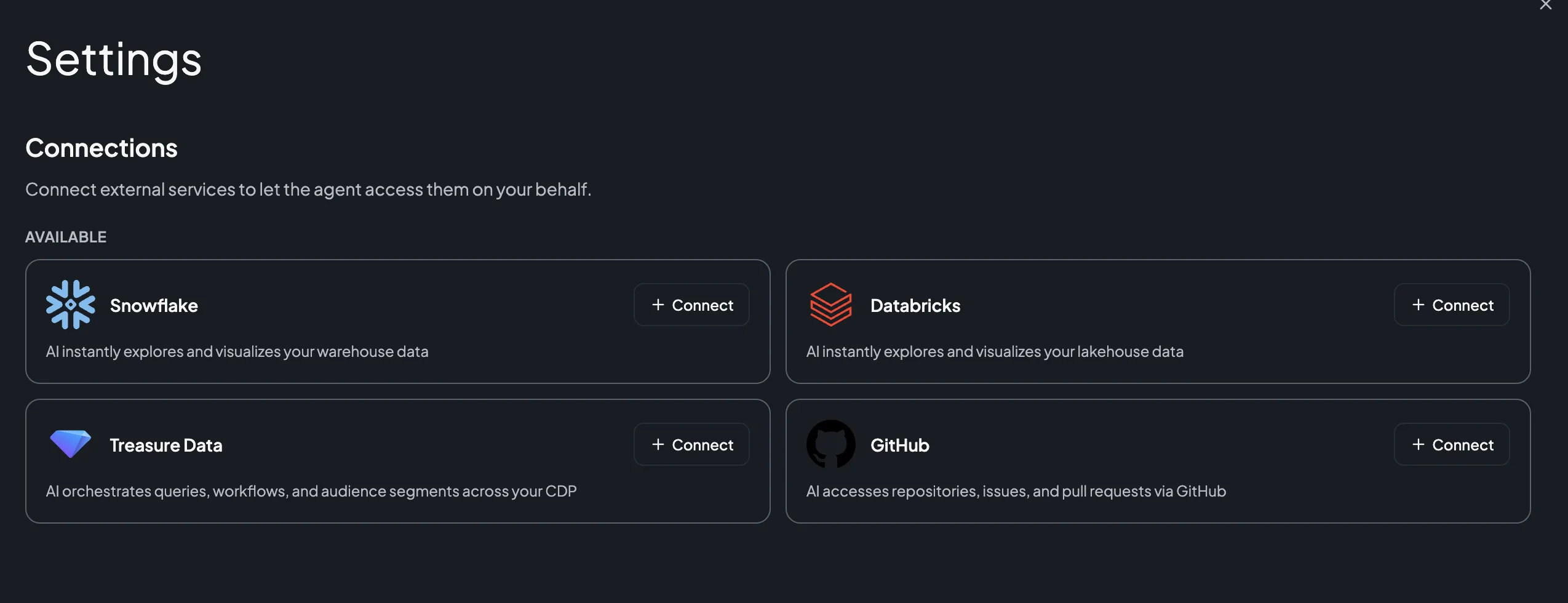
- Open Settings → Connections.
- Under Available, find GitHub and click Connect.
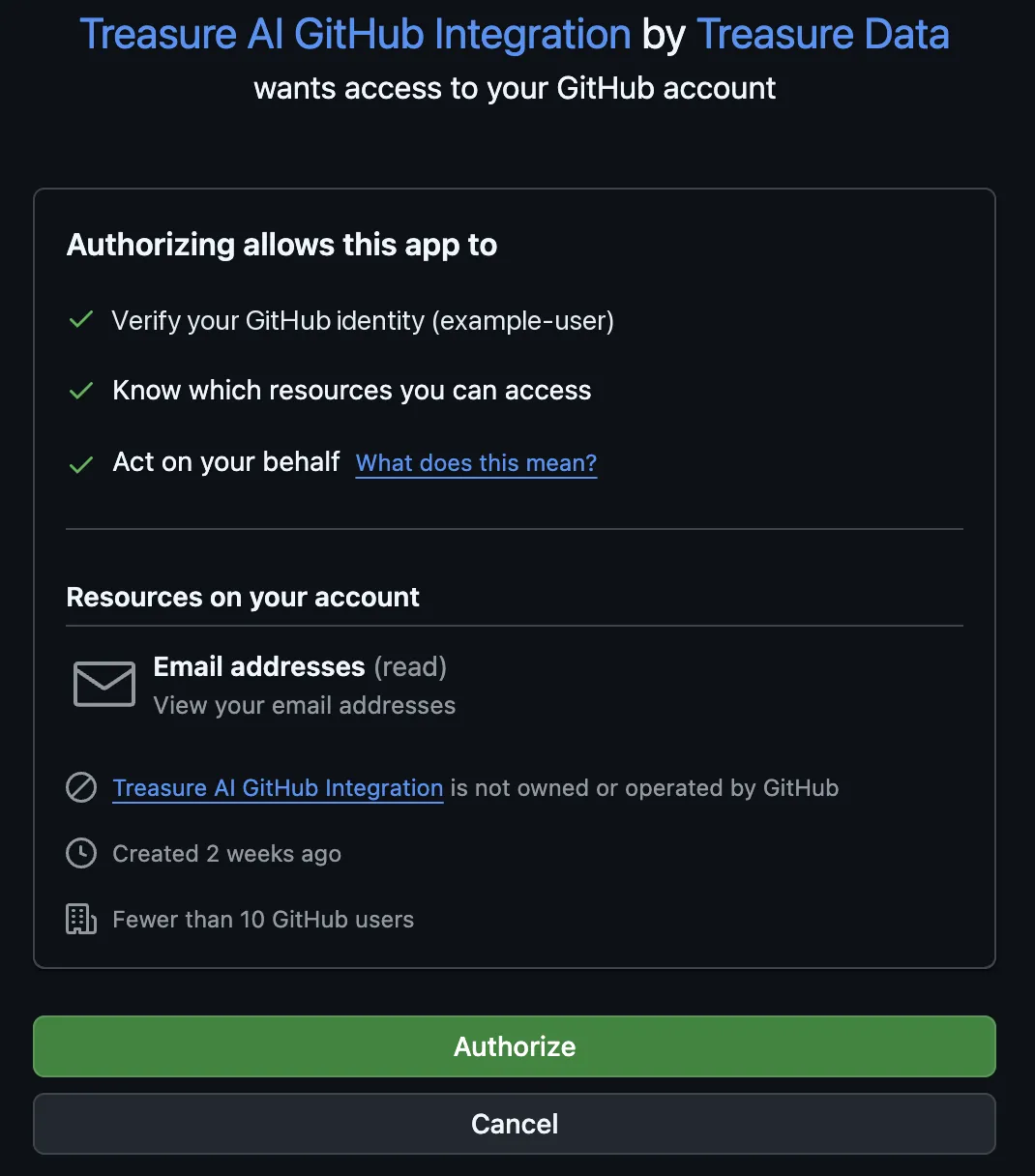
- Sign in to GitHub in the popup and approve the requested access. GitHub's authorization screen names the exact account you are authorizing as — Verify your GitHub identity (your-handle) — and lists the rest of what it grants: knowing which resources you can access, acting on your behalf, and read access to your email addresses. Approving it returns you to Studio and closes the popup.
- When the popup closes, GitHub appears in your connected list with the date you connected it, and a delete (trash) icon beside it.
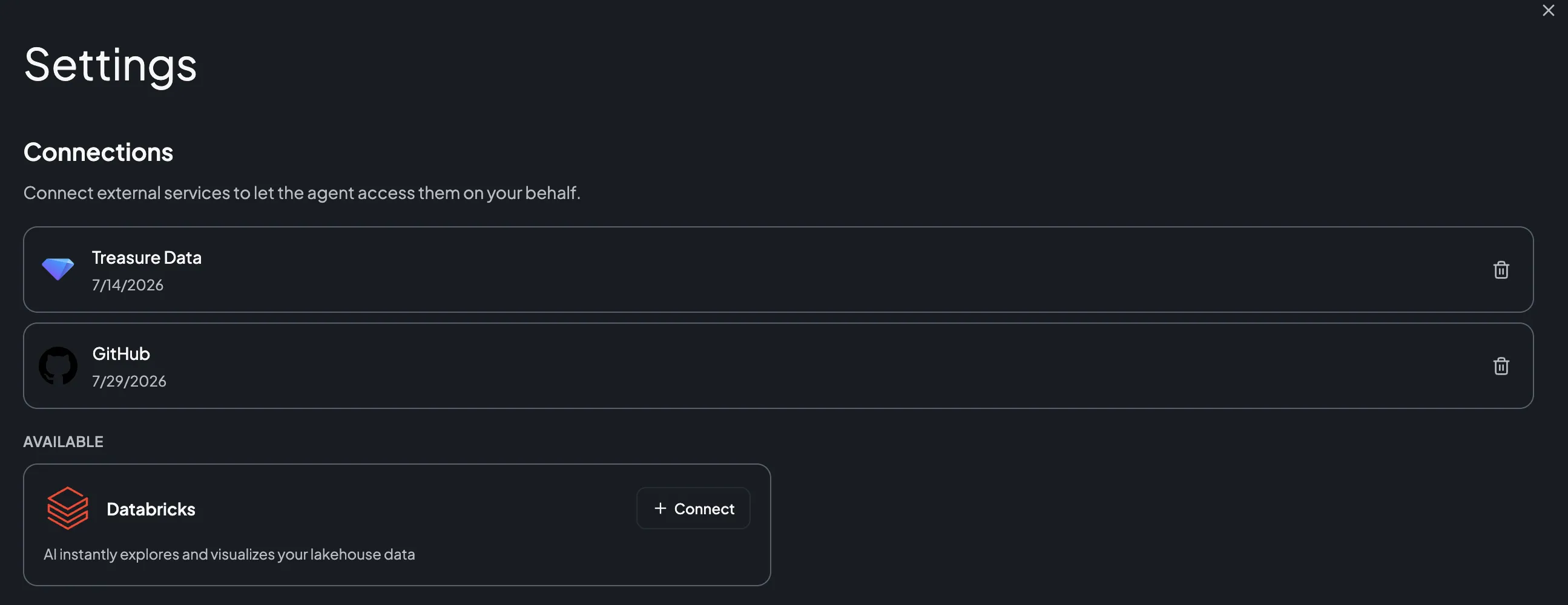
To remove the connection later, click that delete (trash) icon. Deleting it removes the authorization stored in Studio; it does not uninstall the GitHub App.
You don't have to authorize in advance. If you ask the agent to work with GitHub before you've connected, it shows a Connection Required card in the chat — click Connect there to run the same authorization without leaving the conversation. See Connect from a chat.
The agent authorizes as you and acts with your GitHub identity — commits it creates are attributed to your account. Crucially, the agent can reach a repository only when both conditions hold: the GitHub App is installed on that repository (Step 2), and your own GitHub account has access to it. In other words, the agent's reach is the intersection of the App's installed repositories and your personal access — never more than you could reach yourself.
One connection covers every account and organization where the App is installed. You authorize GitHub once, and the agent can then work across all of those repositories that you personally have access to — you don't create a separate connection per organization.
If you've authorized your connection but the agent still can't see or reach a repository you expect, it's almost always because the Treasure AI GitHub App isn't installed on that repository. Installing it is a GitHub-side action (Step 2), not something you can do from Connections — so either install it yourself if you own the account, or ask an owner of that GitHub organization. Note that a repository you can't access yourself won't become reachable either.
Once connected, ask the agent to work with your repositories — for example, to clone a repository, summarize recent changes, open a pull request, review a PR, or triage issues. The agent runs gh and git commands with your connection automatically; no extra configuration is needed in the chat. The gh CLI is pre-authenticated inside the sandbox, so the agent never runs gh auth login.
A GitHub App is always installed into a GitHub account — either a personal account or an organization. That installation is the object GitHub creates; what it grants is then scoped to repositories inside that account, either All repositories or a list you select. So the target of an install is an account, while the access it hands out is per repository. It is not installed into Treasure AI Studio, and GitHub has no concept of your Studio account when you install it. This trips people up because the link to the installation page appears inside Studio, which makes it look like the two are being paired.
They are not. Reaching the installation page from a Studio account does not associate that GitHub account with that Studio account, and Treasure AI stores no mapping between them. A single App — Treasure AI GitHub Integration — serves every Studio account in every region. One installation is therefore not bound to whoever created it: any Studio user who authorizes with a GitHub account that can reach those repositories gets the same access.
What actually controls access is this pair of conditions: the Treasure AI GitHub App must be installed on the repository (Step 2), and the person authorizing the connection must have access to that repository with their own GitHub account (Step 3). Because the second condition always applies, a shared installation can never give anyone more than they already had on GitHub.
The practical consequences:
| Fact | What it means for you |
|---|---|
| Installation is a GitHub-side object | You install the App once per GitHub account or organization, not once per Studio account. Colleagues in other Studio accounts who work in the same GitHub organization don't need their own installation. |
| Studio identity ≠ GitHub identity | Signing in to Studio as one person and authorizing GitHub as a different GitHub account is allowed. The agent acts as the GitHub account you authorized, and commits are attributed to it. GitHub's authorization screen names the handle it is authorizing, so you can confirm which account that will be before you approve. |
| The two lifecycles are independent | Deleting your connection in Studio does not uninstall the App from GitHub, and uninstalling the App on GitHub does not delete your connection in Studio. To fully cut off access, do both. |
| Nothing in Studio scopes the repositories | Which repositories the agent may touch is decided only on GitHub, on the installation's Configure page. There is no repository allowlist in Connector Settings. |
Because one installation applies to everyone who can see it, installing the App on a shared organization grants agent access to those repositories for every GitHub member of that organization who authorizes a connection — each limited to their own repository access. Treat the install as an organization-level decision, and use Only select repositories if you want to start narrow.
These are the three situations that come up most often when installing the Treasure AI GitHub Integration App, and what each one requires.
Your team's repositories live in a company GitHub organization, and you want the agent available to everyone who works in them.
- A Studio administrator enables the GitHub connector once (Step 1).
- A GitHub organization owner installs the App on that organization, choosing Only select repositories and picking the repositories agents may work with (Step 2).
- Each team member authorizes their own connection (Step 3). No further GitHub-side action is needed per person.
Every member's agent is then scoped to the intersection of the selected repositories and that member's own access, so someone with read-only access to a repository cannot have the agent push to it.
If you are a member of the organization but not an owner, the same page turns into a request instead: the button reads Request rather than Install, and GitHub sends the request to the organization's owners to approve.
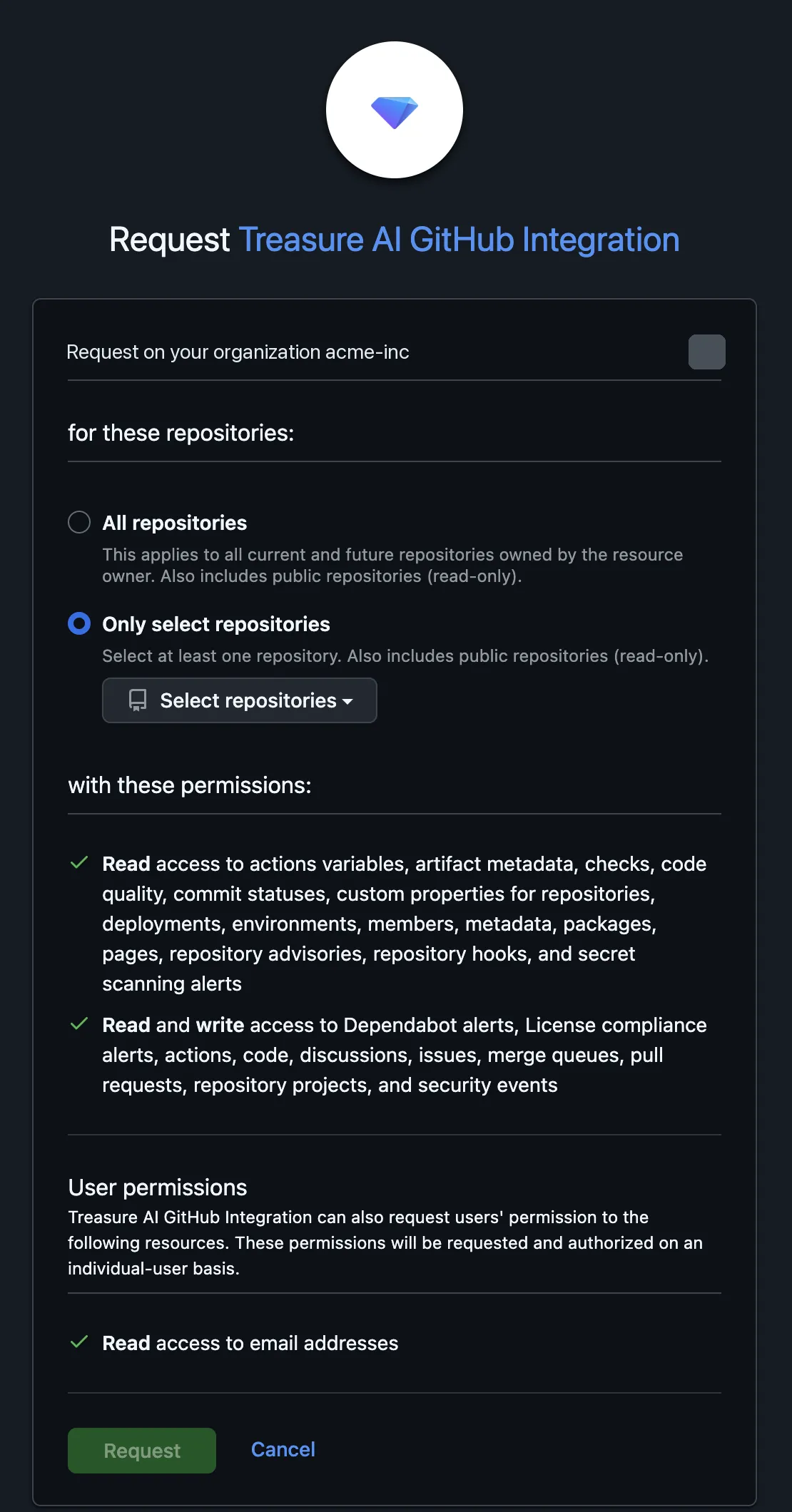
You already work with your company's organization, and now you also want the agent to work with repositories somewhere else — your own personal account, a second organization, or a client's organization.
- Open the installation page again and install the App into the additional account or organization. You need install rights there; for your own personal account, that's just you.
- Nothing changes in Studio — no new connector, and no second connection. Your existing GitHub connection already covers every account where the App is installed.
This is the case that most clearly shows the separation: no Studio administrator is involved, and no Studio setting records the new organization.
The App is already installed, but a repository the agent needs wasn't included — or you want to remove one.
- On GitHub, open the installation's Configure page: Your organizations → Settings → GitHub Apps → Treasure AI GitHub Integration for an organization, or Settings → Applications → Installed GitHub Apps for a personal account.
- Under Repository access, add or remove repositories, then Save.
- Nothing changes in Studio, and you don't re-authorize your connection — the same connection now covers the updated repository selection.
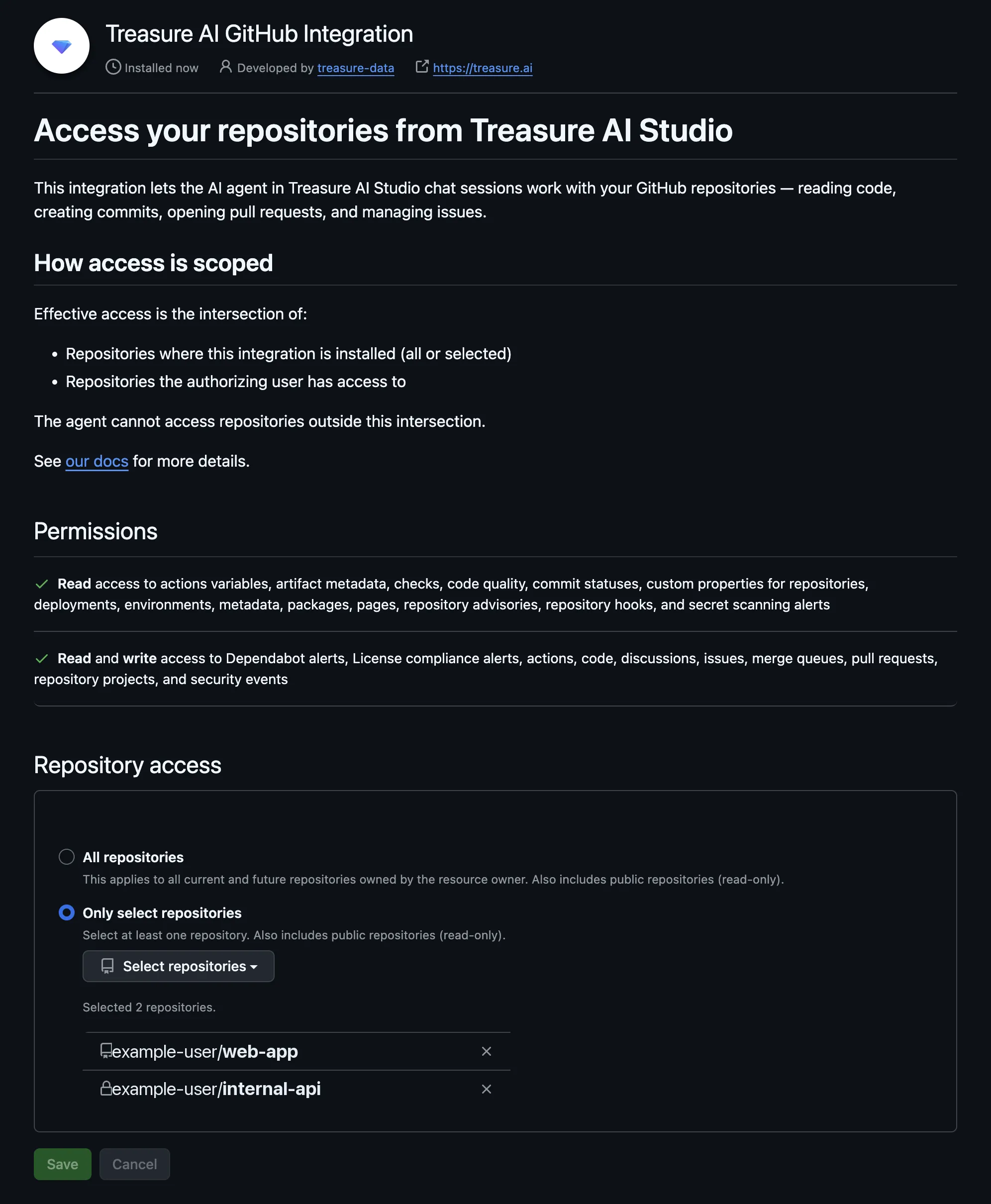
This page is also where GitHub restates the access rule itself: under How access is scoped, it describes effective access as the intersection of the repositories where the integration is installed and the repositories the authorizing user can reach, and states that the agent cannot access repositories outside that intersection.
Uninstalling from that page removes agent access to all of the account's repositories at once. It leaves your Studio connection in place, so delete the connection too if you want to remove the stored authorization as well.
The Treasure AI GitHub App requests a fixed set of permissions — you cannot broaden or narrow them per install. It is scoped to what an agent needs to work with code and collaborate on issues and pull requests, and deliberately excludes administrative and secret-management capabilities. The tables below list every permission the App holds.
| Permission | Access | What it's for |
|---|---|---|
| Contents | Read & Write | Clone repositories and read, create, and edit files and branches. |
| Pull requests | Read & Write | Open, read, review, comment on, and update pull requests. |
| Issues | Read & Write | Open, read, comment on, and update issues. |
| Discussions | Read & Write | Read and participate in repository discussions. |
| Projects | Read & Write | Read and update repository projects. |
| Actions | Read & Write | Read workflow run logs and re-run them. It cannot create or modify workflow definitions (see Not Granted). |
| Merge queues | Read & Write | Add pull requests to a merge queue when one is enabled. |
| Code scanning alerts | Read & Write | Read and manage code scanning alerts. |
| Dependabot alerts | Read & Write | Read and dismiss Dependabot alerts. |
| License compliance alerts | Read & Write | Read and dismiss license compliance alerts. |
| Metadata | Read-only | Read basic repository metadata (always required). |
| Commit statuses | Read-only | Read the status checks reported on commits. |
| Checks | Read-only | Read check runs and results (writing is left to CI tools). |
| Deployments | Read-only | Read deployment records. |
| Environments | Read-only | Read environment configuration. |
| Packages | Read-only | Read published packages (publishing is left to CI). |
| Pages | Read-only | Read GitHub Pages configuration. |
| Artifact metadata | Read-only | Read metadata about build artifacts. |
| Code quality | Read-only | Read code quality results. |
| Secret scanning alerts | Read-only | Read secret scanning results. |
| Repository security advisories | Read-only | Read repository security advisories. |
| Custom properties | Read-only | Read repository custom properties. |
| Variables | Read-only | Read GitHub Actions variables (non-secret values). |
| Webhooks | Read-only | Read repository webhook configuration. |
| Permission | Access | What it's for |
|---|---|---|
| Organization members | Read-only | Read the member list so the agent can @-mention the right people. |
| Account email addresses | Read-only | Read your email address so commits are attributed to you. |
For safety, the App holds no access to the most sensitive capabilities, including:
- Secrets and Dependabot secrets — it never reads or writes repository or Actions secrets.
- Workflows — it cannot create or modify GitHub Actions workflow definitions (it can only re-run existing ones via the Actions permission).
- Administration — it cannot change repository settings, collaborators, or branch protection.
- Codespaces and Copilot agent settings — out of scope for the agent.
- Secret scanning bypass and dismissal requests, and attestations.
| Item | Value |
|---|---|
| Connector | GitHub |
| GitHub App | Treasure AI GitHub Integration, published by the treasure-data organization — listing, install |
| Installation scope | Per GitHub personal account or organization, managed entirely on GitHub. Independent of your Studio account — see GitHub App Installations Are Separate From Your Studio Account |
| Authentication | OAuth 2.0 (user-to-machine) via a Treasure AI-managed GitHub App, with PKCE |
| Permissions | Granular GitHub App installation permissions — see What the GitHub App Can Access |
| Agent identity | Acts as the authorizing user; commits are attributed to that user |
| Access boundary | The intersection of the repositories where the GitHub App is installed and the repositories your own GitHub account can access |
| Tools used in the sandbox | gh CLI (pre-authenticated) and git over HTTPS |
| Required configuration | None — the GitHub App and OAuth client are managed by Treasure AI; an administrator only enables the connector |
| Egress domains | github.com, api.github.com |
| Issue | Solution |
|---|---|
| GitHub isn't listed on the Connections tab | An administrator must add the GitHub connector in Connector Settings and enable it. |
| I can't find the GitHub App installation page | It's a public GitHub URL: github.com/apps/treasure-ai-github-integration/installations/new. In Studio, it's also linked from the saved GitHub connector row in Connector Settings. |
| The connection authorizes but the agent can't find or access a repository | Access is the intersection of where the App is installed and what you can reach. First, confirm the Treasure AI GitHub App is installed on that repository — install it yourself if you own the account, or ask an owner of that GitHub organization (Step 2). Then confirm your own GitHub account can access the repository, since the agent can't reach anything you can't. |
| A newly added repository isn't reachable, or I need to add one | Repository selection is controlled on GitHub, not in Studio. Open the installation's Configure page (organization: Settings → GitHub Apps; personal account: Settings → Applications → Installed GitHub Apps) and update Repository access. No Studio change or re-authorization is needed. |
| I want the agent to work with repositories in another organization | Install the App into that organization or account as well — one connection covers every account where the App is installed. See Add a second account or organization later. |
| I deleted my connection but the App is still installed on GitHub | Expected. The two are independent: deleting a connection removes the stored authorization in Studio, and uninstalling the App is a separate action on GitHub. Do both to fully cut off access. |
| The agent can't reach GitHub at all | Allow the egress domains github.com and api.github.com in your network policy (see the domains shown in Connector Settings). |
| The agent can re-run a workflow but can't edit one | This is expected. The App has no Workflows permission, so it cannot change workflow definitions — only re-run existing runs. |
| The agent can't manage repository settings, secrets, or collaborators | This is expected. The App holds no Administration or Secrets access — see Not Granted. |
- Connections — The general connection model and administrator controls
- Connect Treasure Data CDP — Enable the connector and authorize a Treasure Data connection
- Skills & Marketplace — How skills give the agent domain expertise
- Security Overview — How access control works in Studio