The Network Audit Log is the administrator's record of every outbound connection made on behalf of Treasure AI Studio agents, and what the network policy did with each one. (A connector whose requests are made outside the sandbox is recorded here too, but the policy is not applied to it — see Connectors That the Policy Does Not Govern. Those records carry an allow action because nothing blocked them, not because a rule matched.) It answers the questions that follow an agent doing something unexpected: which host did it contact, which user's chat caused it, and was the request allowed or blocked. Use it to verify a policy change took effect, to investigate a report of unexpected agent behavior, or to satisfy a periodic review that agent traffic stayed inside approved destinations.
Search the outbound network activity of Treasure AI Studio agents across your organization, and trace any connection back to the user and chat that produced it.
- Signed in to Treasure AI Studio (Getting Started)
- The account administrator role — regular users do not see the Organization section in Settings
- Open Settings — click your user avatar in the sidebar footer.
- In the left navigation, under Organization, click Network Audit Log.
The page opens on the last 24 hours of activity, newest first.
The Network Audit Log is visible only to account administrators. Regular users see no Organization section in Settings, and the underlying search API rejects non-administrator requests.
The Network Audit Log records the destination host of each connection, not the content of the request. Each record carries the fields below.
| Column | Contents |
|---|---|
| Timestamp | When the connection was evaluated, shown in your local timezone. |
| Chat | The chat whose agent made the request, as a shortened chat ID. Click it to filter the log to that chat. |
| User | The email of the user whose session made the request. Click it to filter the log to that user. A shortened user ID appears instead when the email is unavailable — for example, for a deleted user. |
| Action | What the network policy decided: allow (green), block (red), or rewrite (neutral). |
| Domain | The destination hostname, taken from the connection's SNI, CONNECT target, or Host header. |
| IP | The resolved destination IP address. |
| Port | The destination port. |
| Protocol | The transport protocol of the connection. |
The Action column records the decision the policy made, not whether the request then succeeded. A permitted request that failed afterwards — a DNS failure, a TLS error, a refused connection, an error returned by the remote service — still appears as allow or rewrite. Read the log to see what an agent was permitted to reach, not to confirm it got a response.
The log captures the hostname of each connection. Request paths, query parameters, request bodies, and response bodies are not recorded, so the log shows that an agent contacted a host but never what it sent or received. Chat content lives with the chat and is governed by Chat Data Retention.
A rewrite action means the request was allowed and matched a connector, so Treasure AI Studio substituted the real access token for the placeholder the agent's sandbox holds. Seeing rewrite against a connector's host is the normal, healthy state for Connections — it is the credential injection working as designed, not a warning. See Security Overview for how the substitution works.
Set any combination of the fields below and click Apply. Filters are held in the page URL, so a filtered view can be bookmarked or shared with another administrator, and browser back and forward move between searches.
| Filter | Accepts |
|---|---|
| Time range | 1h, 6h, 24h, 3d, 7d, 14d, or 30d. Defaults to the last 24 hours. |
| Ending | A date and time marking the newest end of the window. Leave it empty to search back from now. Combined with Time range, this is how you inspect a window in the past. |
| Action | Any, allow, or block. |
| Domain | Any part of the destination hostname. The value is matched as a substring, so github returns github.com, api.github.com, and raw.githubusercontent.com alike. Letters, digits, dots, and hyphens only — you do not type wildcards yourself, because the search wraps whatever you enter in them. |
| IP | A destination IP address. |
| Port | A port number from 1 to 65535. |
| User ID | The UUID of a user. Clicking a User cell fills this in for you. |
| Chat ID | The UUID of a chat. Clicking a Chat cell fills this in for you. |
When nothing matches, the page reads "No audit records in the selected range."
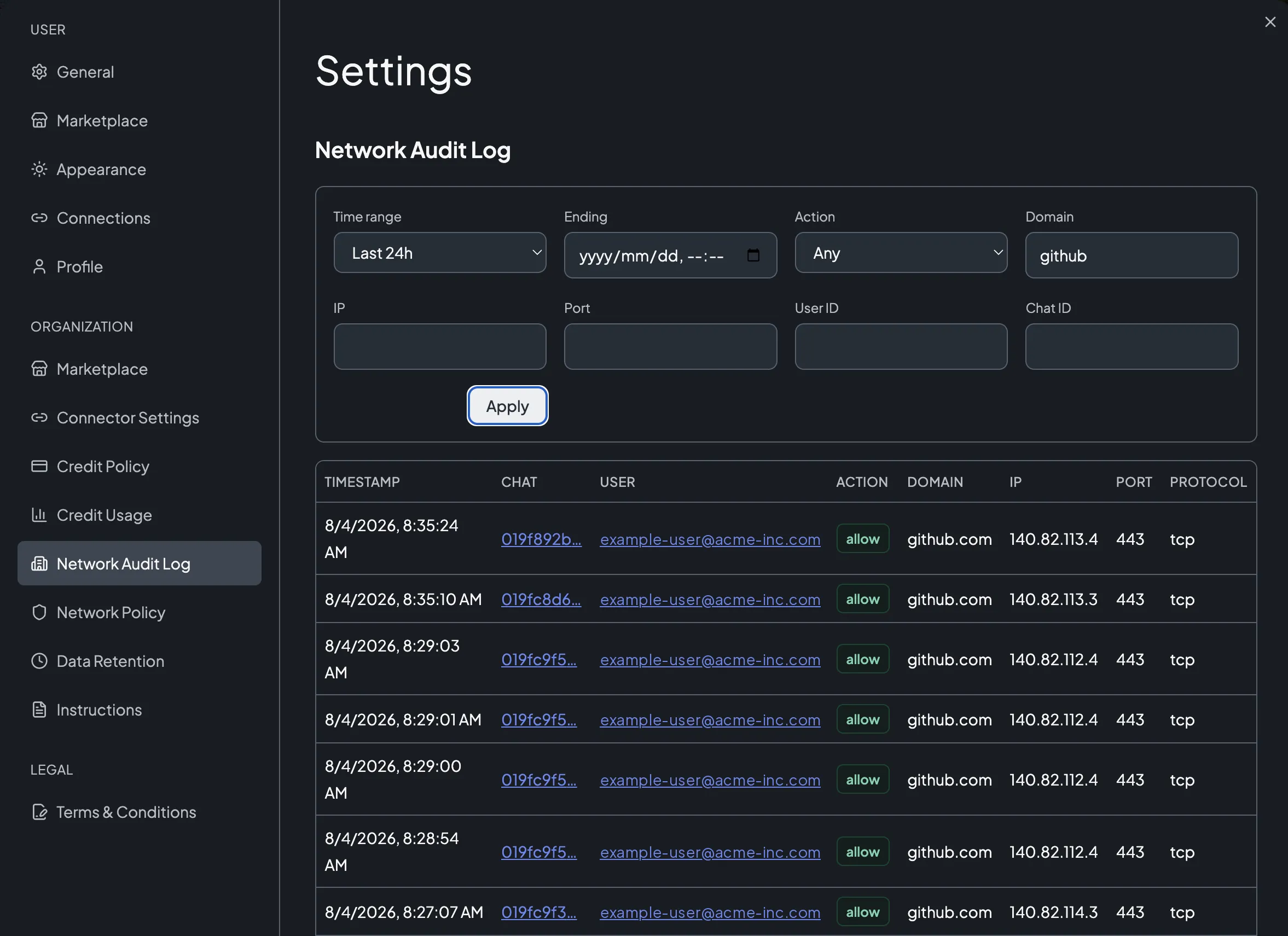
The Action filter accepts only allow and block. Records with the rewrite action still appear in unfiltered results — filter by the connector's Domain instead to isolate them.
The Network Audit Log has three limits that change how you should read a result set:
- Up to 100 records per search, newest first. A search returns the 100 most recent matching records and nothing beyond them, and results cannot be sorted oldest-first. Widening Time range does not get you past the cap — it only spreads the same 100 rows over a longer span. To reach older activity, set Ending to an earlier moment so the window itself moves back, and add a Domain, User ID, or Chat ID filter so the records you care about fit under the cap.
- Records are kept for roughly four weeks. Audit records age out on a rolling schedule, so the widest range —
30d— can return less than a full 30 days of history. Export or record anything you need for a longer compliance window while it is still in range. - There is no export button. Copy the values you need from the table, or capture the filtered URL alongside your findings.
A search that returns nothing means no retained record matched those filters. Records older than the retention window are gone, and a result set that hits the 100-record cap silently hides everything older inside the same window — the table shows no truncation notice, so a full 100 rows is the only signal that you are not seeing everything. Confirm the window and count the rows before concluding an agent never contacted a host.
- The Network Audit Log page under Settings → Organization loads records for the last 24 hours
- Filtering by a known Domain returns the expected
alloworblockrecords - Clicking a Chat or User cell narrows the log to that chat or user
- A domain you blocked in the network policy appears with the
blockaction after an agent attempts it
| Issue | Solution |
|---|---|
| The audit log shows no entries | Confirm the time range covers the activity, and that no filter is narrowing it away. Every filter except Domain is an exact match, so a mistyped Chat ID or Port returns nothing. If the page itself is missing, audit access requires the account administrator role. |
| You expect a connection but see no record for it | Requests that never left the sandbox produce no record. Check that the agent actually reached the tool call, and that the activity falls inside the retention window. |
A connector's host shows rewrite instead of allow | That is expected. rewrite means the platform substituted the real credential for the sandbox's placeholder token on an allowed request. |
| "Failed to load audit records" | The search backend was unreachable. Retry the search; if it persists, contact Treasure AI support. |
| You need more than 30 days of history | The log's retention is fixed at roughly four weeks. Capture the records you need for longer retention while they are still in range. |
- Network Policy — Change what the log records as allowed or blocked
- Security Overview — Sandbox isolation, encryption, and data residency
- Chat Data Retention — How long chat content itself is kept
- Credit Usage — Per-user consumption, the other admin dashboard in Settings