The Slack connector lets Treasure AI Studio agents work in the conversations your team already has. An agent can search months of messages for the decision nobody wrote down, pull a thread into a summary alongside your customer data, and post the result back to the channel that needs it — without anyone copying text between two windows. Use it when the answer to a question lives in Slack rather than in a table, or when the output of a chat belongs in a channel rather than in a file.
This connection can write. The agent posts, edits, deletes, uploads files, and adds reactions as the person who authorized it, so its messages carry that person's name and avatar. It also reads only what that person can read. See What the Agent Can Do for the full list of operations.
Read Connections first for the general model — the difference between a connector and a connection, and the administrator vs. user roles. This page covers the Slack-specific steps.
Enable the Slack connector for your account and authorize a connection, so the agent can search, read, and post Slack messages as you during a chat.
- Account administrator privileges in Treasure AI Studio — needed for Step 1 only (enabling the connector)
- A Slack account in the workspace you want the agent to work in. The agent reads and writes as this account, so its reach follows your own Slack membership — see What the Agent Can See
- Permission in your Slack workspace to authorize the Treasure AI Studio app. If your workspace requires admin approval for apps, a Slack workspace administrator approves it once for everyone
Setting Slack up touches three roles, and only the first two do any configuration. Each does its part once.
| Role | What They Do | How Often |
|---|---|---|
| Treasure AI Studio administrator | Adds the Slack connector in Connector Settings and saves it. There are no fields to fill in. | Once for the organization |
| Slack workspace administrator | Nothing, unless the workspace restricts which apps its members may use. In that case, approves the Treasure AI Studio app. | Once for the workspace, and only if apps are restricted |
| Each member | Authorizes their own connection from Connections and approves the requested access in Slack. | Once per person |
There is no app to install, no bot user to invite to a channel, and no network policy rule to add.
Treasure AI manages the Slack app for this connector, so there is nothing to register on the Slack API console and no client ID or secret to enter. The configuration form is empty.
- In Treasure AI Studio, open Settings → Connector Settings (under Organization).
- Click Add Connector (or Add your first connector) and choose Slack.
- Click Save. There are no fields to fill in. The connector is saved already enabled, so Slack appears under Available on every user's Connections tab straight away.
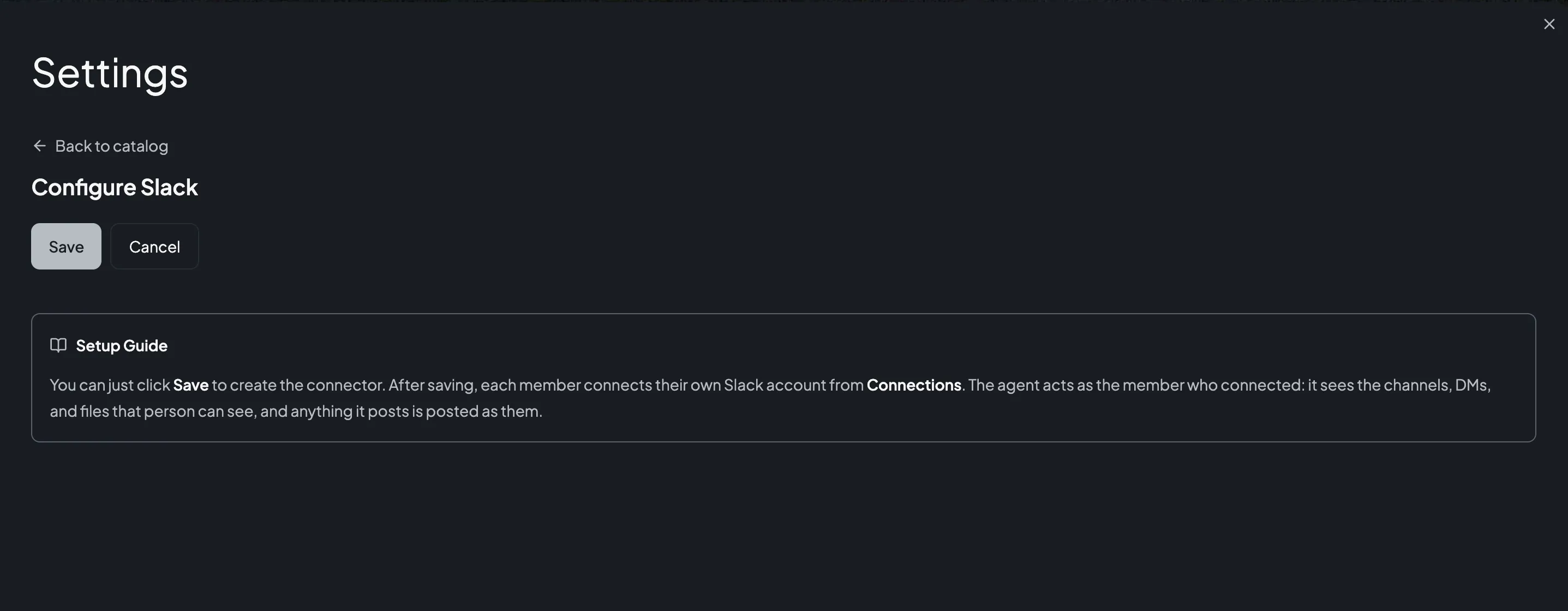
That is the whole administrator setup. Nothing else needs configuring. The saved row carries an enable toggle. Turning it off stops every existing Slack connection immediately, including in chats that are already running, and turning it back on restores them — see Enable, disable, and remove. The Setup Guide panel beside the form makes the same point: after saving, each member connects their own Slack account, and the agent acts as the member who connected.
There is no read-only mode. Every member who connects gives the agent the ability to post, edit, and delete messages under their own name — including the messages they posted themselves in the Slack client, not only the ones the agent wrote — open a direct message with any member of the workspace, upload and delete files, and add reactions. The permissions are fixed for the connector and cannot be narrowed per member or per channel. Decide that this is acceptable for your organization before you enable it, and tell members what the agent will be able to do on their behalf. If you need to withdraw that access later, turning the connector off is enough: it takes effect at once, and members keep their connections for when you turn it back on.
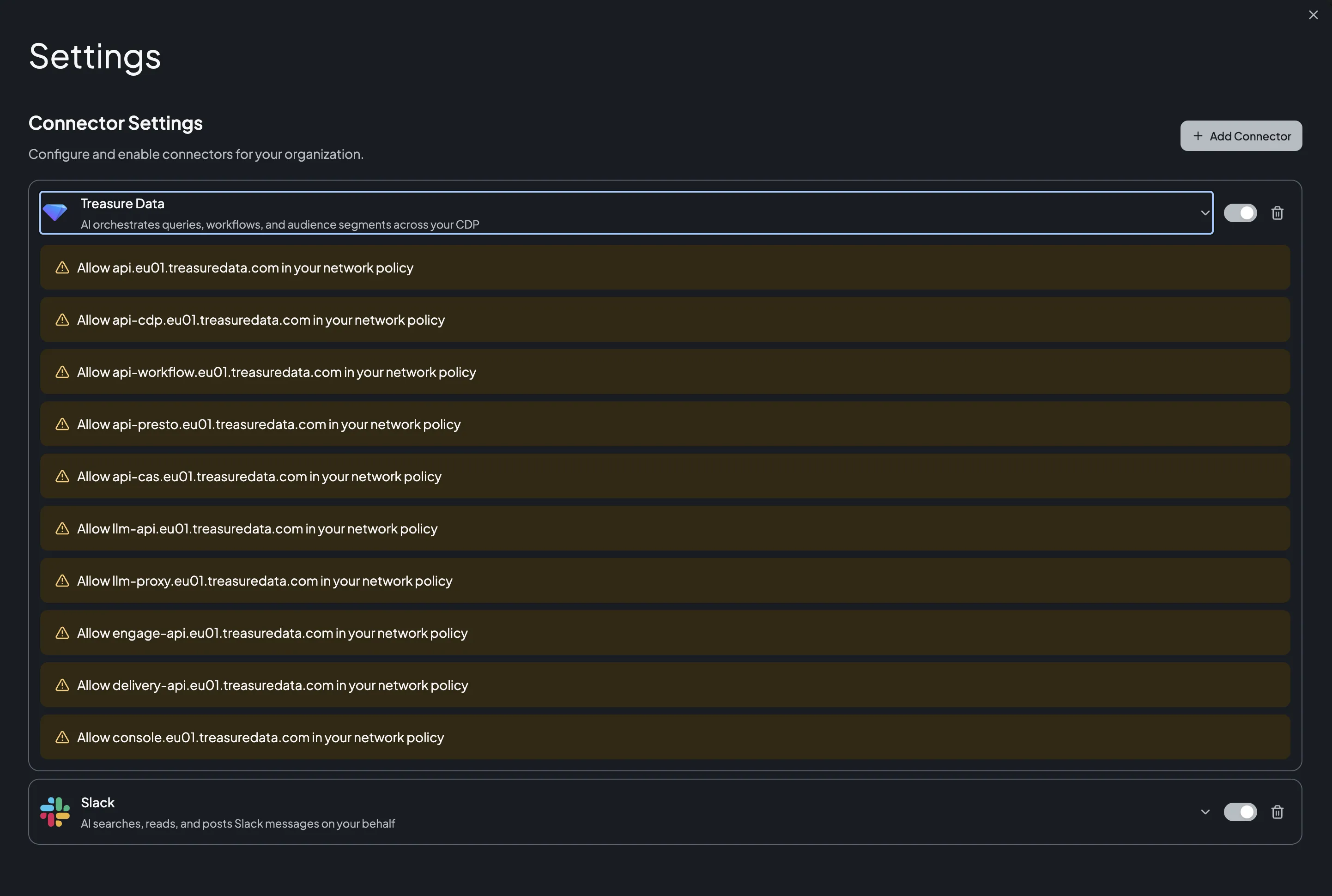
The Slack connector lists no egress domains, and Connector Settings shows no "allow this domain" reminder for it. That is deliberate: the agent's sandbox never calls the Slack API. The request is made by Treasure AI's connector service outside the sandbox, so your network policy — which governs sandbox egress — does not apply to it and does not need a new rule.
The saved connector rows show the difference directly. The Treasure Data connector above lists a reminder for each domain it needs the sandbox to reach; the Slack row carries none:
Each member who wants the agent to work in Slack authorizes their own connection. You can do this ahead of time from Settings, or on demand from a chat.
- Open Settings → Connections.
- Under Available, find Slack and click Connect.
- In the Slack popup, check the workspace shown at the top right and change it if you are signed in to more than one, then review the requested permissions and click Allow.
- When the popup closes, Slack appears in your connected list with the date you connected it.
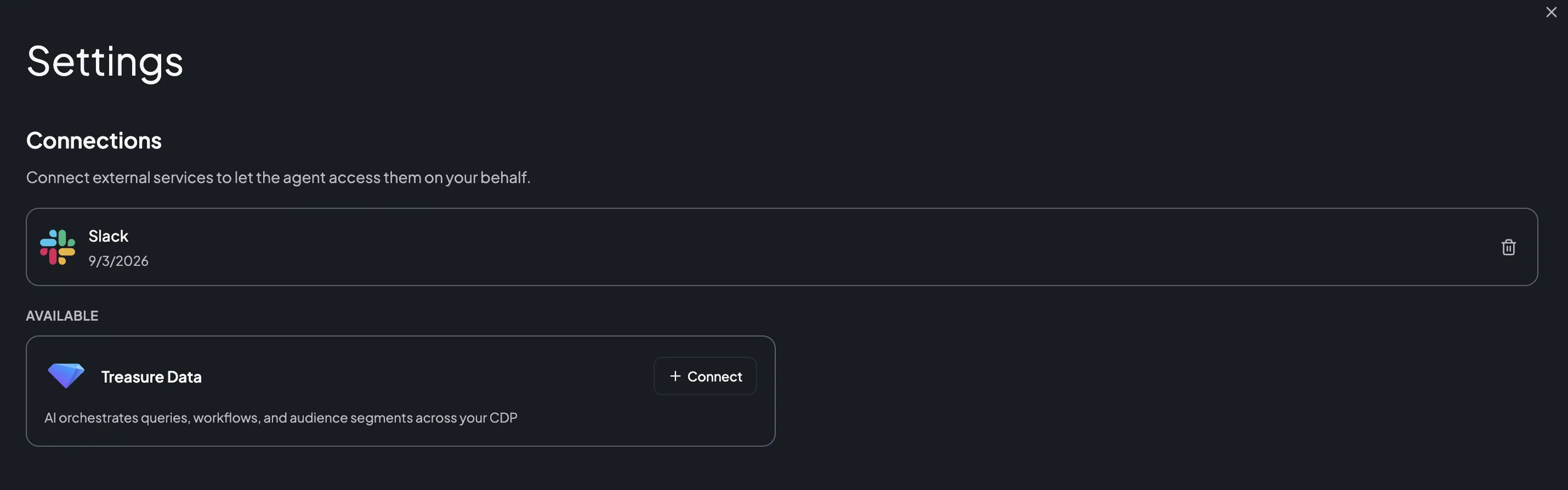
A Slack workspace administrator does not normally have to do anything for this. Authorizing is the whole install, and the Connect button is the only entry point — there is no separate install page to visit. Slack records the app under your name in the workspace's installed apps, but no bot user joins, no channel is touched, and there is nothing for an administrator to configure afterwards.
The exception is a workspace that restricts which apps its members may use. Slack then shows a request form instead of an Allow button. Submit the request, wait for a workspace administrator or App Manager to approve the Treasure AI Studio app once for everyone, then repeat Step 2.
To remove the connection later, click the delete (trash) icon next to it. The agent immediately loses access, and anything it already posted stays in Slack, exactly as if you had posted it yourself. Slack still lists Treasure AI Studio under your authorized apps until you remove it there as well.
You don't have to authorize in advance. If you ask the agent about Slack before you've connected, it shows a Connection Required card in the chat — click Connect there to run the same authorization without leaving the conversation. See Connect from a chat.
A connection authorizes one Slack workspace — the one you picked in the popup. To move the agent to a different workspace, delete the connection and authorize again, choosing that workspace. Studio holds one Slack connection per member at a time, so an agent cannot search two workspaces in the same chat.
Once Slack is connected, ask the agent in plain language — no commands and no configuration in the chat. For example:
- "Search
#product-launchfor how we decided on the pricing tiers, and summarize the thread." - "What did I miss in
#support-escalationsyesterday? Group it by customer." - "Post the segment counts from this analysis to
#marketing-ops, and thread the query underneath." - "Find every message from the last month mentioning churn, then cross-check the accounts against my CDP segment."
The agent chooses its own operations. It typically searches or lists conversations first and reads the messages it needs. Because writes go out under your name, name the target channel explicitly rather than relying on the agent to infer one. The agent posts as you, so it can write anywhere you can write yourself, and nowhere you cannot.
Slack search accepts modifiers, such as in:channel-name to limit a search to one channel and from: with a member's handle or Slack user ID, and the agent passes them through when you phrase a request that way.
If you haven't connected yet, the agent asks for the connection first. The Connection Required card names the connector by its internal id, slack, in lower case:
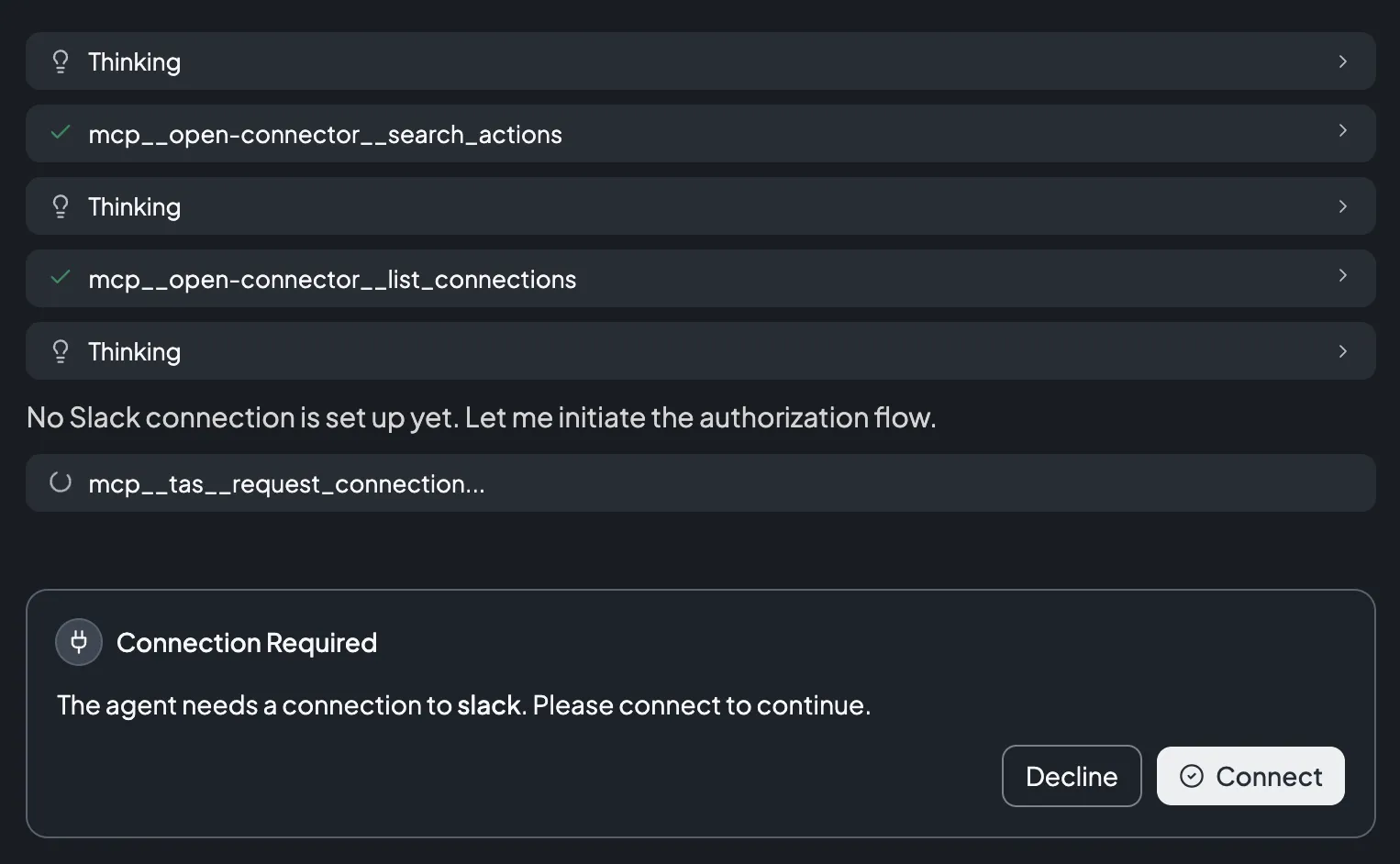
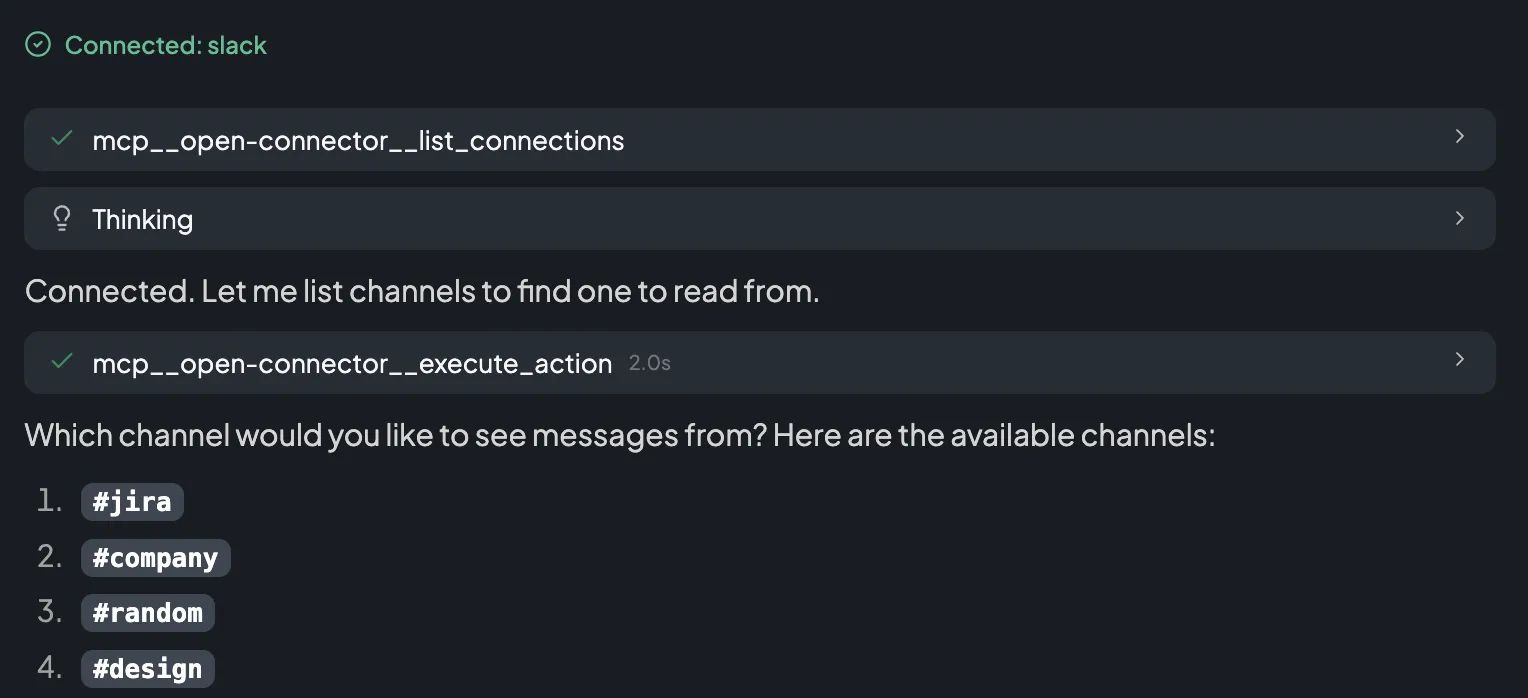
Click Connect, authorize as in Step 2, and the agent carries on by itself — it confirms the connection and goes straight to the work you asked for:
A message the agent posts is indistinguishable from one you posted, and it reaches everyone in the channel immediately. Ask the agent to show you the draft first when the channel is large or the content is sensitive. The agent can edit or delete its own message afterwards, but people who already read it have already read it.
The Slack connector exposes 23 operations. The agent calls them on its own; you never invoke them by name.
| Area | Operations | What They Do |
|---|---|---|
| Conversations | slack.list_channels, slack.list_conversations, slack.get_conversation, slack.open_conversation | List the public channels and the conversations of every type you can see, read one conversation's metadata, and open or resume a direct message with one person. |
| Reading messages | slack.get_channel_messages, slack.get_thread, slack.get_message_permalink | Read recent messages in a conversation, read a thread's replies, and get a message's permalink. |
| Search | slack.search_messages | Search the messages you can see, with Slack's search modifiers (in:, from:), sorting, and paging. Up to 100 results per read. |
| Writing messages | slack.post_message, slack.reply_message, slack.update_message, slack.delete_message, slack.schedule_message, slack.post_ephemeral_message | Post a message or a threaded reply, edit or delete a message you posted, schedule a message for later, and post a message visible to one person only. Plain text, Block Kit blocks, and attachments are all supported. |
| Reactions | slack.add_reaction, slack.remove_reaction, slack.get_reactions | Add and remove emoji reactions, and read the reactions on a message. |
| Files | slack.upload_file, slack.list_files, slack.get_file, slack.delete_file | List and read metadata for the files you can see, upload a file from a URL, and delete a file. |
| People | slack.list_users, slack.get_user | List the workspace's members and read one member's profile metadata. |
- No bot identity. The connector authorizes you, not a workspace-wide app, so there is no Treasure AI bot user to invite to a channel and no messages posted as an app. This is also why search works: Slack's search API accepts user authorization only.
- No admin operations. The agent cannot create or archive channels, invite or deactivate members, change workspace settings, or read the audit log.
- No Slack automation. Slash commands, interactivity, event subscriptions, and incoming webhooks are all off for this app. The agent acts only when you ask it to in a chat.
- No file contents. The agent reads file metadata only — name, title, type and the Slack link. It never downloads a file, audio or otherwise.
The Slack connector carries your own Slack authorization, so your Slack membership decides its reach:
- Public channels in the connected workspace, whether or not you have joined them.
- Private channels you are a member of, and no others.
- Direct messages and group DMs you are part of, including their files.
- Files shared in any of the above.
Slack enforces this when the request arrives, not Treasure AI Studio, and no prompt can widen it. A member cannot read a private channel through the agent that they cannot read in Slack. The agent can narrow the view — you can tell it to look only in one channel — but never widen it.
The connector's permissions include your direct messages, group DMs, and the files in them. An agent searching for a topic can surface a private conversation in your chat, and a chat you share with a colleague shows them what it found. If that is not acceptable, do not connect Slack — the permissions are fixed and cannot be reduced to public channels only.
| Item | Value |
|---|---|
| Connector | Slack |
| Authentication | OAuth 2.0 Authorization Code with PKCE (user-to-machine), platform-managed Slack app |
| Authorization type | User authorization only. No bot token, and no bot user added to your workspace |
| Slack scopes requested | Sixteen user scopes: channels:read, groups:read, im:read, mpim:read, users:read, channels:history, groups:history, im:history, mpim:history, files:read, reactions:read, chat:write, im:write, files:write, reactions:write, search:read |
| Required configuration | None. The administrator saves the connector with no fields to fill in |
| Access | Read and write — 23 operations across conversations, messages, search, reactions, files, and members |
| Agent identity | Acts as the authorizing Slack account. Messages, edits, deletions, uploads, and reactions all appear under that person's name |
| Where requests are made | Treasure AI's connector service, outside the agent's sandbox |
| Egress domains | None — the sandbox never reaches the Slack API, so no network policy rule is required |
| Search results per read | 100 maximum, paged |
| Channel messages per read | 100 maximum. Thread replies are not capped by the connector |
| Conversations or members per read | 200 maximum, except slack.list_channels, which returns 100 |
| Files per read | 1,000 maximum |
| File upload source | A publicly reachable HTTP or HTTPS URL, up to 100 MB. The agent cannot upload a file that exists only in its own sandbox |
| Token lifetime | Twelve hours, refreshed automatically. Slack token rotation is on, so a leaked token expires on its own rather than lasting indefinitely |
| Connections per member | One, covering one Slack workspace |
Slack issues this connector a token that lasts twelve hours and replaces it on every renewal. Treasure AI refreshes it for you, so a connection keeps working across sessions and you do not need to reconnect on a schedule. The short lifetime is deliberate: the authorization can read every conversation you can see and post under your name, so a token that leaked would stop working within half a day instead of remaining valid until somebody noticed. You normally reconnect only if the authorization is revoked on the Slack side.
| Issue | Solution |
|---|---|
| Slack isn't listed on the Connections tab | An administrator must add the Slack connector in Connector Settings and enable it. |
| Slack shows a request form instead of an Allow button | Your workspace requires administrator approval for apps. Submit the request, and ask a Slack workspace administrator to approve the Treasure AI Studio app. Then connect again. |
| The agent can't find a private channel you're in | Ask the agent to list conversations rather than channels: slack.list_channels returns public channels only, and private channels appear only through slack.list_conversations. If that still finds nothing, confirm you authorized the workspace the channel belongs to — a connection covers one workspace, and the popup's workspace picker is easy to miss. |
| The agent can't post to a channel | It posts as you, so it can only post where you could post yourself. Join the channel in Slack, or ask to be invited if it is private, then ask again. |
| The agent can't read a channel a colleague mentioned | Expected if you are not a member of it. The connector carries your Slack membership and cannot widen it. Join the channel in Slack, or ask to be invited if it is private, then ask again. |
| Search returns nothing for a message you can see in Slack | Confirm the message is in the workspace you connected, since one connection covers one workspace. Slack search covers messages, not the contents of files or snippets. Narrowing the query with in:channel-name or from: helps when the right message is buried rather than missing. |
| A message the agent posted shows your name, not a bot | Expected. The connector authorizes you, so everything the agent writes is posted as you. There is no bot identity to post as. |
| The agent can't edit or delete a message | Editing is limited to the messages you posted, including ones you posted in the Slack client yourself. Deleting follows whatever your own Slack account is allowed to delete. |
| An action fails with a missing permission error | The connector requests a fixed set of sixteen scopes at authorization time. If your authorization predates a change to that set, delete the connection and reconnect to request the current scopes. |
| The agent says the connection needs to be reconnected | The authorization expired or was revoked on the Slack side. Reconnect from Settings → Connections. |
| The connector disappeared from the Connections tab | An administrator may have disabled it. Your connection is kept, but the agent cannot use Slack until the connector is enabled again. |
- Connections — The general connection model and administrator controls
- Connect Treasure Data CDP — Enable the connector and authorize a Treasure Data connection
- Skills & Marketplace — How skills give the agent domain expertise
- Security Overview — How access control works in Studio