The Databricks connector lets Treasure AI Studio agents explore and visualize data in your Databricks lakehouse during a chat. Setup has three parts: an administrator creates an OAuth application in Databricks, configures the connector in Treasure AI, and then each user authorizes their own connection.
Read Connections first for the general model — the difference between a connector and a connection, and the administrator vs. user roles. This page covers the Databricks-specific steps.
Set up the Databricks connector end to end: create the Databricks OAuth application, configure and enable the connector in Treasure AI, and authorize a connection so the agent can query your lakehouse.
- Account administrator privileges in Treasure AI Studio (for the connector configuration steps)
- A Databricks account with permission to create OAuth applications in the Account Console
- The workspace URL of the Databricks workspace you want to connect
Treasure AI connects to Databricks using a user-to-machine (U2M) OAuth application that you create in the Databricks Account Console.
- Log in to the Databricks Account Console.
- Go to Workspaces, click your workspace, and note its URL (for example,
https://dbc-xxxxxxxx-xxxx.cloud.databricks.com). You'll enter this as the Workspace URL in Treasure AI. - Still in the Account Console, go to Settings → App connections → Add connection and fill in the form:
- Application Name — any name (for example,
Treasure AI). - Redirect URLs — the callback URL shown in the Setup Guide on the Treasure AI connector form (it ends in
/connections/callback). Copy it exactly from that form, since it is specific to your region. - Access scopes — check All APIs.
- Client secret — check Generate a client secret.
- Access token TTL —
60(default). - Refresh token TTL —
10080(default).
- Application Name — any name (for example,
- Click Add, then copy the Client ID and Client Secret immediately — the secret cannot be retrieved later.
For more detail, see Databricks' guide on enabling custom OAuth applications.
Databricks shows the client secret only once. Copy it before leaving the page; if you lose it, you'll need to generate a new application.
- In Treasure AI Studio, open Settings → Connector Settings (under Organization).
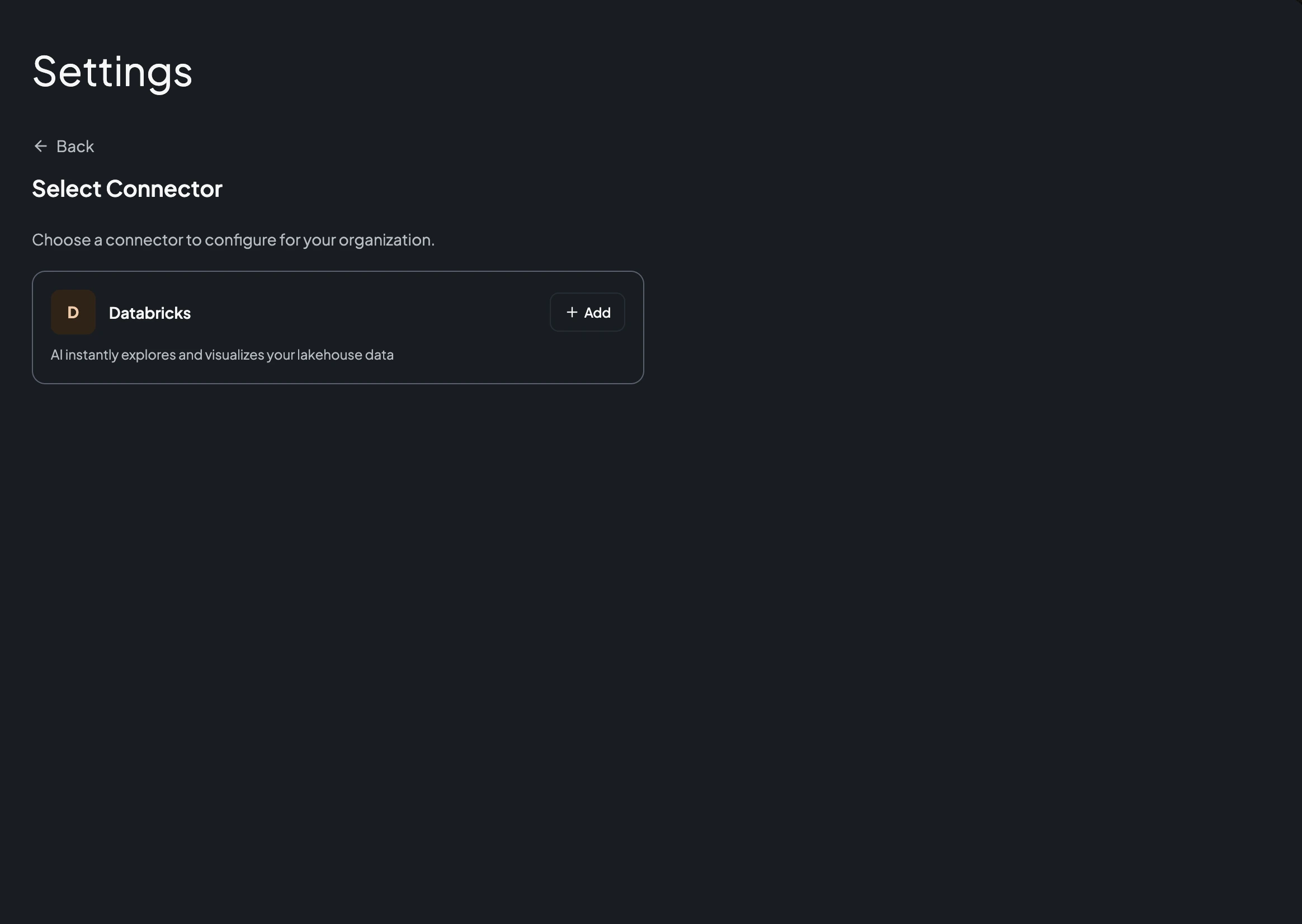
- Click Add Connector and choose Databricks.
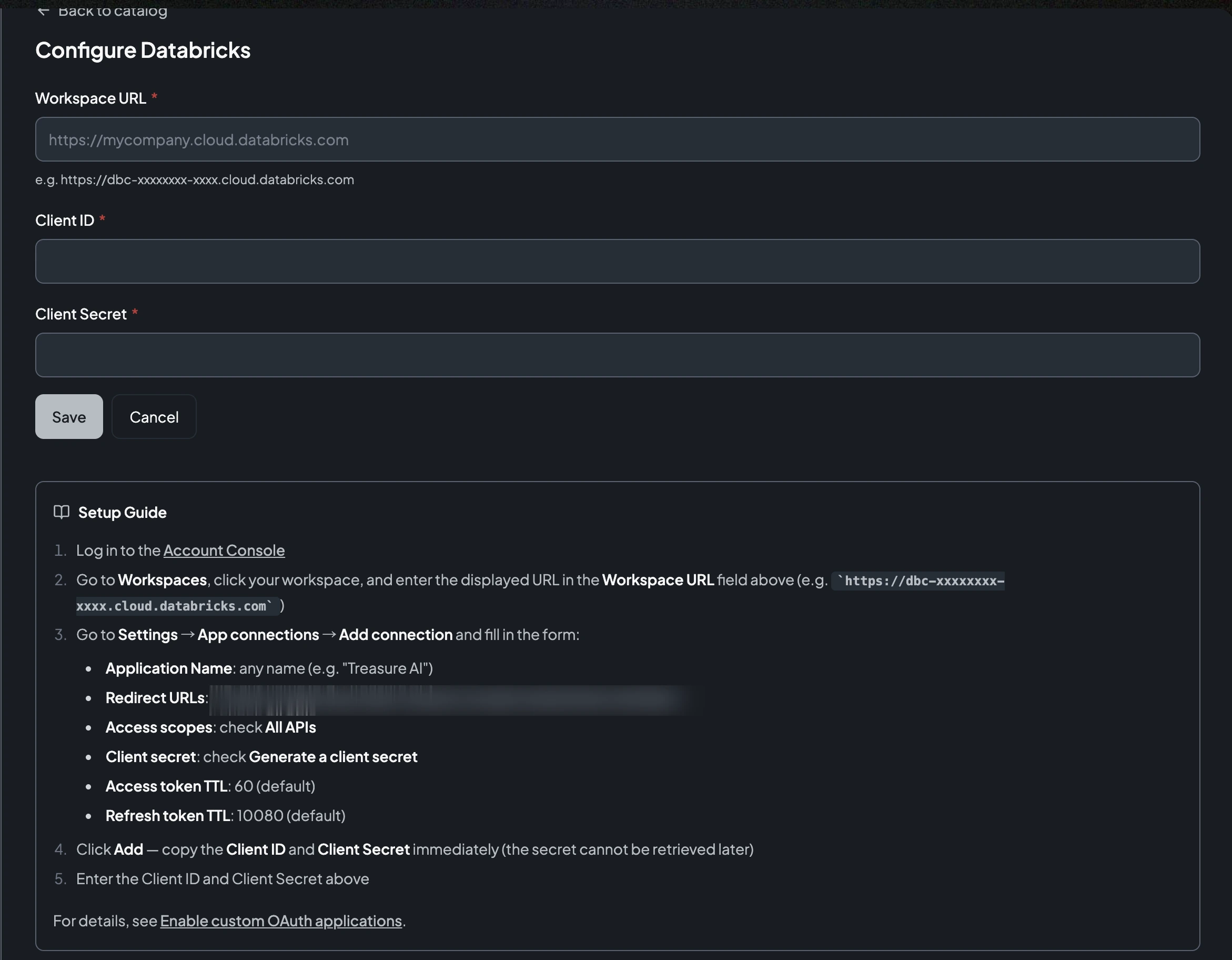
- Complete the form:
| Field | Value |
|---|---|
| Workspace URL | Your workspace URL from Step 1, e.g. https://mycompany.cloud.databricks.com. |
| Client ID | The Client ID from the Databricks OAuth application. |
| Client Secret | The Client Secret from the Databricks OAuth application (entered as a masked field). |
- Use the Setup Guide panel on this form as your reference — it contains the exact Redirect URL to register in Databricks (Step 1).
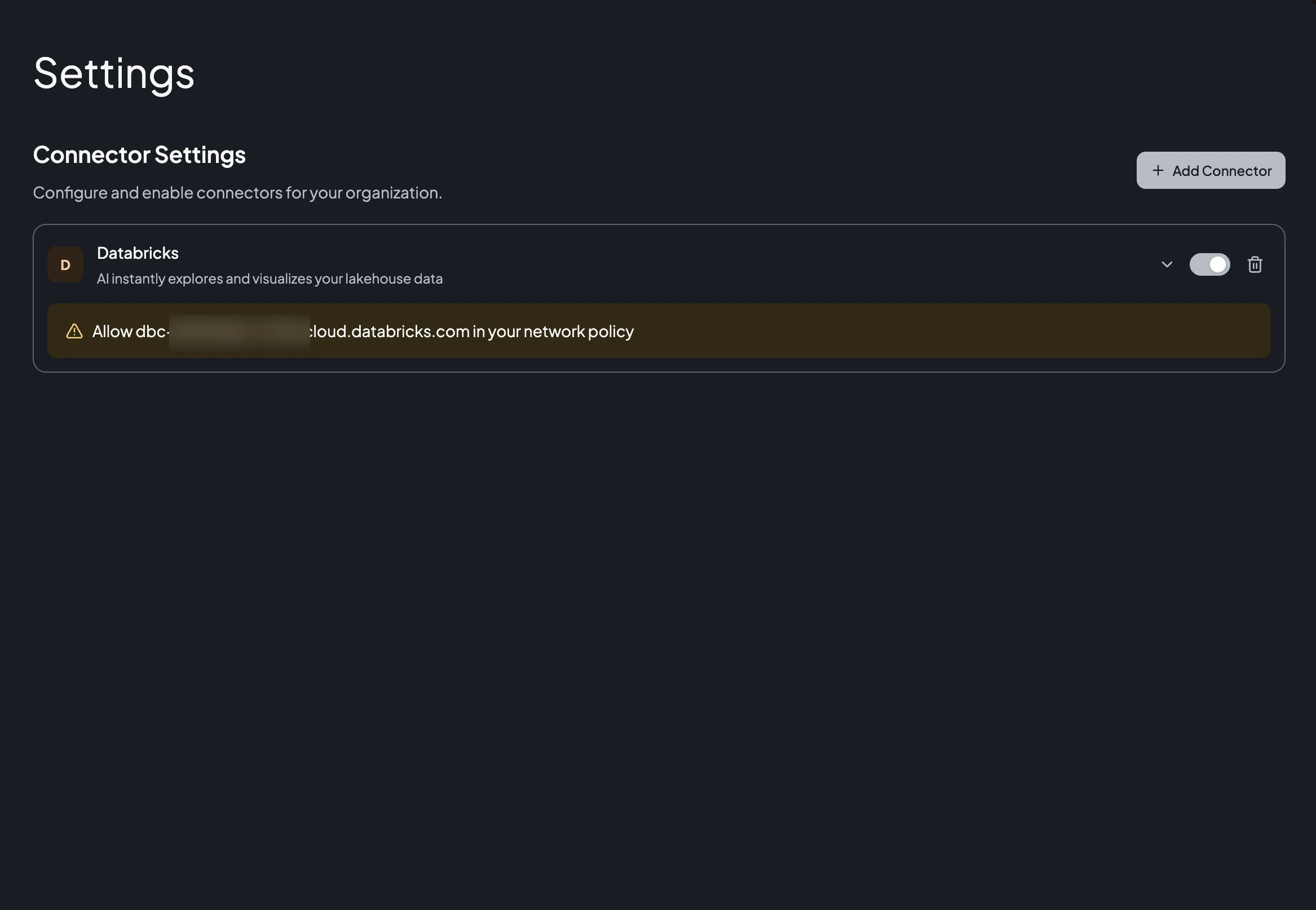
- Click Save. The Databricks connector now appears in your configured list.
- Make sure the connector is enabled so users can authorize connections to it.
If your account uses a network policy, allow the connector's egress domain (your Databricks workspace host) so the agent's sandbox can reach it. The required domain is shown next to the configured connector in Connector Settings.
Each user who wants the agent to access Databricks authorizes their own connection:
- Open Settings → Connections.
- Under Available, find Databricks and click Connect.
- Sign in to Databricks in the popup and approve the requested access.
- When the popup closes, Databricks appears in your connected list with the date you connected it.
To remove the connection later, click the delete (trash) icon next to it.
You don't have to authorize in advance. If you ask the agent to work with Databricks before you've connected, it shows a Connection Required card in the chat — click Connect there to run the same authorization without leaving the conversation. See Connect from a chat.
Once connected, ask the agent to work with your Databricks data — for example, to explore a table or visualize a result. The agent uses your connection automatically; no extra configuration is needed in the chat.
| Item | Value |
|---|---|
| Connector | Databricks |
| Authentication | OAuth 2.0 (user-to-machine) |
| OAuth scopes | all-apis, offline_access |
| Required configuration | Workspace URL, Client ID, Client Secret |
| Redirect URL | Shown in the connector form's Setup Guide (ends in /connections/callback) |
| Issue | Solution |
|---|---|
| Databricks isn't listed on the Connections tab | An administrator must add the Databricks connector in Connector Settings and enable it. |
| OAuth popup shows a redirect URL error | The Redirect URLs in the Databricks OAuth application must exactly match the callback URL shown in the connector form's Setup Guide. |
| The connection authorizes but the agent can't reach Databricks | Allow your Databricks workspace domain in your network policy (see the egress domain shown in Connector Settings). |
| "Workspace URL" is rejected | The URL must be your workspace host in the form https://<workspace>.cloud.databricks.com. |
| Saving the connector fails on the client secret | Generate a new client secret in Databricks and re-enter it — secrets can't be retrieved after the application is created. |
- Connections — The general connection model and administrator controls
- Reading Query Results — How the agent's output reaches you, and how to export it
- Getting Reliable Answers — Why answers vary, and where to define your conventions
- Charting a Result — Turning a query result into a chart