A custom instruction is organization-wide guidance an account administrator sets. Treasure AI Studio adds it to the system prompt of every agent in your organization, so agents are guided by your shared conventions — a preferred database, an output format, a house style for summaries — instead of each user restating them in every conversation. There is one custom instruction per organization; use it for expectations that should apply across work folders, chats, and users.
You set the custom instruction in Studio's settings on Web or Desktop. It is then added to the prompt for chats on every platform, including Mobile.
Only account administrators can view and edit custom instructions. Regular members do not see the Instructions settings tab; the instructions still apply to their chats.
Give every agent in your organization a shared baseline of behavior by writing one custom instruction, and understand how it relates to per-work-folder instructions and when changes take effect.
- The account administrator role in Treasure AI Studio
- Signed in on Web or Desktop (Getting Started) — the Instructions settings tab is available there
A custom instruction is text an account administrator sets that Treasure AI Studio adds to every agent's system prompt across the organization. An agent's behavior is shaped in layers, and the custom instruction is the organization-wide layer:
| Layer | Scope | Who Sets It |
|---|---|---|
| Custom instruction | Every chat in the organization, across all work folders and users | Account administrator |
| Work folder instructions | Chats within one work folder. In a shared work folder they belong to the folder, so they reach every member's chats in it | Anyone who edits that work folder; in a shared work folder, anyone whose work mode can write the whole folder |
These layers apply together. A custom instruction sets an organization-wide baseline; a work folder's instructions add work-folder-specific rules on top for chats in that work folder. Keep organization-wide conventions in the custom instruction and work-folder-specific detail in work folder instructions, rather than duplicating the same text in every work folder. A shared work folder's instructions belong to the folder, so the same rules reach everyone who works in it.
Your account may also show a read-only Managed instruction, maintained by Treasure AI to tune agent behavior for your account. It is added to the prompt the same way; see The Managed Instruction below.
The instruction is plain text you write in your own words — the same way you would brief a new team member. It is appended to the agent's system prompt, so phrase it as standing guidance ("Default to the marketing database. Format summaries as bullet points."), not as a one-off request.
- Open Settings from the user avatar in the sidebar footer.
- Select the Instructions tab under the Organization section. This tab appears only for account administrators.
- In the Custom instruction card, type your organization-wide guidance, staying within the 16,384-character limit shown by the counter. Save stays disabled while a draft is unchanged or over the limit.
- Select Save. Save returns to its disabled state once the instruction is stored, confirming the change was saved.
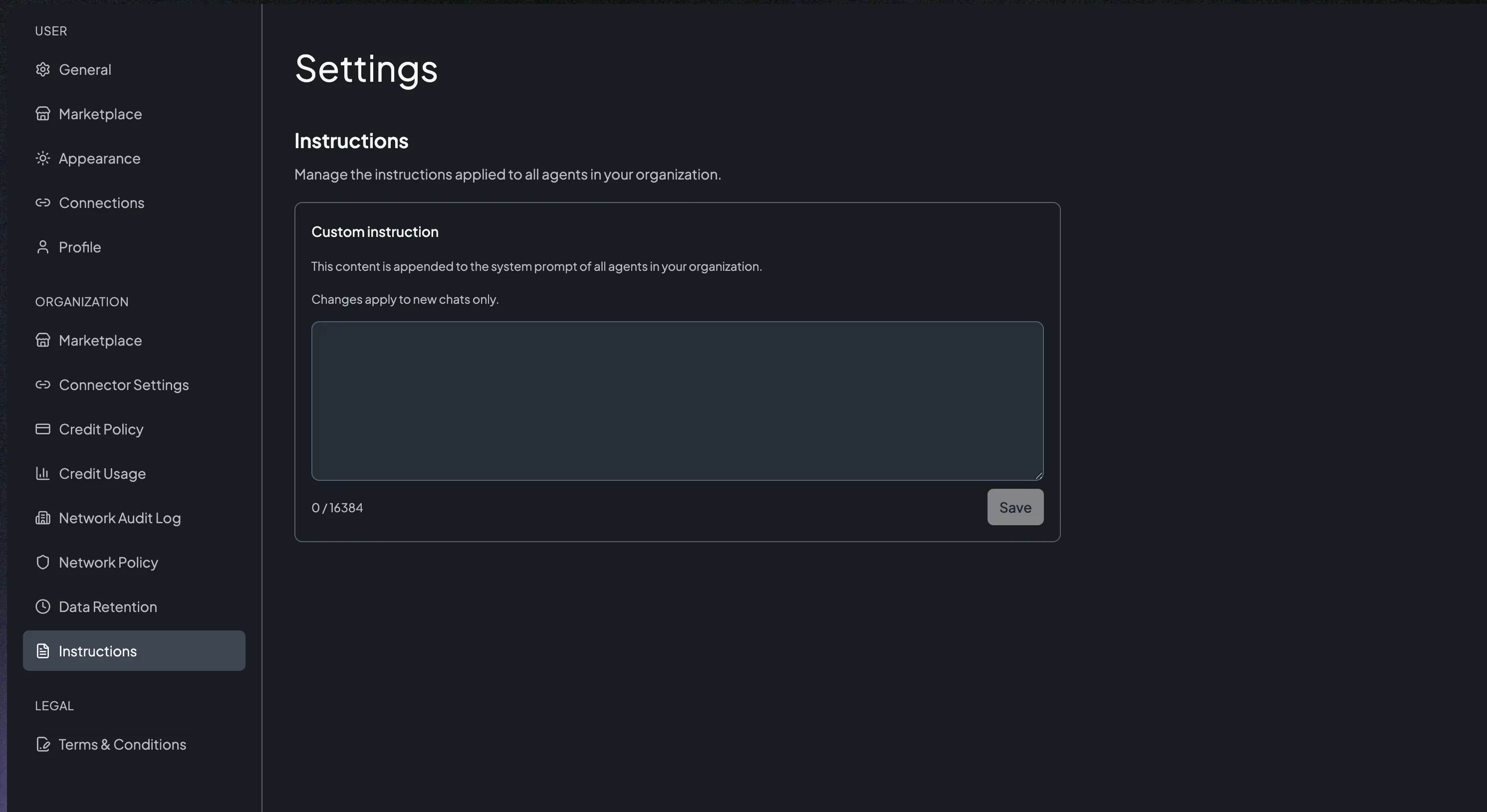
To remove the instruction, clear the text and select Save. An empty custom instruction means agents fall back to their default behavior.
A chat reads the custom instruction when it is created. Editing or clearing the instruction changes new chats started afterward; chats already in progress keep the instruction they started with. To apply an update, start a new chat.
Custom instructions are read by the agent, not by a person, so be specific and unambiguous:
The custom instruction becomes part of the agent's system prompt, so it could be exposed. Don't include secrets, credentials, API keys, or personal data (PII).
- State standing rules, not tasks. "Always validate YAML before pushing" is a rule every agent can follow; "build me a segment" is a task for a chat.
- Name concrete defaults. Databases, table naming conventions, date formats, and output structure are the highest-value things to fix once here.
- Keep it organization-wide. Anything that only applies to one work folder or one analysis belongs in that work folder's instructions, not here.
- Be concise. A focused instruction is easier for agents to follow consistently than a long list of edge cases. Because it applies to every chat in your organization, a shorter instruction also adds less to the cost of each chat.
Alongside the custom instruction, administrators may see a read-only Managed instruction section. This instruction is written and maintained by Treasure AI to tune agent behavior for your account. You cannot edit it; it is shown for transparency so you can see the full guidance agents receive. Like the custom instruction, it applies to new chats only.
- As an account administrator, open Settings → Instructions and confirm you can edit the custom instruction
- Save an instruction (for example, "Format all summaries as bullet points"), start a new chat, and confirm the agent applies it
| Issue | Solution |
|---|---|
| The Instructions tab is not visible | The tab appears only for account administrators. Confirm your role, or ask an administrator to set the instruction |
| An updated instruction is not being followed | Changes apply to new chats only. Start a new chat, then confirm the behavior |
| Save is disabled | Save is enabled only when the draft differs from the saved text and is within the 16,384-character limit. Shorten a draft that exceeds the limit — the counter turns red and an inline message appears |
| An agent does not fully apply the instruction | As a conversation grows long, an agent may weight a long instruction less, and contradictory rules are hard to apply consistently. Keep the instruction concise and focused on the rules that matter most, and move work-folder-specific detail into work folder instructions |
Getting Reliable Answers — Deciding what belongs in a custom instruction, a work folder, or a skill
Core Concepts — Work folders, work folder instructions, models, and credits
Using a Shared Work Folder — How a shared work folder's instructions reach every member, and who may edit them
Agent Orchestrator — How Studio plans and runs agent work
Security Overview — Roles, access control, and data retention