Settings is where you configure how Treasure AI Studio looks and behaves for you, and — if you are an account administrator — where you manage organization-wide policies. Personal settings such as language, theme, and default model tier apply to your account on Web and Desktop. On Mobile, only timezone is saved to your account; language, appearance, and default model are saved on the device. Organization settings apply to all users and are visible only to administrators.
On Web and Desktop, open settings from the user avatar in the sidebar footer. On Mobile, open the navigation drawer and tap your avatar at the bottom-left. The settings footer shows the app version, as "Treasure AI Studio v" followed by the version number.
Personal settings live under the User section of the settings navigation and apply only to your account.
| Setting | Options |
|---|---|
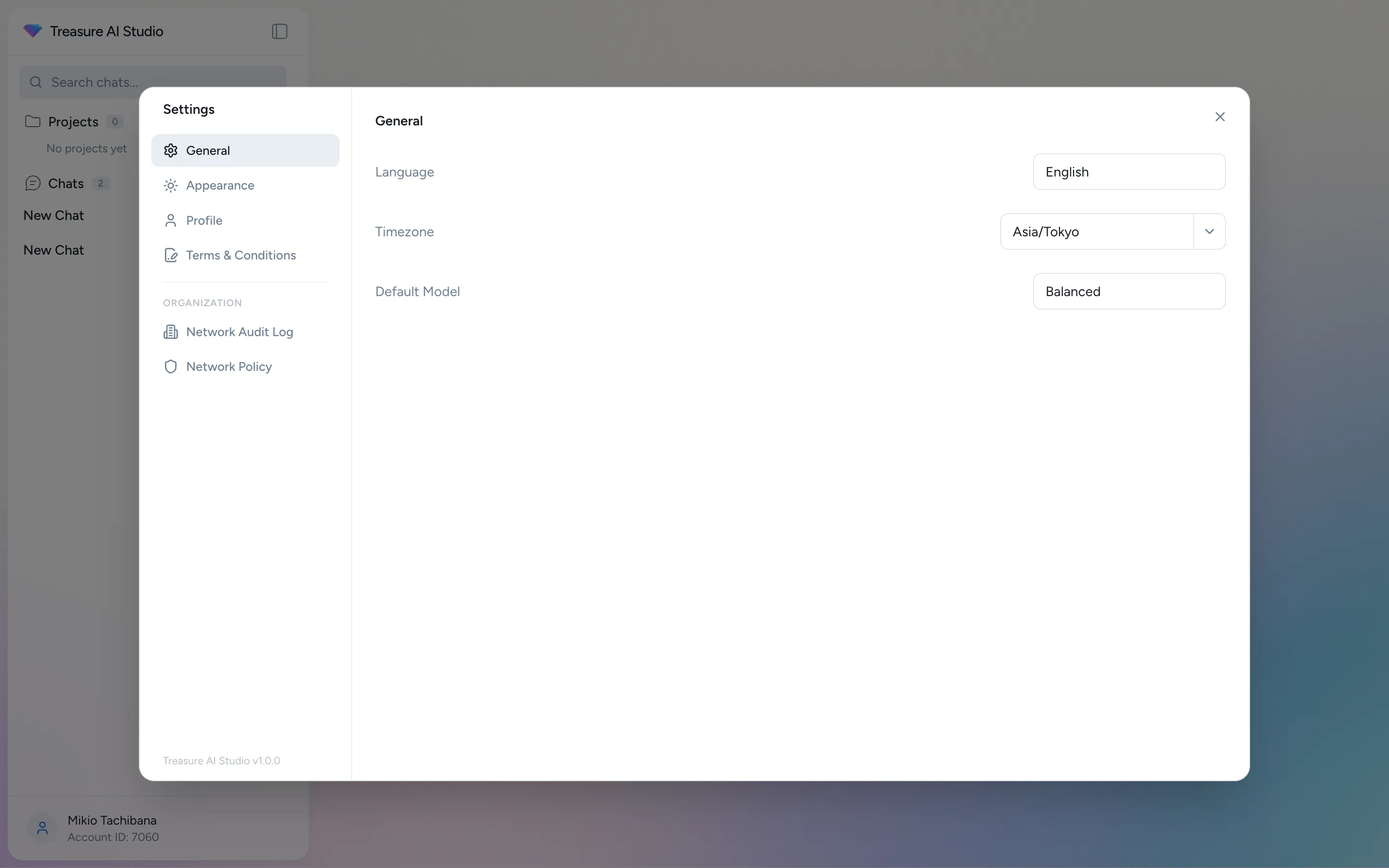
| Language | English or 日本語 (Japanese) |
| Timezone | A searchable picker used to display times in your local zone |
| Default Model | The model tier new chats start with (Pro, Balanced, or Fast). Only tiers available in your region are listed. You can still switch tiers within any conversation |
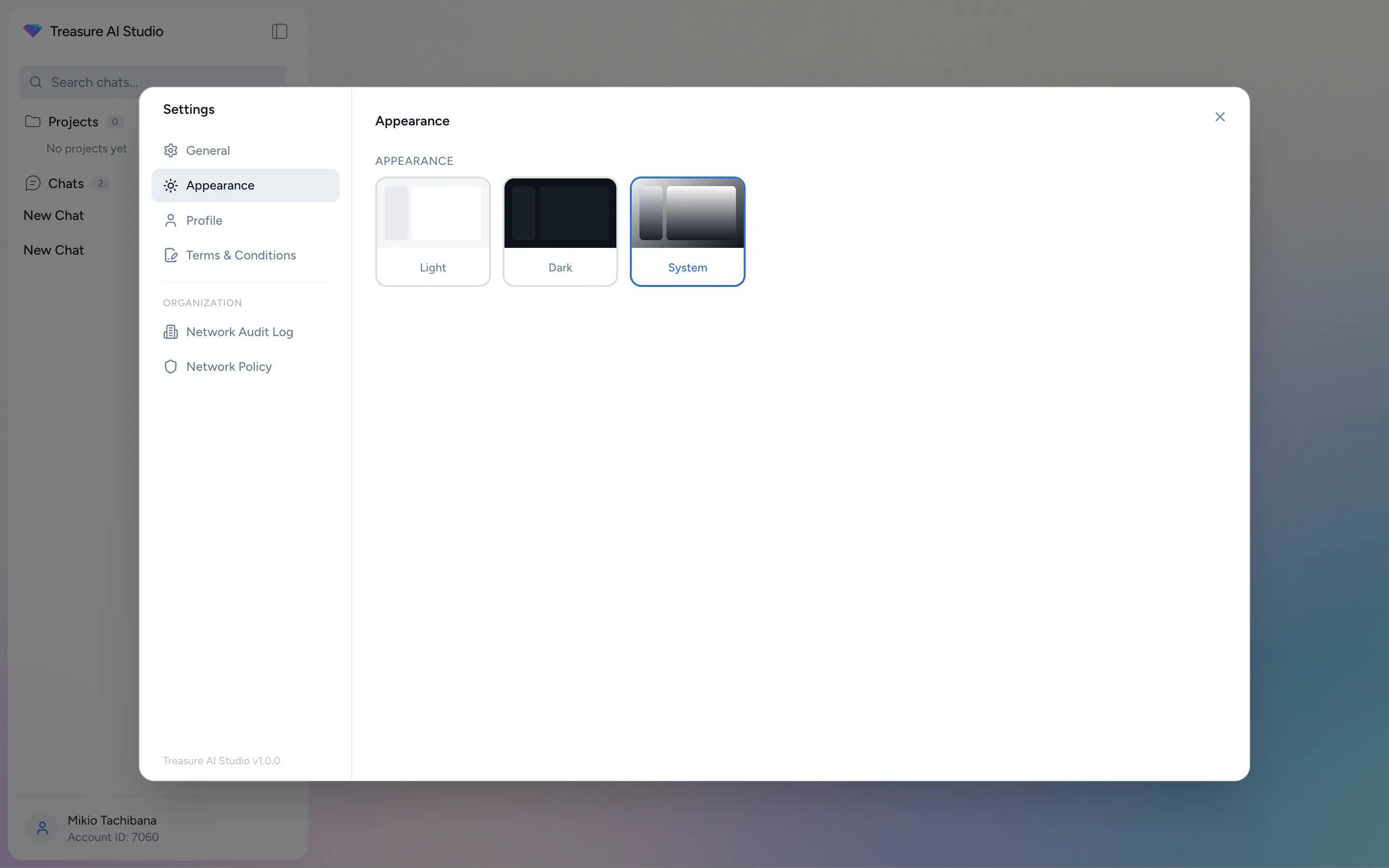
The Appearance tab sets the interface theme: Light, Dark, or System (follow your device's setting).
The Profile tab shows your account identity: your email, identity provider, region, and Account ID. It also contains the Sign Out button.
The Connections tab manages links to external data sources such as Databricks and Snowflake. See Connections for setup details.
Account administrators see an additional Organization section that applies to all users in the organization. These settings each have a dedicated page:
| Setting | What It Controls |
|---|---|
| Instructions | Organization-wide guidance appended to every conversation. See Custom Instructions |
| Credit Usage | A dashboard of per-user, per-day credit consumption. See Credit Usage |
| Credit Policy | The per-user daily credit limit and reset timezone. See Credit Policy |
| Network Audit Log | A record of the external connections agents made, by domain, user, chat, and outcome. See Network Audit Log |
| Network Policy | Which external domains agents may reach, as ordered allow and block rules. See Network Policy |
| Data Retention | How long chats are kept before automatic deletion. See Chat Data Retention |
| Marketplace and Connector Settings | Organization-level skill and connector configuration. See Plugin Marketplace and Connections |
The Organization section is visible only to account administrators. Regular users see only the User section and Legal (Terms & Conditions).
On Mobile, settings open as a bottom sheet (drag down to dismiss; on Android, Back also closes it). It shows your profile card with your email, region, and Account ID, followed by these items in order:
| Item | Contents |
|---|---|
| Sign out | End your session. A confirmation dialog appears; tap Confirm to sign out |
| Language | English or 日本語. Defaults to your device language |
| Appearance | System, Light, or Dark |
| Timezone | Searchable timezone picker |
| Default Model | The default model tier for new chats (Balanced unless you change it). Disabled when your region offers a single tier |
| Terms & Conditions | Review the terms you accepted at first sign-in |
On Mobile, Language, Appearance, and Default Model are saved on the device only, so changing them on your phone does not change Web or Desktop, and the reverse. Timezone is saved to your account.
The Desktop app updates itself automatically. Update status is shown in the app's status bar rather than in Settings — there is no manual "check for updates" toggle.
- Core Concepts — Work folders, model tiers, credits, and context
- Work Folders — The default work folder and where new chats are saved
- Custom Instructions — Set organization-wide agent guidance
- Security Overview — Access control, SSO, and audit logging