Salesforce Integration sends the AI summary and to-do list of a Treasure AI Voice recording to Salesforce as a Task, so the follow-up reaches your sales team's Salesforce organization without being copied by hand. Use it after a customer meeting when the summary and action items should be visible to the people who work the account in Salesforce. An Enterprise Admin user and a Salesforce administrator set up the connection once, and recording owners send individual recordings from the Treasure AI Voice iOS app.
Each send creates one standard Salesforce Task. Treasure AI Voice doesn't install a package, custom object, custom field, or Flow in your Salesforce org. It writes only to the Task object, using the permissions that you grant to a dedicated integration user.
Each Task carries the following data from the recording:
- The AI-generated summary.
- The to-do list, when the recording has action items.
- The recording ID, the recording owner's Treasure AI Voice sign-in email, and the recorded time in UTC. These values form a routing block at the start of the Task description.
- The Task subject, which combines the recorded time and the AI-generated name of the recording.
Treasure AI Voice doesn't send the audio or the full transcript. It also doesn't read any data back from Salesforce.
Only the person who made a recording can send it, and only after the recording finishes processing. Enterprise Admin users can't send another person's recording, and the AI Voice Console has no send action.
Each send creates a new Task. If you send the same recording again, a second Task is created. Both Tasks carry the same recording ID.
The send action appears only when Treasure AI has turned on the Salesforce export add-on for your organization and the connection is saved. It is available in the iOS app only.
The Task is owned by the Salesforce queue that your administrator configures. If no queue is configured, the Task is owned by the integration user. Treasure AI Voice doesn't link the Task to an Account, Contact, or Opportunity, and it doesn't pick a Salesforce user as the owner. Assign the Task to a person or record in Salesforce.
The send metadata includes the Task ID, the status, the sender, and the Salesforce error code when a send fails. It doesn't store the summary or the to-do list in these records.
Deleting a recording in Treasure AI Voice doesn't delete its Task in Salesforce. If the Task must be removed, delete it in Salesforce. Treasure AI Voice doesn't carry out data-subject deletion requests in Salesforce, so manage retention and deletion of the Salesforce copy there.
Any AI processing inside your Salesforce org is governed by your Salesforce contract and configuration.
Confirm the following before you configure Salesforce Integration.
Treasure AI Voice
- Your organization has the Salesforce export add-on turned on. Treasure AI turns on this add-on for your organization. If you don't see the Salesforce destination on the Export page, contact your Customer Success Manager.
- The Treasure AI Voice iOS app, signed in with the account that made the recordings you want to send.
Salesforce
- A Salesforce org that you can reach at its My Domain URL, for example
https://acme.my.salesforce.com. - A Salesforce administrator who can create an External Client App, a permission set, a queue, and an integration user.
- A dedicated integration user for Treasure AI Voice. Treasure AI Voice creates every Task as this user, so use a service account rather than a sales representative's account.
Configuration happens in two places. A Salesforce administrator creates the app, permissions, and queue in Salesforce. An Enterprise Admin then saves the app's credential in the AI Voice Console.
Perform these steps in Salesforce as a Salesforce administrator.
- Open Setup, find App Manager, and select New External Client App.
- Enter the basic information for the app.
- In the OAuth settings, enable authorization, set a callback URL (for example,
https://login.salesforce.com/services/oauth2/success), and add the Manage user data via APIs (api) OAuth scope. - Enable the Client Credentials Flow option.
- Save the app.
Treasure AI Voice authenticates with the app's client credentials, so every Task is created as the app's Run-As user. In the app's policy settings, enter the exact username of the dedicated integration user in Run As (Username).
Then create a permission set, assign it to the integration user, and grant only these permissions:
- Create on the Task object.
- Field access to Subject and Description.
- Field access to OwnerId, only if you configure a queue.
Don't grant anything else to the integration user. In particular, don't grant:
- Read access to Opportunity, Account, Contact, User, or Group.
- Any permission on ContentNote or ContentDocumentLink.
- Modify All, View All, or Set Audit Fields Upon Creation.
A credential that can't read business records can't attach Tasks to them. If the Consumer Secret is ever disclosed, it can create Tasks but can't read your Salesforce data.
Each Treasure AI Voice organization has one Salesforce connection and can configure one Task queue. When a queue is configured, all new Tasks sent by that organization are assigned to it. Create a queue for the people who should have access to these Tasks.
- Open Setup, find Queues, and select New.
- Set Supported Objects to Task only.
- Add the sales team members who should see these Tasks.
- Note the queue ID. It starts with
00Gand has 15 or 18 characters. A Salesforce administrator can find the ID in Setup.
Every member of the configured queue can read every summary and to-do list sent to it. Treasure AI Voice does not route Tasks to different queues by sales team. If teams need separate access, design the Salesforce routing and access controls before enabling sending.
Without a queue, the Task belongs to the integration user. The Task is then visible only to that user, to users above it in the role hierarchy, and to users with View All Data, so sales representatives usually can't see it.
- Open External Client App Manager in Salesforce, select your app, and open the Settings tab.
- Under the OAuth settings, select Consumer Key and Secret.
- Copy the Consumer Key and the Consumer Secret.
Perform these steps as an Enterprise Admin.
- Sign in to the AI Voice Console as an Enterprise Admin.
- Open the Export page and select the Salesforce destination.
- Open the Settings tab.
- Enter the Instance URL. Use your My Domain URL over HTTPS, with no port, path, query, or fragment, for example
https://acme.my.salesforce.com. - Optionally, enter the Task queue ID. It must have 15 or 18 letters or digits.
- Enter the Consumer Key (Client ID) and the Consumer Secret (Client Secret).
- Select Save and verify.
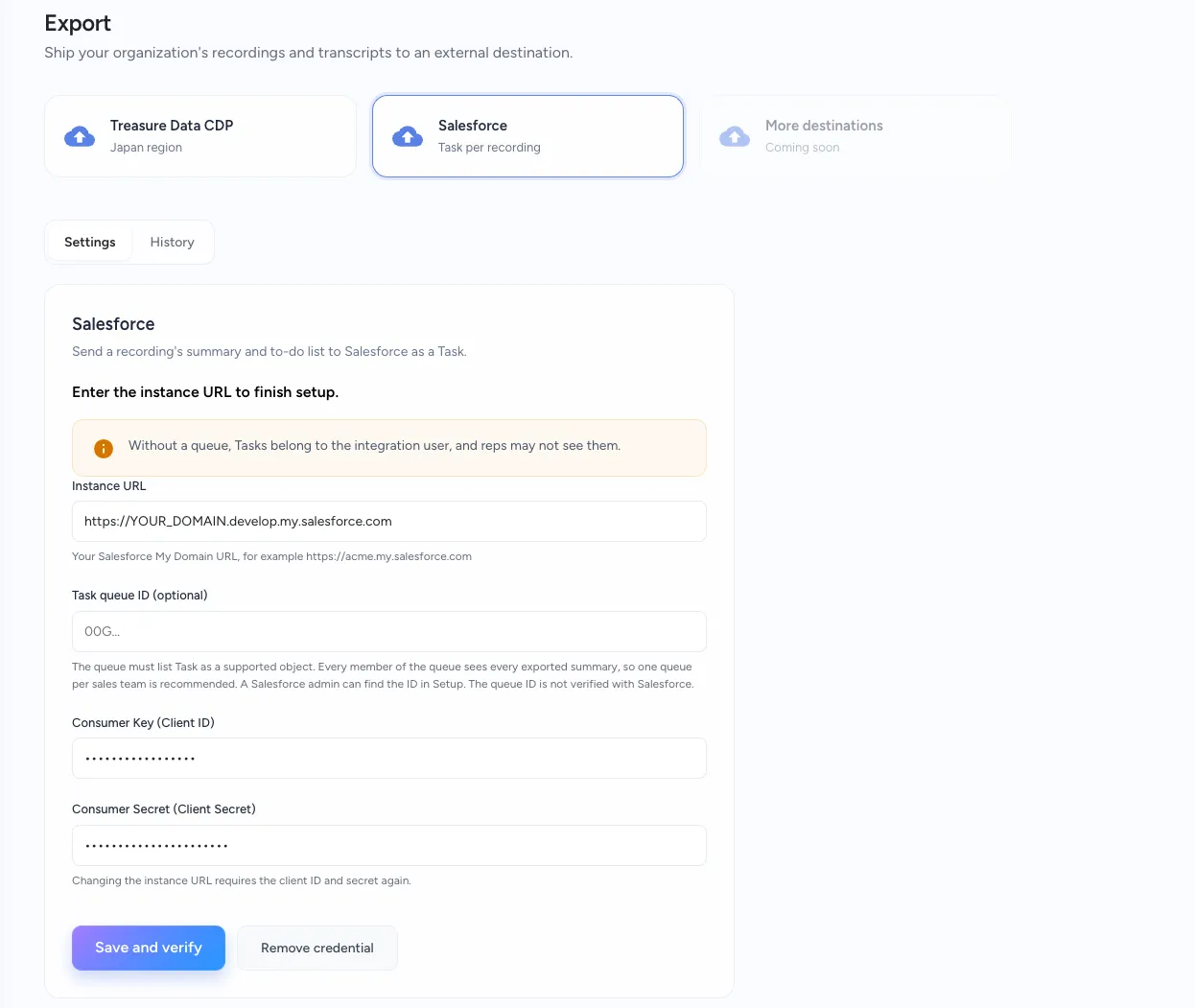
After you save, the console shows Saved. The credential was verified with Salesforce. The Settings tab then shows when the credential was set and who set it. The Consumer Secret isn't shown again.
The console verifies the Consumer Key and Consumer Secret with Salesforce, but it doesn't check the Task queue ID. A wrong queue ID causes the first send to fail. If Salesforce rejects the credential, the console shows the Salesforce error code and saves nothing.
- To change the Instance URL, enter the Consumer Key and Consumer Secret again. The console needs them to verify the new URL.
- To change only the Task queue ID, edit the field and save. The stored credential is kept.
- To stop sending, select Remove credential. Sending to Salesforce stops until you register a new credential, and the Send Summary to Salesforce action disappears from the iOS app.
- To cut off access completely, also revoke the External Client App in Salesforce.
Treasure AI Voice doesn't track when the Consumer Secret expires. If Salesforce rejects the secret, sends fail with a permanent error. Rotate the secret in Salesforce, then enter the new Consumer Key and Consumer Secret in the Settings tab and save.
Recording owners send summaries from the iOS app. For the procedure and result checks, see Send a Summary to Salesforce in the User Guide. The AI Voice Console provides connection settings and send history, but no send action.
Enterprise Admins can review every send in the Salesforce History tab. Open the Export page, select the Salesforce destination, and open the History tab. The list shows the most recent sends first, with the recorded date, the person who sent it, the status, a link to the Task, and the completion time. Failed sends show the reason. You can filter the list by date and status.
A Task has a subject and a description. Both are generated from the recording.
The subject has this form:
[AIV] 2026-09-14 01:30Z_Acme renewal callThe date and time are in UTC, and the Z marks UTC. The AI-generated name follows the underscore. If the recording has no name, the name and underscore are omitted. The subject is cut at 255 characters.
The description has three parts, in this order: the routing block, the summary, and the to-do list. The example below uses placeholder values.
AIV_RECORDING_ID=EXAMPLE-1234-5678
AIV_RECORDING_OWNER_EMAIL=rep@example.com
AIV_RECORDED_AT=2026-09-14T01:30:00Z
AIV_END

Summary
<AI-generated summary>

To Do
1. <first action item>
2. <second action item>
The following rules apply to the description:
- The To Do section is omitted when the recording has no action items.
- The Task description can be at most 32,000 characters. If the whole description would exceed that limit, the summary is cut and ends with
… (truncated). - The routing block and the to-do list aren't normally cut. If they alone exceed 32,000 characters, the to-do list is cut from the end instead. This doesn't happen for realistic recordings.
- A line in the summary or to-do list that starts with
AIV_is prefixed with>, so that it can't be mistaken for a routing key.
Salesforce administrators can use the routing block to route each Task with automation, without parsing the summary text. The block has the same structure for every organization.
| Key | Value | Example |
|---|---|---|
AIV_RECORDING_ID | The recording ID: 1 to 128 characters from letters, digits, _, and -. | EXAMPLE-1234-5678 |
AIV_RECORDING_OWNER_EMAIL | The recording owner's Treasure AI Voice sign-in email, as is. | rep@example.com |
AIV_RECORDED_AT | The recorded time in UTC, in ISO 8601 format with a Z suffix. | 2026-09-14T01:30:00Z |
Read the routing block with these rules:
- Read from the first line of the description to the first
AIV_ENDline, and take the three keys in the order shown above. - Don't search the rest of the description for keys. Everything after
AIV_ENDis the summary and to-do list, and it can contain any text, including lines that look like keys. - The keys and their order are fixed for this release.
AIV_RECORDING_OWNER_EMAIL is the sign-in email address exactly as the owner entered it, including any + alias such as name+aiv@example.com. Treasure AI Voice doesn't map this address to a Salesforce user, and one address can match more than one Salesforce user. If your automation assigns Tasks to people, handle the mapping, including aliases, in your automation.
Start with the message that the app or the console shows, then find the matching section below.
The action appears only when all of the following are true: the add-on is turned on, the connection is saved, you are the owner of the recording, and you are using the iOS app.
- If the console shows Salesforce export is not enabled for your organization, contact your Customer Success Manager.
- If the console shows Enter the instance URL to finish setup or Save the client ID and secret to finish setup, complete the fields on the Settings tab and select Save and verify.
- If the recording belongs to another person, sign in with the account that made the recording. Enterprise Admins can't send another person's recording.
- The send action is available in the iOS app only, so Android devices don't show it.
The console shows Salesforce rejected the credential (error code: …). Nothing was saved. Nothing changes until you save a credential that Salesforce accepts. Match the error code to its cause:
invalid_clientorinvalid_client_id: the credential doesn't match an active External Client App. The app may have been revoked, or the Consumer Secret may have been rotated. Check the app in Salesforce, then enter the current Consumer Key and Consumer Secret on the Settings tab.inactive_user: the Run-As user is inactive. Reactivate the integration user in Salesforce, or set an active integration user as the Run-As user.- Any other code: ask your Salesforce administrator to check the app's settings and the integration user's permissions, then save again.
If a send fails with a temporary error, the recording shows the failure message, and the button reads Retry. Check the displayed guidance and your network connection, wait a while, then tap Retry. A temporary error means the send can succeed later. Typical causes are:
- The daily API limit of your Salesforce org was reached (
REQUEST_LIMIT_EXCEEDED). The limit resets on a rolling 24-hour window, so retrying later usually works. - A record that the send needed was locked by another process (
UNABLE_TO_LOCK_ROW). - A network error or timeout occurred.
If sending continues to fail, contact your administrator. For failures caused by the daily API limit, your Salesforce administrator can review API usage in Salesforce.
The recording shows the failure message and guidance to contact your administrator. The send button remains Send Summary to Salesforce. Retrying won't succeed until someone fixes the cause. If the cause is a connection setting, permission, or validation error, an administrator must correct it before another send can succeed.
- An Enterprise Admin checks the connection on the Settings tab. Start with the Instance URL, the Consumer Key and Consumer Secret, and the Task queue ID.
- A Salesforce administrator checks the integration user's permission set, the Run-As user, and the queue. Confirm that the queue exists, lists Task as a supported object, and has the ID that you entered.
- If the Consumer Secret was rotated or the app was revoked, enter the current credential as described in Change or Remove the Connection.
After your administrator corrects the cause, tap Send Summary to Salesforce on the recording. If sending keeps failing, contact your administrator.
A Flow or validation rule that runs when Salesforce saves a Task can reject it. In that case, Salesforce doesn't save the Task, and the send fails with a permanent error that shows the Salesforce error code. Check the automation on the Task object in Salesforce.
Automation that runs asynchronously, after the Task has been saved, doesn't change the send status.
Reps see a Task when a queue they belong to owns it. A Task can be hidden from reps for these reasons:
- No queue is configured, so the integration user owns the Task.
- The rep isn't a member of the queue.
- The queue doesn't list Task as a supported object.
Configure the single Task queue for your Treasure AI Voice organization, add the people who should have access as members, and enter that queue's ID on the Settings tab. All new Tasks sent by the organization go to that queue. Tasks sent before the queue was configured keep the integration user as their owner. Reassign those Tasks in Salesforce, or send the recording again to create a new Task that belongs to the queue. A new send creates a second Task.
Each send creates a new Task. If a send times out, Salesforce may already have saved the Task even though the app shows the send as failed. Retrying in that case creates a second Task. Before you retry or send the recording again after a timeout, check Salesforce for an existing Task that has the same AIV_RECORDING_ID. Delete any duplicates in Salesforce.
The subject and the routing block use UTC. The Z at the end of the time marks UTC. Convert the time to your local time zone when you read the Task.
- Send a Summary to Salesforce — Send from the iOS app and check the result.
- Administrator Guide — Export page settings and the rest of the AI Voice Console.
- Treasure Data CDP Integration — Export the same recordings to your Treasure Data CDP for analytics and segmentation.
- Troubleshooting & FAQ — Common issues with devices, the mobile app, and recordings.