This guide explains how to bind a PLAUD device to Treasure AI Voice, unbind it before reassignment, and verify that the previous account no longer owns it. Correct unbinding releases the device for another user; disconnecting Bluetooth does not. Follow these steps when setting up a device or returning it to your organization.
Complete these checks before binding or unbinding a PLAUD device.
- Sign in to the Treasure AI Voice mobile app before binding a device.
- Treasure AI Voice is designed for one account, one mobile device, and one PLAUD recorder per set. See the account, mobile device, and recorder relationship.
- Enable Bluetooth and Location Services for Treasure AI Voice before scanning. See the User Guide for iOS permission settings.
- The current device owner must unbind the device from their own mobile app before handoff. An Enterprise Admin cannot unbind a device on someone else's behalf.
- If your previous smartphone is unavailable, sign in to the same account on a new smartphone to connect to the device and unbind it if needed.
- Before an administrator deletes your user account, unbind every device linked to it and complete the verification checks below. Deleting the account first can prevent the next user from binding the device.
- Upload any recordings you need and confirm that they are saved in the cloud before unbinding. Unbinding deletes the recordings stored on the device.
- Do not install or use the consumer PLAUD app on a phone that also has Treasure AI Voice installed. If the device was previously used with the consumer app, follow the recovery steps below and use the apps one at a time.
Each PLAUD device can be bound to one user account at a time. If your organization pre-assigned the device, it may already be linked to your account.
Power on the PLAUD device:
- Note Pro: Press the recording button. The PLAUD logo appears on the display.
- NotePin S: Press and hold the recording button until the white light blinks, then release it.
Open the Treasure AI Voice mobile app and sign in.
If the device setup screen appears, tap Connect your device.
Tap Scan for devices. The app searches for nearby PLAUD devices over Bluetooth.
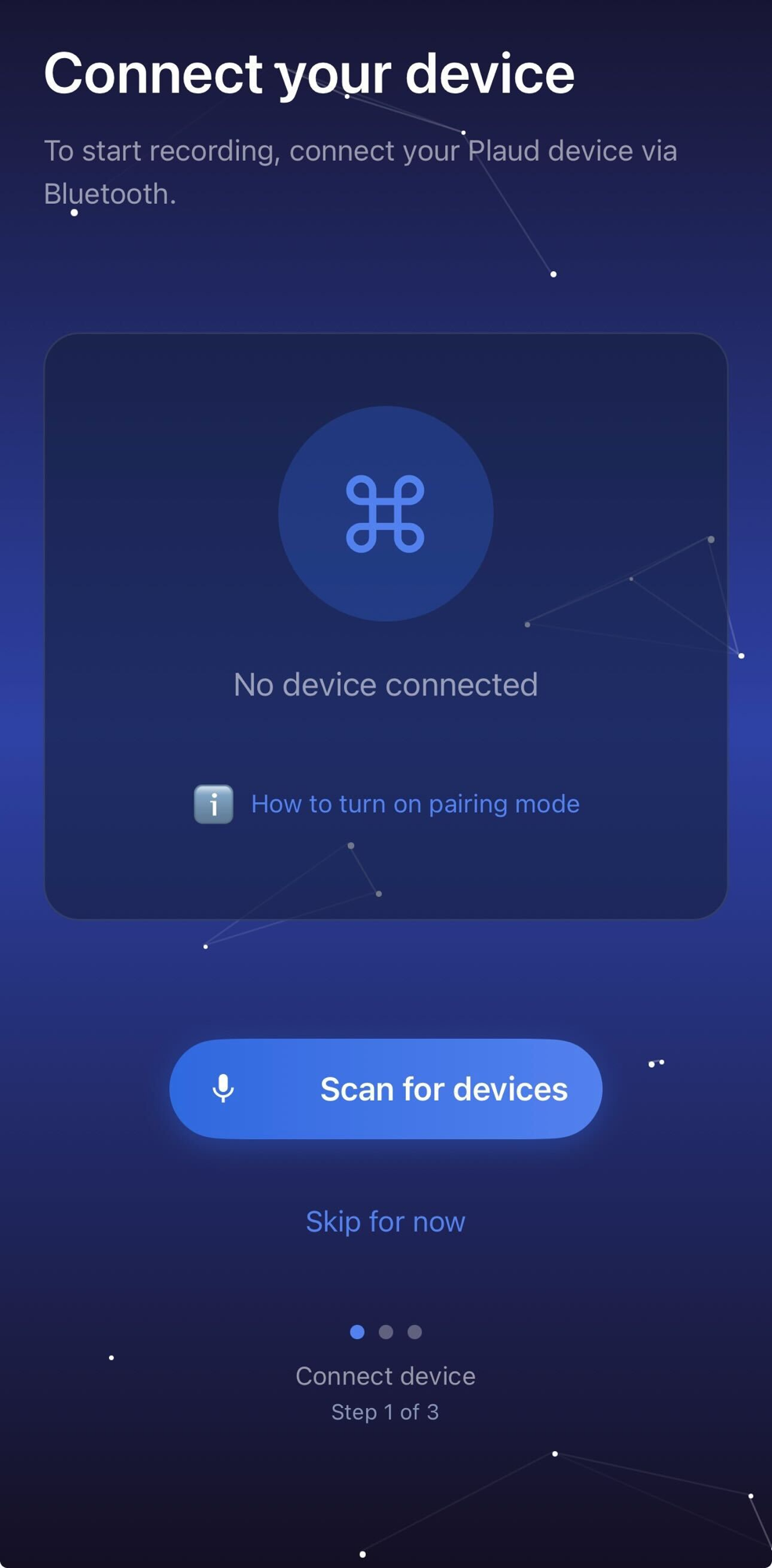
Select your device from the list.
Follow the on-screen prompts to complete pairing.
When pairing succeeds, the device is linked to your account and ready to record. If the device does not appear in the scan results, see Troubleshoot a Device That Does Not Appear.
Unbinding removes the device from the current owner's account. Complete both checks below before handing the device to another user.
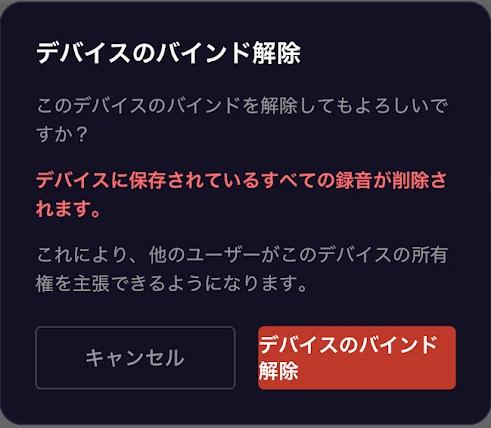
The confirmation screen warns that all recordings stored on the device will be deleted. Before confirming the unbind, upload any recordings you need and verify that they are saved in the cloud. Transferring a recording to the mobile app alone is not enough.
The following screenshots show the Japanese app UI; the steps below name each control in English.
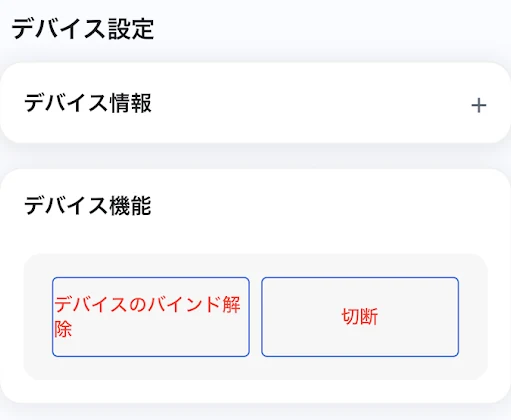
- Open the Treasure AI Voice mobile app and go to the Profile tab.
- Under Device Functions, choose Unbind Device. Do not choose Disconnect; it only ends the current Bluetooth connection.
- Review the confirmation screen and confirm that you are ready to remove the device binding.
- Tap Unbind Device on the confirmation screen. The app returns to the device setup screen. A successful unbind does not display a success message; an error message means the operation did not complete.
- On the setup screen, tap Scan for devices. Confirm that your device appears as Available, not Available (your device).
- Tap Skip for now below the scan button to enter the app.
- Open Profile > Device Information. Expand Device Information if it is collapsed.
- Confirm that the device is no longer listed.
- Hand off the device only after both checks pass. If either check fails or the app displays an error, do not hand it to the next user; contact your Enterprise Admin or Treasure AI Support.
If your previous smartphone is lost, broken, or otherwise unavailable, you can connect to your PLAUD device from a new smartphone by signing in to the same Treasure AI Voice account. Changing phones does not require deleting or recreating your account. Use the new smartphone as that account's mobile device rather than operating the same account on both phones at the same time.
- Install the Treasure AI Voice mobile app on the new smartphone.
- Sign in to the same account using the same sign-in method as before, such as Sign in with Google or Email / Password.
- Enable Bluetooth and Location Services for Treasure AI Voice. See the User Guide for iOS permission settings.
- Power on the PLAUD device and keep it near the new smartphone.
- Scan for devices and select your PLAUD device to connect.
Once connected, you can sync recordings or unbind the device from the new smartphone. If you are handing it to another user, follow Unbind and Verify a Device Before Handoff and complete both verification checks before handing it over. If you cannot sign in or connect to the device, contact Treasure AI Support and provide the device's S/N.
Use these steps when a device cannot pair, remains bound to another user, or does not become available after an unbind.
Use this procedure if the same smartphone previously connected the device to the consumer PLAUD app and Treasure AI Voice appears to connect but remains on Initializing device connection…, the battery stays at 0%, or the recording button remains unavailable.
Before uninstalling Treasure AI Voice, confirm that the recordings you need are saved in the cloud. If any have not been uploaded, upload them before uninstalling the app or unbinding the device.
If Treasure AI Voice is installed on the phone, sign out and uninstall it before using the consumer app. After unlinking the device, sign out of and uninstall the consumer app before installing or opening Treasure AI Voice again.
- Open the consumer PLAUD app and connect to the device.
- Follow the PLAUD support instructions for unlinking a device (Japanese). Choose the instructions that match whether the device appears connected in that app.
- Sign out of the consumer PLAUD app and uninstall it.
- Install Treasure AI Voice.
- Sign in and follow Bind a PLAUD Device.
- Sign out of Treasure AI Voice and uninstall it from the phone.
- Install the consumer PLAUD app and connect to the device.
- Follow the PLAUD support instructions for unlinking a device (Japanese). Choose the instructions that match whether the device appears connected in that app.
- Sign out of the consumer PLAUD app and uninstall it.
- Install Treasure AI Voice.
- Sign in and follow Bind a PLAUD Device.
Confirm that Bluetooth is enabled, the PLAUD device is powered on and in pairing mode, and the device is near your smartphone. If the device still does not appear, it may already be bound to another Treasure AI Voice user. Give the device's serial number (S/N) to your Enterprise Admin and ask them to check its binding status.
A previous user-device association may remain in the management system even after a forced unbind or factory reset. Contact Treasure AI Support and provide the device's S/N.
The device may need a forced unbind or factory reset before another user can bind it. Contact Treasure AI Support and provide the device's S/N. An Enterprise Admin cannot complete this recovery from the admin interface.
These answers explain device ownership, the checks an Enterprise Admin can perform, and how to recover a device that was returned without an unbind.
Unbind Device releases the device from the current user's account. Disconnect only ends the current Bluetooth connection; the device remains bound to the same account, so another user cannot bind it.
The current owner must unbind the device from their own Treasure AI Voice mobile app. An Enterprise Admin cannot unbind it on the owner's behalf. Do not return or reassign the device until the owner has completed both verification checks above.
Yes. An Enterprise Admin can check the device's binding status in the Enterprise Admin interface. Give your admin the device's S/N so they can locate it.
Unbinding removes the device from your organization's ownership, so it no longer appears in the organization's device list. The unbind event remains available in Audit Logs, where you can check when the device was unbound.
No. The consumer PLAUD app uses a separate account system, and its binding status cannot be checked in the Treasure AI Voice Enterprise Admin interface. Use the consumer-app recovery steps above if you need to remove that association.
The current owner must unbind the device before handoff. If only the previous smartphone is unavailable, the owner can sign in to the same account on a new smartphone, connect to the device, and complete the unbind. If the owner cannot complete the unbind, contact Treasure AI Support to request a device reset and provide the device's S/N.
- User Guide — App setup, recording, transcription, and AI features
- Troubleshooting & FAQ — Other common Treasure AI Voice issues