This guide is intended for Enterprise Administrators who manage Treasure AI Voice deployments across their organization. It covers authentication, device management, user management, and security features.
Before you can access the Admin Dashboard, your organization must be activated. Treasure AI will send you an invitation link — follow the steps in Organization Activation to complete the one-time setup.
If the same person uses more than one email address, activate each email address in a different browser. If one of those accounts is the organization owner, complete the organization activation afterward in a different browser from the one used for email activation. Using the same browser can create an unintended relationship between the email address and organization.
The Web Admin Dashboard provides centralized management of your organization's Treasure AI Voice deployment.
| Region | URL |
|---|---|
| Japan (AP01) | voice-console.ap01.treasure.ai |
- Devices — View and manage all PLAUD devices and their assigned users.
- Recordings — Browse, review, and delete recordings.
- Audit Logs — View a complete audit trail of all activity.
- Members — Manage users — invite, remove, and assign roles.
- AI Lens (optional) — AI-powered analytics and insights.
- Export (optional) — Configure manual and recurring exports of recordings, transcripts, summaries, and device inventory to your Treasure Data CDP.
- Legal — Access Treasure Data's Terms of Service, privacy statement, and other legal documents.
Treasure AI Voice supports two authentication methods:
| Method | Description |
|---|---|
| Sign in with Google | Authenticate using your organization's Google Workspace account. |
| Email / Password | Sign in with credentials provided by your administrator. |
Direct integrations with SAML 2.0, Microsoft Entra ID (Azure AD), Okta, and other enterprise identity providers are not currently supported. The only built-in social identity provider is Google.
For the time being, organizations that gate Google Workspace sign-in through their corporate IdP can use Sign in with Google to inherit that gate at authentication time. This only affects new sign-ins — it does not terminate active sessions or remove the Treasure AI Voice user record when you deprovision the user upstream. To fully revoke access, an Enterprise Admin must also remove the user from the Members page.
The Devices page (also called Device Fleet) provides a real-time overview of all PLAUD devices deployed across your organization.
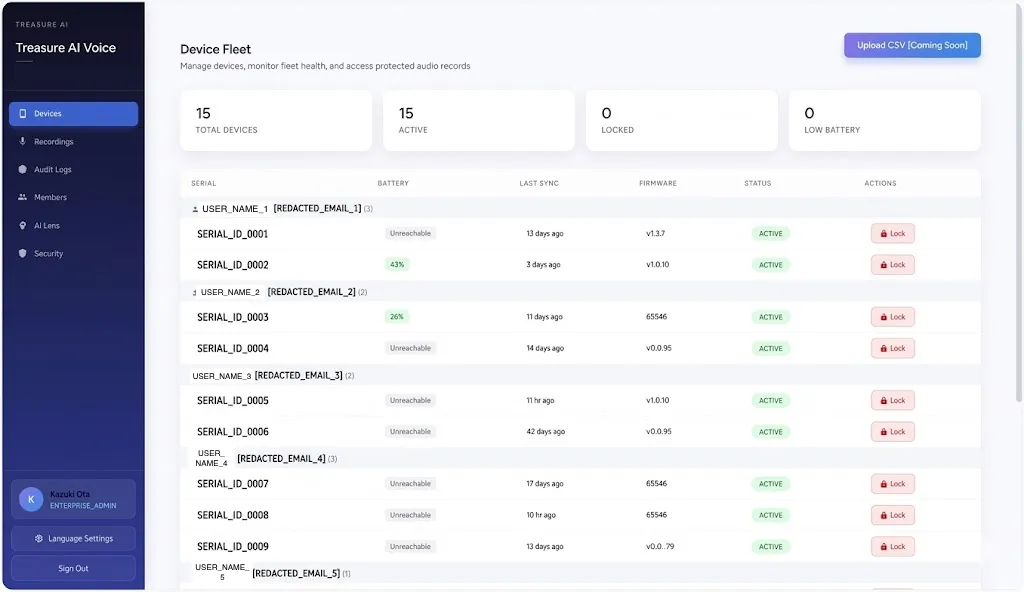
At the top of the page, summary cards display:
- Total Devices: Total number of devices registered to your organization.
- Active: Devices that are currently active and operational.
- Locked: Devices that have been remotely locked by an administrator.
- Low Battery: Devices reporting low battery levels.
Devices are grouped by assigned user (name and email). Each device row displays:
| Column | Description |
|---|---|
| Serial | The unique serial number of the device. |
| Battery | Current battery level percentage, or "Unreachable" if the device has not synced recently. |
| Last Sync | How long ago the device last synced with the mobile app. |
| Firmware | The firmware version currently installed on the device. |
| Status | Current device status (Active, Locked). |
| Actions | Lock or unlock the device remotely. |
If a device is lost or stolen, you can remotely lock it:
- Navigate to Devices.
- Locate the device by serial number or assigned user.
- Click the Lock button in the Actions column.
- The device status will change to Locked. The action is recorded in the audit log.
Locking a device doesn't disable the hardware itself — it locks the device's account and connection in software. If a locked device is later recovered, an Enterprise Admin must unlock it (from the Devices page) before it can be used again.
The Recordings page displays all transcriptions from organization members.
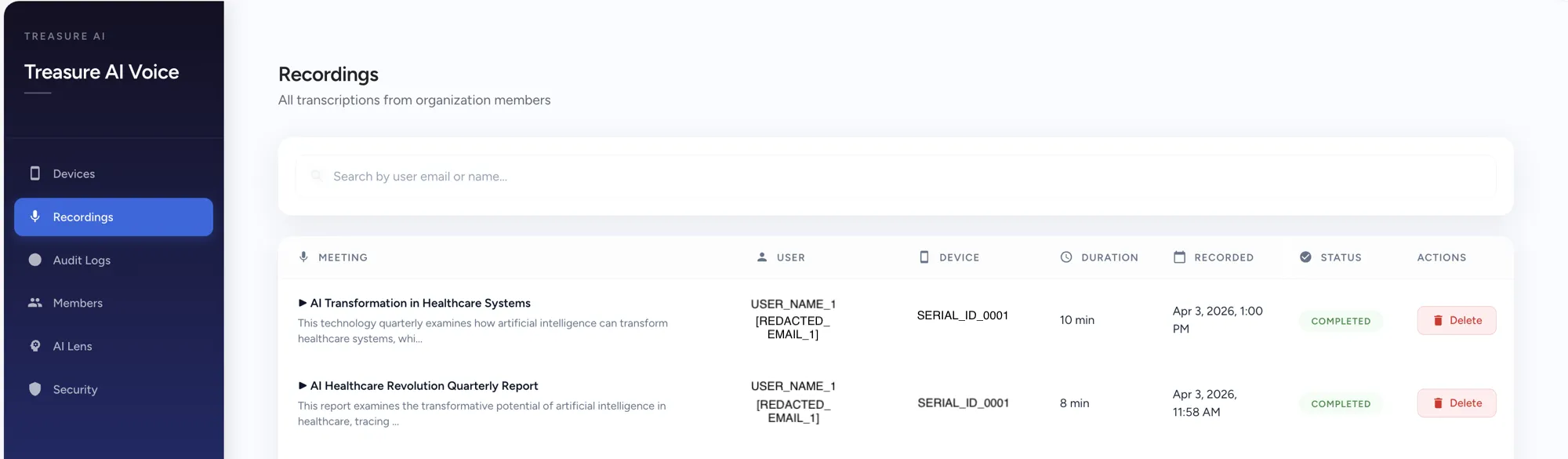
Use the search bar to find recordings by user email or name. Each recording row displays:
| Column | Description |
|---|---|
| Meeting | Recording title and a preview of the transcription content. Click the play button to listen. |
| User | Name and email of the user who created the recording. |
| Device | Serial number of the PLAUD device used for the recording. |
| Duration | Length of the recording. |
| Recorded | Date and time the recording was captured. |
| Status | Processing status (e.g., Completed). |
| Actions | Delete the recording. |
Click a row to open the recording's detail view, where you can view and copy the transcript, summary, action items, and Key Topics (tags). Enterprise Admins can also edit tags directly from this view — see Key Topics (Tags) in the User Guide.
Click any tag chip in the Recordings list to filter it down to recordings carrying that tag. The filter operates across the entire organization's recording set, not just the current page.
The Audit Logs page provides a complete audit trail of all activity on the platform. Logs are retained for 7 years.
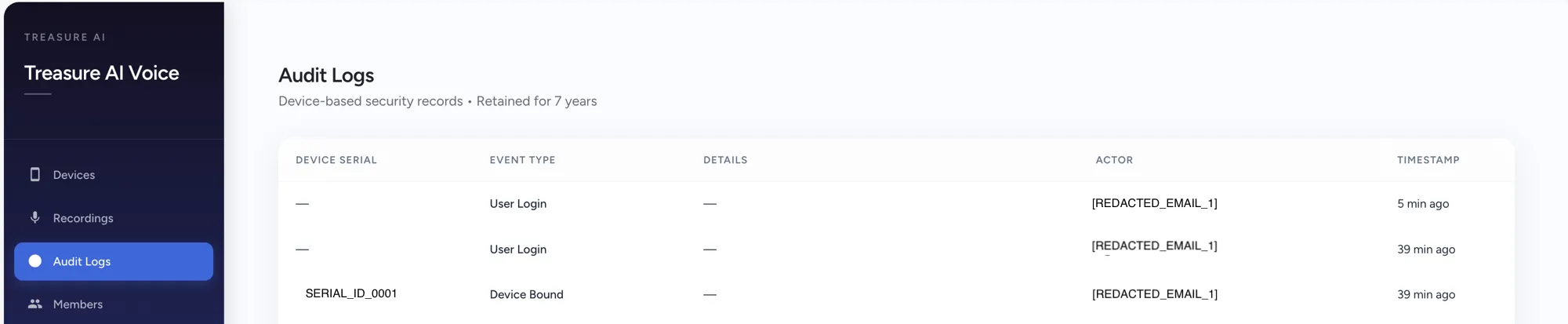
Each log entry displays:
| Column | Description |
|---|---|
| Device Serial | Serial number of the related device (if applicable). |
| Event Type | Type of event — see the Event Types reference below. |
| Details | Additional context for the event (if available). |
| Actor | Email address of the user who performed the action. |
| Timestamp | When the event occurred. |
Narrow the log using the filters above the table — by date range, event type, and user — so you can answer an audit or compliance question on demand, such as everything a specific user did in a given period, or every occurrence of a single event type across the organization.
The audit log tracks the following events, grouped by category:
| Event | Description |
|---|---|
| User Login | A user signed in successfully. |
| User Logout | A user signed out. |
| User Invited | An Enterprise Admin invited a new user. Details include the invited email and assigned role. |
| User Accepted Invite | An invited user completed account setup. |
| User Accepted Terms | A user accepted the in-app Terms of Service. |
| User Deactivated | A user account was deactivated. |
| User Removed | A user was removed from the organization. Details include the removed user's email and prior role. |
| Role Changed | A user's role was updated. |
| Event | Description |
|---|---|
| Device Provisioned | A device was added to the organization's inventory. Details include the provisioning source and firmware version. |
| Device Assigned | A device was assigned to a specific user. |
| Device Bound | A user paired the device with their mobile app. If the device was not previously provisioned, this event also triggers auto-provisioning. |
| Device Unbound | A device was unbound from a user account. |
| Device Depaired | A device was forcibly de-paired (for example, by Enterprise Admin action). |
| Device Locked | A device was remotely locked by an Enterprise Admin. |
| Device Unlocked | A previously locked device was unlocked. |
| Device Heartbeat | A device reported its health status. The dashboard only surfaces heartbeat events that include a low battery alert. |
| Firmware Updated | A device's firmware version changed. |
| Event | Description |
|---|---|
| Recording Created | A new recording was uploaded and persisted. |
| Recording Transcribed | Transcription and AI summarization completed successfully. |
| Recording Failed | Processing failed. Details include the failure reason — for example, TRANSCRIBE_JOB_FAILED or PROCESSING_ERROR. |
| Recording Deleted | A recording was deleted from cloud storage. Details include the recording file name. |
| Event | Description |
|---|---|
| TD CDP Export | A manual or scheduled CDP export reached a terminal state. Details include the run ID, status, destination database, row counts, and export scope. |
| TD CDP Export Settings Updated | The CDP export destination or other export settings were changed. |
| TD CDP Export Key Set | A write-only API key was added or replaced. The key itself is never recorded. |
| TD CDP Export Key Removed | The saved write-only API key was removed. |
The Members page allows you to manage users and team assignments.
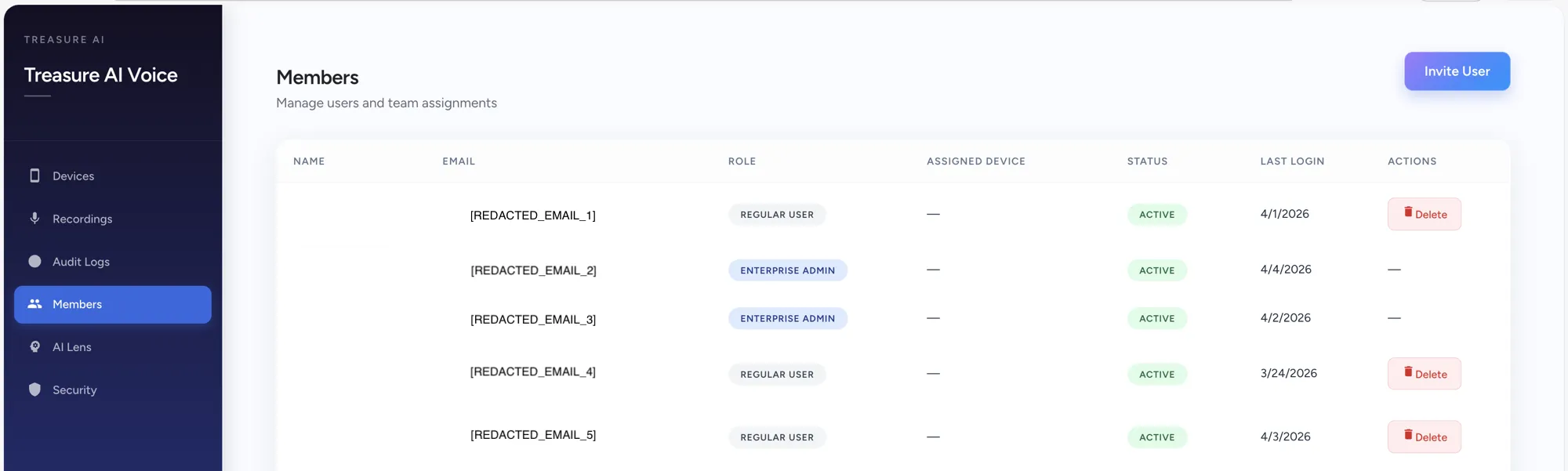
| Column | Description |
|---|---|
| Name | Display name of the user. |
| User's email address. | |
| Role | User role — Regular User or Enterprise Admin. |
| Status | Current account status — for example, whether the user has completed activation. |
| Last Login | Date of the user's most recent login. |
| Actions | Delete the user (available for Regular Users). |
Narrow the member list using the filters above the table:
- Days since last login — surfaces members who haven't used the app recently, which is useful for tracking adoption or following up on inactive accounts.
- Status — quickly find users who were invited but haven't yet activated their account.
- Role — Regular User or Enterprise Admin.
The Name column reflects what the user entered during account activation and can't be edited from the Members page. Support for editing display names is planned for a future release.
- Click the Invite User button in the top-right corner.
- Enter the user's email address.
- Assign a role (Regular User or Enterprise Admin).
- An invitation email is sent to the user automatically.
Invite links expire after 6 days. If the user hasn't accepted the invite within that window, generate a new invite for them from the Members page.
| Role | Permissions |
|---|---|
| Regular User | Can access only their own recordings and transcripts. |
| Enterprise Admin | Full organizational access — manage devices, members, recordings, security settings, and audit logs via the Web Admin Dashboard. |
Enterprise Admin accounts cannot be deleted from the Members page.
AI Lens allows administrators to ask natural language questions about their organization's meeting data, devices, and activity.
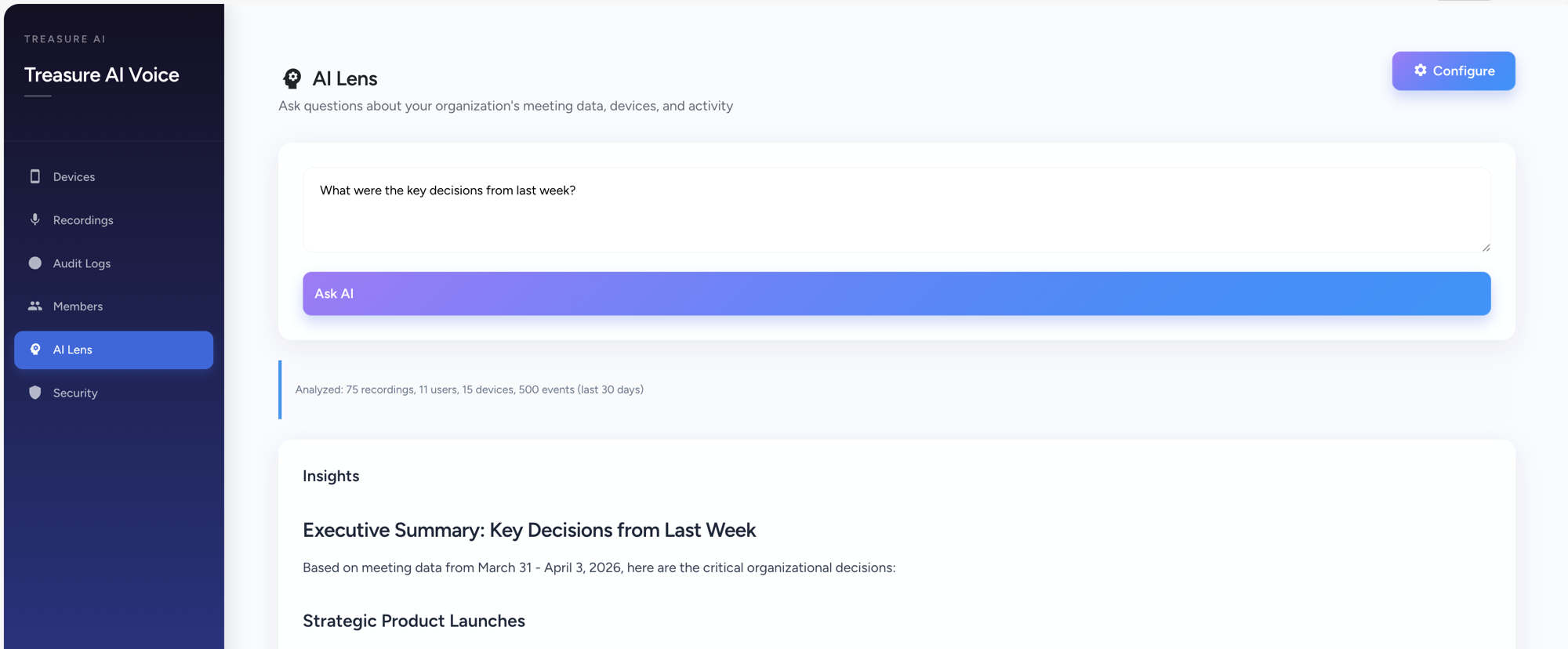
Type a question in the text field — for example, "What were the key decisions from last week?" — and click Ask AI. AI Lens analyzes your organization's recordings and returns an executive summary with insights.
The analysis scope is displayed below the search field (e.g., "Analyzed: 75 recordings, 11 users, 15 devices, 500 events (last 30 days)").
Click Configure in the top-right corner to adjust analysis settings.
The Export page lets Enterprise Administrators send recordings, transcript segments, summaries, and device inventory to a Treasure Data CDP database. The data can then be joined with other customer data for analytics, segmentation, and activation.
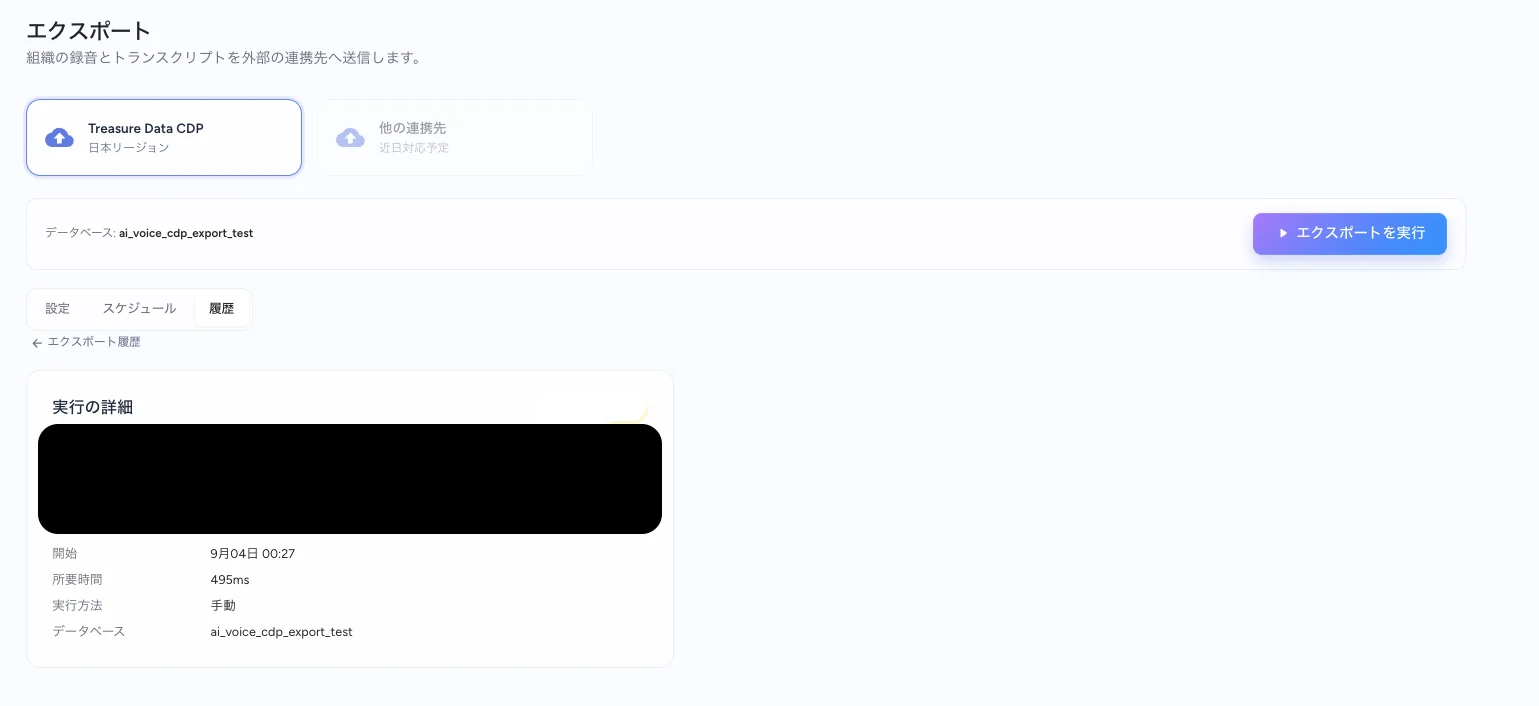
Treasure AI Voice supports both manual and recurring exports. Exports run in the background, so the console returns control after creating an export run. Use the History tab to monitor the run and review its result.
The CDP export currently writes to the Japan (AP01) region of Treasure Data CDP. The destination database must be in that region.
Before configuring an export, make sure you have:
- An Enterprise Administrator account in Treasure AI Voice.
- CDP export enabled for your organization.
- A destination database in the Japan (AP01) region of Treasure Data CDP.
- A dedicated Treasure Data CDP API key with Import Only or General Access permission on the destination database.
Use a dedicated write-only API key. Do not use a Master API key, because a Master key grants more access than this integration requires.
CDP export is disabled by default. To enable it:
- Sign in to the AI Voice Console as an Enterprise Administrator.
- Open the Export page.
- Select Treasure Data CDP.
- Click Enable export.
If the option is unavailable, contact your Treasure AI representative.
Save the destination and credential before running a manual or recurring export:
- Open the Settings tab on the Export page.
- Enter the destination Database.
- Enter a dedicated Write-only API Key.
- Optionally expand Advanced and change the Recordings table and Transcript segments table names.
- Click Save settings.
The database and table settings are restored when you return to the Export page. A saved API key is shown only as a masked value. The full key is not returned to the console, included in an export run payload, or written to the audit log.
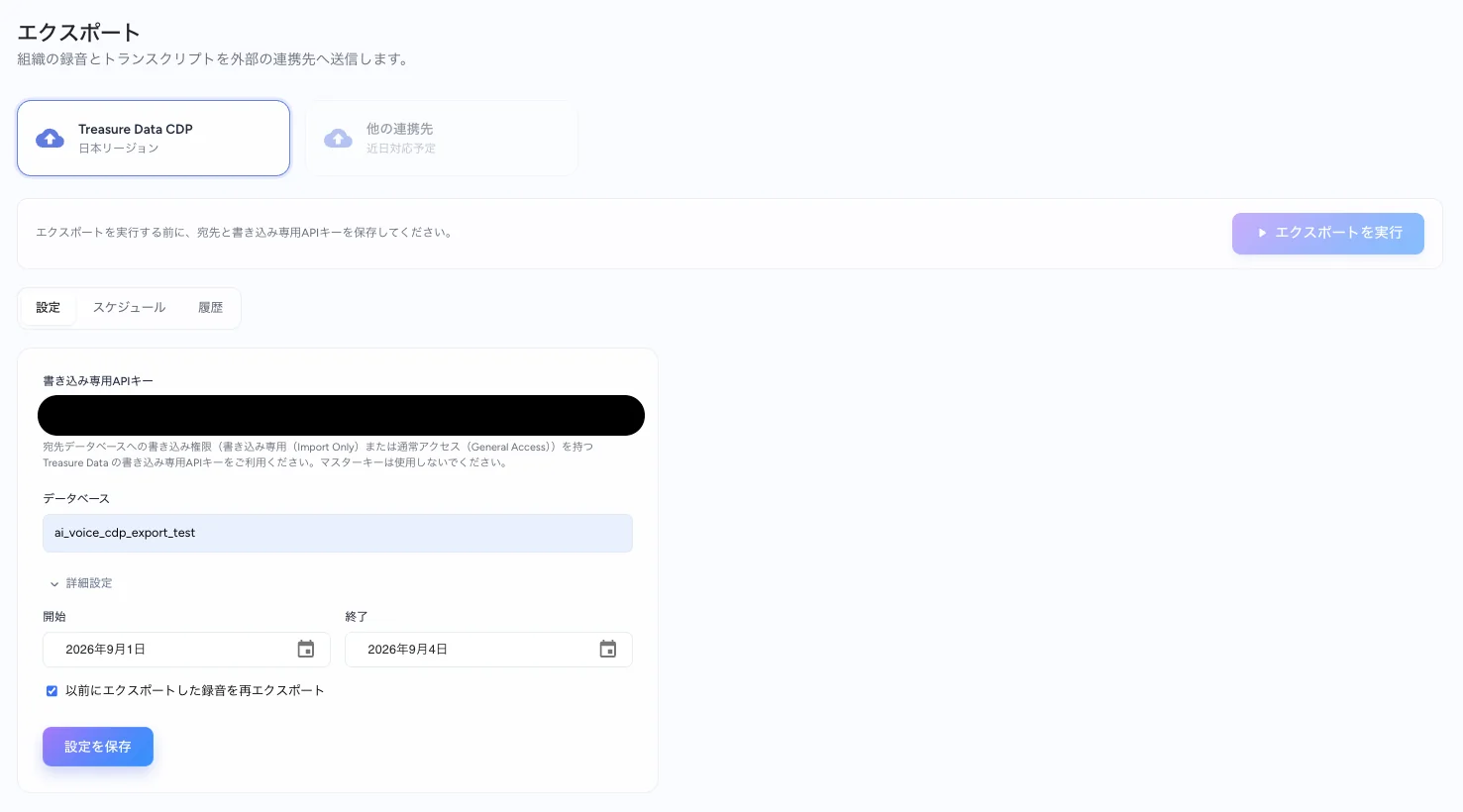
To replace the credential, click Replace and save a new key. To remove it, click Remove. Removing the saved key disables an enabled recurring schedule.
The destination database name must be 3–64 characters, begin with a lowercase letter, use only lowercase letters, digits, or underscores, and must not be export. Table names must be 3–128 characters and use only lowercase letters, digits, or underscores.
- Confirm that the destination database and saved API key are shown on the Settings tab.
- Optionally expand Advanced and set a From and To date range.
- Optionally select Re-export previously exported recordings.
- Click Run export now.
- Open the History tab to monitor the run.
The date range filters recordings by their recorded date. The To date includes the entire day. The range applies to recordings, transcript segments, and summaries. It does not filter devices by recording date.
A manual export does not need to remain open in the browser. The export continues in the background after the run starts.
Recurring exports use the saved destination, table settings, and write-only API key. Save and verify those settings before enabling a schedule.
- Open the Schedule tab.
- Turn on Scheduled export.
- Select an Interval:
- Every hour
- Every 6 hours
- Every 12 hours
- Every 24 hours
- Weekly
- Select the behavior for the first scheduled run.
- Save the schedule.
The shortest available interval is one hour. AI Voice CDP export uses the listed intervals; it does not provide a custom cron expression. Saving an enabled schedule starts an export immediately. Subsequent exports run at the selected interval from that initial run. For example, if an hourly schedule is saved at 10:23, the initial export starts immediately, followed by scheduled exports at 11:23, 12:23, and so on.
A manual or scheduled export cannot start while another export is running for the same organization. A recurring schedule is configured at the organization level and uses the saved credential without requiring an administrator to be signed in when the run starts.
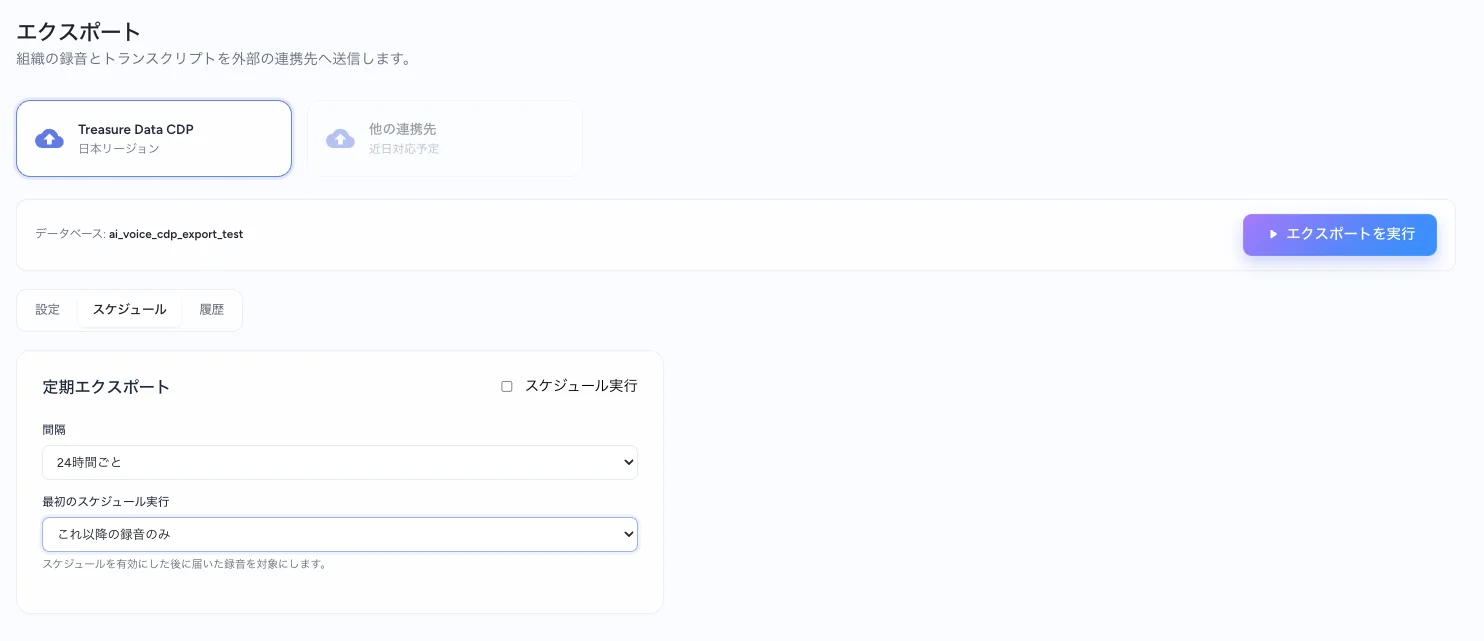
Select one of the following options when enabling a schedule:
- Only recordings from now on: Starts the export boundary when the schedule is enabled. Historical recordings are not backfilled automatically, but records updated after that point are included.
- Send everything not yet exported first: Starts with the organization's existing exportable data and then continues with incremental exports. A large recording history may require multiple runs.
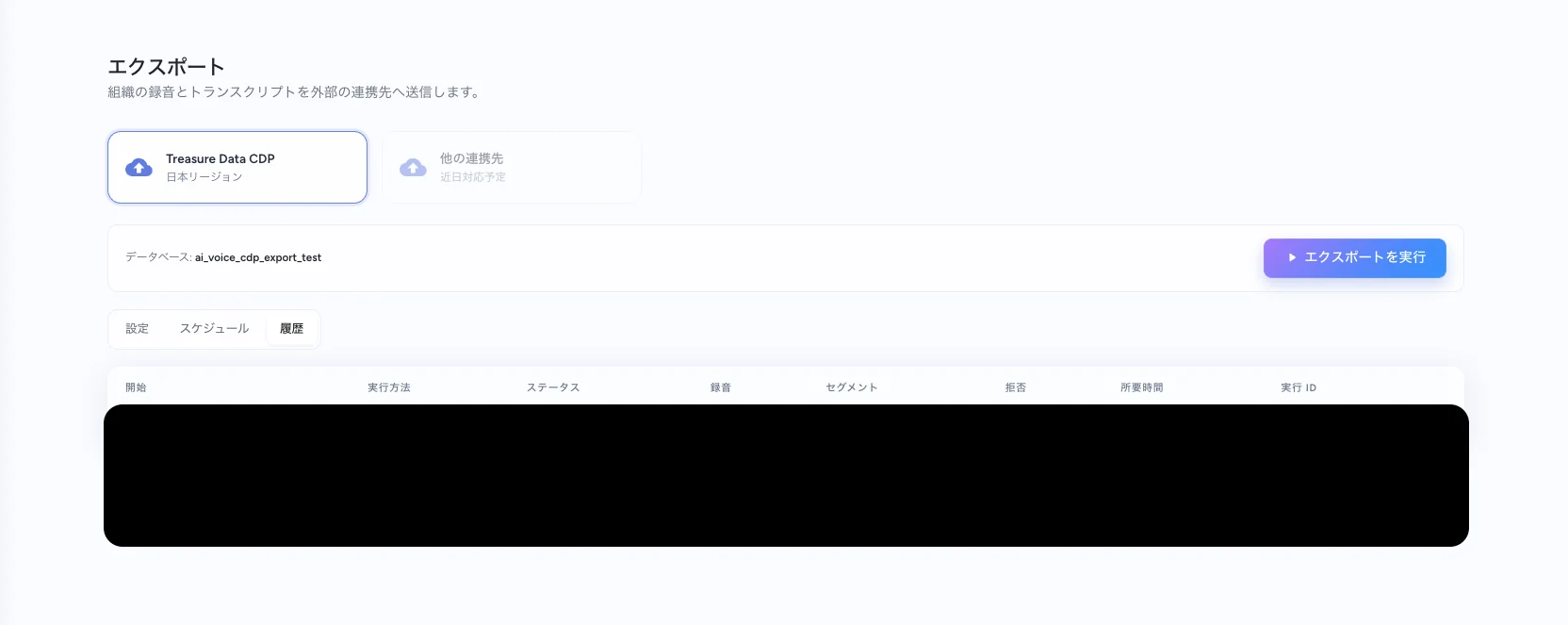
The History tab lists recent manual and scheduled export runs. Each row shows:
- Start time
- Trigger type
- Status
- Accepted recording rows
- Accepted transcript segment rows
- Rejected rows
- Duration
- Run ID
Select a row to view the destination database, accepted and rejected counts by table, failure information, and recordings rejected because their event was too large.
| Status | Meaning |
|---|---|
| Queued | The export has been accepted and is waiting to start. |
| Running | The export worker is processing the run. |
| Success | The run completed without reported row rejections. |
| Partial | The run completed with rejected rows or stopped at the worker time limit. Data not reached by the run is handled by a later export run. |
| Failed | The run could not complete because of an authentication, permission, configuration, or system error. |
| Nothing to send | No recording or device events were accepted for the run. |
Invalid credentials and insufficient Treasure Data CDP database permissions can appear as a failed run because the export runs asynchronously. Grant the key's user Import Only or General Access permission on the destination database, then run the export again.
A recording whose serialized event exceeds the 1 MB per-event limit is listed in the run details. The recording row is rejected, but its transcript segments and summary may still be exported. The recording is retried by later runs for a limited number of attempts. The console does not show the serialized event size before export. If the limit is exceeded, review the rejected recording in the run details.
Each exported event includes the following fields:
unique_id: A stable identifier for the source record.updated_at: The source record's last-updated timestamp, in Unix epoch seconds.time: The timestamp used for Treasure Data time partitioning.
time and updated_at have different purposes. Use time for partition filtering and updated_at to determine which copy of a record is current.
Scheduled and undated exports use an incremental checkpoint. Recordings and devices updated at or after that checkpoint are included in the next run. A date range narrows recording candidates by recording date while preserving the incremental check.
Treasure Data CDP appends incoming events instead of replacing existing rows. Repeated exports can therefore contain multiple rows with the same unique_id. Deduplicate downstream by unique_id, keeping the row with the greatest updated_at.
Every export run is recorded in Audit Logs under the TD CDP Export event type. Run status and row counts are available in History and the run details, not in Audit Logs. Changes to the destination settings and saved credential are also recorded. The API key itself is never written to the audit log.
- The minimum recurring-export interval is one hour.
- Only one export can run at a time for an organization.
- A single recording event cannot exceed 1 MB.
- A batch cannot exceed 4 MB.
- A run can finish with Partial when it reaches the worker time limit or when Treasure Data rejects rows.
- If a run fails, review its failure information in History and verify the destination database, API key, and database permission.
- If a run reports Nothing to send, verify the date range and whether previously exported recordings should be included.
For the exported table schemas, data relationships, and querying examples, see Treasure Data CDP Integration.
The Legal page provides direct links to Treasure Data's legal documents that govern the use of Treasure AI Voice:
- Terms of Service
- Voice Supplemental Terms
- AI Terms
- AI Acceptable Use Policy
- Privacy Statement
Each link opens the current version of the document on the Treasure Data website.