The Plugin Marketplace lets you extend Treasure AI Studio with new skills. With it you can:
- Install any public skill marketplace — register a public, GitHub-hosted catalog of plugins.
- Enable or disable plugins individually — turn each plugin on or off for yourself.
- Keep or drop the defaults — Treasure AI's plugins are enabled out of the box, and you can disable any of them.
- Stay current automatically — registered marketplaces are refreshed daily, so plugin updates published upstream flow in on their own.
- Restrict who can add marketplaces — administrators can limit marketplace registration to admins only.
A marketplace is a catalog of plugins; a plugin bundles one or more skills. Enabling a plugin gives the AI new domain expertise without any local setup.
A plugin is the unit you install and toggle; a skill is the individual instruction package the AI applies to a task. One plugin can deliver several skills. For example, the pre-installed tdx-skills plugin delivers the segment, journey, workflow, and other Treasure AI skills. To learn what skills are and how the AI applies them, see Skills & Marketplace and the Supported Skills Catalog.
Understand what a plugin marketplace is, how to register one, how to install and enable plugins, and how account administrators govern marketplace access for an organization.
- Signed in to Treasure AI Studio (Getting Started)
- Familiarity with how skills work (Skills & Marketplace)
- A public GitHub repository URL to register a custom marketplace (optional)
- Account administrator privileges to manage organization-wide marketplaces and policies (optional)
A marketplace is a public Git repository on GitHub that contains a .claude-plugin/marketplace.json catalog file at its root. That file declares the marketplace name and the plugins it offers. When you register a marketplace, Studio reads the catalog and lists its plugins so you can install them.
Plugins are referenced as plugin-name@marketplace-name — for example, tdx-skills@td-skills. Installing or enabling a plugin makes its skills available in your chat sessions; disabling it removes them. None of this runs on your machine: enabled plugins are resolved when your AI session starts and their skills are loaded into the AI's context.
Enabling or disabling a plugin takes effect the next time you start a chat. Plugin selections are resolved at session start, so changes do not affect a conversation that is already open.
Marketplaces refresh themselves daily. When a chat session starts, Studio checks every marketplace that applies to you — pre-installed, administrator-registered, and your own — and re-fetches any whose copy has not been updated in the last 24 hours. A refresh pulls the marketplace's current .claude-plugin/marketplace.json and plugin content from GitHub, so plugins added, revised, or withdrawn upstream are picked up without any action on your part. There is no manual refresh button, and none is needed; Settings → Marketplace states the behavior with the note Marketplaces are automatically updated daily.
A few details are worth knowing:
- The check runs at session start, not on a background timer. Each marketplace is judged on its own 24-hour clock, so a marketplace refreshed recently is left alone. If you do not start a chat for several days, the refresh happens with your next session.
- The plugin list in Settings is always live. Studio reads the marketplace catalog straight from GitHub whenever you open the tab, so a plugin newly published upstream is listed there immediately. Its skills reach your sessions once the marketplace copy itself has been refreshed.
- Refreshing is best-effort and never breaks a session. If GitHub cannot be reached, Studio skips the refresh and keeps the copy it already has rather than risk losing it. If one marketplace fails to update, the others still proceed, and if the refresh pass runs long, the marketplaces left over are deferred to your next session.
Because marketplaces and their plugins are fetched from GitHub, Studio must be able to reach github.com. New accounts already allow it, but if your network policy has been edited, confirm the exact host github.com is still permitted — a wildcard such as *.github.com does not cover the bare host. Without it, registering a marketplace and loading plugins will fail.
The marketplace lives in Settings → Marketplace on Web and Desktop.
- Marketplace — your personal view, where you register marketplaces and manage your plugin preferences.
- Marketplace (admin) — visible only to account administrators, for managing marketplaces and default plugins for the whole organization.
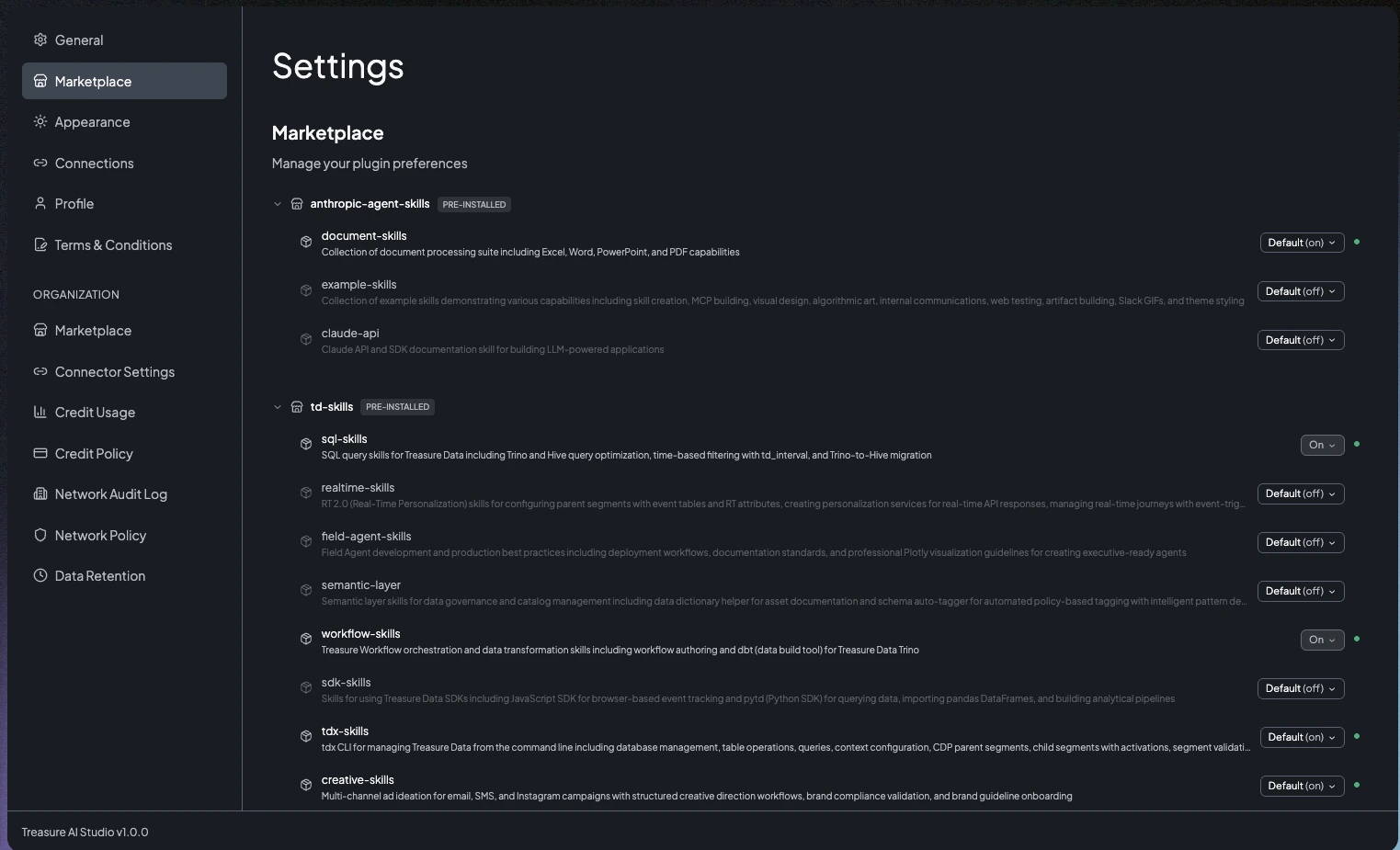
The marketplace management interface is available on Web and Desktop only. Plugins you enable on Web or Desktop apply to your sessions on all platforms, including Mobile.
Marketplaces appear grouped by where they come from, each with a badge:
| Badge | Type | Who Manages It |
|---|---|---|
| PRE-INSTALLED | System marketplaces that ship with Studio | Managed by Treasure AI — cannot be removed |
| REGISTERED | Marketplaces registered for the whole organization | Added and managed by account administrators |
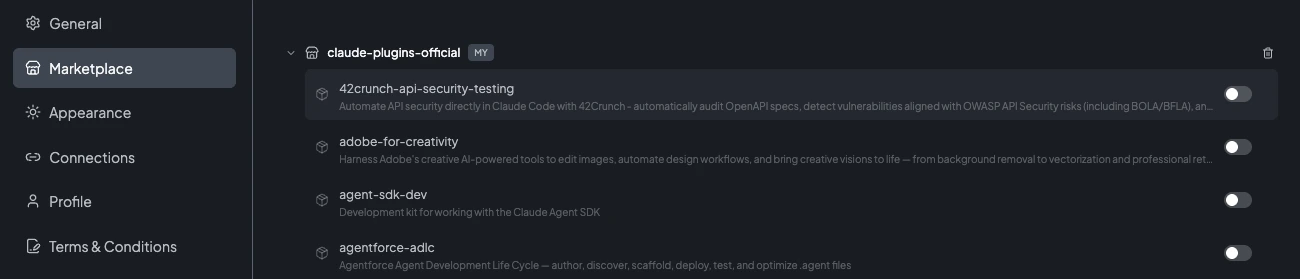
| MY | Marketplaces you registered yourself | Managed by you — register and remove freely |
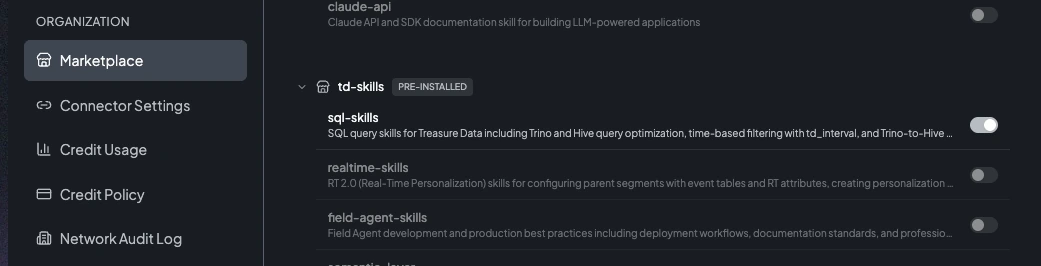
Every account ships with the td-skills marketplace pre-installed, with the tdx-skills plugin enabled by default. This delivers the core Treasure AI skills for CDP segments and journeys, AI agents, workflows, campaigns, and CLI operations.
Free accounts additionally ship with the td-plg-skills marketplace and the treasure-ai-experience plugin enabled by default.
Pre-installed marketplaces are system-managed and cannot be deleted.
If your account policy allows user-registered marketplaces, you can add your own GitHub-hosted catalog:
- Open Settings → Marketplace.
- Click Register marketplace.
- In the dialog, enter the GitHub repository URL for the marketplace.
- Click Register.
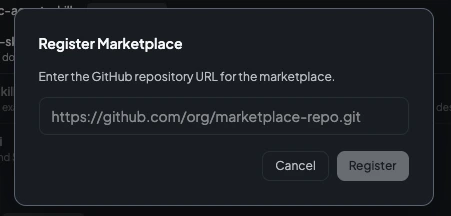
Studio fetches the repository's .claude-plugin/marketplace.json, reads the marketplace name from it, and adds the marketplace to your list under the MY badge. Its plugins then appear ready to install.
- The URL must be a public GitHub HTTPS repository ending in
.git(for example,https://github.com/owner/repo.git). - The repository must contain a valid
.claude-plugin/marketplace.jsonat its root. If the file is missing, the repository is private, or the JSON is malformed, registration fails. - Marketplace and plugin names must be lowercase letters, numbers, and hyphens.
- You cannot register the same marketplace URL twice.
Removing a marketplace you registered also removes all of its plugins from your list.
A marketplace's plugins deliver skills — instructions that shape how the AI behaves. Registering a public marketplace means running third-party instructions in your sessions, which carries a risk of indirect prompt injection or otherwise malicious guidance. Only register marketplaces from sources you trust and have reviewed.
Expand a marketplace group to see its plugins. Each plugin shows its name, description, and skill count (when the catalog provides them). How you control a plugin depends on which marketplace it belongs to.
Plugins from a marketplace you registered (the MY group) have a simple on/off toggle:
- On — the plugin's skills are available in your sessions.
- Off — the plugin remains listed but its skills are not loaded.
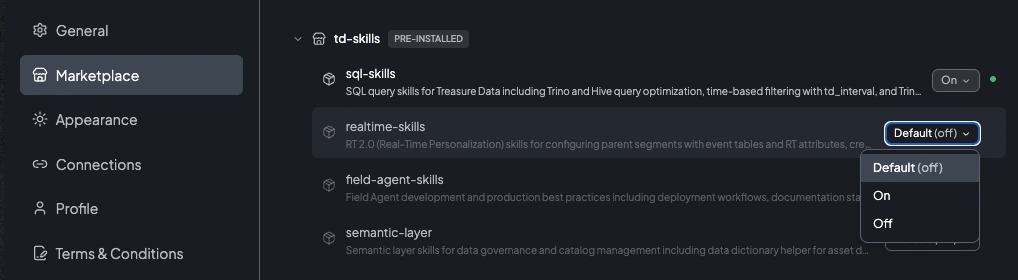
Plugins from PRE-INSTALLED and REGISTERED marketplaces use a three-state control so you can follow or override the organization default:
| State | Meaning |
|---|---|
| Default | Follow the administrator's setting for this plugin. If the admin enabled it by default, it stays enabled. |
| On | Explicitly enable the plugin for yourself, regardless of the default. |
| Off | Explicitly disable the plugin for yourself, even if it is enabled by default. |
Setting a plugin back to Default removes your personal override and restores the administrator's setting.
Account administrators manage marketplaces and plugins for the entire organization from the admin Marketplace tab in Settings.
Administrators can:
- Register a marketplace for the whole account — it appears for every user under the REGISTERED badge.
- Enable a default plugin — turn on a plugin for all users by default. Users see it as Default and can override it for themselves (unless the account policy restricts them).
The account-level plugin policy controls whether users may register their own marketplaces:
| Policy | Effect |
|---|---|
| Allow user-registered marketplaces (open) | Users can register their own GitHub-hosted marketplaces and manage their own plugin preferences. This is the default. |
| Admin only (admin_only) | Only administrator-registered marketplaces are available. Users cannot register marketplaces or change plugin settings, and the personal Marketplace tab is hidden for them. |
Toggle this with the Allow user-registered marketplaces switch on the admin Marketplace tab.
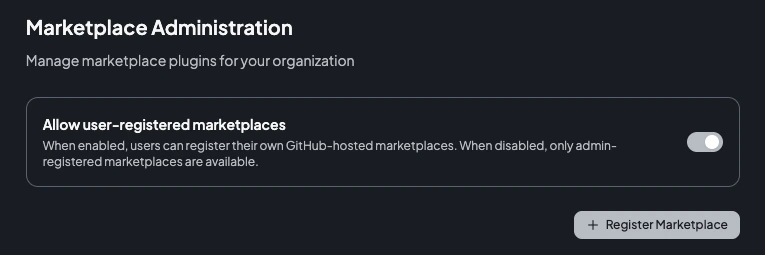
Admin only is also a security and governance control: it prevents users from introducing unvetted third-party skills into your environment. For organizations with strict security or compliance requirements, set the policy to admin only so that only marketplaces reviewed by administrators are available.
When a session starts, Studio combines the marketplaces and enabled plugins that apply to you. Under the open policy, this is the union of admin-defined plugins and your own enabled plugins, minus anything you explicitly turned Off. Under admin only, only administrator-defined plugins apply.
After reading this guide, you can:
- Explain the difference between a marketplace, a plugin, and a skill
- Find the Marketplace tab in Settings on Web or Desktop
- Register a public GitHub-hosted marketplace (when your policy allows it)
- Enable or disable a plugin, and use the Default/On/Off states for admin-managed plugins
- Explain when a plugin update published upstream reaches your sessions
- As an administrator, register an organization-wide marketplace and set the user-registration policy
| Issue | Solution |
|---|---|
| Registration fails with a catalog error | Confirm the repository is public, the URL ends in .git, and a valid .claude-plugin/marketplace.json exists at the repository root. |
| Registration or plugin loading fails behind a network policy | Studio fetches marketplaces and plugins from GitHub. Ensure your organization's network policy allows outbound access to the exact host github.com — not a wildcard such as *.github.com. |
| No Register marketplace button | Your account policy is set to admin only. Ask an administrator to register the marketplace or to allow user-registered marketplaces. |
| New plugin's skills are not available | Start a new chat. Plugins are resolved at session start, so existing conversations are unaffected. |
| A plugin update published upstream is not reflected yet | Marketplaces are refreshed at session start, at most once every 24 hours per marketplace. Start a new chat, and if the change is very recent, allow for the daily refresh interval. Confirm your network policy still permits github.com, since Studio skips the refresh when GitHub is unreachable. |
| A plugin keeps coming back after you disable it | It is enabled by default at the account level. Set its state to Off (not Default) to override the administrator setting. |
| The Marketplace tab is missing entirely | The marketplace interface is Web and Desktop only; it is not available on Mobile. |
- Skills & Marketplace — Learn how skills work and how the AI applies them
- Sharing Custom Skills — Share skills inside your account without a public repository
- Supported Skills Catalog — Reference of every skill delivered by the pre-installed plugins
- Core Concepts — Configure work folders with pre-selected skill defaults
- Security Overview — How access control works in Studio