Go from zero to your first AI-assisted query in under five minutes. Whether you prefer a browser, a desktop app, or your phone, Studio is ready on all three.
Studio uses your existing Treasure AI SSO — no API keys, no separate accounts. Signing in authorizes Studio to work with your data under your account's existing permissions.
- A Treasure AI account with SSO access enabled
- Your account region — one of: US, Japan, Europe, or Korea
- AI Credits provisioned for your account (contact your Customer Success Manager if unsure)
| Platform | Status | How to Access |
|---|---|---|
| Web | Available | US Region · Japan Region · Europe Region · Korea Region |
| Desktop (macOS / Windows) | Available | Download the desktop app |
| iOS Mobile | Available | Download from the App Store |
The fastest way to get started. No installation required.
- Open your browser and navigate to the Treasure AI Studio URL for your region
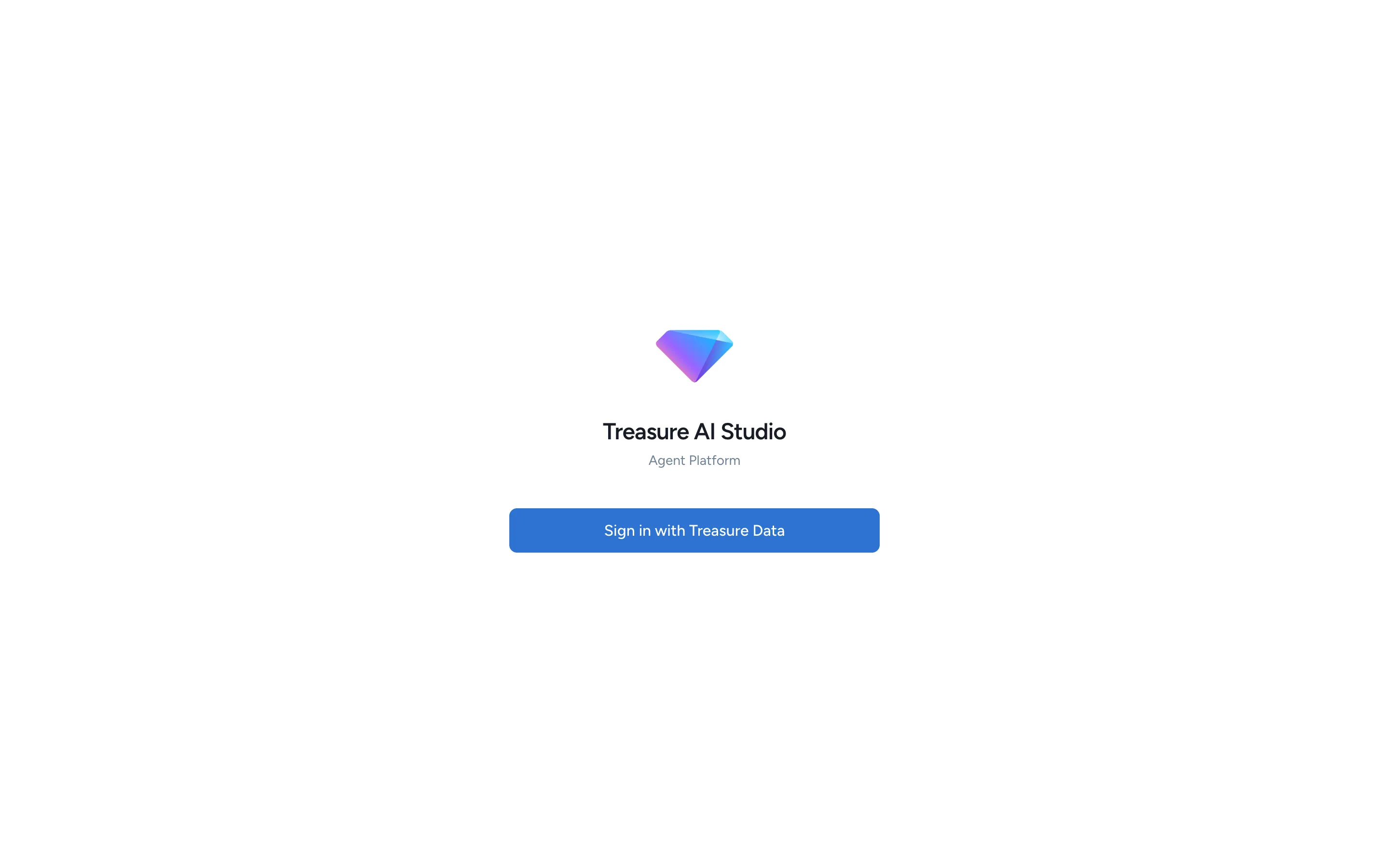
- Click Sign in with Treasure Data
- Complete authentication on the Treasure AI login page
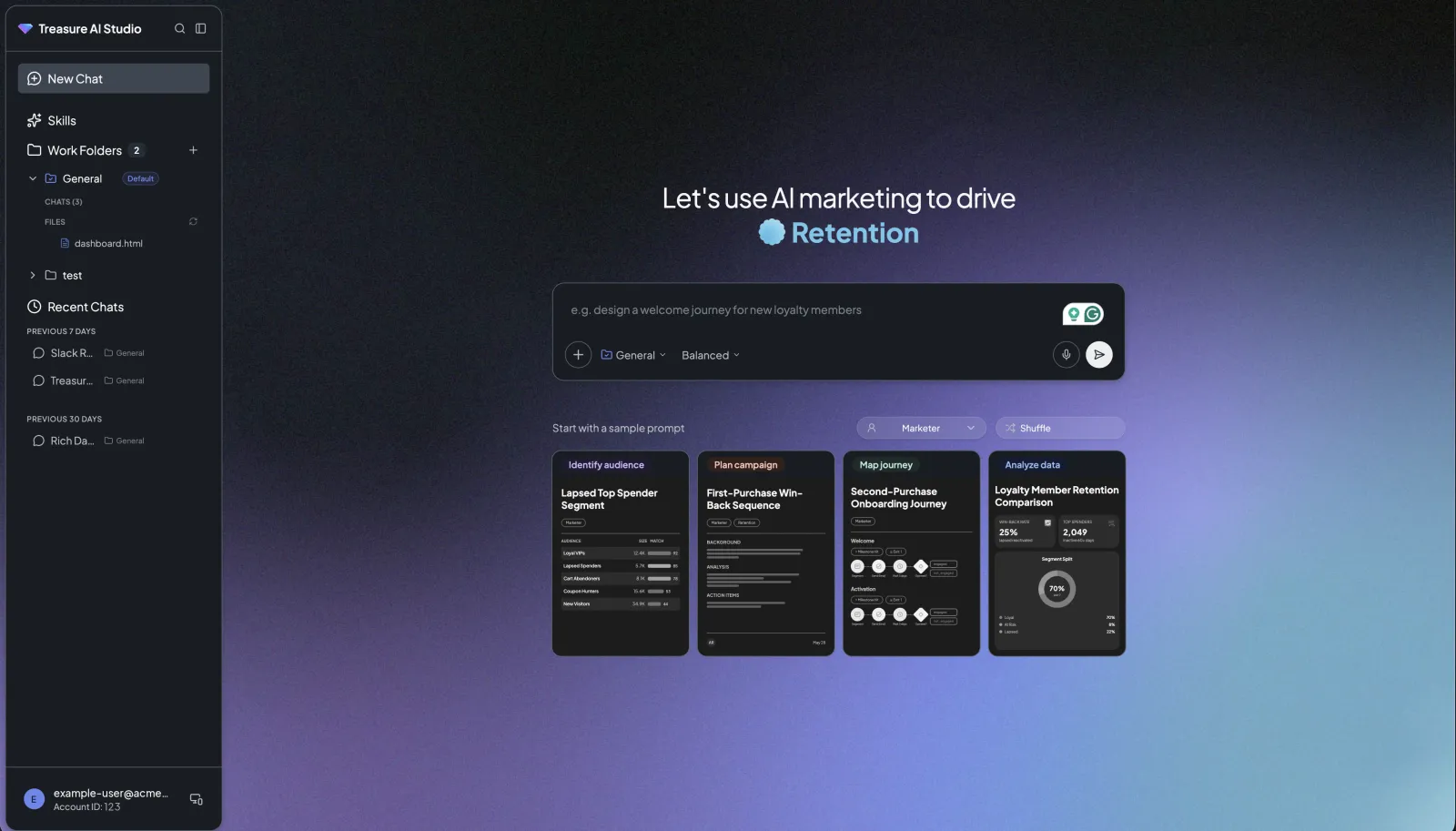
- Studio loads and the landing page appears, ready for your first message
Supported Browsers: See Browser Support for Treasure Console.
The desktop app provides the same experience as the web version with native desktop integration. It is available for macOS and Windows.
| Requirement | Details |
|---|---|
| Operating system | macOS or Windows |
| Architecture (macOS) | Intel and Apple Silicon (universal binary) |
- Download the latest installer from the Treasure AI Studio Desktop releases page — the
.dmgfor macOS, or the.exefor Windows - Install the app — on macOS, open the
.dmgand drag Treasure AI to Applications; on Windows, run the.exeinstaller - Launch Treasure AI — from Applications on macOS, or the Start menu on Windows
- On the welcome screen, select your region (United States, Japan, Europe, or Korea)
- Click Sign in with Treasure Data — your default browser opens for authentication
- Complete authentication; the browser redirects back to the desktop app automatically
- Studio is ready — the landing page appears
The macOS menu bar includes the standard app actions, including Check for Updates....
The desktop app checks for updates automatically on launch. When a new version is available, it downloads in the background and installs when you quit the app. On macOS, you can also check manually via Treasure AI > Check for Updates... in the menu bar.
Access Studio on the go with the iOS app. Scan the QR code or tap the button below to download.


- Download Treasure AI Studio from the App Store
- Open the app and select your region (United States, Japan, Europe, or Korea)
- Tap Sign in with Treasure Data and complete authentication in the in-app browser
- The home screen appears
On iOS, tap the microphone icon to dictate your message; a waveform shows recording status with elapsed time and a live transcript, and you confirm the text before it reaches the composer. Voice input works on Web and the macOS desktop app too, though the three platforms differ — see Voice Input.
- Swipe navigation — Swipe right to dismiss the landing view and return to the home screen.
- Bottom sheet settings — Tap the user icon (top-left) to open settings as a drag-to-dismiss bottom sheet.
- Start a conversation — Type a question in the composer, or select one of the sample prompt cards under Start with a sample prompt. Selecting a card fills the composer with that prompt so you can read and edit it before sending; see AI Chat Interface
- Create a work folder — Click the plus icon next to Work Folders in the sidebar. You already have one, named General, which is where new chats are saved by default
- Install a skill — Open the Skills page, install a skill (it becomes available in all your chats), then ask the AI a question in that domain. For example, with the
trinoskill installed, ask "Show me the top 10 customers by revenue" and the AI writes optimized SQL - Explore settings — Click your user avatar in the sidebar footer to open the Settings panel
- Start a conversation — Tap a suggested prompt, or tap the floating new-chat button (bottom-right)
- Browse projects — The home screen shows your Projects, each with its chat count
- View chats — Open the Chats section to see conversations that aren't tied to a project
- Open files — Open the Files area to browse files from your sessions
- Open settings — Tap the user icon in the top-left corner
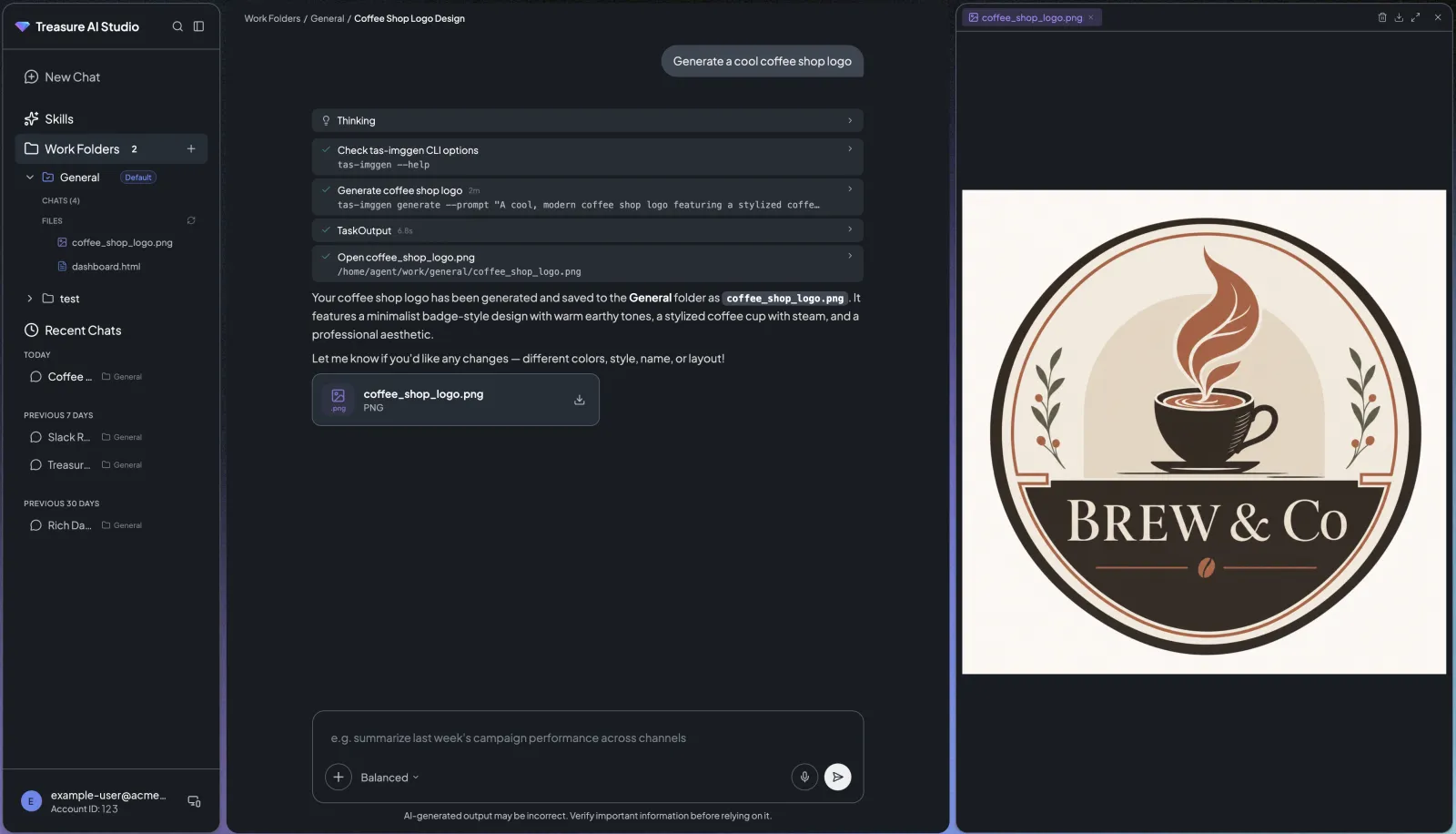
| Area | Description |
|---|---|
| Sidebar (left) | A New Chat entry, chat search, Skills, the Work Folders section (each folder expanding to its chats and files), Recent Chats grouped by when you last used them, and a user footer with your account |
| Chat area (center) | Conversation messages, chat input with model selector |
| File panel (right) | File previews, charts, tables, and generated documents (toggle with the file panel button) |
| Area | Description |
|---|---|
| Home | Your Projects and Chats, each with its count |
| Files | Files from your sessions, browsable on the device |
| New chat button | Floating button (bottom-right) to start a chat |
| Settings | Opened from the user icon (top-left) |
- Sign in and reach the Studio landing page
- Send a first message (or select a sample prompt card) and confirm the AI responds with a streaming answer
- See your email in the sidebar footer (Web/Desktop) or settings (Mobile)
| Issue | Solution |
|---|---|
| Can't sign in | Verify the correct region is selected for your Treasure AI account. See SSO Login for detailed authentication troubleshooting |
| Landing page doesn't load | Check your network connection. On Desktop, quit and relaunch the app so it can retry the connection |
- Workflows for Data Analysts — A full analysis session, from data exploration to exported deliverables
- Workflows for Marketers — A full campaign session, from audience to live journey with email activations
- SSO Login — Detailed authentication guide
- Core Concepts — Work Folders, models, credits, and context
- Security — Security settings
- Troubleshooting — Resolve sign-in and chat response issues