A shared work folder in Treasure AI Studio is a work folder that belongs to your account instead of one person: its files sit in a single tree that every member reads, and members work in it side by side, each with their own AI. What gets shared is not only the files — a work folder carries a whole way of working, from the folder structure and the standing instructions to the skills and actions saved in it — so joining one hands a colleague a working setup rather than a pile of documents.
Sharing is what turns one person's automation into the team's. A marketer who has taught a work folder how to build the weekly campaign report can share that folder, and the rest of the team runs the same report with their own AI — reading the same reference files, writing results back to the same place — instead of rebuilding the routine from a screenshot of a prompt.
Access is not all-or-nothing. Every member reads the whole folder, and work modes decide where each person may write. Each member also gets a private area inside it — a directory named my/ that no other member can see — for drafts, notes, and chat attachments that have no business being shared.
- Signed in to Treasure AI Studio (Getting Started)
- A work folder of your own, if you plan to share an existing one (Work Folders)
- Membership of the same Treasure AI account as the people you share with — sharing never crosses accounts
A shared work folder has two layers, and the boundary between them is one directory named my/. This is the most important thing to know before working in one, because it decides who sees what you produce.
| Layer | What It Is |
|---|---|
| The folder itself (its root) | The shared side, and where your chats start. Every member reads all of it; work modes decide who may write, and where. This is the folder's shared content: reference material, deliverables, the folder's instructions, and its skills and actions. |
my/ (one directory inside the folder) | Your private area. Every member has one, no other member — including the folder's managers — can see it, and it is always writable whatever your work mode says. Its files persist between chats, like any work folder's. |
Because the folder root is the shared side, shared content needs no prefix: reports/ is the team's reports folder, and my/ is the one place that is yours. A shared work folder therefore behaves like a shared drive whose members each have a private drawer in it.
A chat's working directory is the folder root, so a request that does not say where to put the result puts it on the shared side — where your work mode allows, and visibly to every member. Say my/ when you want something kept to yourself ("save the draft in my/"), and put it in the folder's instructions if it should hold for everyone. A View only member is the exception: their writes to the shared side fail, so only my/ is available to them.
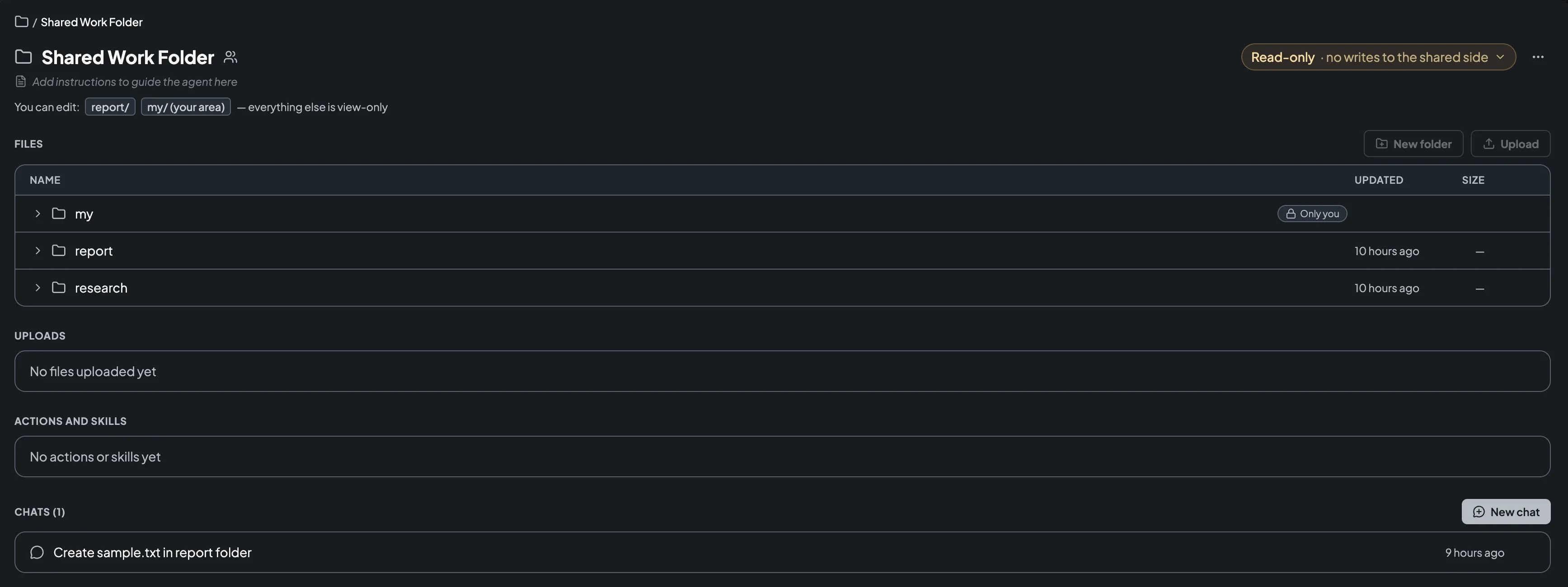
Inside the chat's server-side sandbox, a shared work folder appears at ~/work/{dirname}/, like any other work folder. That path is the shared tree, mounted read-only for a View only mode, read-write for Write everywhere and Manage, and read-only with the mode's writable folders re-bound read-write for a Custom folders mode. The member's private area is mounted at ~/work/{dirname}/my/, always read-write. The chat's working directory is the folder root, so the folder's CLAUDE.md and .claude/skills/ load the way they do in any work folder, and the generated ~/work/CLAUDE.md lists the mode's writable places one per line.
In a shared work folder, files are shared and conversations are not. The distinction matters for privacy and for expectations: your colleagues see the report you produced, never the chat in which you produced it.
| Item | Shared With Members? |
|---|---|
Files in the folder, outside my/ | Yes. Every member reads all of them, from the moment they import the folder |
Files under my/ | No. Visible only to you — the folder's managers included |
| Chats | No. Chats are personal in shared and private work folders alike. Nobody sees your conversations or your prompts; what they see is the files your chats leave on the shared side |
The folder's instructions (its CLAUDE.md) | Yes. Applied to every member's chats in this folder (Instructions in a Shared Work Folder) |
Skills and actions (the folder's .claude/skills/) | Yes. A shared work folder has exactly one place for them — the folder's own .claude/skills/, which every member can run. A .claude directory inside my/ is ignored |
| Schedules | No, but visible. A schedule belongs to the member who created it and runs as that member under that member's work mode. Every member sees the folder's whole automation inventory, including who each schedule runs as (Action Schedules) |
| Chat attachments | No. Files you attach to a chat land in your private area, under my/uploads/. Share one by moving it out of my/ |
A work mode is a named kind of work in a shared work folder — "Report writing", "Curation", "Read-only" — that bundles an access level with the specific top-level folders it may write to. Assigning people to work modes is the only way to grant access to a shared work folder, and every chat runs as exactly one of them.
| Access Level | What It Grants |
|---|---|
| View only | Read every file in the folder, and write only in my/. Writes to the shared side are refused, so a view-only member can do the work but cannot publish the result — that takes a mode which writes somewhere on the shared side |
| Custom folders | Read the whole folder, write only in the top-level folders the mode names (for example reports/) |
| Write everywhere | Read and write the whole folder |
| Manage | Write the whole folder, plus its settings: work modes, members, name, description, visibility, and deletion |
Three consequences are worth internalizing before designing modes. First, reading is folder-wide: modes allocate writes, never reads, so nothing in the folder is hidden from a member — my/ is the only private place, and it belongs to each member individually. Second, a person can hold several work modes at once, and what they can do themselves — on the folder page and in the file tree — is the combined scope of all of them, while each chat runs as exactly one. Third, a folder's managers are the people assigned to a Manage mode — being an account administrator confers no authority over a shared work folder, and does not reveal hidden ones either.
For the full model — assignments, Everyone in the account, when a change takes effect, and how access is revoked — see Work Modes.
Shared work folders are discovered through the Work folder catalog, which lists every shared work folder in your account that is not hidden. Opening a catalog entry shows its description, its managers, the work modes available to you, and a preview of the folder's top level, so you can look before you commit.
A card's action tells you where you stand: Import for a folder you hold a mode in but have not imported, Open once you have, Setting up while its managers are still preparing it, and By invitation when you hold no mode in it. Import adds the folder to your own work folder list, where it behaves like any other work folder: it appears in the sidebar with a shared-folder icon, you start chats in it, and it can be your default. Importing asks you for one thing only — which work mode you will work in. You can remove the folder from your list later, though removing it deletes your chats in it and everything in your my/ area, so it is not a free undo. A folder you hold no work mode in is marked By invitation; there is no request button, so the detail view points you at the managers to contact instead. See Using a Shared Work Folder.
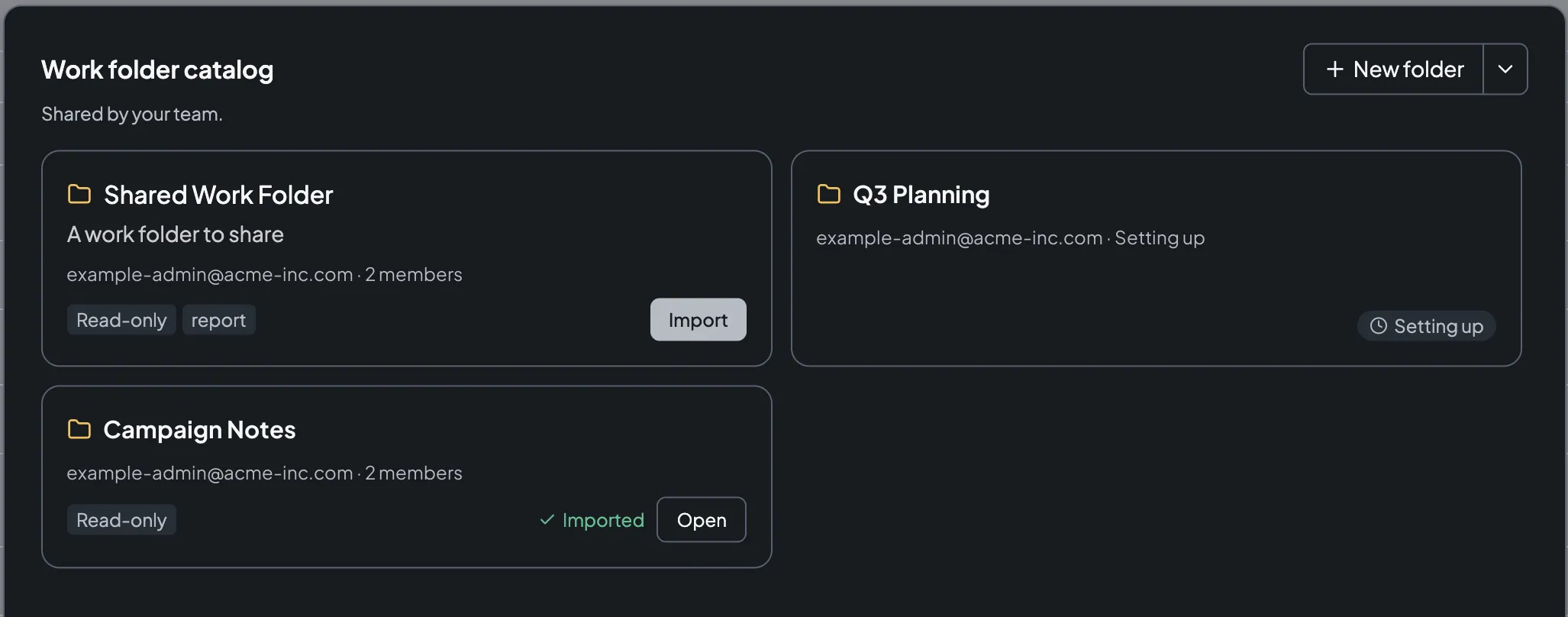
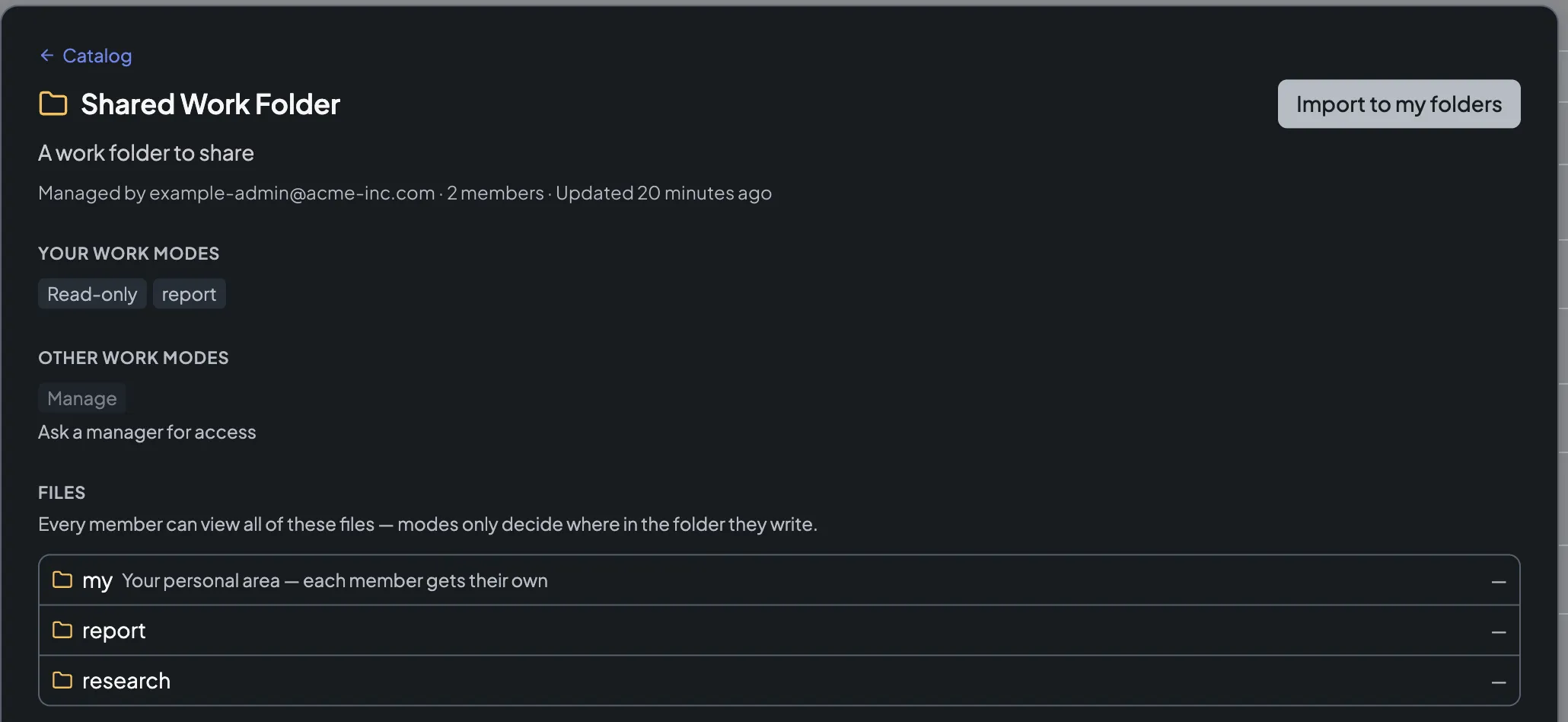
A shared work folder appears in the catalog from the moment it is created, but its contents do not become readable until someone else is given a work mode.
| State | What Other People See |
|---|---|
| Setting up | The folder's name and managers appear in the catalog with a Setting up tag; the contents are readable only by people with Manage. A new shared work folder starts here, and stays until the first other person is assigned a work mode |
| Published | Anyone holding a work mode can import the folder and read its contents. The Setting up tag disappears as soon as access reaches beyond a single person — and returns if assignments shrink back to one |
| Hidden | The folder does not appear in the catalog at all, except to people holding one of its work modes — and they see it as an ordinary entry, with nothing marking it hidden. Choose Hidden in the share dialog when the folder's name is sensitive, or turn Hide from catalog on in Shared folder settings later. Hidden folders are invisible to account administrators too, and sharing one with everyone in the account makes hiding moot |
Creating, sharing, importing, and switching work modes are Web and Desktop features: Mobile has no catalog, no import flow, no work mode switcher, and no Shared folder settings page. A shared work folder you imported on Web or Desktop is still usable from Mobile — it appears in Mobile's work folder list with a shared icon, and chats you start in it run under the work mode you selected, because the mount is applied server-side. The AI's write scope is therefore identical on every platform: the folder itself follows your work mode, and my/ is always yours to write.
Shared work folders in Treasure AI Studio carry a few hard limits and a few things that are not supported yet. Read these before planning a rollout — two of them, the one-way conversion and the absence of an export, cannot be undone later.
| Item | Current Behavior |
|---|---|
| Work folders per person | Up to 25 active work folders, private and imported shared folders combined. Importing beyond that fails with "You can have up to 25 active work folders. Delete one to import this folder." |
| Who you can share with | Individual people in your account, or Everyone in the account. User groups are not supported yet, and sharing never crosses accounts |
| Turning a shared work folder back into a private one | Not supported. Whether a work folder is shared is fixed at the moment it is shared; move files out to a private work folder instead |
| Exporting a shared work folder | Not supported. Deleting one is permanent for every member, so move out anything worth keeping before you delete |
The name my | Reserved at the top level of a shared work folder — that name is your private area's mount point. It cannot be created, renamed, deleted, or named as a mode's writable folder, and an item of your own called my ends up nested as my/my when the folder is shared |
| Where skills and actions live | One place per folder: the folder's own .claude/skills/, on the shared side. A .claude directory inside my/ is ignored, so an action of your own has nowhere private to live in a shared work folder |
| Publishing skills from a shared work folder | Not supported, in either direction. The Develop tab of the skills page lists private work folders only, and a shared work folder cannot be the target when you bring a shared plugin's skills in for development (Sharing Custom Skills) |
| When access changes apply | Immediately for what you do yourself in the UI, which uses the combined scope of every work mode you hold. Your AI works under the single mode your folder is set to, from the next chat session — a chat already running keeps the access it booted with, and a stopped chat picks up the folder's current mode when it resumes. Losing your last work mode in a folder takes effect right away: new chats are refused, the folder's file sections disappear from its page, and the folder drops out of other chats (When a Change Takes Effect) |
Can other members see my chats in a shared work folder? No. Chats are personal in every work folder, shared ones included — no member, not even a manager, can open your conversations or the files under your my/. What your colleagues see is what your chats leave on the shared side.
Does every member see every file in a shared work folder? Every file except each member's my/. Reading is folder-wide: work modes decide where a member may write, never what they may read. Anything that should not be visible to all members belongs in my/ or in a private work folder.
Can I turn a work folder I already have into a shared one? Yes, and it is converted in place: no files are copied and the folder's chats keep working. Everything in it moves under my/, and in the same dialog you pick what to publish to the shared side — including the folder's CLAUDE.md and .claude directory, which are selected by default so its instructions and automation keep working. See Sharing a Work Folder. There is no reverse conversion.
Does an account administrator automatically manage shared work folders? No. A shared work folder is governed by the people assigned to its Manage mode. Account administrator is a platform role that confers no authority inside a shared work folder — it does not even reveal hidden folders.
Can a shared work folder be my default work folder? Yes. An imported shared work folder can be set as your default like any other, in which case new chats are saved there and start on its shared side. If a manager deletes a folder that was your default, Treasure AI Studio leaves you without a default rather than guessing one, and asks you to pick a folder before your next message.
What happens to my work if I remove a shared work folder from my list? Removing it deletes your chats in that folder and everything under your my/. The shared side and every other member's work are untouched, and re-importing later starts you with an empty my/. See Removing a Shared Work Folder from Your Workspace.
Work Modes
The access model in detail: access levels, assignments, Everyone in the account, and how access is revoked
Sharing a Work Folder
Convert a folder of your own, choose what becomes visible to members, and publish it to the people who need it
Import from the catalog, keep drafts in my/, share deliverables with the folder, and switch work modes
- Work Folders — The private work folder this feature builds on
- Access Control — How account-level access and roles sit around work modes
- Actions and Action Schedules — Shared automation inside a shared work folder
- Agent Channels — Open a shared work folder to an application you host or to an MCP client, so it can run chats and Actions against the folder