You can connect a Microsoft Copilot Studio agent to Treasure AI Studio by adding a Static token · shared executor MCP endpoint to the agent as a tool. The agent can then list the shared work folder, run its saved Actions, and start or continue Studio chats from the Copilot Studio test pane, in Microsoft Teams, and in Microsoft 365 Copilot. Use this guide when you build the Copilot Studio agent for teams that already work in Microsoft 365 and need Treasure AI Studio results inside that conversation, without opening Studio for each request.
Because the connection uses a static token, every request runs as the endpoint's single executor. The executor's shared work folder, permissions, and credits apply, whoever in your organization chats with the agent. This guide covers only the static-token method. The OAuth · connected user method is not covered, because Copilot Studio's OAuth options cannot complete Treasure AI Studio's sign-in.
Copilot Studio acts as the MCP client, and Treasure AI Studio hosts the MCP endpoint over Streamable HTTP. Each call from the agent carries the endpoint's token in a fixed Authorization header. Treasure AI Studio checks the token on every request and runs the call in the shared work folder as the executor.
Three roles take part in the setup.
| Role | Where | What They Do |
|---|---|---|
| Studio folder manager | Treasure AI Studio, under Settings → Agent Channels | Publishes a shared work folder, creates one static-token MCP endpoint, and copies its Connection URL and token |
| Copilot Studio maker | Microsoft Copilot Studio | Creates the agent, adds the Studio MCP server as a tool through a connection that stores the token, and publishes the agent |
| Microsoft 365 users | Microsoft Teams or Microsoft 365 Copilot | Chat with the published agent. They don't sign in to Treasure AI Studio, and their requests run as the executor |
After the connection is set up, the agent discovers six tools: list_work_folders, list_actions, run_action, start_chat, continue_chat, and get_chat_result. For the arguments and results of each tool, see The Tools.
Confirm these requirements before you start. Most of them come from Microsoft's Power Platform and Azure setup, so check with your Power Platform and Azure administrators if you don't control them.
| Requirement | Details |
|---|---|
| Microsoft work account | Copilot Studio needs a work or school account. The consumer Copilot app at copilot.microsoft.com can't add a custom MCP server. |
| Power Platform environment | An environment with a Dataverse database attached, where you can create agents and connections. |
| Azure subscription and billing | In the Azure portal, open Subscriptions → your subscription → Resource providers, and register Microsoft.PowerPlatform, which isn't registered by default. Register Microsoft.CostManagement if needed. Then create a resource group and enable pay-as-you-go billing for Copilot Studio on it. |
| Copilot Studio access | A Copilot Studio license or pay-as-you-go plan, with rights to create agents, tools, and connections. |
| Data policies | Power Platform data policy (DLP) settings must allow the custom MCP connector in your environment. |
| Treasure AI Studio access | Manage access to a non-archived shared work folder. See Step 1. |
| Account policy | Your account's creation policy must allow static-token endpoint creation. If the policy is limited to account admins, ask an admin to create the endpoint for you. See Static-Token MCP Endpoints. |
The endpoint publishes one shared work folder, and the agent can see only that folder. Choose or create the folder before you create the endpoint, because the folder cannot be changed after the endpoint is created. Shared work folders explain the layout, and Sharing a work folder covers the manager workflow.
- To create a new shared folder, open the Work folder catalog with the + next to Work Folders in the sidebar, then select New shared folder.
- To share a folder you already have, open its ⋯ menu, select Share…, and choose the items to publish.
- Select Publish shared folder when the folder is ready. A new shared folder starts in Setting up and leaves that state when you publish. Publishing is one-way: a shared work folder can't be turned back into a private one.
The person who creates the endpoint needs Manage on the folder. The endpoint wizard offers only folders where you hold Manage, and it never offers an archived folder.
The endpoint is the address that Copilot Studio calls. Creating it issues the Connection URL and the first token. For all endpoint management options, see Static-Token MCP Endpoints.
- In Treasure AI Studio on Web or Desktop, open Settings → Agent Channels.
- Under MCP Endpoints, select New MCP Endpoint.
- Keep Static token · shared executor selected, enter an Endpoint name, optionally add a Comment, and select Next.
- On the next page, choose the shared work folder from Step 1.
- Read the consent text, which shows you as the Executor. Choose an Expiration for the first token: 7 days, 30 days, 90 days (the default), a custom date, or No expiration.
- Select Create endpoint & issue first token.
- Copy the Connection URL and the Authorization header into a password manager or secret store.
- Select I have stored the values. Done stays disabled until you do.
- Select Done. The endpoint's detail page opens.
The token starts with tasgwt_, and Treasure AI Studio cannot show it again. Store it before you select Done. If you lose it, revoke the token and issue a new one from the endpoint's detail page.
The Connection URL has this form: https://<your account's Agent Gateway>/v1/mcp/<endpoint ID>. Copy it exactly as Treasure AI Studio shows it, because the host depends on your region. For example, an EU01 account uses https://agent-gateway.eu01.treasure.ai/v1/mcp/<endpoint ID>.
Before you continue, confirm on the detail page that the endpoint is Active and Enabled, that the executor and the published folder are correct, and that six tools are listed: list_work_folders, list_actions, run_action, start_chat, continue_chat, and get_chat_result.
Build the agent in the Copilot Studio environment that has Dataverse attached, as set up in the prerequisites. Leave the agent in Draft until you verify the connection in Step 6.
- Sign in to Copilot Studio with your work account. In the bottom-left corner, confirm that you are in the intended environment.
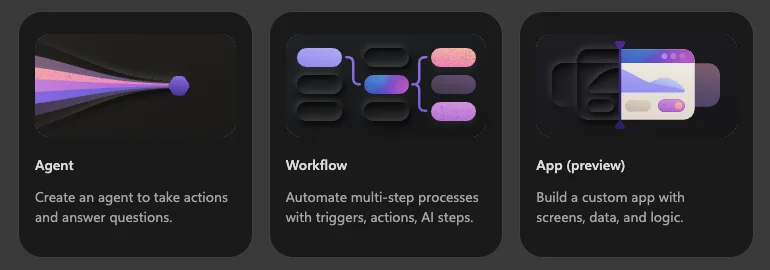
- On Home, select Agent, or open Agents and choose an existing agent.
- Enter a name for the agent, such as
TAIS MCP, and leave it in Draft.
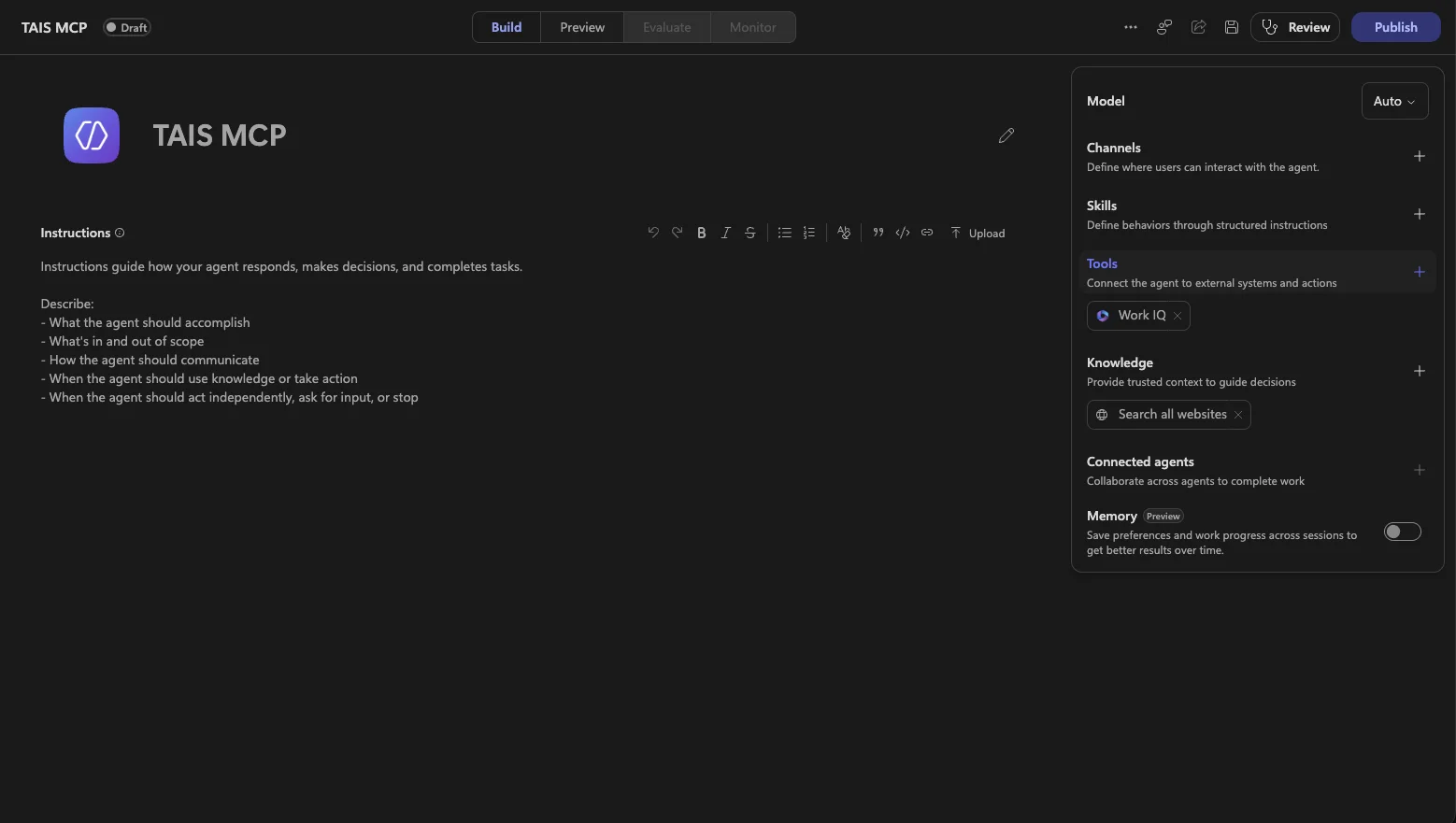
The agent's Build tab holds its Instructions. Its Tools, Knowledge, and Channels appear on the right. You add Treasure AI Studio as a tool in the next step.
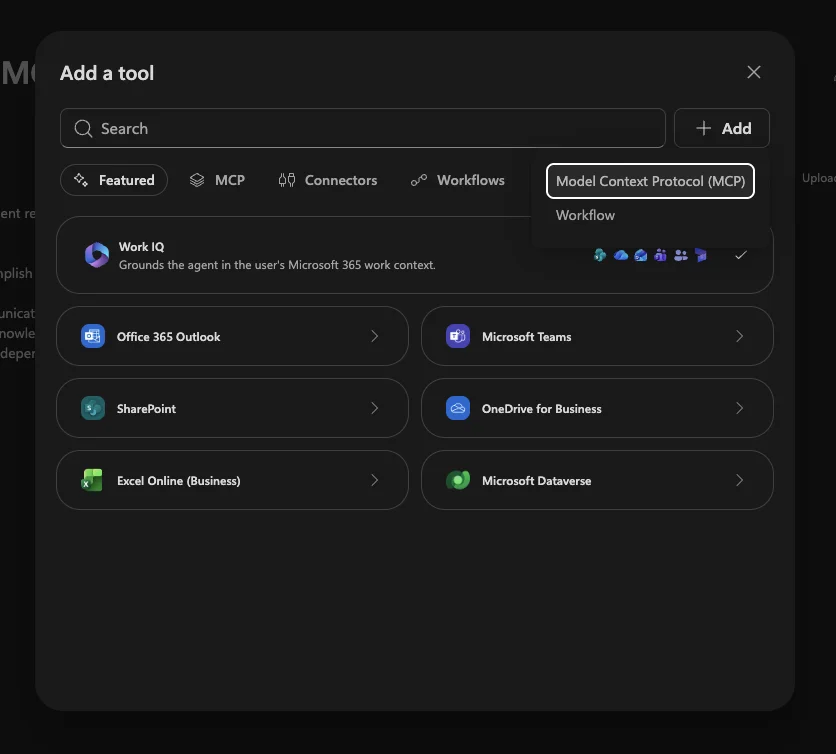
Adding the endpoint as an MCP server makes Copilot Studio discover its six tools. The server description matters, because the agent reads it to decide when to use the tool.
- On the agent's Build tab, select + next to Tools.
- In Add a tool, select + Add, then select Model Context Protocol (MCP).
- In Add MCP server, enter the values in the table below, then select Add.
| Field | Value |
|---|---|
| Server name | A recognizable name, such as tais_mcp |
| Server description | At least 30 characters, for example: Treasure AI Studio MCP connector for listing work folders, running Actions and managing Studio chats. |
| Server URL | The Connection URL from Step 2, exactly as Treasure AI Studio shows it |
| Authentication | API key |
| Parameter type | Header |
| Header name | Authorization |
| Key value | Bearer tasgwt_<secret> |
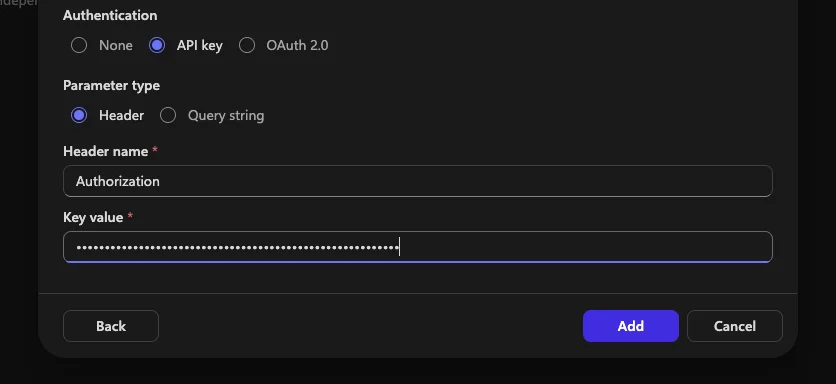
The key value must include the Bearer prefix and a space. Without the prefix, Treasure AI Studio refuses the token. Do not choose OAuth 2.0, because Copilot Studio's OAuth options cannot complete Treasure AI Studio's sign-in.
Copilot Studio stores the token in the connection, which the agent uses at run time. Don't copy the token into the agent's instructions.
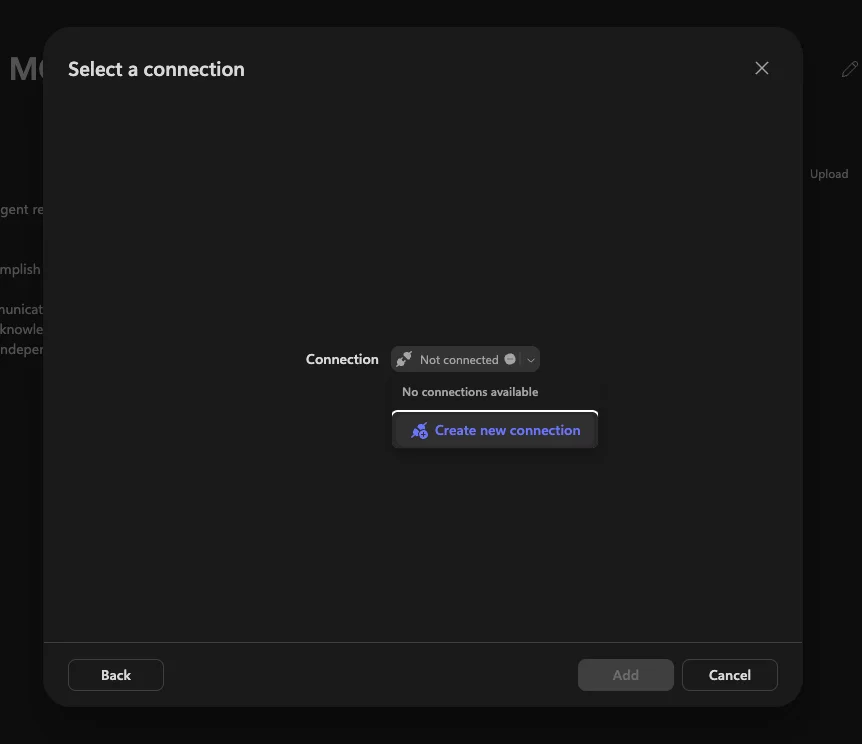
- In Select a connection, open the Connection menu and choose Create new connection.
- Optionally, enter a Display name, such as
tais_mcp_connection. - In Authorization, paste
Bearer tasgwt_<secret>, then select Create. - Check that the connection shows a green checkmark, then select Add.
The tool now appears under Tools on the agent's Build tab. Open it to confirm that Copilot Studio discovered the six Treasure AI Studio tools.
Test the connection with a read-only request in the Copilot Studio test pane before you publish the agent. A successful tool response confirms the connection, and the folder it returns shows what the agent can reach.
Open the agent's Preview tab, which is the test pane.
Send this read-only request:
Use Treasure AI Studio to list the Studio work folders I can access. Do not run Actions or change anything.
Check the tool activity in the test pane. The
list_work_folderscall returns the shared folder from Step 1, and only that folder.
For a folder that holds CDP data, you can also send Show me 10 Parent Segments. The agent returns names, IDs, and sizes, and it typically sends this request to Treasure AI Studio as a chat with start_chat.
A general answer, such as a reply to "What can you do?", doesn't prove that the agent reached Treasure AI Studio. Check the tool activity for a list_work_folders or start_chat call.
The agent uses the same six tools that any MCP client receives. The table below lists what each tool takes and does. Connecting an MCP Client covers their results and limits in full.
| Tool | Inputs | What It Does |
|---|---|---|
list_work_folders | None | Lists the work folders this connection can reach. For a static-token endpoint, that is the one published folder |
list_actions | work_folder_id | Lists the saved Actions in a folder |
run_action | work_folder_id, action_name | Runs a saved Action |
start_chat | work_folder_id, message | Starts a free-form Studio task |
continue_chat | chat_id, message | Sends a follow-up instruction to an existing chat |
get_chat_result | chat_id | Gets the latest result of a chat, or waits for it to finish |
Example prompts for the agent:
- List the Actions in my shared work folder in Treasure AI Studio.
- Provide me with the list of available parent segments.
- Run the Weekly Summary Action in Treasure AI Studio. If it returns a running status, poll
get_chat_resultuntil it finishes. - Start a Studio chat that summarizes last week's campaign performance as a table.
- Check the result of the last Studio chat.
Copilot Studio has no per-call approval prompt, such as Allow once. To make the agent ask before it runs an Action or starts a chat, add an instruction to the agent's Instructions, for example:
Before calling run_action, start_chat or continue_chat, describe what you will do and wait for the user to confirm.Publish the agent after the test requests in Step 6 behave as expected. Publishing makes the agent available in Microsoft Teams and Microsoft 365 Copilot, and end users use the connection you created in Step 5.
- On the agent, select Channels (or Publish), then add Microsoft Teams and Microsoft 365 Copilot.
- Select Publish.
- Open the agent in Teams or Microsoft 365 Copilot, and repeat the requests from Step 6. The published agent behaves as it did in the test pane.
Three points apply to end users:
- No token prompt. End users use the connection you created in Step 5. Setting the connection to end-user credentials changes nothing, because the API key stored in the connector is still used.
- Everyone acts as the executor. Every user sees the executor's published folder, not their own Studio folders, and uses the executor's permissions.
- Usage is billed to the executor. Treasure AI Studio attributes all calls and credits to the executor, whoever chats with the agent.
Publish the agent only to people who should see the shared folder's content.
The limits below apply to the agent in Copilot Studio. Plan around them before you design tasks that take longer than a single tool call.
| Behavior | What to Expect |
|---|---|
| Tool call timeout | Copilot Studio stops waiting for a tool call after 120 seconds. Microsoft sets this value, and it can't be changed. Treasure AI Studio waits up to 200 seconds, so a task that runs longer than 120 seconds is cut off in Copilot, even though it keeps running in Studio. Ask the agent to poll get_chat_result with the chat ID instead of starting the task again, or split the work into smaller tasks. |
| Arguments for Actions | run_action takes no arguments. To pass inputs, the agent uses start_chat and describes the task itself. |
| Folder writes | The shared folder is read-only. Each chat runs in a temporary workspace that is discarded when the chat ends. |
| Clarifying questions | When Studio asks a question, the result has status: "question", and Studio doesn't receive an answer through the connection. The agent can send a follow-up instruction with continue_chat to steer the work. If the agent can't decide, Copilot asks you the question instead. |
| Folder changes | New or changed Actions are available at once, without republishing the agent. |
| Output format | Tables and long text display correctly. Copilot doesn't render HTML, so raw HTML appears as text. Ask Studio for a table or plain text instead. |
Rotate the token before it expires, or as soon as you suspect it has been exposed. An endpoint can hold more than one token at a time, so you can add the new token to the connection before you revoke the old one, without downtime.
- In Treasure AI Studio, open the endpoint under Settings → Agent Channels, and issue a new token. Store the new token immediately.
- In Copilot Studio, open the Treasure AI Studio tool, open its connection menu, and update the connection with
Bearer <new token>. - Send the read-only request from Step 6 to confirm the new token works. Then revoke the old token in Treasure AI Studio.
To stop access immediately, disable the endpoint in Settings → Agent Channels. Disabling stops requests but doesn't revoke tokens. Re-enabling the endpoint restores access without changing the Copilot Studio connection. Revoking a token or letting it expire also stops all calls, and you restore access by updating the connection with a valid token. Deleting the endpoint also stops all calls. A new endpoint has a new Connection URL, so you must create a new endpoint and a new tool.
Everyone who can use the published agent gets the same access: the executor's shared folder, Actions, permissions, and credits. Review these controls before you publish.
- Treat the
tasgwt_token like a password. Anyone who has it can use the endpoint's folder and Actions. - Choose an executor whose access matches what the agent's users may see. Every user of the published agent acts as that executor.
- Don't put the token in agent instructions, the server description, screenshots, Slack, or Confluence.
- Set an expiration when you create the endpoint, and rotate tokens regularly.
- If a token is exposed, revoke it in Treasure AI Studio and issue a new one. Hiding it in a screenshot doesn't revoke it.
- Copilot Studio stores the token in a Power Platform connection. Other makers can't read it, and it isn't included when you export the solution.
Copilot Studio shows the same message for every authentication or permission failure: "The MCP server didn't accept this connection's credentials or permissions. Update or reconnect the connection from the connection menu, then try again." Use the table below to find the cause.
| Symptom | Likely Cause | Fix |
|---|---|---|
| Credentials message right after you create the connection | The value lacks the Bearer prefix, or the token is wrong or truncated | Update the connection with Bearer tasgwt_…, copied in full |
| Credentials message on a connection that worked before | The token expired or was revoked (401), or the endpoint was deleted | Issue a new token in Treasure AI Studio and update the connection. If the endpoint was deleted, create a new endpoint and a new tool |
| Credentials message, but the token is still valid | The endpoint is disabled or has no executor, or the executor lost access to the folder (403) | Enable the endpoint, or restore the executor's folder access in Treasure AI Studio. See Static-Token MCP Endpoints |
| A long task never returns, but it completed in Studio | Copilot Studio stops waiting after 120 seconds | Ask the agent to call get_chat_result with the chat ID, or split the task |
| The agent answers generally without calling Studio | The request didn't match the tool, or the tool wasn't added | Make a concrete request that mentions Treasure AI Studio, and check the tool activity. Improve the server description or the agent's instructions if needed |
| The agent sees the wrong folder or Actions | The endpoint publishes a different folder than you expected | Check the endpoint overview in Treasure AI Studio, then ask the agent to run list_work_folders and list_actions |
| The agent shows raw HTML | Copilot doesn't render HTML from tool results | Ask Studio for a table or plain text instead |
| You can't create an endpoint | You don't have Manage on the folder, the folder is archived, or creation is limited to account admins | Ask a folder manager or an account administrator |
| You can't create the agent or the connection | Dataverse is missing, the Microsoft.PowerPlatform provider isn't registered, billing isn't enabled, or a DLP policy blocks the connector | Check the prerequisites with your Power Platform and Azure administrators |
- Static-Token MCP Endpoints — endpoint status, executor handover, and token management.
- Connecting an MCP Client — the six tools, their results, and limits for any MCP client.
- Gateway Tokens and Chat Access Tokens — token expiration and rotation.
- Connecting Salesforce Agentforce to Treasure AI Studio — another static-token walkthrough, for Salesforce.
- Headless — other ways to connect external AI tools to Treasure AI.