You can add Treasure AI Studio to ChatGPT as a custom MCP server, so you can run Studio agents and Actions from a ChatGPT chat. Each request runs with the work folders, permissions, and cost of the person who connected. This page covers the setup in Treasure AI Studio and in ChatGPT, and what happens when you send a request. Use it when you already work in ChatGPT and want audience information or the output of a Studio Action there, without switching tools.
Two people set up the connection, in two places.
| Who | Where | What They Do |
|---|---|---|
| Account administrator | Treasure AI Studio, under Settings → Agent Channels | Creates one OAuth endpoint and copies its Connection URL |
| Each person who uses ChatGPT | ChatGPT, under Plugins | Adds the Connection URL to ChatGPT, signs in to Studio, and allows access |
Only account administrators can create OAuth endpoints. Everyone else connects to an endpoint that an administrator has already created. Each person also needs a Treasure AI Studio account in the same account, with access to the work folders they want to use.
The steps on this page were checked with a ChatGPT account that is not ChatGPT Enterprise. ChatGPT Enterprise is set up separately, so confirm that these steps work in your Enterprise workspace before you rely on them.
Check ChatGPT's data settings before you connect. Data Sharing with ChatGPT explains what the connection dialog says about your chats.
An account administrator creates one OAuth endpoint, and everyone who connects uses its Connection URL. For the full setup, see Create an OAuth Endpoint.
- Open Settings → Agent Channels and select New MCP Endpoint in the MCP Endpoints section.
- Under Connection method, select OAuth · connected user.
- Enter an Endpoint name, such as ChatGPT MCP OAuth, and add an optional Comment.
- Select Create endpoint.
- On the OAuth endpoint created screen, select Copy next to the Connection URL.
The endpoint's detail page shows its status as Active. Give the Connection URL to each person who will connect ChatGPT to it. This guide uses the endpoint's own Connection URL. The common MCP URL is an alternative, described in The Common MCP URL.
Each person does this in ChatGPT.
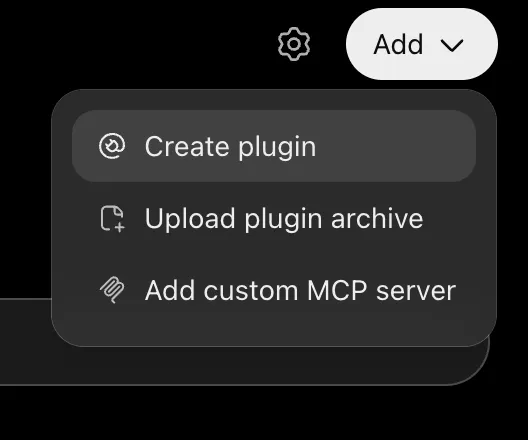
- In ChatGPT, select Plugins in the sidebar, select Add, and then select Add custom MCP server.
- Enter a Name, such as Treasure AI Studio, and an optional Description. Keep Connection set to Server URL, and paste the Connection URL from Step 1.
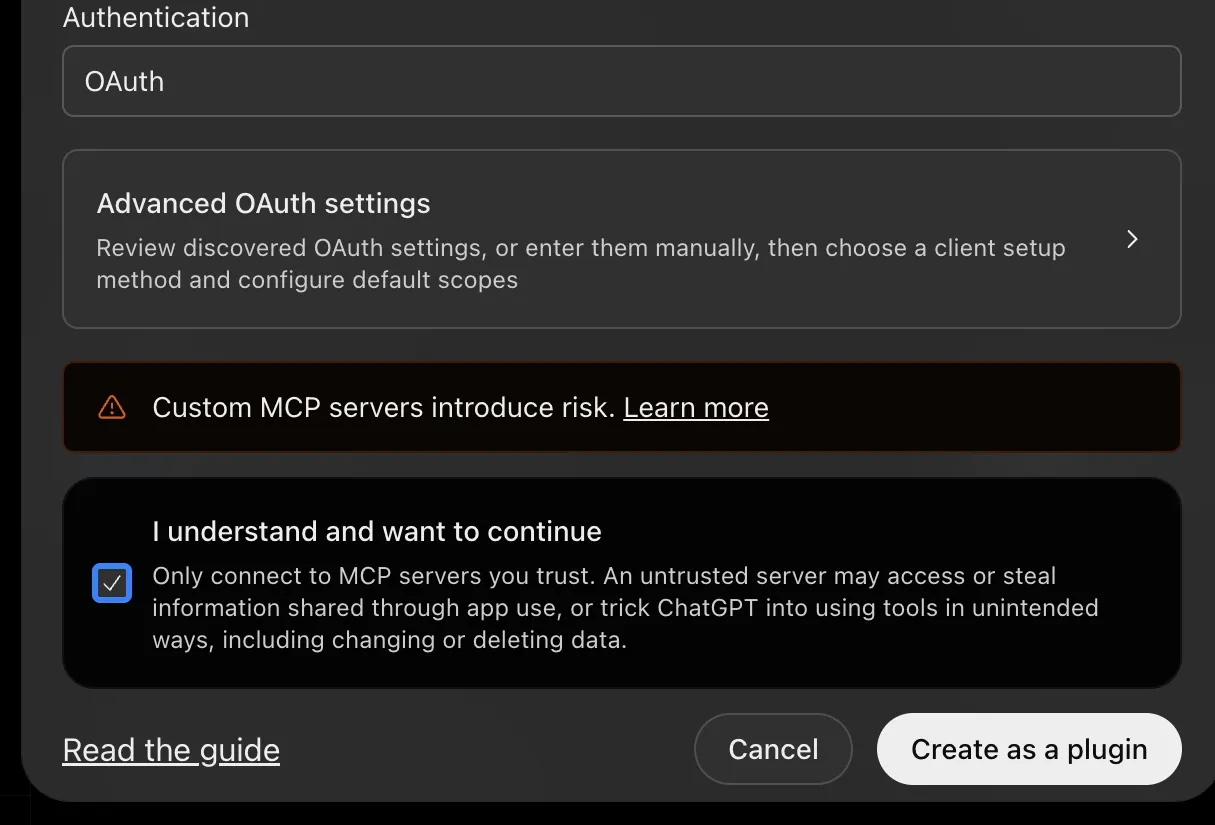
- Set Authentication to OAuth. Leave Advanced OAuth settings closed to use the OAuth settings that ChatGPT discovers.
- Read the risk notice, select I understand and want to continue, and select Create as a plugin. The notice asks you to connect only to MCP servers you trust.
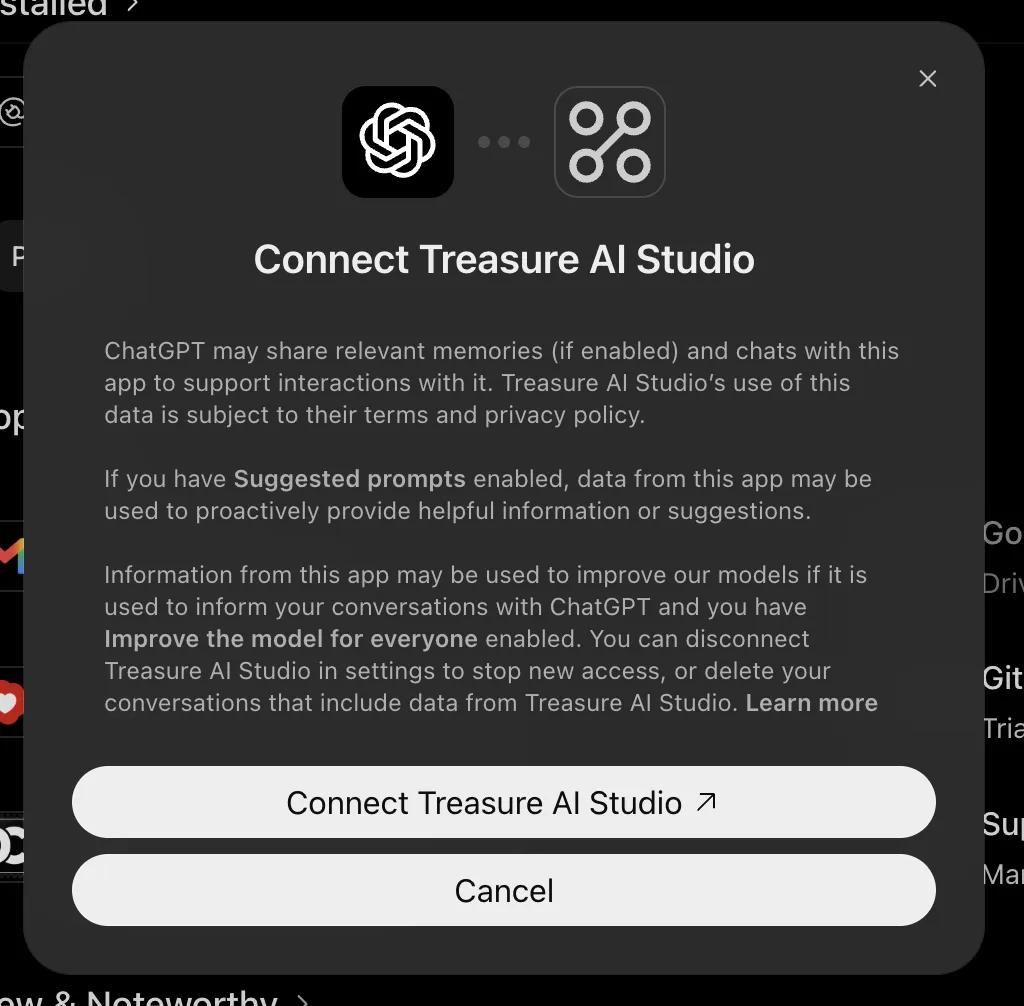
- In the Connect Treasure AI Studio dialog, select Connect Treasure AI Studio. Your browser opens Treasure AI Studio.
- If Studio asks you to sign in, sign in. On Authorize MCP access, check the callback host shown at the top, check the account and endpoint name, and select Allow access.

The requested permissions are to view work folders, list Actions, read execution results, run Actions, and start or continue chats. These are the same permissions described in The MCP Permission.
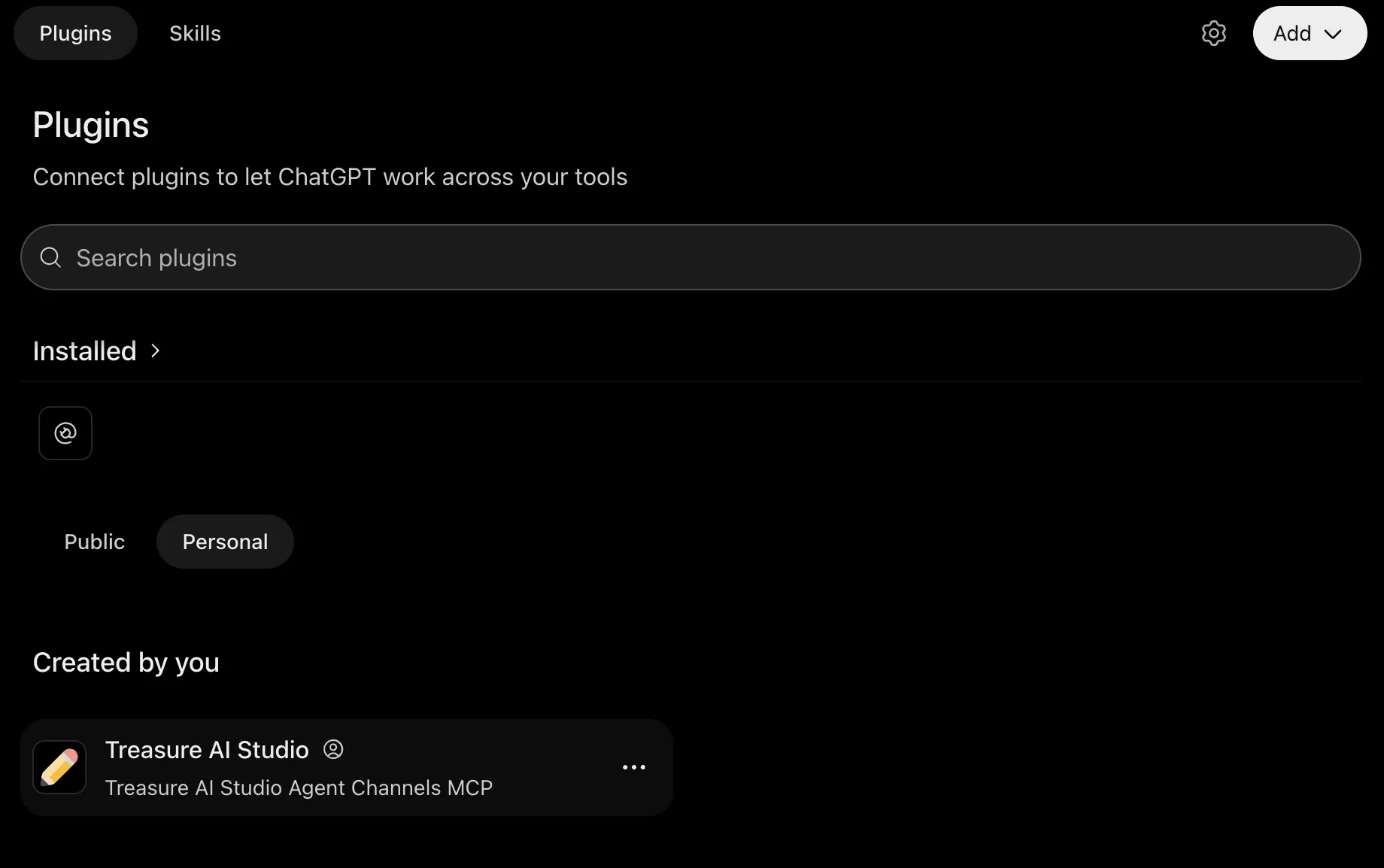
- Check the Plugins page. Treasure AI Studio appears under Created by you, on the Personal tab.
Start a new chat and ask for something that needs Studio. For example, you can ask ChatGPT to analyze your audience through Treasure AI Studio.
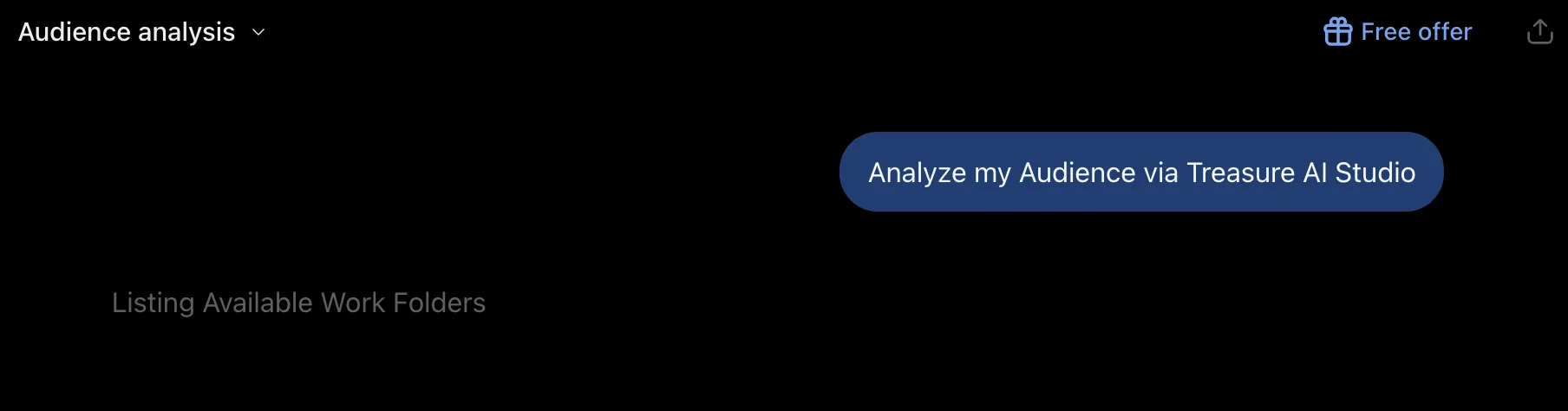
- Start a new chat and send a request that needs Studio, such as Analyze my audience via Treasure AI Studio. ChatGPT shows Listing Available Work Folders while it looks up the work folders you can use.
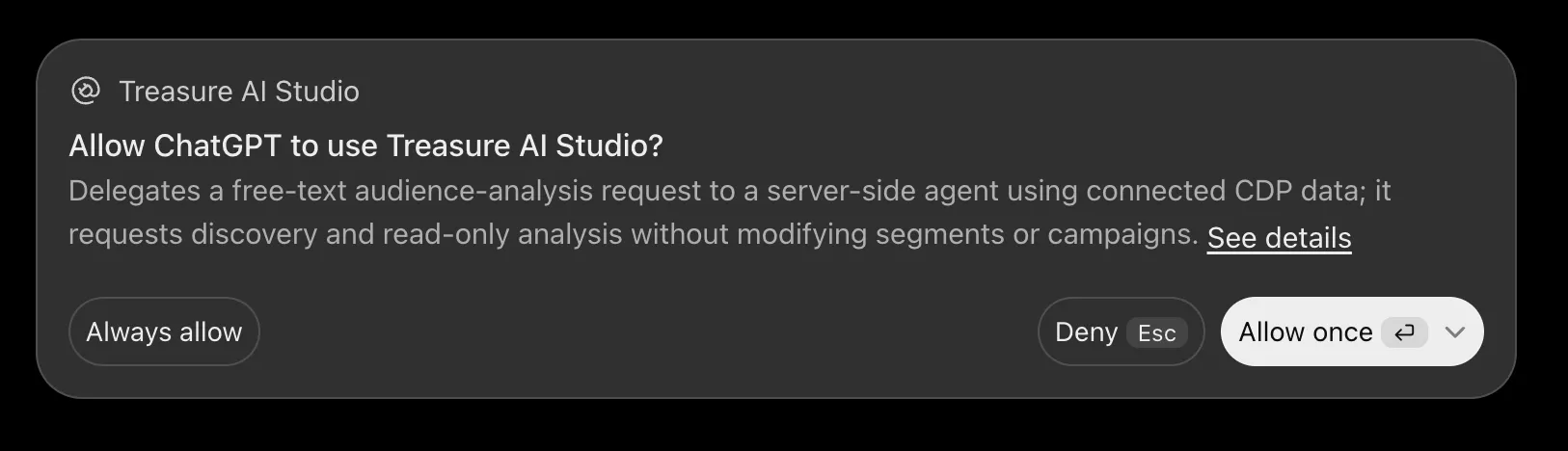
- When ChatGPT asks Allow ChatGPT to use Treasure AI Studio?, review the description and choose Allow once, Always allow, or Deny. Before you choose Always allow, check what the Action does in Studio.
- Review the result. In the audience example, ChatGPT listed the audiences available to you with their member counts, and offered to analyze one of them.
Each request runs as the person who connected. It uses that person's work folders, permissions, and cost. Studio does not ask for approval before each request. The confirmation you see in this flow is ChatGPT's prompt in Step 3, not a Studio prompt.
Requests appear in your Studio chat list as ordinary chats, with the name of the work folder they ran in. They can change files in your work folders as far as your work mode allows. The Chats Are the Person's Own Studio Chats describes this in more detail.
Each tool has its own description, and ChatGPT shows that description in the prompt. In the example in Step 3, the description says the request is a read-only analysis. That describes the tool, not the connection. The connection grants the permissions listed in Step 2, so check the Action in Studio before you rely on a tool's description.
The connection dialog in Step 2 tells you what ChatGPT shares with the app. It says that ChatGPT may share relevant memories, if memory is enabled, and chats with Treasure AI Studio to support interactions with it. It also says that Treasure AI Studio's use of this data is subject to its terms and privacy policy.
The dialog also says that information from the app may be used to improve ChatGPT's models when Improve the model for everyone is enabled. You can disconnect Treasure AI Studio in ChatGPT's settings to stop new access, or delete conversations that include data from Treasure AI Studio.
Review these settings in ChatGPT before you connect. Do not send chats that include data you would not share with the app.
You can stop the connection for one person or for everyone. Stopping it in Studio refuses requests on the Studio side, and removing the plugin in ChatGPT stops ChatGPT from using the connection.
- Stop everyone (Studio). Turn off the Enabled switch on the endpoint. ChatGPT's requests are refused until you turn it back on.
- Stop one person (Studio). Remove the person from the account, or remove their access to the work folders involved.
- Remove the plugin (ChatGPT). The person removes Treasure AI Studio from ChatGPT. This stops ChatGPT from using the connection, but it does not end the authorization in Studio.
To remove the plugin in ChatGPT, use Uninstall or Delete plugin.
- In ChatGPT, select Plugins, open the ... menu on the Treasure AI Studio card under Created by you, and select Uninstall.
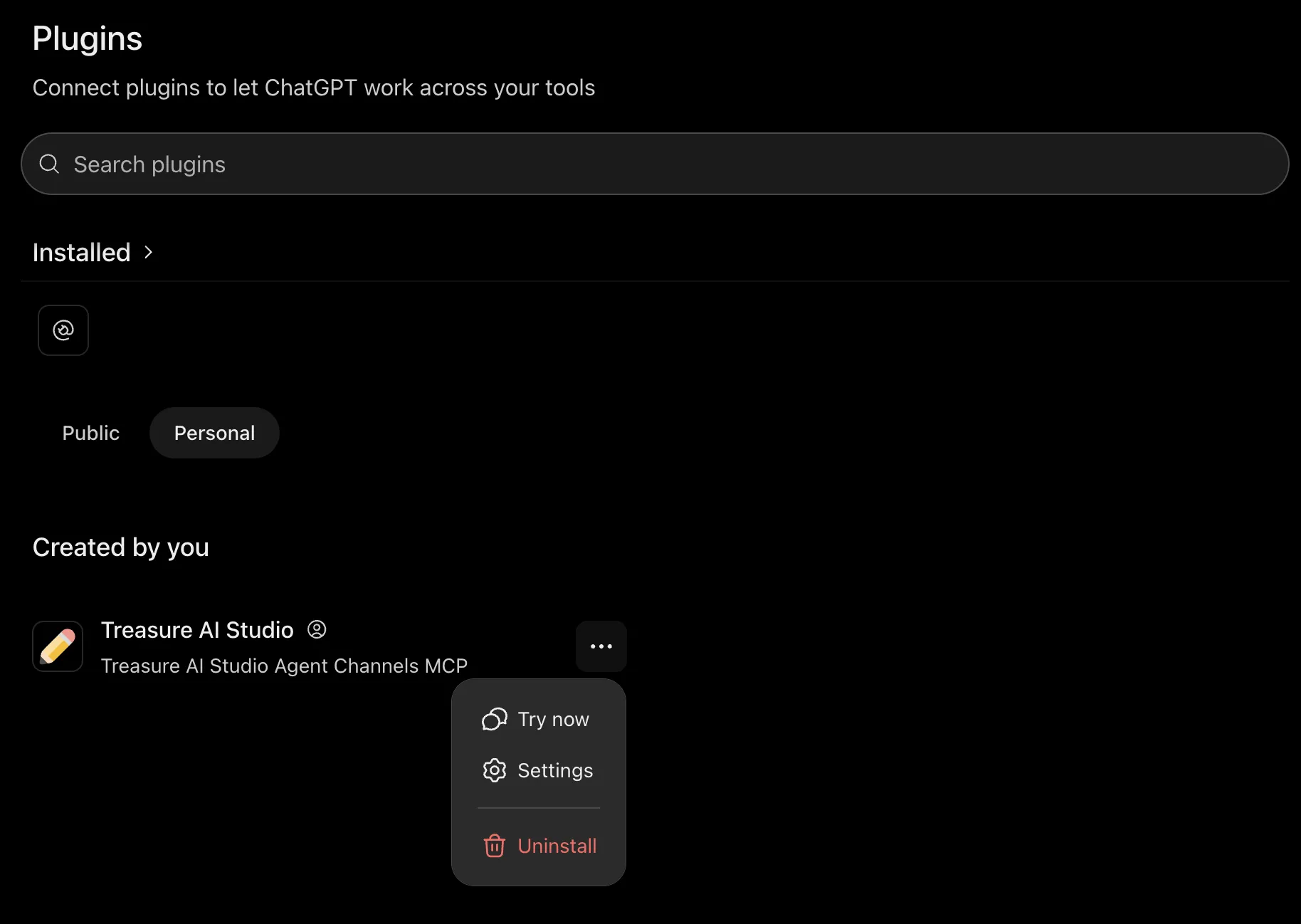
After you uninstall, the plugin is no longer listed as installed. It stays under Created by you with a + button, so you can install it again.
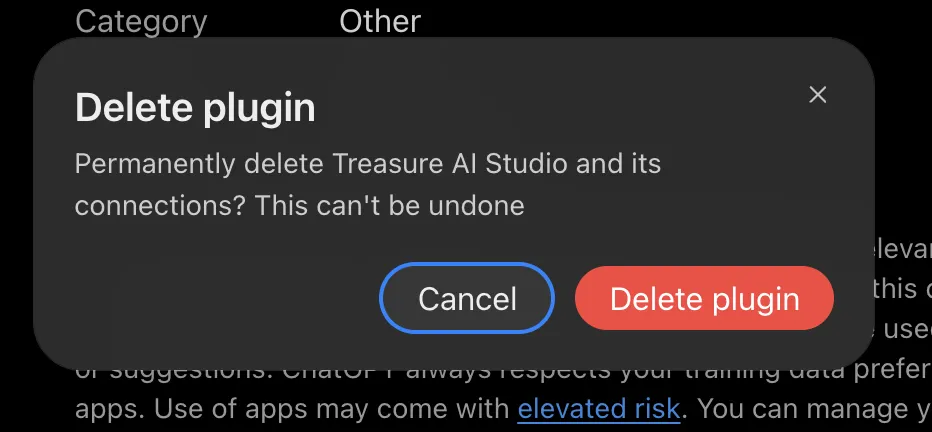
- To delete the plugin and its connections, open the plugin's detail page, open the ... menu, and select Delete plugin. In the confirmation dialog, which asks "Permanently delete Treasure AI Studio and its connections? This can't be undone", select Delete plugin again.
To end a person's access in Studio, use one of the options above.
| Symptom | Cause and Fix |
|---|---|
| The consent screen says "No accessible account has an OAuth endpoint for the requested MCP resource." | Your accounts can't be offered for this endpoint. The endpoint may be deleted, you may not be a member of its account, or the account may require a different identity provider. If the screen offers Sign in with another provider, use it. Otherwise, ask an account administrator |
| The consent screen says the endpoint "is stopped or unavailable." | The endpoint is disabled. An account administrator turns the Enabled switch back on |
Requests are refused with 403 and mcp_disabled | The endpoint is disabled. An account administrator enables it |
Requests are refused with 403 and insufficient_scope | The connection doesn't include the mcp permission. Authorize the connection again and grant mcp |
| Other errors after you connect | See the troubleshooting table in OAuth MCP Endpoints |
- OAuth MCP Endpoints: permissions, the common MCP URL, and how access ends.
- Connecting an MCP Client: how other MCP clients connect.
- What an Agent Channel Chat Can Reach: what these chats can and cannot change.
- Headless: the overview of connecting other AI tools to Treasure AI Studio.