You can connect Salesforce Agentforce to Treasure AI Studio by registering a Static token · shared executor MCP endpoint in Salesforce Agentforce Registry and attaching its six tools to an Agentforce Employee Agent. Marketing and business users can then query customer data, inspect audiences, and run saved Studio Actions directly from the Salesforce Lightning panel—without leaving Salesforce, installing a Marketing Cloud package, or running a local tdx mcp process.
Use this guide when your teams work in Salesforce Lightning and need Treasure AI Studio results inside Agentforce. Because this integration uses a static-token MCP endpoint stored in a Salesforce Custom External Credential rather than per-user OAuth, every Salesforce user who can reach the agent runs as the endpoint's single shared executor, using that executor's shared work folder, permissions, and credits.
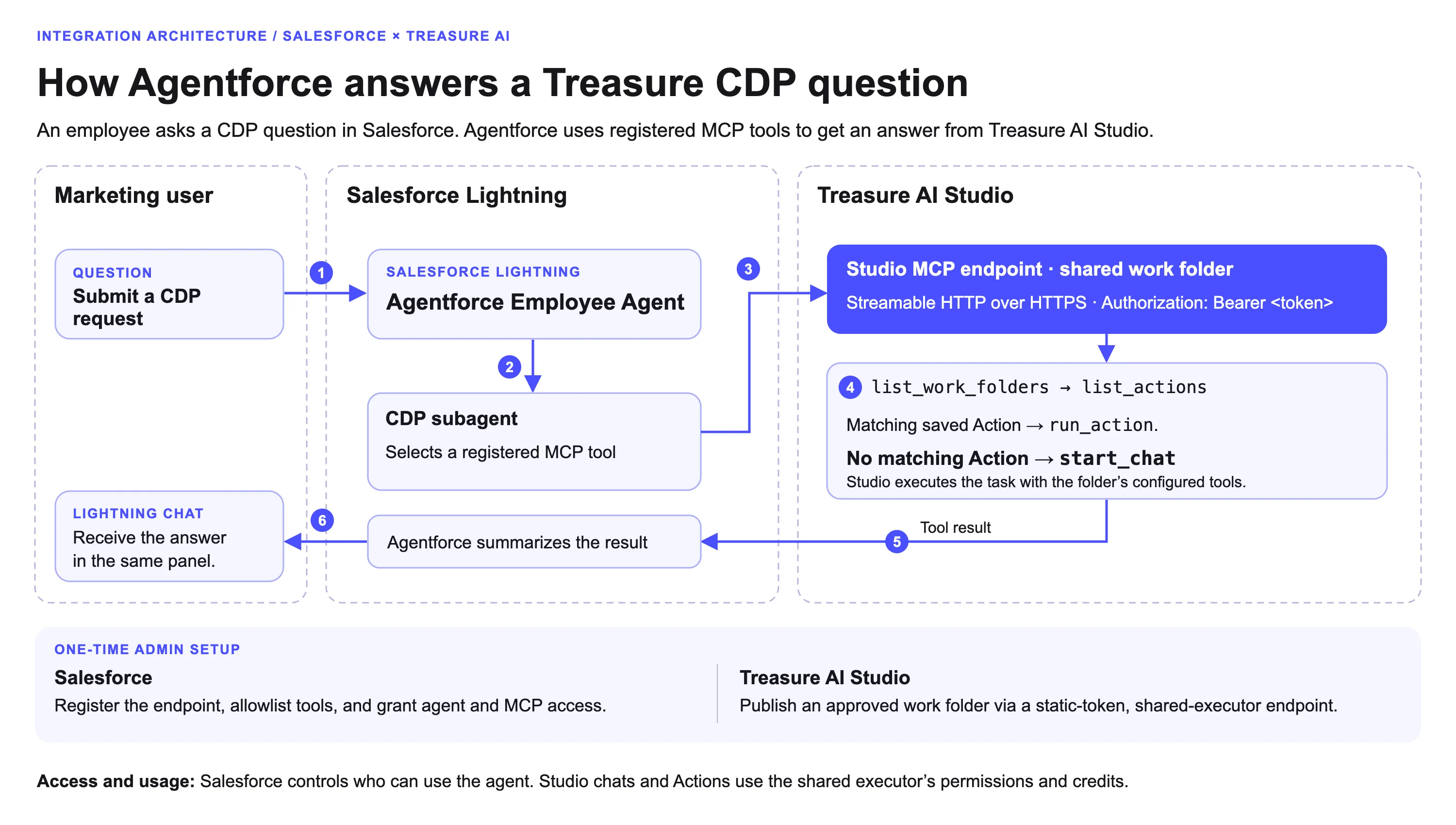
Salesforce acts as the MCP client, and Treasure AI Studio hosts the remote MCP server over Streamable HTTP. Three roles participate across two platforms.
| Role | Where | What They Do |
|---|---|---|
| Studio shared work folder manager | Treasure AI Studio, under Settings → Agent Channels | Publishes an approved shared work folder, creates one Static token · shared executor MCP endpoint, and copies its Connection URL and raw Bearer token |
| Salesforce administrator | Salesforce Lightning Setup and Agentforce Builder | Stores the token in a Custom External Credential, registers the MCP server, allowlists tools, assigns the MCP permission set, builds and activates an Employee Agent, and grants agent access |
| Salesforce end users | Salesforce Lightning (for example, the Sales app) | Open the Agentforce panel, select the Employee Agent, and send requests that invoke Treasure AI Studio tools |
When Salesforce connects to the registered endpoint, Agentforce Registry discovers the six standard Treasure AI Studio MCP tools. For detailed tool descriptions, arguments, and response behavior, see The Tools.
| Tool Group | Tools |
|---|---|
| Read-only | list_work_folders, list_actions, get_chat_result |
| Write / execution | run_action, start_chat, continue_chat |
What those tools can access depends on the shared work folder, saved Actions, integrations, executor permissions, and credits configured in Treasure AI Studio.
- Salesforce Lightning with Agentforce: An approved Salesforce Lightning org with Agentforce Registry and Employee Agent Builder enabled, plus a Salesforce administrator who can create External Credentials, register external MCP servers, build and activate agents, and manage permission set assignments.
- Treasure AI Studio shared work folder: An approved shared work folder that contains only the Actions and files acceptable for Salesforce users to reach, where you hold the Manage work mode.
- Static-token MCP endpoint permission: Permission under the Treasure AI Studio account's creation policy (Settings → Agent Channels) to create static-token MCP endpoints. If the creation policy is set to Account admins only and you are not an account administrator, New MCP Endpoint is disabled.
Every Salesforce org generates its own Asset Library action IDs, source and target identifiers, and permission set names, and every Treasure AI Studio endpoint has its own Connection URL, token, and folder IDs. Register the MCP server and attach the six tools from your own org's Asset Library rather than copying generated IDs from the reference script below.
A static-token MCP endpoint publishes one shared work folder and runs every call as the endpoint's executor. If you have not yet created or published a shared work folder, see Sharing a Work Folder. For full endpoint management details, see Static-Token MCP Endpoints.
- In Treasure AI Studio on Web or Desktop, open Settings → Agent Channels.
- Under MCP Endpoints, select New MCP Endpoint.
- Under Connection method, keep Static token · shared executor selected, enter an Endpoint name (for example, Salesforce Agentforce MCP), and optionally add a Comment. Select Next.
- Choose the approved Shared work folder you manage, review the consent details showing you as the Executor, and select a token Expiration (7, 30, or 90 days, a custom date, or no expiration).
- Select Create endpoint & issue first token. The Connect your MCP client completion screen opens with two values:
- Connection URL:
https://<your account's Agent Gateway>/v1/mcp/<endpoint ID>(for example,https://agent-gateway.us01.treasure.ai/v1/mcp/<endpoint ID>on US01). - Authentication header:
Authorization: Bearer tasgwt_<secret>.
- Connection URL:
- Copy both values into a password manager or secret store immediately. Select I have stored the values, then select Done. The endpoint overview opens with status Active.
The tasgwt_ token is displayed only once and cannot be recovered. If you lose it, revoke the token and issue a new one from the endpoint's detail page.
Salesforce stores the Treasure AI Studio static token inside a Custom External Credential and injects the Authorization: Bearer header automatically through a custom header formula.
- In Salesforce Lightning, select the gear icon in the upper-right corner and choose Setup (not Data Cloud Setup).
- In the left Quick Find box, enter
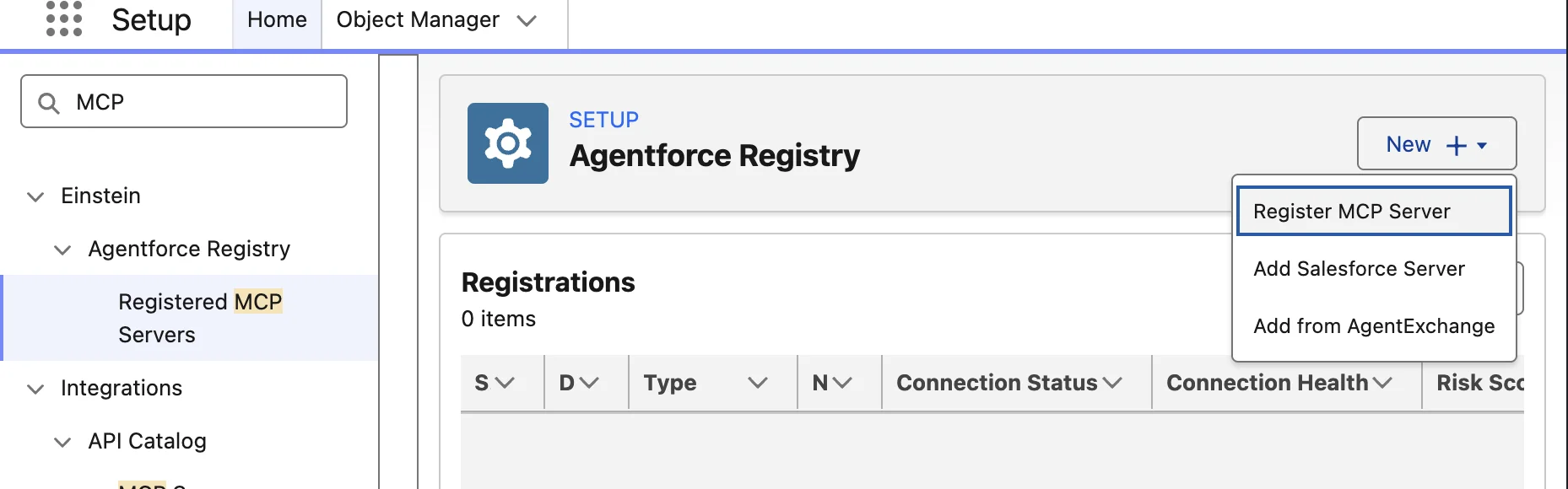
Agentforce. Under Einstein → Agentforce Registry, select Registered MCP Servers (not Registered APIs). - On the Agentforce Registry page, select New → Register MCP Server. Do not select Add Salesforce Server, because Treasure AI hosts this server.
- In Create Connection, change Authentication Method to Use External Credential, then select New External Credential. If Salesforce opens the Named Credentials tab, switch to the External Credentials tab and select New (you do not need to fill out a separate Named Credential form for this workflow).
- Create the External Credential with these values, then select Save:
- Label:
Treasure AI MCP - Name:
Treasure_AI_MCP - Authentication Protocol:
Custom
- Label:
- Open the saved Treasure AI MCP External Credential record by selecting its label. If the Related Named Credentials section is empty, continue to the next step.
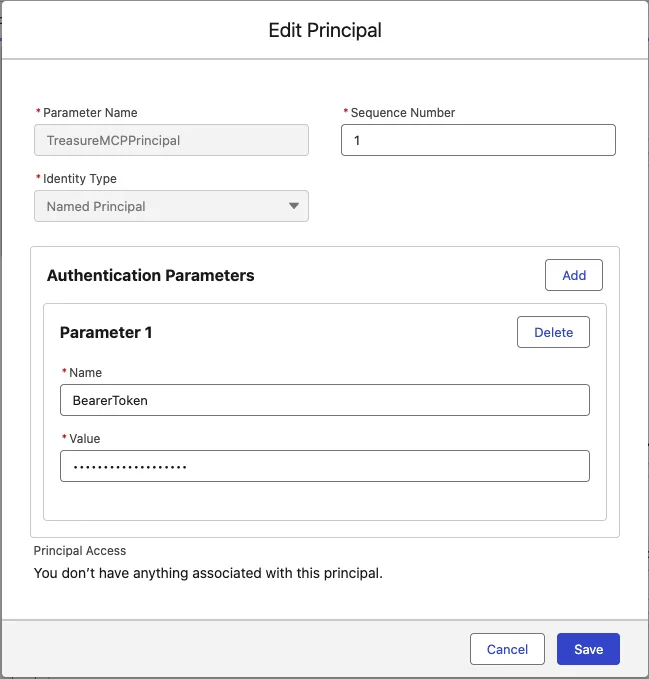
- Under Principals, select New, configure the named principal as follows, and select Save:
- Parameter Name:
TreasureMCPPrincipal - Sequence Number:
1 - Identity Type:
Named Principal - Authentication Parameters: Select Add, set Name to
BearerToken, and for Value paste only the raw token starting withtasgwt_from Step 1. Do not includeAuthorization:,Bearer, quotes, or surrounding spaces—the custom header formula in the next step adds theBearerprefix.
- Parameter Name:
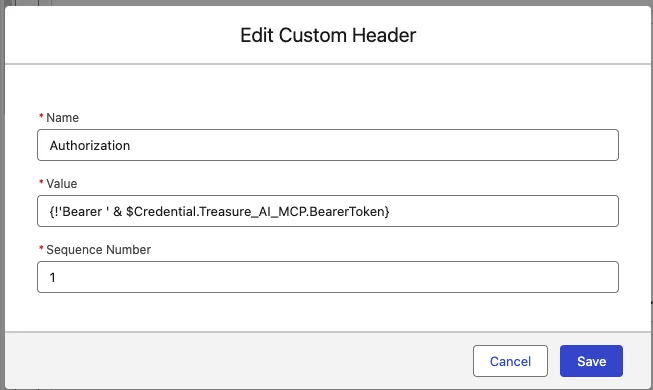
- Under Custom Headers, select New, enter these values, and select Save:
- Name:
Authorization - Value:
{!'Bearer ' & $Credential.Treasure_AI_MCP.BearerToken} - Sequence Number:
1
- Name:
- Confirm on the Treasure AI MCP detail page that one named principal (
TreasureMCPPrincipal) and one custom header (Authorization) are listed before returning to the registry. A masked parameter value is expected.
With the External Credential saved, register the Treasure AI Studio MCP endpoint in Agentforce Registry and select which tools Salesforce agents can call.
- Return to the Create Connection dialog under Agentforce Registry → Registered MCP Servers.
- Enter MCP Server Name as
TreasureAIMCP(letters and numbers only) and Description asTreasure AI MCP. - In Server URL, paste the full Connection URL from Step 1 (
https://<your account's Agent Gateway>/v1/mcp/<endpoint ID>). Do not append the token or paste the Authentication header here. - Keep Authentication Method set to Use External Credential, select the refresh icon next to New External Credential, and select Treasure AI MCP (type Custom).
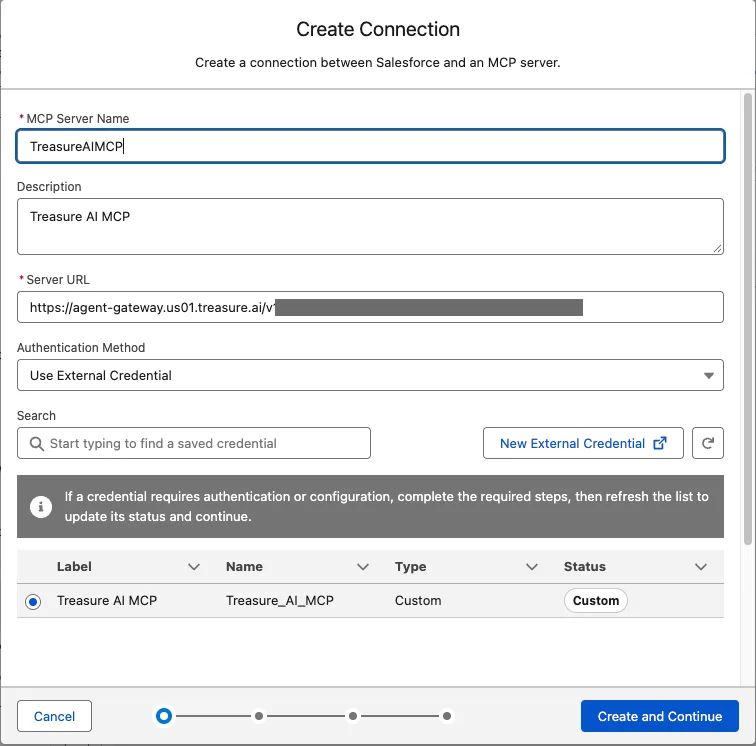
- Select Create and Continue. Salesforce validates the connection and discovers the six Treasure AI Studio tools.
- On MCP Server Allowlist, select the tools your agents can use, then select Allow and Continue.
- For the full Employee Agent in Step 5, select all six tools:
list_work_folders,list_actions,get_chat_result,run_action,start_chat, andcontinue_chat. - For a discovery-only pilot, allowlist only
list_work_foldersand add the remaining tools when you are ready to build the full agent.
- For the full Employee Agent in Step 5, select all six tools:
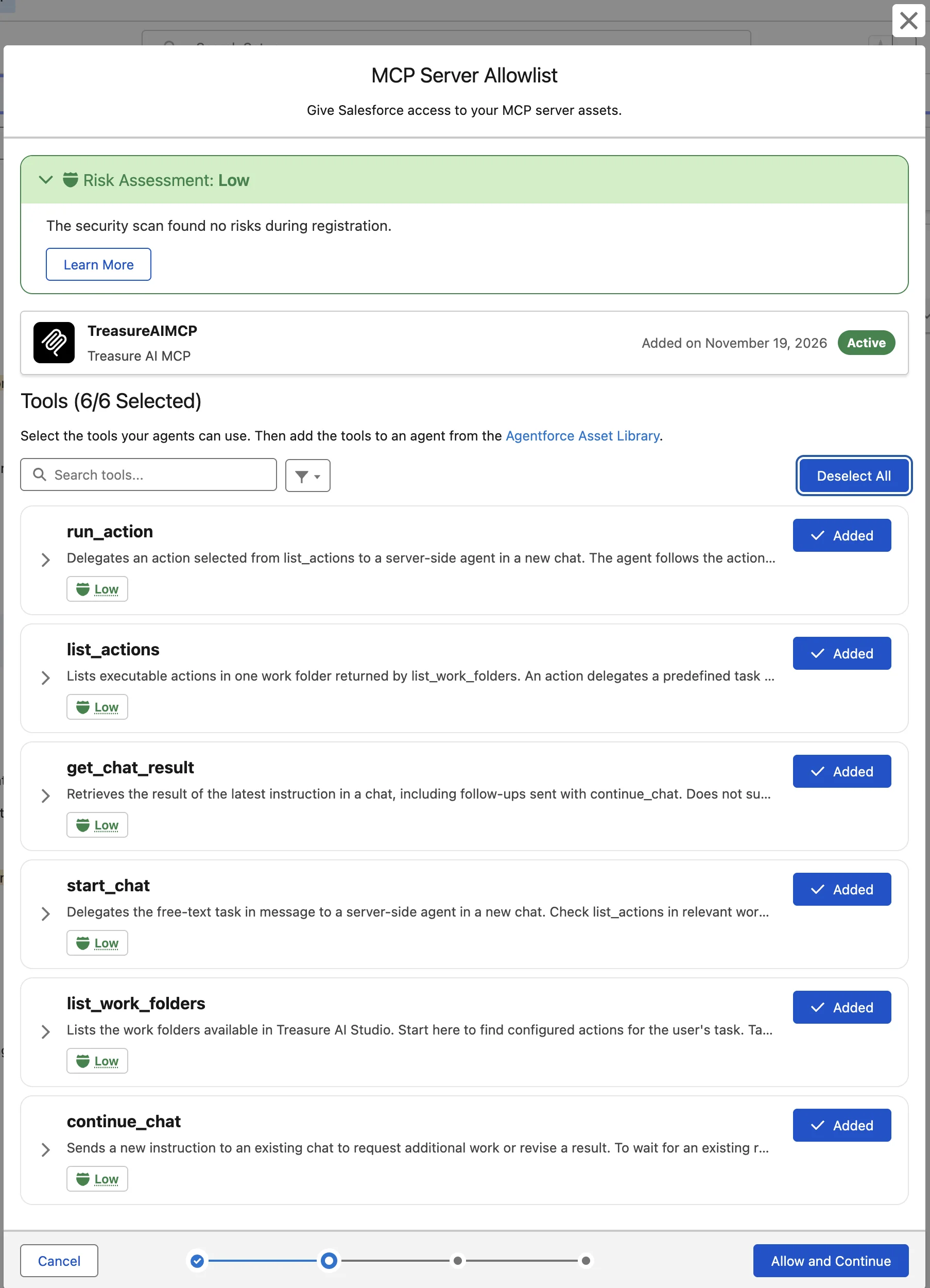
The registration scan reports Risk Assessment: Low. That score describes the registration scan, not a guarantee that every allowlisted tool is read-only—run_action, start_chat, and continue_chat execute tasks in Treasure AI Studio.
- On Grant Access to Users, review the generated permission set (for example,
TreasureAIMCP_Perm_Set), assign it only to users who need access, and select Next. - On Apply Policies, apply any policies required by your org, then select Save.
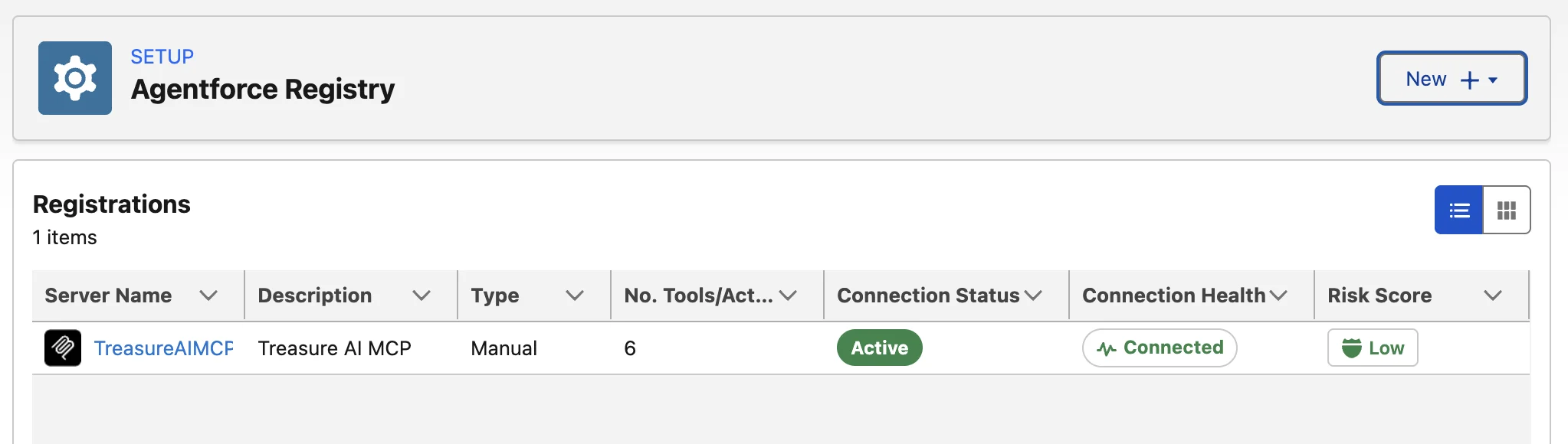
- Open Registered MCP Servers and verify that the saved
TreasureAIMCProw shows Type: Manual, 6 tools, Connection Status: Active, and Connection Health: Connected.
Salesforce separates MCP tool access (permission to call Treasure AI Studio through the named credential) from agent access (visibility of the Employee Agent in Salesforce Lightning, configured in Step 7). Every intended end user needs both. Do not assign the System Administrator profile just to grant agent or tool access.
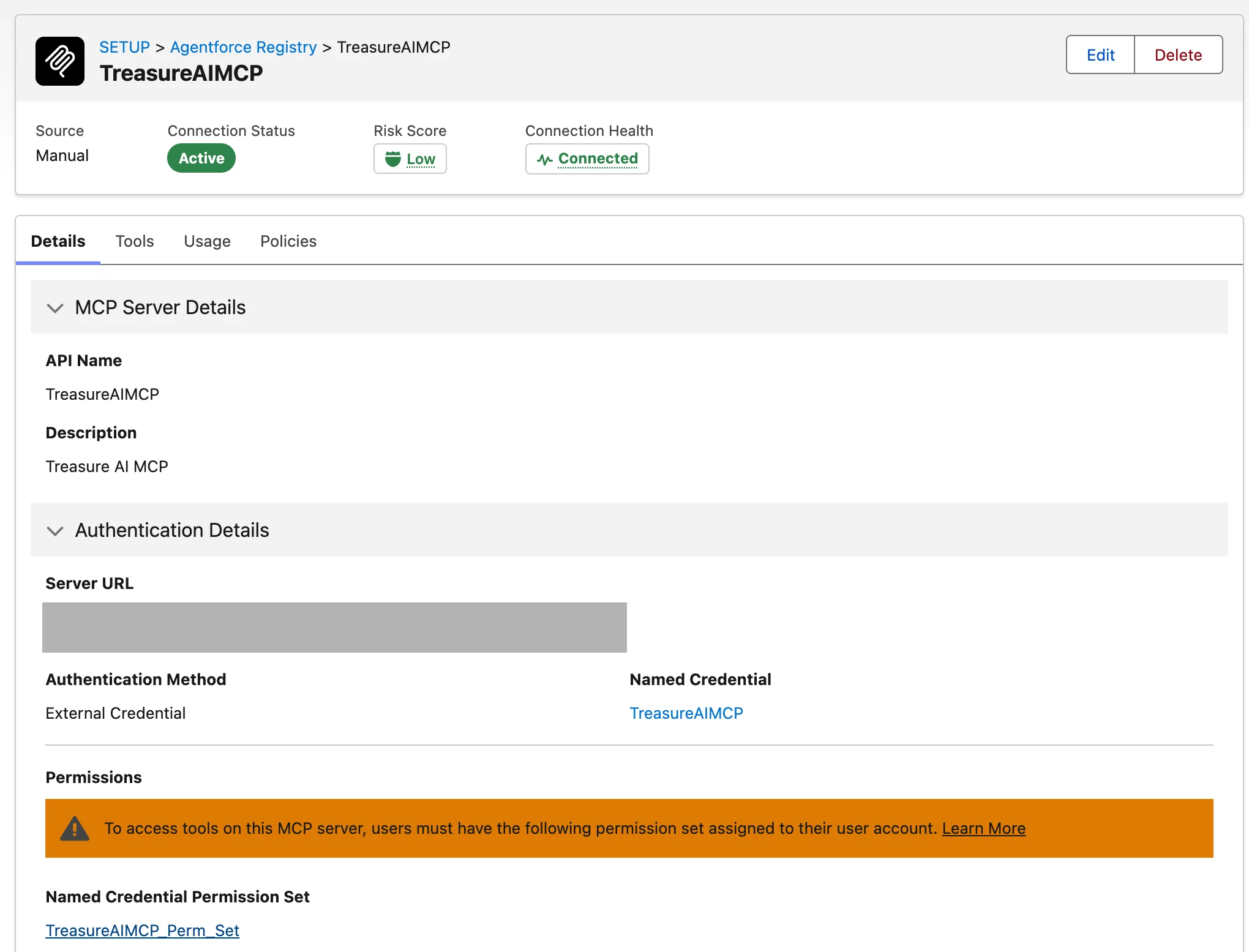
- Open Setup → Agentforce Registry → Registered MCP Servers → TreasureAIMCP → Details.
- Under Permissions, select the Named Credential Permission Set link generated for your server (for example,
TreasureAIMCP_Perm_Set). Use the link from your registered server rather than a similarly named agent permission set.
- On the permission set overview page, confirm the API name and select Manage Assignments.
- Check Current Assignments. If the intended user is already listed, no duplicate assignment is needed; otherwise, select Add Assignment.
- Search for each intended user's Salesforce username, select only those rows, and select Next. Do not select the entire user list or unrelated integration accounts.
- Choose an expiration option appropriate for your rollout (use a time-limited assignment for pilots), review the selected users, and select Assign.
- Confirm Status: Success on Assignment Summary, select Done, and verify that the user appears under Current Assignments.
Create an Employee Agent (AgentforceEmployeeAgent) so internal Salesforce users can open it from the Lightning header panel. A Service Agent can reach the MCP server in Preview, but it does not appear in the Lightning Sales panel.
Check that the draft specifies agent_type: "AgentforceEmployeeAgent" before you publish it for the first time. Salesforce can reject changing the agent type on an already published agent. If you publish a Service Agent by mistake, create a new Employee Agent and reuse your registered MCP tools—you do not need to replace the Treasure AI Studio endpoint or token.
- Open the Agentforce Builder using one of these entry points (not both):
- Setup → Agentforce Agents → New Agent (if an introductory dialog appears, select Create Agent).
- App Launcher → Agentforce Studio → Agents → New Agent.
- Paste this description into the Builder prompt box and submit it:
Create an internal employee agent for marketing users that answers questions about Treasure Data CDP, our customer data platform. That data is not in Salesforce, so never answer these questions from Salesforce Knowledge or general knowledge. Don't add or configure any actions; I'll add the TreasureAIMCP actions from the Asset Library myself.

Create one subagent called "Treasure AI Studio" that follows this:
1. Call list_work_folders to get the work folder ID. Never ask the user for it.
2. Call list_actions for that folder and find the saved Action that best matches the request. If one matches, run it with run_action.
3. If no Action fits, use start_chat with a clear, self-contained task describing exactly what the user asked for. Use continue_chat for follow-ups on the same result, and get_chat_result if a result is still running.
4. Summarize the result in plain language with the key numbers, and say which Action or chat produced it. If a tool returns an error or no result, say so. Never guess.

Confirmation: before any request that sends emails or notifications, activates or exports an audience, runs or resumes a workflow or journey, or creates, changes, or deletes anything in Treasure AI, first tell the user exactly what will happen and ask them to confirm. Only proceed after they say yes. Reading, listing, querying, and reporting need no confirmation.

If a request isn't about Treasure AI, explain what this agent can help with.- In Name your agent, enter Treasure AI Agent (
Treasure_AI_Agent), follow the user assignment options for your org, and select Let's Go. - Review Agent Optimizer's proposed structure before approving it. Verify that
developer_nameisTreasure_AI_Agent,agent_labelisTreasure AI Agent,agent_typeisAgentforceEmployeeAgent, and no messaging-only variables (such asEndUserId) were added. If Optimizer renamed the agent or added messaging variables, reply with a correction before proceeding:
Proceed, with two changes: keep developer_name Treasure_AI_Agent and agent_label Treasure AI Agent, and remove the EndUserId variable because this isn't a messaging agent.- When Optimizer finishes generating changes (removing default subagents and adding the Treasure AI Studio subagent), review the changes, select Accept All, and select Save.
- In Explorer, hover over the Treasure AI Studio subagent and select + → Add from Asset Library.
- Search for
TreasureAIMCP, select all six registered actions (or any not yet attached), and select Add to Agent. - Under Actions Available For Reasoning, select the matching local action for each operation. Do not create duplicate actions. Verify in Explorer that all six
TreasureAIMCPactions appear under Treasure AI Studio.
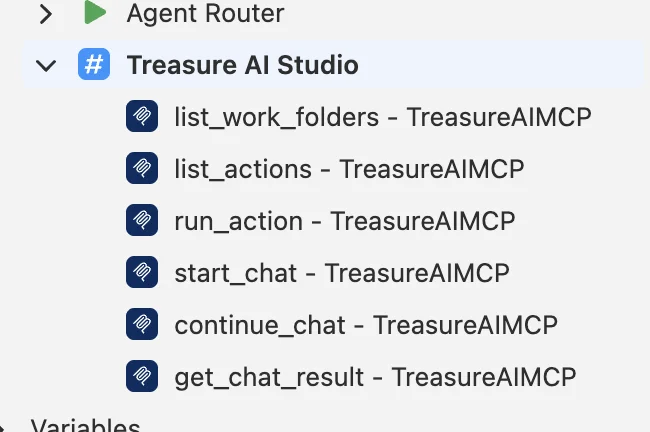
- Open Script view (
</>) and compare your subagent bindings against the Reference Agent Script. Confirm that reasoning-action input lines use...so the agent supplieswork_folder_id,action_name,message, andchat_iddynamically from tool results and conversation context, and that the instructions reference your org's local Asset Library action IDs. - Select Save and confirm Problems shows 0 errors.
Verify live MCP tool execution in Agentforce Builder Preview before activating the agent.
- In Preview, select ↻ to start a fresh test session.
- Ask a read-only discovery question, such as "List the saved actions in my work folder." Confirm in the Agent Preview Details trace that Salesforce executed
list_work_foldersfollowed bylist_actionswith the returnedwork_folder_id. - Ask a question that requires querying customer data, such as "List the first 3 parent segments." If your shared work folder has a matching saved Action, expect
run_action; if no saved Action fits, expectstart_chatrather than an unrelated saved Action.
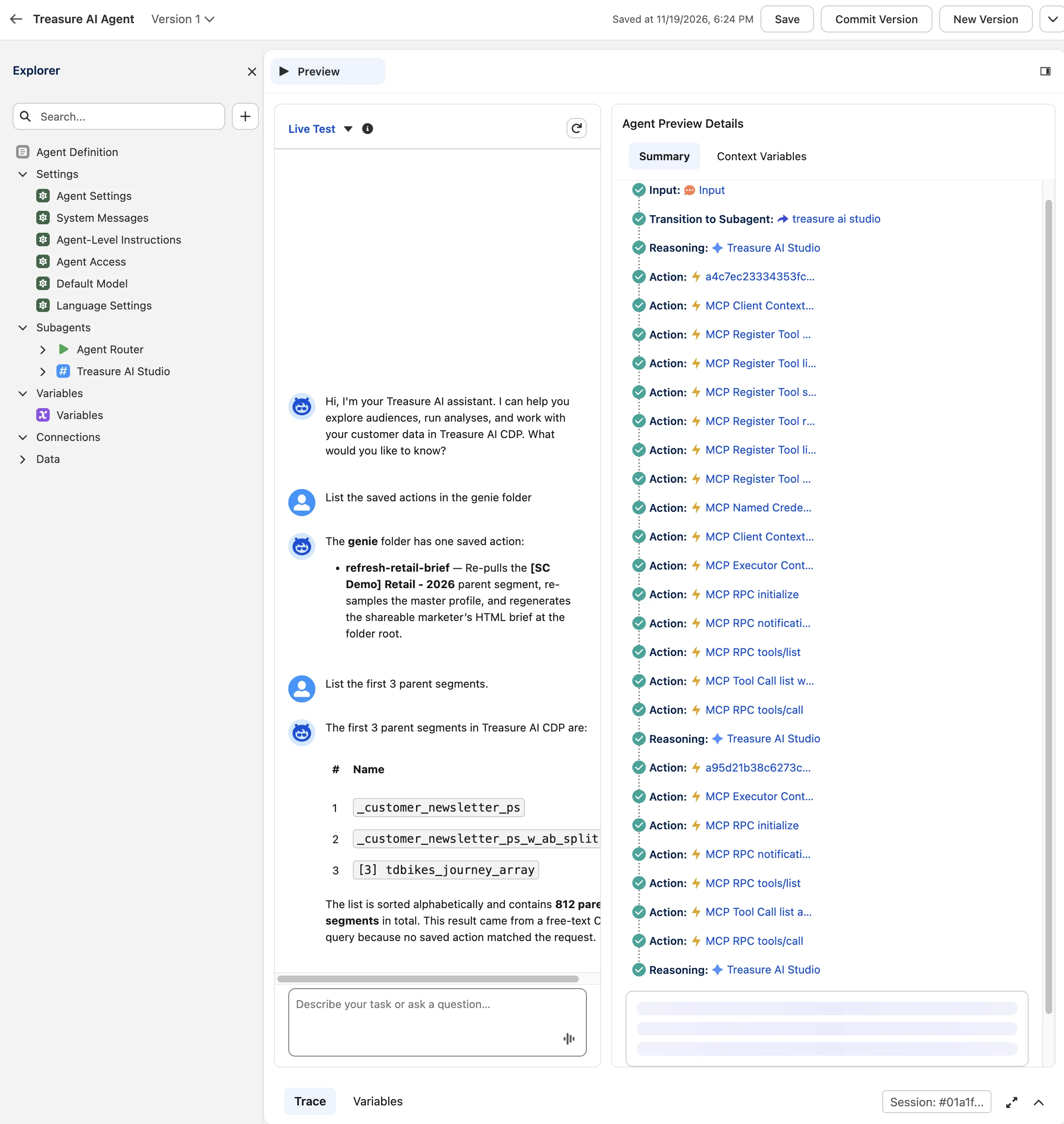
A plausible answer or a green tools/list call alone does not verify execution. Inspect the trace for actual MCP RPC tools/call steps and confirm the results match your own Treasure AI Studio work folder.
Committing freezes an agent version for testing; activating makes it available to connected Salesforce Lightning channels.
- After confirming
agent_type: "AgentforceEmployeeAgent"and verifying Preview, select Commit Version → Commit. - Select Activate → Activate to publish the committed version to connected channels.
- Open Setup → Agentforce Agents and confirm that Treasure AI Agent shows Type: AgentforceEmployeeAgent and Active checkmarks for both the agent and Version 1.

- Grant agent visibility to the intended Salesforce users. For production rollouts, grant Enabled Agent Access through a dedicated permission set scoped to the intended users (do not grant System Administrator to employees solely to expose the agent). To grant access on a permission set or profile:
- Open the permission set or profile in Setup → Users, select Enabled Agent Access, and select Edit.
- Move Treasure AI Agent from Available Agents to Enabled Agents, then select Save.
- Confirm that every intended user has both Enabled Agent Access for Treasure AI Agent and the MCP permission set (
TreasureAIMCP_Perm_Set) from Step 4.
Verify the activated agent outside Agentforce Builder using the Salesforce Lightning interface.
- Open the App Launcher (nine dots), search for Sales, and select the Sales app (not Setup).
- In the top header, select the Agentforce icon to open the right-hand panel. If prompted about Agentforce Memory on first use, choose your preference and select Got It; saving memories is not required for MCP.
- In the Agentforce panel, select Treasure AI Agent from the agent dropdown if it is not already selected.
- Send a read-only discovery prompt, such as "List the Treasure AI Studio work folder name and its saved actions," followed by a query such as "Show me 10 parent segments." Confirm that the panel returns data from your Treasure AI Studio shared work folder and identifies whether a saved Action or free-text chat produced the result.
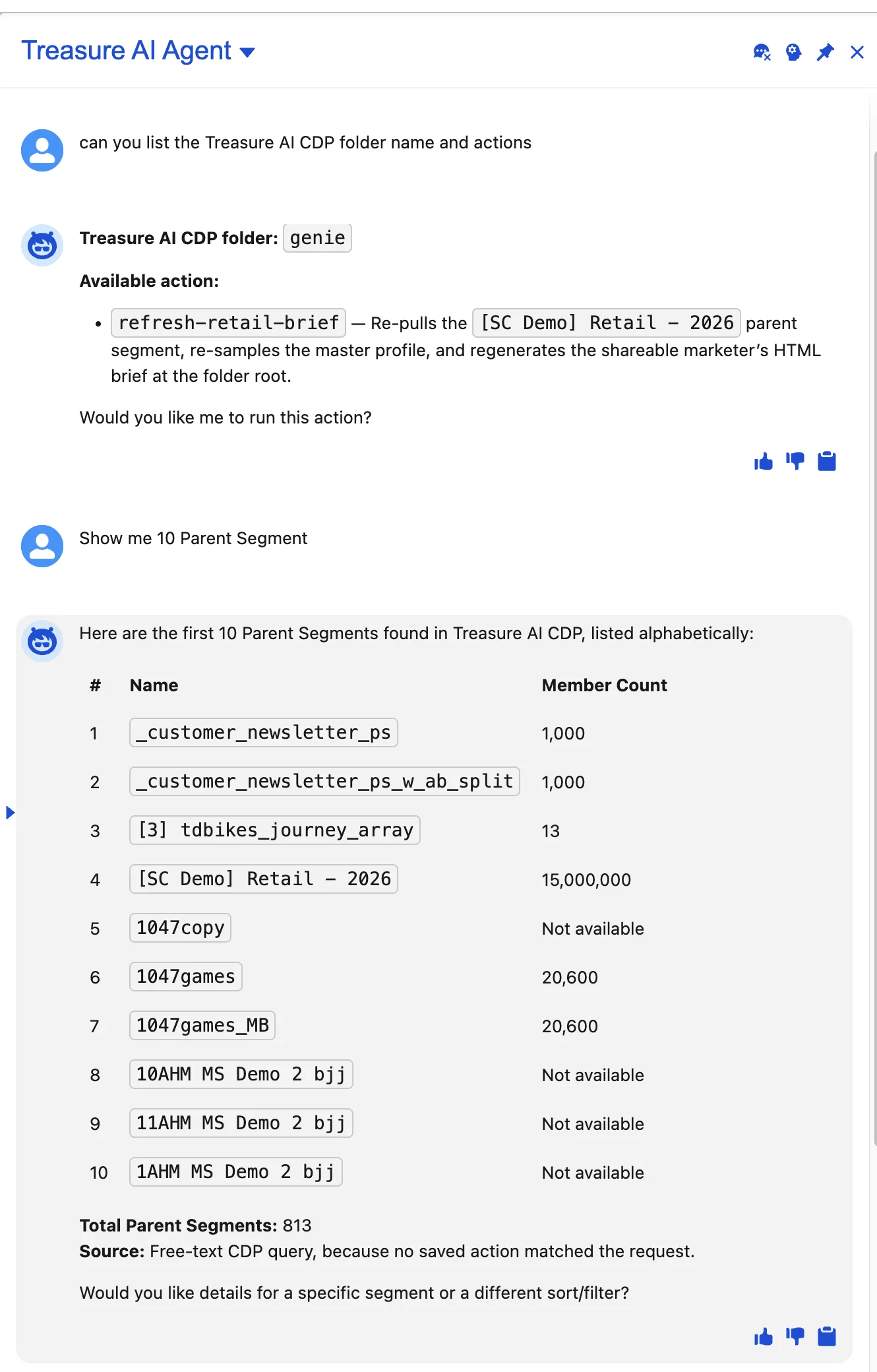
For non-admin rollouts, repeat this verification while signed in as an intended non-admin user to confirm both agent visibility and MCP permission set access.
Every request from Salesforce Agentforce runs in Treasure AI Studio as the static-token endpoint's single shared executor, using that executor's permissions and credits. Studio reads the published shared work folder read-only and writes only to a temporary work area that is discarded when each chat ends—see What an Agent Channel Chat Can Reach for what channel chats can and cannot affect.
Apply these security controls before rolling the agent out beyond a pilot:
- Scope the shared work folder and executor: Include only the saved Actions, files, and connectors acceptable for Salesforce users to invoke. Every Salesforce user who can access the agent inherits the executor's Treasure AI permissions.
- Treat instruction-level confirmation as defense in depth: The prompt and reference script instruct the agent to ask for user confirmation before sending notifications, activating or exporting audiences, running workflows or journeys, or modifying data. Because the registered MCP action definitions set
require_user_confirmation: False, enforce real boundaries through the executor's permissions, the shared work folder's contents, and the allowlisted tools. - Protect and rotate the static token: Keep the
tasgwt_token only in the Salesforce External Credential principal. Never paste it into the Server URL, agent prompt, Agent Script, or screenshots. Rotate the token when access changes, when a pilot ends, or if exposure is suspected—see Rotating a Gateway Token. - Restrict Salesforce assignments: Grant
TreasureAIMCP_Perm_Setand Enabled Agent Access only to approved users, with time-limited assignments for pilots.
You can stop access immediately on either the Treasure AI Studio side or the Salesforce side.
- Stop all Salesforce requests immediately (Studio): Open the endpoint under Settings → Agent Channels and turn off the Enabled switch. Requests fail immediately without revoking tokens. To invalidate the credential permanently, revoke the token or delete the endpoint.
- Stop one Salesforce user (Salesforce): Remove the user from
TreasureAIMCP_Perm_Set(blocks MCP tool calls) and/or remove their Enabled Agent Access for Treasure AI Agent (hides the agent in Lightning). - Stop the agent for all Salesforce users (Salesforce): Open Treasure AI Agent in Setup → Agentforce Agents and select Deactivate.
Use this verified Employee Agent script as a structural reference in Agentforce Builder Script view (</>). Do not copy it verbatim into another org: replace the org-generated action IDs (a4c7ec..., a95d21..., etc.), source and target identifiers, and model_config values with the ones generated when you attach the six TreasureAIMCP actions from your own Asset Library.
system:
    instructions: "You are a Treasure AI CDP assistant for marketing users. All answers must come directly from Treasure AI tools — never use Salesforce Knowledge or general knowledge to answer questions."
    messages:
        welcome: |
            Hi, I'm your Treasure AI assistant. I can help you explore audiences, run analyses, and work with your customer data in Treasure AI CDP. What would you like to know?
        error: "Sorry, something went wrong. Please try again."

config:
    developer_name: "Treasure_AI_Agent"
    agent_label: "Treasure AI Agent"
    description: "Internal marketing agent that answers questions and runs analyses using Treasure AI CDP. Never uses Salesforce Knowledge or general knowledge."
    agent_type: "AgentforceEmployeeAgent"

model_config:
    model: "model://sfdc_ai__DefaultGPT56Luna"

language:
    default_locale: "en_US"
    all_additional_locales: False

variables:
    work_folder_id: mutable string = ""
        description: "Cached work folder ID retrieved from Treasure AI Studio; avoids re-fetching on every turn"
    chat_id: mutable string = ""
        description: "ID of the active Treasure AI chat session, used for continue_chat and get_chat_result"

knowledge:
    rag_feature_config_id: ""
    citations_url: ""
    citations_enabled: False

start_agent agent_router:
    label: "Agent Router"
    description: "Welcome the user and route all requests to the Treasure AI Studio subagent"
    model_config:
        model: "model://sfdc_ai__DefaultEinsteinHyperClassifier"
    reasoning:
        instructions: ->
            | Select the best tool to call based on conversation history and user's intent.
        actions:
            go_to_treasure_ai_studio: @utils.transition to @subagent.treasure_ai_studio


subagent treasure_ai_studio:
    label: "Treasure AI Studio"
    description: "Handles all Treasure AI CDP questions by discovering work folders and saved Actions, running the best match, falling back to free-text chat, and summarizing results in plain language."
    reasoning:
        instructions: ->
            |You are connected to Treasure AI CDP. All answers must come directly from Treasure AI tools — never use Salesforce Knowledge or general knowledge.

             If the request is not about Treasure AI CDP, politely explain that this agent can help with Treasure AI CDP questions, analyses, audience management, and data workflows, and do not attempt to answer it.

             Confirmation gate: Before taking any of the following actions, tell the user exactly what will happen and ask them to confirm. Only proceed after they say yes.
             - Sending emails or notifications
             - Activating or exporting an audience
             - Running or resuming a workflow or journey
             - Creating, changing, or deleting anything in Treasure AI
             Reading, listing, querying, and reporting need no confirmation.

             Workflow:
             Step 1 — Get the work folder: Call {!@actions.a4c7ec23334353fc7a73dd098254ca6eb} to get the work folder ID, and reuse it for the rest of the conversation. Never ask the user for it.
             Step 2 — List available Actions: Call {!@actions.a95d21b38c6273c2c8d8c2f508296fe9f} for the work folder and inspect action names and descriptions to find the one that best matches the user's request.
             Step 3 — Run a saved Action: If a matching saved Action is found, call {!@actions.a957880df5db732a393e6b85fde2af16b} with the exact action name and the work folder ID.
             Step 4 — Fall back to free-text chat: If no saved Action fits, call {!@actions.a87dd54c253ef3974bd5e07eafeff72eb} with the work folder ID and a clear, self-contained description of exactly what the user asked for. Keep the chat_id it returns. For follow-ups on the same result, call {!@actions.aed3e4d64a89532f4b0943e4a226247fe} with that chat_id. If the status is "running", call {!@actions.a1466fa95345b3dce8621350804423a33} with that chat_id to get the final result.
             Step 5 — Summarize: Present the result in plain language, highlighting key numbers. Say which Action or chat produced it. If a tool returns an error or no result, say so clearly. Never guess or fabricate results.
        actions:
            a95d21b38c6273c2c8d8c2f508296fe9f: @actions.a95d21b38c6273c2c8d8c2f508296fe9f
                with work_folder_id = ...
            a957880df5db732a393e6b85fde2af16b: @actions.a957880df5db732a393e6b85fde2af16b
                with work_folder_id = ...
                with action_name = ...
            a87dd54c253ef3974bd5e07eafeff72eb: @actions.a87dd54c253ef3974bd5e07eafeff72eb
                with work_folder_id = ...
                with message = ...
            aed3e4d64a89532f4b0943e4a226247fe: @actions.aed3e4d64a89532f4b0943e4a226247fe
                with chat_id = ...
                with message = ...
            a1466fa95345b3dce8621350804423a33: @actions.a1466fa95345b3dce8621350804423a33
                with chat_id = ...
            a4c7ec23334353fc7a73dd098254ca6eb: @actions.a4c7ec23334353fc7a73dd098254ca6eb
    actions:
        a1466fa95345b3dce8621350804423a33:
            description: |
                Retrieves the result of the latest instruction in a chat, including follow-ups sent with continue_chat. Does not submit a new instruction. If execution is still in progress, waits for the result and may return status "running" again.
            label: "get_chat_result - TreasureAIMCP"
            require_user_confirmation: False
            include_in_progress_indicator: False
            source: "a1466fa95345b3dce8621350804423a33"
            target: "mcpTool://TreasureAIMCP/mcptoolx5fx5fgetx5fchatx5fresult"

            inputs:
                "chat_id": string
                    description: |
                      The chat_id returned by run_action or start_chat through this connection.
                    label: "string"
                    is_required: True
                    is_user_input: False
        a4c7ec23334353fc7a73dd098254ca6eb:
            description: |
                Lists the work folders available in Treasure AI Studio. Start here to find configured actions for the user's task. Tasks may involve Treasure Data or other connected services. Inspect available capabilities before giving generic advice or asking about unfamiliar project or business names. A work folder is a persistent server-side workspace with files and reusable actions; its purpose depends on its configuration. Use folder names and any author-provided descriptions to select candidates, then call list_actions with each candidate's id to inspect the available tasks.
            label: "list_work_folders - TreasureAIMCP"
            require_user_confirmation: False
            include_in_progress_indicator: False
            source: "a4c7ec23334353fc7a73dd098254ca6eb"
            target: "mcpTool://TreasureAIMCP/mcptoolx5fx5flistx5fworkx5ffolders"
        a87dd54c253ef3974bd5e07eafeff72eb:
            description: |
                Delegates the free-text task in message to a server-side agent in a new chat. Check list_actions in relevant work folders first. Use start_chat only when no available action can perform the task. The agent can read work folder files and use configured connectors. Waits for the result and returns status "running" if execution is still in progress.
            label: "start_chat - TreasureAIMCP"
            require_user_confirmation: False
            include_in_progress_indicator: False
            source: "a87dd54c253ef3974bd5e07eafeff72eb"
            target: "mcpTool://TreasureAIMCP/mcptoolx5fx5fstartx5fchat"

            inputs:
                "work_folder_id": string
                    description: |
                      The folder id returned by list_work_folders.
                    label: "string"
                    is_required: True
                    is_user_input: False
                "message": object
                    description: |
                      The task to delegate, including necessary context and the expected result. The agent does not see your conversation.
                    label: "string"
                    is_required: True
                    is_user_input: False
                    complex_data_type_name: "lightning__richTextType"
        a957880df5db732a393e6b85fde2af16b:
            description: |
                Delegates an action selected from list_actions to a server-side agent in a new chat. The agent follows the action's configured instructions and can read work folder files and use configured connectors. Each call starts a separate execution. This tool accepts no action arguments or additional instructions, and the agent does not see your conversation. Waits for the result and returns status "running" if execution is still in progress.
            label: "run_action - TreasureAIMCP"
            require_user_confirmation: False
            include_in_progress_indicator: False
            source: "a957880df5db732a393e6b85fde2af16b"
            target: "mcpTool://TreasureAIMCP/mcptoolx5fx5frunx5faction"

            inputs:
                "work_folder_id": string
                    description: |
                      The folder id returned by list_work_folders.
                    label: "string"
                    is_required: True
                    is_user_input: False
                "action_name": string
                    description: |
                      The exact name returned by list_actions for this folder.
                    label: "string"
                    is_required: True
                    is_user_input: False
        a95d21b38c6273c2c8d8c2f508296fe9f:
            description: |
                Lists executable actions in one work folder returned by list_work_folders. An action delegates a predefined task to a server-side agent. Inspect action names and descriptions to find a task matching the user's request, including unfamiliar project or business names. When an action fits, pass its exact name and this work_folder_id to run_action.
            label: "list_actions - TreasureAIMCP"
            require_user_confirmation: False
            include_in_progress_indicator: False
            source: "a95d21b38c6273c2c8d8c2f508296fe9f"
            target: "mcpTool://TreasureAIMCP/mcptoolx5fx5flistx5factions"

            inputs:
                "work_folder_id": string
                    description: |
                      The folder id returned by list_work_folders.
                    label: "string"
                    is_required: True
                    is_user_input: False
        aed3e4d64a89532f4b0943e4a226247fe:
            description: |
                Sends a new instruction to an existing chat to request additional work or revise a result. To wait for an existing result without sending a message, use get_chat_result. Waits for the reply and returns status "running" if execution is still in progress.
            label: "continue_chat - TreasureAIMCP"
            require_user_confirmation: False
            include_in_progress_indicator: False
            source: "aed3e4d64a89532f4b0943e4a226247fe"
            target: "mcpTool://TreasureAIMCP/mcptoolx5fx5fcontinuex5fchat"

            inputs:
                "chat_id": string
                    description: |
                      The chat_id returned by run_action or start_chat through this connection.
                    label: "string"
                    is_required: True
                    is_user_input: False
                "message": object
                    description: |
                      The follow-up task for this chat, including any new context and the expected result.
                    label: "string"
                    is_required: True
                    is_user_input: False
complex_data_type_name: "lightning__richTextType"| Symptom | Cause | Fix |
|---|---|---|
| Registry validation fails or the server does not connect | The Server URL, endpoint type, or External Credential token do not match the same static-token endpoint, or Bearer was included in the BearerToken value | Copy the Connection URL and token again from the same Static token · shared executor endpoint. Paste only the URL in Server URL, paste only the raw tasgwt_ token in BearerToken, and confirm the Custom Header formula is {!'Bearer ' & $Credential.Treasure_AI_MCP.BearerToken} |
| Salesforce reports missing credential or permission access | The generated Named Credential Permission Set is not assigned to the user | Open Setup → Agentforce Registry → Registered MCP Servers → TreasureAIMCP → Details, select the Named Credential Permission Set link, and assign it to the intended user |
| The agent is visible in Lightning but cannot call Treasure AI tools | Agent visibility and MCP tool access are separate; the user has Enabled Agent Access without the MCP permission set | Assign both Enabled Agent Access for the Employee Agent and TreasureAIMCP_Perm_Set (or your org's generated permission set) |
| The agent answers from general knowledge or Salesforce data instead of Treasure AI | The six TreasureAIMCP actions are not attached to the subagent, or the subagent instructions do not require Treasure AI tools | Add all six registered TreasureAIMCP actions from the Asset Library, verify the bindings in Script view (</>), save with 0 errors, and confirm MCP RPC tools/call steps appear in Preview trace |
| A published agent has the wrong Salesforce agent type and does not appear in the Lightning Sales panel | A Service Agent was published instead of an Employee Agent (AgentforceEmployeeAgent) | Create a new Employee Agent (AgentforceEmployeeAgent) and reuse your registered MCP tools; Salesforce can reject changing the type after publication |
Requests fail with 401 or 403 from Treasure AI Studio | The static token is expired or revoked, the endpoint is disabled, or the executor stepped down or lost folder access | Check the endpoint status and token table under Settings → Agent Channels, and see Static-Token MCP Endpoints troubleshooting |
- Static-Token MCP Endpoints: manage endpoint status, executor handover, and token lifecycle.
- Connecting an MCP Client: details of the six MCP tools, results, and limits.
- What an Agent Channel Chat Can Reach: workspace isolation, credits, and audit trails for channel chats.
- Salesforce Help: Register a Third-Party MCP Server and Add MCP Tool Actions to an Agent.
- Headless: overview of connecting external AI tools to Treasure AI.
- Other Headless guides: ChatGPT, Claude, Gemini, Databricks Genie One.