静的トークン(指定した実行者) 方式の MCP エンドポイントを Salesforce の Agentforce Registry に登録し、その 6 つのツールを Agentforce Employee Agent に割り当てることで、Salesforce Agentforce を Treasure AI Studio に接続できます。これにより、マーケティング担当者やビジネスユーザーは、Marketing Cloud のインストール済みパッケージやローカルの tdx mcp プロセスを使わずに、Salesforce Lightning のパネルから直接顧客データの照会、オーディエンスの確認、保存済み Studio アクションの実行を行えます。
普段 Salesforce Lightning 内で業務を行っており、Agentforce から Treasure AI Studio の結果を取得したい場合にこのガイドを利用してください。この連携では、ユーザーごとの OAuth ではなく Salesforce の Custom External Credential に保管した静的トークン方式の MCP エンドポイントを使用するため、エージェントにアクセスできるすべての Salesforce ユーザーは、エンドポイントに紐づく 1 人の共有実行者として動作し、その実行者の共有作業フォルダ・権限・クレジットを使用します。
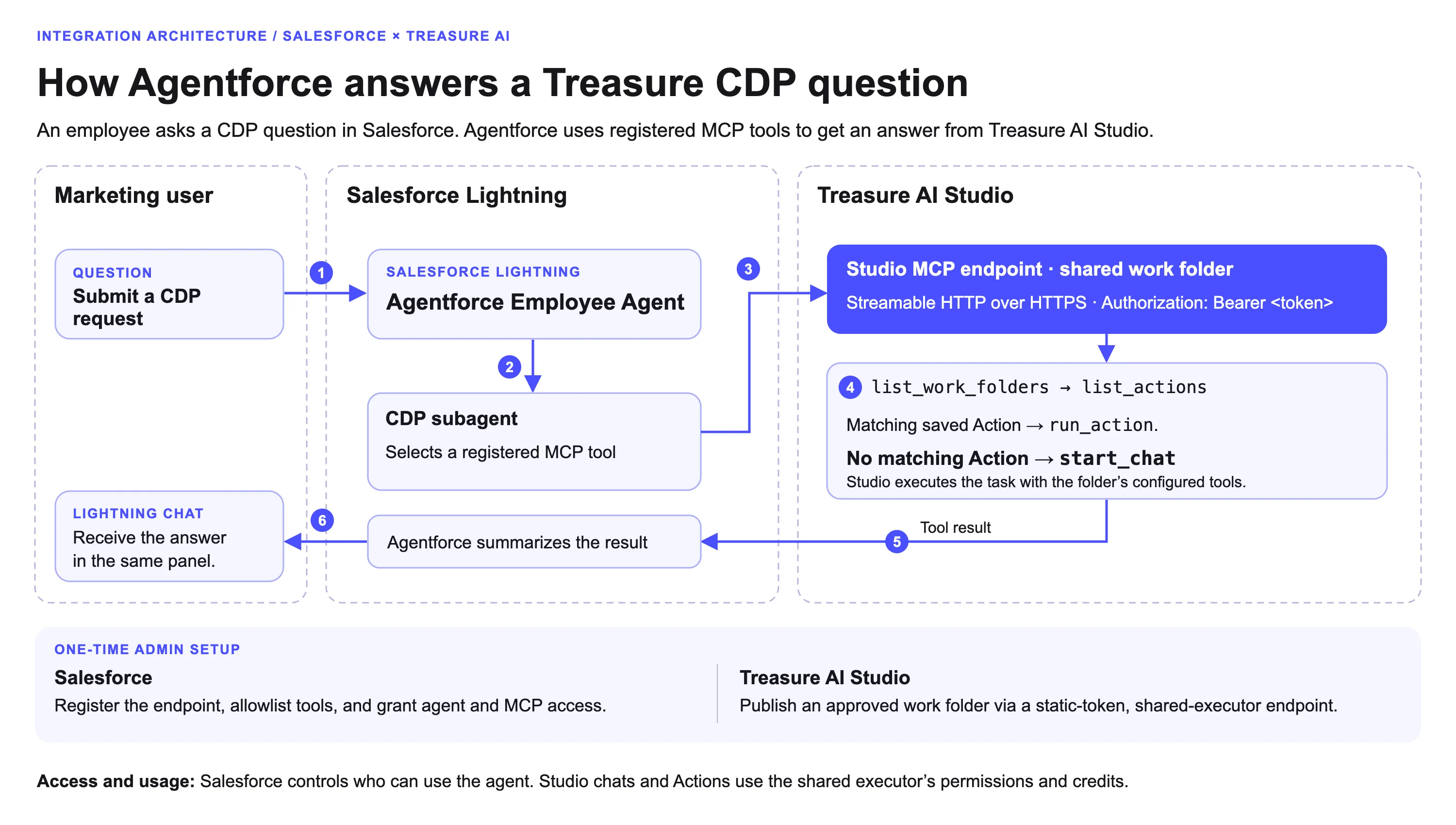
Salesforce が MCP クライアントとして動作し、Treasure AI Studio が Streamable HTTP 経由でリモート MCP サーバーを提供します。2 つのプラットフォームにまたがって 3 つのロールが設定と利用に関わります。
| ロール | 作業場所 | 作業内容 |
|---|---|---|
| Studio 共有作業フォルダの管理者 | Treasure AI Studio の 設定 → エージェントチャネル | 承認済みの共有作業フォルダを公開し、静的トークン(指定した実行者) 方式の MCP エンドポイントを 1 つ作成して、接続 URL と生の Bearer トークンをコピーする |
| Salesforce 管理者 | Salesforce Lightning の Setup および Agentforce Builder | トークンを Custom External Credential に保存し、MCP サーバーを登録してツールを許可リストに追加し、MCP 権限セットを割り当て、Employee Agent を構築・有効化してエージェントアクセス権を付与する |
| Salesforce エンドユーザー | Salesforce Lightning(Sales アプリなど) | Agentforce パネルを開いて Employee Agent を選択し、Treasure AI Studio のツールを呼び出すリクエストを送信する |
Salesforce が登録済みエンドポイントに接続すると、Agentforce Registry は Treasure AI Studio の標準 MCP ツール 6 つを検出します。各ツールの詳細、引数、レスポンス仕様は ツール を参照してください。
| ツールグループ | ツール |
|---|---|
| 読み取り専用 | list_work_folders、list_actions、get_chat_result |
| 書き込み / 実行 | run_action、start_chat、continue_chat |
これらのツールから実行できるデータ操作の範囲は、Treasure AI Studio 側で設定された共有作業フォルダ、保存済みアクション、連携先、実行者の権限、およびクレジットに依存します。
- Agentforce 対応の Salesforce Lightning:Agentforce Registry と Employee Agent Builder が利用可能な承認済み Salesforce Lightning 組織、および External Credential の作成、外部 MCP サーバーの登録、エージェントの構築・有効化、権限セット割り当てを行える Salesforce 管理者。
- Treasure AI Studio の共有作業フォルダ:Salesforce ユーザーからアクセスしてよいアクションやファイルのみを含み、自分が管理権限を持つ承認済みの共有作業フォルダ。
- 静的トークン方式 MCP エンドポイントの作成権限:Treasure AI Studio アカウントの作成ポリシー(設定 → エージェントチャネル)で静的トークン方式の MCP エンドポイントを作成できること。作成ポリシーが アカウント管理者のみ に設定されており、自分がアカウント管理者でない場合、新規 MCP エンドポイント は無効になります。
Asset Library のアクション ID、source・target 識別子、権限セット名は Salesforce 組織ごとに生成され、接続 URL・トークン・フォルダ ID も Treasure AI Studio のエンドポイントごとに異なります。後述のリファレンススクリプトから生成済み ID をコピーするのではなく、ご自身の組織で MCP サーバーを登録し、ご自身の Asset Library から 6 つのツールを追加してください。
静的トークン方式の MCP エンドポイントは 1 つの共有作業フォルダを公開し、すべての呼び出しをエンドポイントの実行者として実行します。共有作業フォルダの作成や公開がまだの場合は 作業フォルダを共有する を、エンドポイント管理の詳細は 静的トークン方式の MCP エンドポイント を参照してください。
- Web 版または Desktop 版の Treasure AI Studio で 設定 → エージェントチャネル を開きます。
- MCP エンドポイント セクションで 新規 MCP エンドポイント を選択します。
- 接続方式 は 静的トークン(指定した実行者) のままにし、エンドポイント名(例:Salesforce Agentforce MCP)と、必要に応じてコメントを入力して 次へ を選択します。
- 管理権限を持つ承認済みの 共有作業フォルダ を選び、自分が 実行者 として表示されている同意内容を確認したうえで、トークンの 有効期限(7 日、30 日、90 日、カスタム日付、または無期限)を選択します。
- エンドポイントを作成して最初のトークンを発行 を選択します。MCP クライアントを接続 完了画面に次の 2 つの値が表示されます。
- 接続 URL:
https://<アカウントの Agent Gateway>/v1/mcp/<エンドポイント ID>(US01 の場合はhttps://agent-gateway.us01.treasure.ai/v1/mcp/<エンドポイント ID>など)。 - 認証ヘッダー:
Authorization: Bearer tasgwt_<シークレット>。
- 接続 URL:
- 両方の値をすぐにパスワードマネージャーまたはシークレット管理ツールに保存します。値を保管しました をオンにして 完了 を選択します。エンドポイント詳細画面がステータス 有効 で開きます。
tasgwt_ トークンが表示されるのはこの 1 回限りで、後から復元することはできません。紛失した場合は、エンドポイント詳細画面からトークンを失効させ、新しいトークンを発行してください。
Salesforce は Treasure AI Studio の静的トークンを Custom External Credential に保管し、カスタムヘッダーの数式を使って Authorization: Bearer ヘッダーを自動付与します。
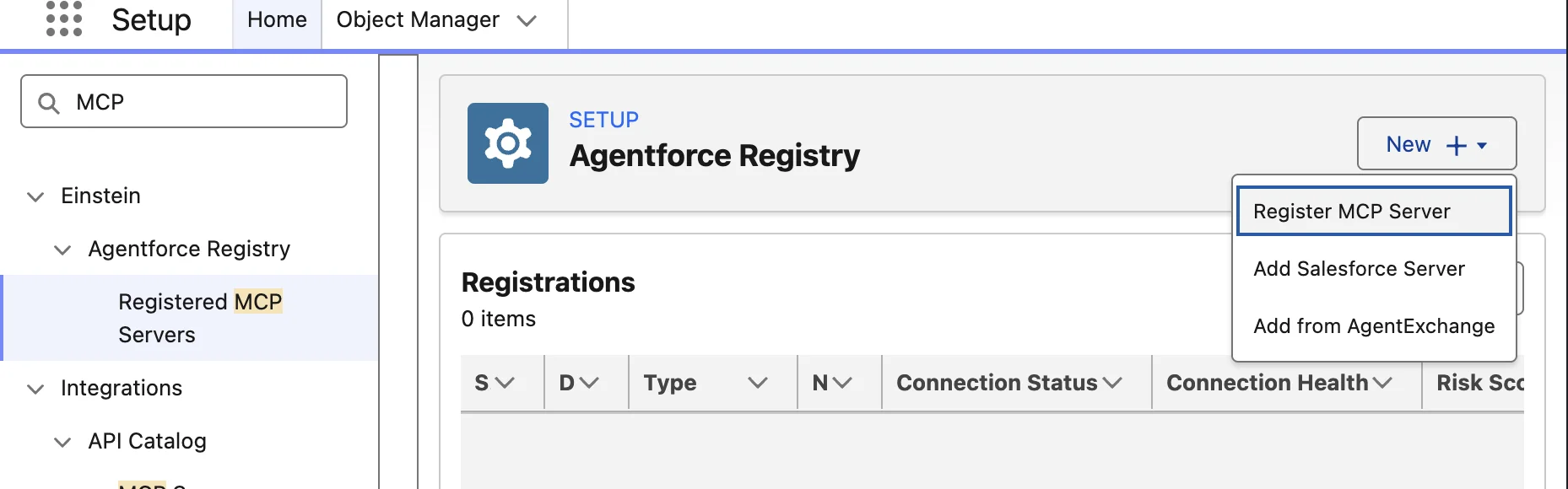
- Salesforce Lightning の右上にある歯車アイコンを選択し、Setup(Data Cloud Setup ではない)を開きます。
- 左側の Quick Find ボックスに
Agentforceと入力し、Einstein → Agentforce Registry の下にある Registered MCP Servers(Registered APIs ではない)を選択します。 - Agentforce Registry ページで New → Register MCP Server を選択します。このサーバーは Treasure AI がホストしているため、Add Salesforce Server は選択しないでください。
- Create Connection で Authentication Method を Use External Credential に変更し、New External Credential を選択します。Named Credentials タブが開いた場合は External Credentials タブに切り替えて New を選択してください(この手順では別途 Named Credential フォームを入力する必要はありません)。
- 次の値で External Credential を作成し、Save を選択します。
- Label:
Treasure AI MCP - Name:
Treasure_AI_MCP - Authentication Protocol:
Custom
- Label:
- 保存された Treasure AI MCP External Credential のラベルを選択して詳細画面を開きます。Related Named Credentials が空であってもそのまま次の手順に進みます。
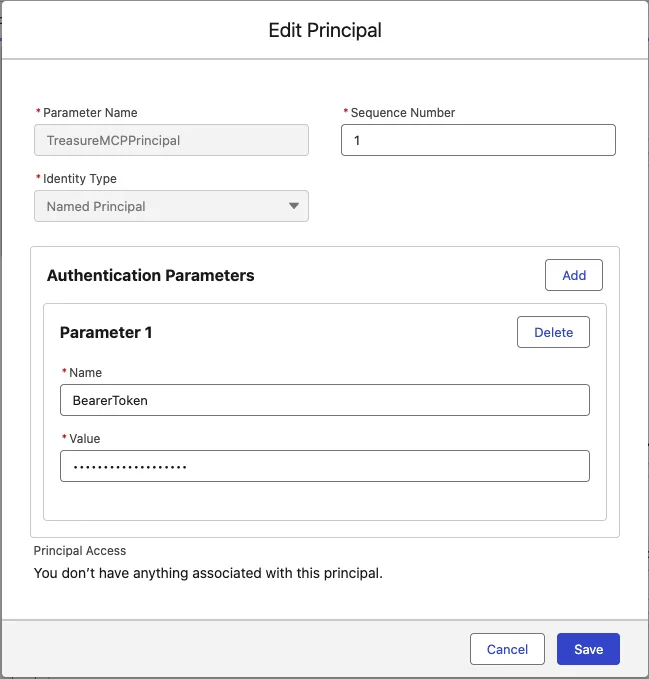
- Principals の下にある New を選択し、次の設定で名前付きプリンシパルを作成して Save を選択します。
- Parameter Name:
TreasureMCPPrincipal - Sequence Number:
1 - Identity Type:
Named Principal - Authentication Parameters:Add を選択し、Name に
BearerTokenを入力します。Value には手順 1 の認証ヘッダーからtasgwt_で始まる生のトークンのみを貼り付けます。Authorization:、Bearer、引用符、前後の空白は含めないでください(次の手順のカスタムヘッダー数式がBearerプレフィックスを付与します)。
- Parameter Name:
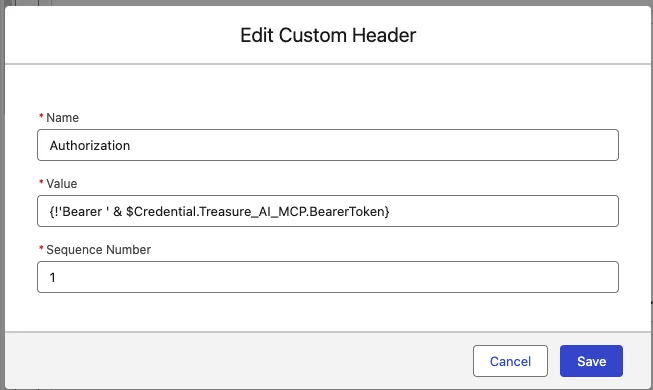
- Custom Headers の下にある New を選択し、次の値を入力して Save を選択します。
- Name:
Authorization - Value:
{!'Bearer ' & $Credential.Treasure_AI_MCP.BearerToken} - Sequence Number:
1
- Name:
- レジストリへ戻る前に、Treasure AI MCP 詳細画面に名前付きプリンシパル(
TreasureMCPPrincipal)が 1 件とカスタムヘッダー(Authorization)が 1 件登録されていることを確認します。パラメーター値がマスク表示されている状態が正常です。
External Credential を保存したら、Agentforce Registry に Treasure AI Studio の MCP エンドポイントを登録し、Salesforce エージェントから呼び出せるツールを選択します。
- Agentforce Registry → Registered MCP Servers の Create Connection ダイアログに戻ります。
- MCP Server Name に
TreasureAIMCP(英数字のみ)、Description にTreasure AI MCPを入力します。 - Server URL に手順 1 でコピーした 接続 URL(
https://<アカウントの Agent Gateway>/v1/mcp/<エンドポイント ID>)をそのまま貼り付けます。トークンを末尾に付けたり、認証ヘッダーを貼り付けたりしないでください。 - Authentication Method は Use External Credential のままにし、New External Credential 横の更新アイコンを選択してから Treasure AI MCP(種別 Custom)を選択します。
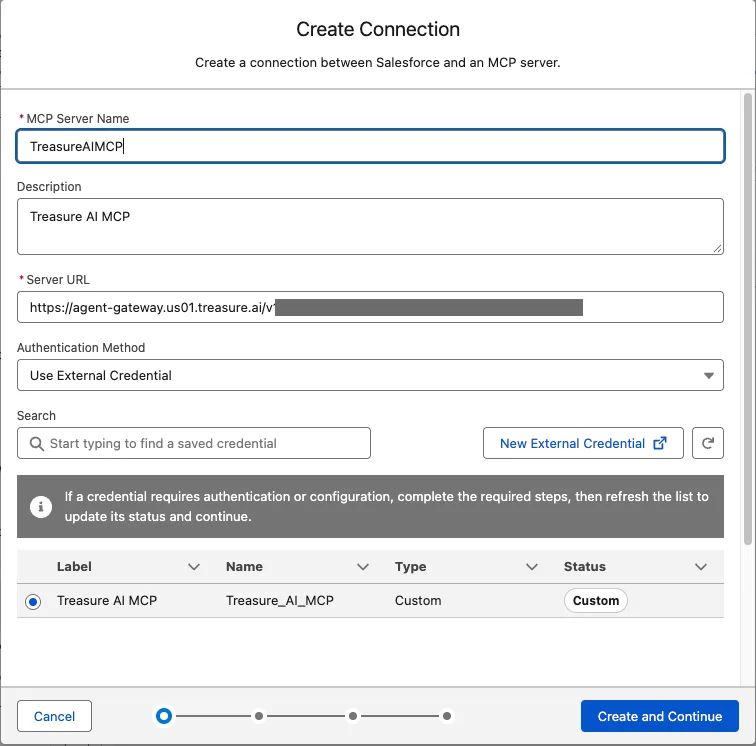
- Create and Continue を選択します。Salesforce が接続を検証し、Treasure AI Studio の 6 つのツールを検出します。
- MCP Server Allowlist でエージェントに許可するツールを選び、Allow and Continue を選択します。
- 手順 5 のフル構成の Employee Agent を構築する場合は、6 つのツールすべて(
list_work_folders、list_actions、get_chat_result、run_action、start_chat、continue_chat)を選択します。 - 検出確認のみのパイロット運用の場合は
list_work_foldersのみを許可し、フル構成のエージェントを構築するときに残りのツールを追加します。
- 手順 5 のフル構成の Employee Agent を構築する場合は、6 つのツールすべて(
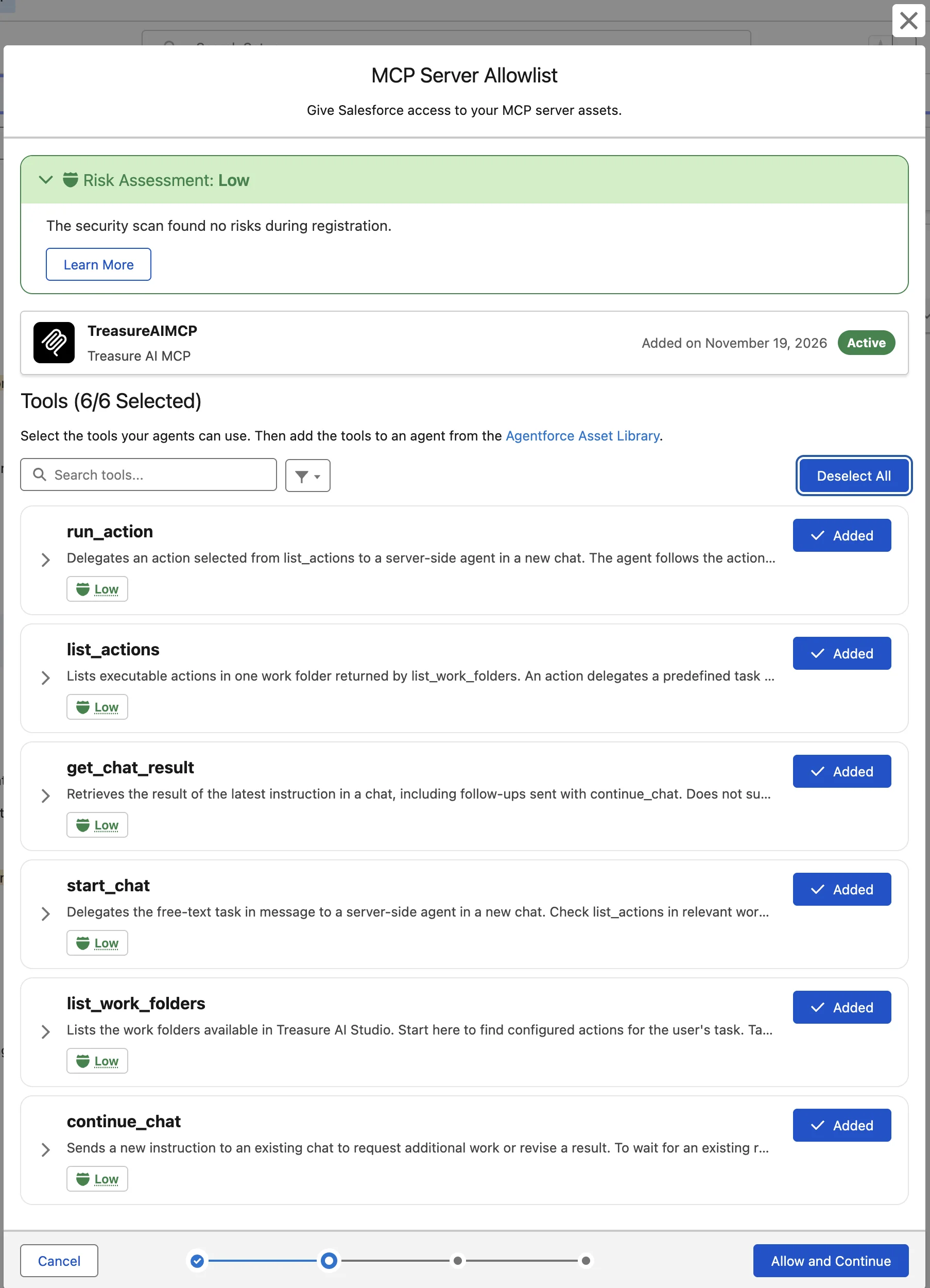
登録スキャンでは Risk Assessment: Low と表示されますが、これは登録時のスキャン結果であり、許可リストに追加した全ツールが読み取り専用であることを保証するものではありません。run_action、start_chat、continue_chat は Treasure AI Studio 側でタスクを実行します。
- Grant Access to Users で自動生成された権限セット(例:
TreasureAIMCP_Perm_Set)を確認し、必要なユーザーのみに割り当てて Next を選択します。 - Apply Policies で組織に必要なポリシーがあれば適用し、Save を選択します。
- Registered MCP Servers を開き、保存された
TreasureAIMCPの行が Type: Manual、ツール数 6、Connection Status: Active、Connection Health: Connected になっていることを確認します。
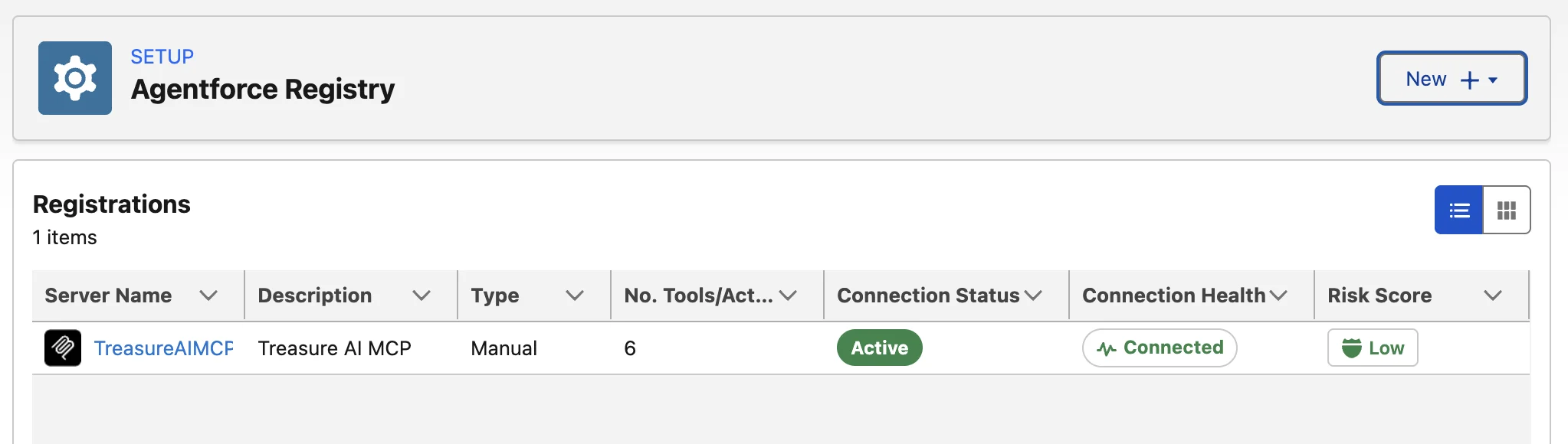
Salesforce では、MCP ツールアクセス権(Named Credential 経由で Treasure AI Studio を呼び出す権限)と エージェントアクセス権(手順 7 で設定する Salesforce Lightning 上での Employee Agent の表示権限)が別々に管理されます。対象となるすべてのエンドユーザーには両方の権限が必要です。エージェントやツールを利用させるためだけに System Administrator プロファイルを付与しないでください。
- Setup → Agentforce Registry → Registered MCP Servers → TreasureAIMCP → Details を開きます。
- Permissions の下にある、登録済みサーバー用に生成された Named Credential Permission Set リンク(例:
TreasureAIMCP_Perm_Set)を選択します。似た名前のエージェント用権限セットではなく、必ずご自身の登録済みサーバーに表示されたリンクを使用してください。
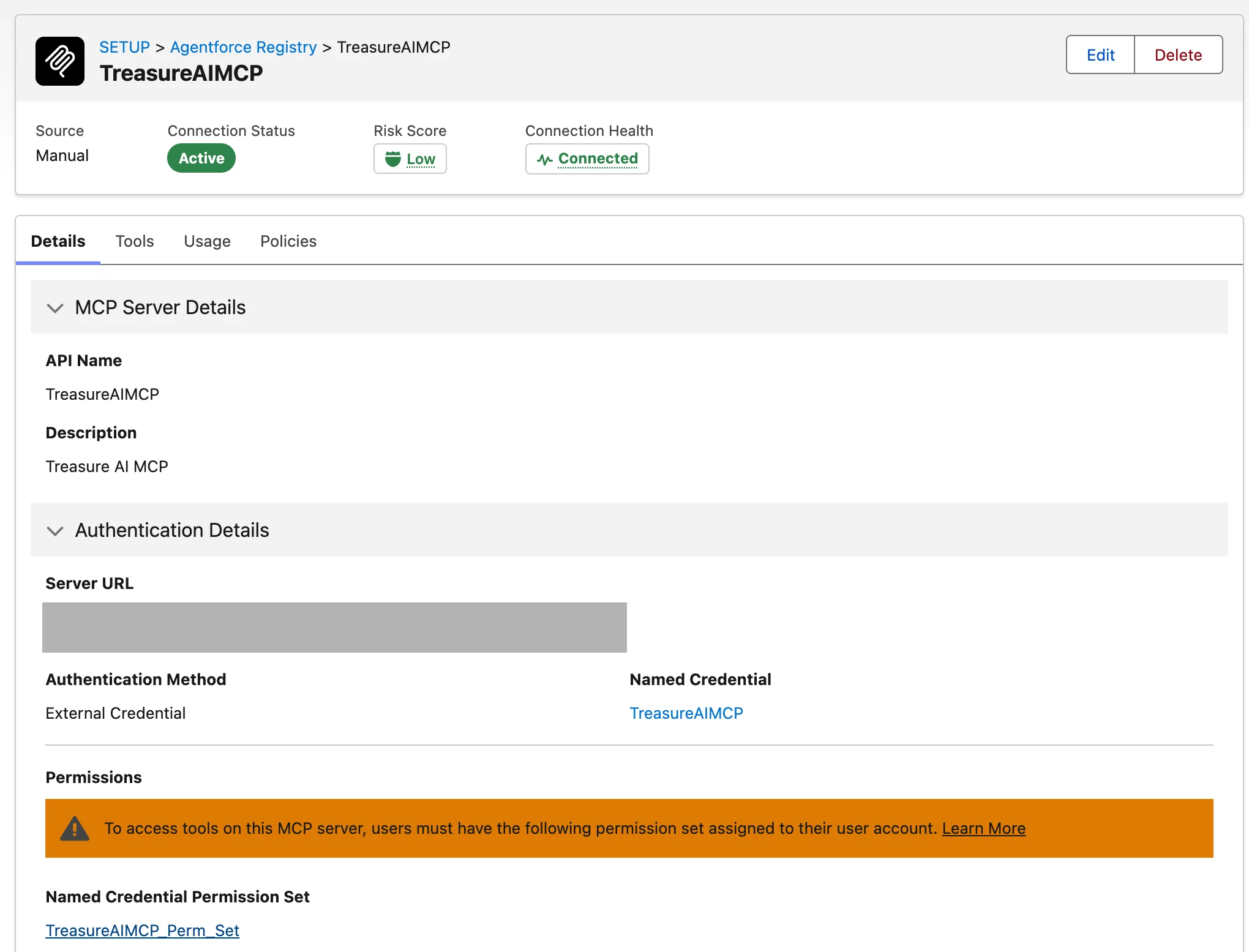
- 権限セットの概要ページで API 名を確認し、Manage Assignments を選択します。
- Current Assignments を確認します。対象ユーザーがすでに一覧にある場合は重複割り当て不要です。含まれていない場合は Add Assignment を選択します。
- 対象ユーザーの Salesforce ユーザー名を検索して該当行のみを選択し、Next を選択します。ユーザー一覧全体や無関係な連携アカウントを選択しないでください。
- 展開計画に合った有効期限(パイロットの場合は期限付き割り当てを推奨)を選び、対象ユーザーを確認して Assign を選択します。
- Assignment Summary で Status: Success を確認して Done を選択し、Current Assignments にユーザーが表示されていることを確認します。
社内の Salesforce ユーザーが Lightning のヘッダーパネルから開けるよう、Employee Agent(AgentforceEmployeeAgent)を作成します。Service Agent も Preview では MCP サーバーに到達できますが、Lightning の Sales パネルには表示されません。
初めて公開する前に、ドラフトが agent_type: "AgentforceEmployeeAgent" になっていることを確認してください。公開済みエージェントの種別変更は Salesforce 側で拒否される場合があります。誤って Service Agent を公開してしまった場合は、新しい Employee Agent を作成し、登録済みの MCP ツールを再利用してください(Treasure AI Studio のエンドポイントやトークンを作り直す必要はありません)。
- 次のいずれか一方の入口から Agentforce Builder を開きます(両方は不要です)。
- Setup → Agentforce Agents → New Agent(案内ダイアログが表示された場合は Create Agent を選択)。
- App Launcher → Agentforce Studio → Agents → New Agent。
- Builder のプロンプト入力欄に次の説明を貼り付けて送信します。
Create an internal employee agent for marketing users that answers questions about Treasure Data CDP, our customer data platform. That data is not in Salesforce, so never answer these questions from Salesforce Knowledge or general knowledge. Don't add or configure any actions; I'll add the TreasureAIMCP actions from the Asset Library myself.

Create one subagent called "Treasure AI Studio" that follows this:
1. Call list_work_folders to get the work folder ID. Never ask the user for it.
2. Call list_actions for that folder and find the saved Action that best matches the request. If one matches, run it with run_action.
3. If no Action fits, use start_chat with a clear, self-contained task describing exactly what the user asked for. Use continue_chat for follow-ups on the same result, and get_chat_result if a result is still running.
4. Summarize the result in plain language with the key numbers, and say which Action or chat produced it. If a tool returns an error or no result, say so. Never guess.

Confirmation: before any request that sends emails or notifications, activates or exports an audience, runs or resumes a workflow or journey, or creates, changes, or deletes anything in Treasure AI, first tell the user exactly what will happen and ask them to confirm. Only proceed after they say yes. Reading, listing, querying, and reporting need no confirmation.

If a request isn't about Treasure AI, explain what this agent can help with.- Name your agent で Treasure AI Agent(
Treasure_AI_Agent)を入力し、組織のユーザー割り当てオプションに従って Let's Go を選択します。 - 承認前に Agent Optimizer が提案した構成を確認します。
developer_nameがTreasure_AI_Agent、agent_labelがTreasure AI Agent、agent_typeがAgentforceEmployeeAgentになっており、メッセージング専用の変数(EndUserIdなど)が追加されていないか確認してください。Optimizer が名前を変更したりメッセージング変数を追加したりした場合は、進める前に次のように修正を指示します。
Proceed, with two changes: keep developer_name Treasure_AI_Agent and agent_label Treasure AI Agent, and remove the EndUserId variable because this isn't a messaging agent.- Optimizer が変更案(既定のサブエージェント削除と Treasure AI Studio サブエージェント追加)を生成したら、内容を確認して Accept All を選択し、Save を選択します。
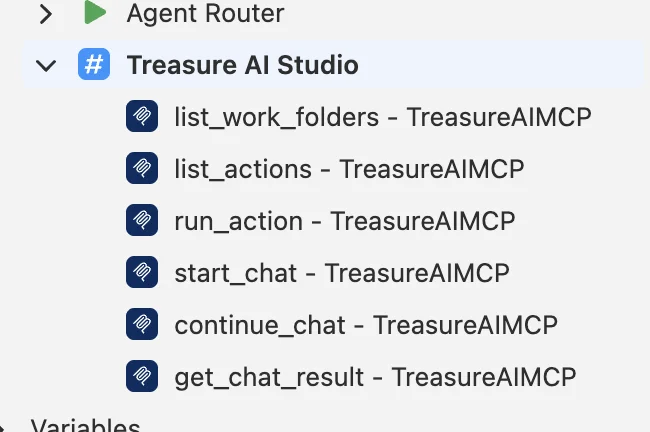
- Explorer で Treasure AI Studio サブエージェントにカーソルを合わせ、+ → Add from Asset Library を選択します。
TreasureAIMCPを検索し、登録済みの 6 つのアクション(または未追加のもの)をすべて選択して Add to Agent を選択します。- Actions Available For Reasoning で、各操作に対応するローカルアクションを選択します。重複アクションは作成しないでください。Explorer の Treasure AI Studio 配下に 6 つの
TreasureAIMCPアクションがすべて並んでいることを確認します。
- Script view(
</>)を開き、サブエージェントのバインド内容をリファレンスエージェントスクリプトと比較します。推論アクションの入力行で...が指定されており、エージェントがツール結果や会話コンテキストからwork_folder_id、action_name、message、chat_idを動的に渡せること、および指示文が自組織のローカル Asset Library アクション ID を参照していることを確認します。 - Save を選択し、Problems が 0 errors であることを確認します。
エージェントを有効化する前に、Agentforce Builder の Preview でライブ MCP ツール実行を確認します。
- Preview で ↻ を選択して新しいテストセッションを開始します。
- 「作業フォルダにある保存済みアクションを一覧表示して」(英語の場合は “List the saved actions in my work folder.”)のような読み取り専用の確認プロンプトを送信します。Agent Preview Details のトレースで、Salesforce が
list_work_foldersに続いて返されたwork_folder_idでlist_actionsを実行したことを確認します。 - 「最初の 3 つの親セグメントを一覧表示して」(英語の場合は “List the first 3 parent segments.”)のような顧客データ照会の質問を送信します。共有作業フォルダに該当する保存済みアクションがある場合は
run_actionが、該当するアクションがない場合は無関係なアクションではなくstart_chatが実行されることを確認します。
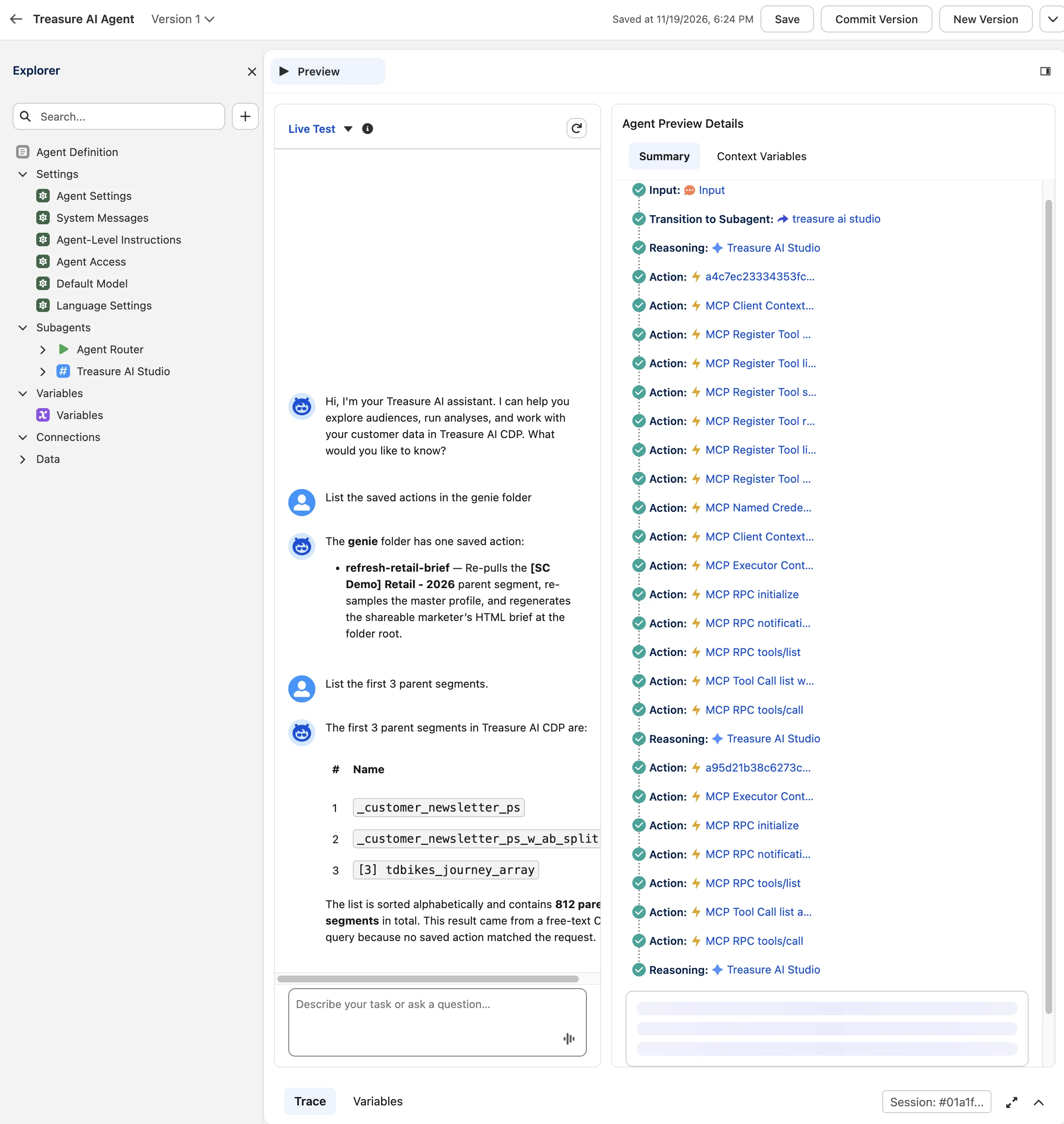
もっともらしく見える回答や緑色の tools/list 呼び出しだけでは実行の証明になりません。トレースに実際の MCP RPC tools/call ステップが含まれ、ご自身の Treasure AI Studio 作業フォルダの結果と一致することを確認してください。
コミットはテスト用にエージェントのバージョンを固定する操作であり、有効化によって接続済みの Salesforce Lightning チャネルから利用可能になります。
agent_type: "AgentforceEmployeeAgent"と Preview での動作を確認したら、Commit Version → Commit を選択します。- Activate → Activate を選択し、コミット済みバージョンを接続チャネルに公開します。
- Setup → Agentforce Agents を開き、Treasure AI Agent が Type: AgentforceEmployeeAgent になっており、エージェント本体と Version 1 の両方に Active のチェックマークが付いていることを確認します。

- 対象の Salesforce ユーザーにエージェントの表示権限を付与します。本番展開では、対象ユーザーのみに絞った専用の権限セットを通じて Enabled Agent Access を付与してください(エージェントを表示するためだけに System Administrator を割り当てないでください)。権限セットまたはプロファイルでアクセスを付与する手順は次のとおりです。
- Setup → Users から対象の権限セットまたはプロファイルを開き、Enabled Agent Access を選択して Edit を選択します。
- Available Agents から Treasure AI Agent を Enabled Agents へ移動し、Save を選択します。
- すべての対象ユーザーに Treasure AI Agent の Enabled Agent Access と、手順 4 の MCP 権限セット(
TreasureAIMCP_Perm_Set)の両方が付与されていることを確認します。
Agentforce Builder の外にある Salesforce Lightning の画面から、有効化したエージェントの動作を確認します。
- App Launcher(9 つの点)を開き、Sales を検索して Sales アプリ(Setup ではない)を選択します。
- 上部ヘッダーの Agentforce アイコンを選択して右側のパネルを開きます。初回利用時に Agentforce Memory の案内が表示された場合は、設定を選んで Got It を選択してください(メモリの保存は MCP に必須ではありません)。
- Agentforce パネルのエージェントドロップダウンから Treasure AI Agent が選択されていない場合は選択します。
- 「Treasure AI Studio の作業フォルダ名と保存済みアクションを一覧表示して」(英語の場合は “List the Treasure AI Studio work folder name and its saved actions”)のような読み取り専用の確認プロンプトに続けて、「親セグメントを 10 件見せて」(英語の場合は “Show me 10 parent segments.”)のようなクエリを送信します。パネルに Treasure AI Studio の共有作業フォルダのデータが返り、保存済みアクションまたはフリーテキストチャットのどちらで生成されたかが示されることを確認します。
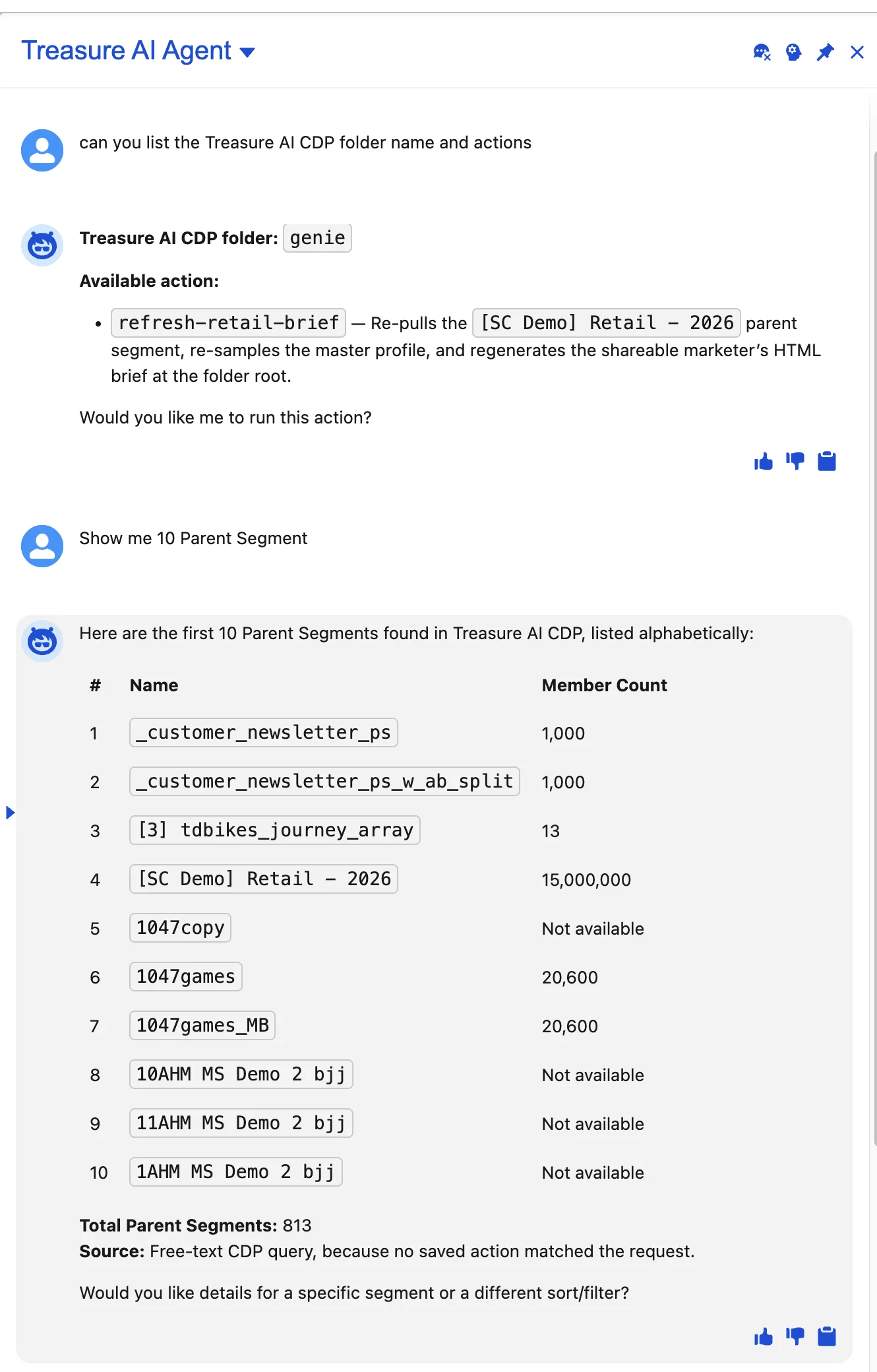
管理者以外のユーザーへ展開する場合は、対象となる非管理者ユーザーとしてログインした状態でも同じ検証を行い、エージェント表示権限と MCP 権限セットの両方が機能することを確認してください。
Salesforce Agentforce からのリクエストはすべて、静的トークン方式エンドポイントに紐づく 1 人の共有実行者として Treasure AI Studio 内で実行され、その実行者の権限とクレジットを消費します。Studio は公開された共有作業フォルダを読み取り専用で参照し、書き込みはチャット終了時に破棄される一時作業領域に限定されます。チャネルのチャットで影響し得る範囲の詳細は エージェントチャネルのチャットが到達できる範囲 を参照してください。
パイロット運用を超えて展開する前に、次のセキュリティ管理を徹底してください。
- 共有作業フォルダと実行者の範囲を絞る:Salesforce ユーザーから呼び出して問題ない保存済みアクション、ファイル、コネクタのみを共有作業フォルダに含めます。エージェントにアクセスできるすべての Salesforce ユーザーは、実行者の Treasure AI 権限を引き継ぎます。
- 指示文の確認ゲートを多層防御として位置づける:プロンプトとリファレンススクリプトでは、通知の送信、オーディエンスのアクティベーション・エクスポート、ワークフローやジャーニーの実行、データの変更前にユーザーへ確認するよう指示しています。ただし、登録済み MCP アクション定義自体は
require_user_confirmation: Falseであるため、実効的な境界は実行者の権限、共有作業フォルダの中身、および許可リストのツールによって担保してください。 - 静的トークンを保護・ローテーションする:
tasgwt_トークンは Salesforce の External Credential プリンシパルのみに保管し、Server URL、エージェントプロンプト、Agent Script、スクリーンショットには絶対に貼り付けないでください。アクセス変更時、パイロット終了時、または漏洩の懸念がある場合はトークンをローテーションしてください(Gateway Token をローテーションする を参照)。 - Salesforce 側の割り当てを制限する:
TreasureAIMCP_Perm_Setと Enabled Agent Access は承認済みユーザーのみに付与し、パイロットでは期限付き割り当てを使用してください。
アクセスは Treasure AI Studio 側・Salesforce 側のどちらからでも即座に停止できます。
- Salesforce からの全リクエストを即座に停止する(Studio):設定 → エージェントチャネル で対象エンドポイントを開き、有効 / 無効 スイッチをオフにします。トークンを失効させずにリクエストを即座に拒否できます。資格情報を恒久的に無効化する場合は、トークンを失効させるかエンドポイントを削除してください。
- 特定の Salesforce ユーザーを停止する(Salesforce):対象ユーザーを
TreasureAIMCP_Perm_Setから除外する(MCP ツール呼び出しを遮断)か、Treasure AI Agent の Enabled Agent Access を外します(Lightning 上でエージェントを非表示にする)。 - 全 Salesforce ユーザーに対してエージェントを停止する(Salesforce):Setup → Agentforce Agents で Treasure AI Agent を開き、Deactivate を選択します。
次の検証済み Employee Agent スクリプトは、Agentforce Builder の Script view(</>)で確認する際の構造リファレンスとして使用してください。別組織へそのままコピーせず、組織ごとに生成されるアクション ID(a4c7ec...、a95d21... など)、source・target 識別子、および model_config の値は、ご自身の Asset Library から 6 つの TreasureAIMCP アクションを接続した際に生成される値に置き換えてください。
system:
    instructions: "You are a Treasure AI CDP assistant for marketing users. All answers must come directly from Treasure AI tools — never use Salesforce Knowledge or general knowledge to answer questions."
    messages:
        welcome: |
            Hi, I'm your Treasure AI assistant. I can help you explore audiences, run analyses, and work with your customer data in Treasure AI CDP. What would you like to know?
        error: "Sorry, something went wrong. Please try again."

config:
    developer_name: "Treasure_AI_Agent"
    agent_label: "Treasure AI Agent"
    description: "Internal marketing agent that answers questions and runs analyses using Treasure AI CDP. Never uses Salesforce Knowledge or general knowledge."
    agent_type: "AgentforceEmployeeAgent"

model_config:
    model: "model://sfdc_ai__DefaultGPT56Luna"

language:
    default_locale: "en_US"
    all_additional_locales: False

variables:
    work_folder_id: mutable string = ""
        description: "Cached work folder ID retrieved from Treasure AI Studio; avoids re-fetching on every turn"
    chat_id: mutable string = ""
        description: "ID of the active Treasure AI chat session, used for continue_chat and get_chat_result"

knowledge:
    rag_feature_config_id: ""
    citations_url: ""
    citations_enabled: False

start_agent agent_router:
    label: "Agent Router"
    description: "Welcome the user and route all requests to the Treasure AI Studio subagent"
    model_config:
        model: "model://sfdc_ai__DefaultEinsteinHyperClassifier"
    reasoning:
        instructions: ->
            | Select the best tool to call based on conversation history and user's intent.
        actions:
            go_to_treasure_ai_studio: @utils.transition to @subagent.treasure_ai_studio


subagent treasure_ai_studio:
    label: "Treasure AI Studio"
    description: "Handles all Treasure AI CDP questions by discovering work folders and saved Actions, running the best match, falling back to free-text chat, and summarizing results in plain language."
    reasoning:
        instructions: ->
            |You are connected to Treasure AI CDP. All answers must come directly from Treasure AI tools — never use Salesforce Knowledge or general knowledge.

             If the request is not about Treasure AI CDP, politely explain that this agent can help with Treasure AI CDP questions, analyses, audience management, and data workflows, and do not attempt to answer it.

             Confirmation gate: Before taking any of the following actions, tell the user exactly what will happen and ask them to confirm. Only proceed after they say yes.
             - Sending emails or notifications
             - Activating or exporting an audience
             - Running or resuming a workflow or journey
             - Creating, changing, or deleting anything in Treasure AI
             Reading, listing, querying, and reporting need no confirmation.

             Workflow:
             Step 1 — Get the work folder: Call {!@actions.a4c7ec23334353fc7a73dd098254ca6eb} to get the work folder ID, and reuse it for the rest of the conversation. Never ask the user for it.
             Step 2 — List available Actions: Call {!@actions.a95d21b38c6273c2c8d8c2f508296fe9f} for the work folder and inspect action names and descriptions to find the one that best matches the user's request.
             Step 3 — Run a saved Action: If a matching saved Action is found, call {!@actions.a957880df5db732a393e6b85fde2af16b} with the exact action name and the work folder ID.
             Step 4 — Fall back to free-text chat: If no saved Action fits, call {!@actions.a87dd54c253ef3974bd5e07eafeff72eb} with the work folder ID and a clear, self-contained description of exactly what the user asked for. Keep the chat_id it returns. For follow-ups on the same result, call {!@actions.aed3e4d64a89532f4b0943e4a226247fe} with that chat_id. If the status is "running", call {!@actions.a1466fa95345b3dce8621350804423a33} with that chat_id to get the final result.
             Step 5 — Summarize: Present the result in plain language, highlighting key numbers. Say which Action or chat produced it. If a tool returns an error or no result, say so clearly. Never guess or fabricate results.
        actions:
            a95d21b38c6273c2c8d8c2f508296fe9f: @actions.a95d21b38c6273c2c8d8c2f508296fe9f
                with work_folder_id = ...
            a957880df5db732a393e6b85fde2af16b: @actions.a957880df5db732a393e6b85fde2af16b
                with work_folder_id = ...
                with action_name = ...
            a87dd54c253ef3974bd5e07eafeff72eb: @actions.a87dd54c253ef3974bd5e07eafeff72eb
                with work_folder_id = ...
                with message = ...
            aed3e4d64a89532f4b0943e4a226247fe: @actions.aed3e4d64a89532f4b0943e4a226247fe
                with chat_id = ...
                with message = ...
            a1466fa95345b3dce8621350804423a33: @actions.a1466fa95345b3dce8621350804423a33
                with chat_id = ...
            a4c7ec23334353fc7a73dd098254ca6eb: @actions.a4c7ec23334353fc7a73dd098254ca6eb
    actions:
        a1466fa95345b3dce8621350804423a33:
            description: |
                Retrieves the result of the latest instruction in a chat, including follow-ups sent with continue_chat. Does not submit a new instruction. If execution is still in progress, waits for the result and may return status "running" again.
            label: "get_chat_result - TreasureAIMCP"
            require_user_confirmation: False
            include_in_progress_indicator: False
            source: "a1466fa95345b3dce8621350804423a33"
            target: "mcpTool://TreasureAIMCP/mcptoolx5fx5fgetx5fchatx5fresult"

            inputs:
                "chat_id": string
                    description: |
                      The chat_id returned by run_action or start_chat through this connection.
                    label: "string"
                    is_required: True
                    is_user_input: False
        a4c7ec23334353fc7a73dd098254ca6eb:
            description: |
                Lists the work folders available in Treasure AI Studio. Start here to find configured actions for the user's task. Tasks may involve Treasure Data or other connected services. Inspect available capabilities before giving generic advice or asking about unfamiliar project or business names. A work folder is a persistent server-side workspace with files and reusable actions; its purpose depends on its configuration. Use folder names and any author-provided descriptions to select candidates, then call list_actions with each candidate's id to inspect the available tasks.
            label: "list_work_folders - TreasureAIMCP"
            require_user_confirmation: False
            include_in_progress_indicator: False
            source: "a4c7ec23334353fc7a73dd098254ca6eb"
            target: "mcpTool://TreasureAIMCP/mcptoolx5fx5flistx5fworkx5ffolders"
        a87dd54c253ef3974bd5e07eafeff72eb:
            description: |
                Delegates the free-text task in message to a server-side agent in a new chat. Check list_actions in relevant work folders first. Use start_chat only when no available action can perform the task. The agent can read work folder files and use configured connectors. Waits for the result and returns status "running" if execution is still in progress.
            label: "start_chat - TreasureAIMCP"
            require_user_confirmation: False
            include_in_progress_indicator: False
            source: "a87dd54c253ef3974bd5e07eafeff72eb"
            target: "mcpTool://TreasureAIMCP/mcptoolx5fx5fstartx5fchat"

            inputs:
                "work_folder_id": string
                    description: |
                      The folder id returned by list_work_folders.
                    label: "string"
                    is_required: True
                    is_user_input: False
                "message": object
                    description: |
                      The task to delegate, including necessary context and the expected result. The agent does not see your conversation.
                    label: "string"
                    is_required: True
                    is_user_input: False
                    complex_data_type_name: "lightning__richTextType"
        a957880df5db732a393e6b85fde2af16b:
            description: |
                Delegates an action selected from list_actions to a server-side agent in a new chat. The agent follows the action's configured instructions and can read work folder files and use configured connectors. Each call starts a separate execution. This tool accepts no action arguments or additional instructions, and the agent does not see your conversation. Waits for the result and returns status "running" if execution is still in progress.
            label: "run_action - TreasureAIMCP"
            require_user_confirmation: False
            include_in_progress_indicator: False
            source: "a957880df5db732a393e6b85fde2af16b"
            target: "mcpTool://TreasureAIMCP/mcptoolx5fx5frunx5faction"

            inputs:
                "work_folder_id": string
                    description: |
                      The folder id returned by list_work_folders.
                    label: "string"
                    is_required: True
                    is_user_input: False
                "action_name": string
                    description: |
                      The exact name returned by list_actions for this folder.
                    label: "string"
                    is_required: True
                    is_user_input: False
        a95d21b38c6273c2c8d8c2f508296fe9f:
            description: |
                Lists executable actions in one work folder returned by list_work_folders. An action delegates a predefined task to a server-side agent. Inspect action names and descriptions to find a task matching the user's request, including unfamiliar project or business names. When an action fits, pass its exact name and this work_folder_id to run_action.
            label: "list_actions - TreasureAIMCP"
            require_user_confirmation: False
            include_in_progress_indicator: False
            source: "a95d21b38c6273c2c8d8c2f508296fe9f"
            target: "mcpTool://TreasureAIMCP/mcptoolx5fx5flistx5factions"

            inputs:
                "work_folder_id": string
                    description: |
                      The folder id returned by list_work_folders.
                    label: "string"
                    is_required: True
                    is_user_input: False
        aed3e4d64a89532f4b0943e4a226247fe:
            description: |
                Sends a new instruction to an existing chat to request additional work or revise a result. To wait for an existing result without sending a message, use get_chat_result. Waits for the reply and returns status "running" if execution is still in progress.
            label: "continue_chat - TreasureAIMCP"
            require_user_confirmation: False
            include_in_progress_indicator: False
            source: "aed3e4d64a89532f4b0943e4a226247fe"
            target: "mcpTool://TreasureAIMCP/mcptoolx5fx5fcontinuex5fchat"

            inputs:
                "chat_id": string
                    description: |
                      The chat_id returned by run_action or start_chat through this connection.
                    label: "string"
                    is_required: True
                    is_user_input: False
                "message": object
                    description: |
                      The follow-up task for this chat, including any new context and the expected result.
                    label: "string"
                    is_required: True
                    is_user_input: False
complex_data_type_name: "lightning__richTextType"| 症状 | 原因 | 対処 |
|---|---|---|
| レジストリの検証に失敗する、またはサーバーに接続できない | Server URL、エンドポイント方式、External Credential のトークンが同じ静的トークン方式エンドポイントのものになっていないか、BearerToken の値に Bearer が含まれている | 同じ 静的トークン(指定した実行者) エンドポイントから 接続 URL とトークンをコピーし直してください。Server URL には URL のみを貼り付け、BearerToken には tasgwt_ で始まる生のトークンのみを貼り付け、カスタムヘッダーの数式が {!'Bearer ' & $Credential.Treasure_AI_MCP.BearerToken} であることを確認してください |
| Salesforce で資格情報または権限不足のエラーが表示される | 生成された Named Credential Permission Set が対象ユーザーに割り当てられていない | Setup → Agentforce Registry → Registered MCP Servers → TreasureAIMCP → Details を開き、Named Credential Permission Set リンクから対象ユーザーへ割り当ててください |
| Lightning にエージェントは表示されるが、Treasure AI のツールを呼び出せない | エージェントの表示権限と MCP ツールアクセス権は別管理であり、Enabled Agent Access はあっても MCP 権限セットが付与されていない | 対象ユーザーに Employee Agent の Enabled Agent Access と TreasureAIMCP_Perm_Set(または自組織で生成された権限セット)の両方を付与してください |
| エージェントが Treasure AI ではなく一般知識や Salesforce のデータから回答してしまう | 6 つの TreasureAIMCP アクションがサブエージェントに接続されていないか、サブエージェントの指示文が Treasure AI ツール利用を強制していない | Asset Library から 6 つの登録済み TreasureAIMCP アクションをすべて追加し、Script view(</>)でバインドを確認して 0 errors で保存したうえで、Preview のトレースに MCP RPC tools/call ステップが出ることを確認してください |
| 公開したエージェントの種別が異なり、Lightning の Sales パネルに表示されない | Employee Agent(AgentforceEmployeeAgent)ではなく Service Agent として公開されている | 新しく Employee Agent(AgentforceEmployeeAgent)を作成し、登録済みの MCP ツールを再利用してください。公開後の種別変更は Salesforce 側で拒否される場合があります |
Treasure AI Studio から 401 または 403 が返される | 静的トークンの期限切れ・失効、エンドポイントの無効化、または実行者の辞任やフォルダアクセス喪失が発生している | 設定 → エージェントチャネル でエンドポイントのステータスとトークン一覧を確認し、静的トークン方式の MCP エンドポイントのトラブルシューティング を参照してください |
- 静的トークン方式の MCP エンドポイント:エンドポイントのステータス管理、実行者の交代、トークンのライフサイクル。
- MCP クライアントを接続する:6 つの MCP ツールの詳細、結果の読み方、制限値。
- エージェントチャネルのチャットが到達できる範囲:チャネルチャットの作業領域の分離、クレジット、監査ログ。
- Salesforce ヘルプ:Register a Third-Party MCP Server および Add MCP Tool Actions to an Agent。
- Headless:外部の AI ツールを Treasure AI に接続する概要。
- ほかの Headless ガイド:ChatGPT、Claude、Gemini、Databricks Genie One。