Landing Page Delivery is currently available as a private beta. Contact your Treasure AI account representative for access.
Creating a landing page in Engage Studio turns a prepared static website package into a branded public URL. The workflow keeps content changes in a draft until you publish them, so you can review the package and its destination before visitors see it. Use this task after a web administrator has activated the custom subdomain and a page author has prepared the static package.
Before creating a landing page, confirm that you have:
- An Active custom subdomain that is available to the target workspace. See Configure Custom Subdomains.
- A completed static ZIP package that meets the Landing Page specifications. See Prepare a Static Website Package.
- The required Campaign permissions in Workspace Feature Permissions. Campaign Edit lets you create and update drafts and upload packages. Campaign Launch is required to publish or unpublish pages. Web-domain access is controlled separately by EngageDomain under Domain Permissions. See Landing Page permissions.
A landing page draft stores the page name, optional description, web domain, URL slug, and completed static package until you publish it.
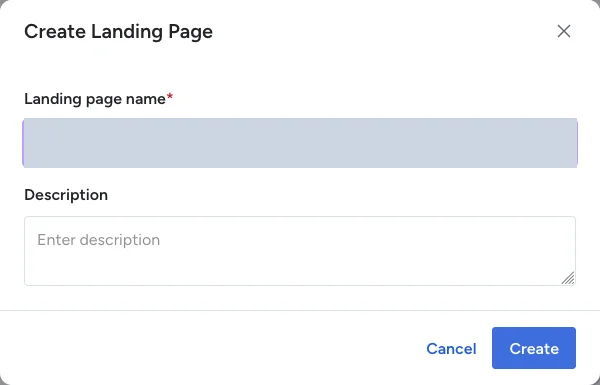
- In Engage Studio, create a landing page and enter a recognizable name. The page starts in Draft status.
- Select an Active custom subdomain. A Pending or Suspended domain cannot be used to publish the page.
- Enter an optional URL slug. For example, the
summer-saleslug onpromo.example.comcreateshttps://promo.example.com/summer-sale.
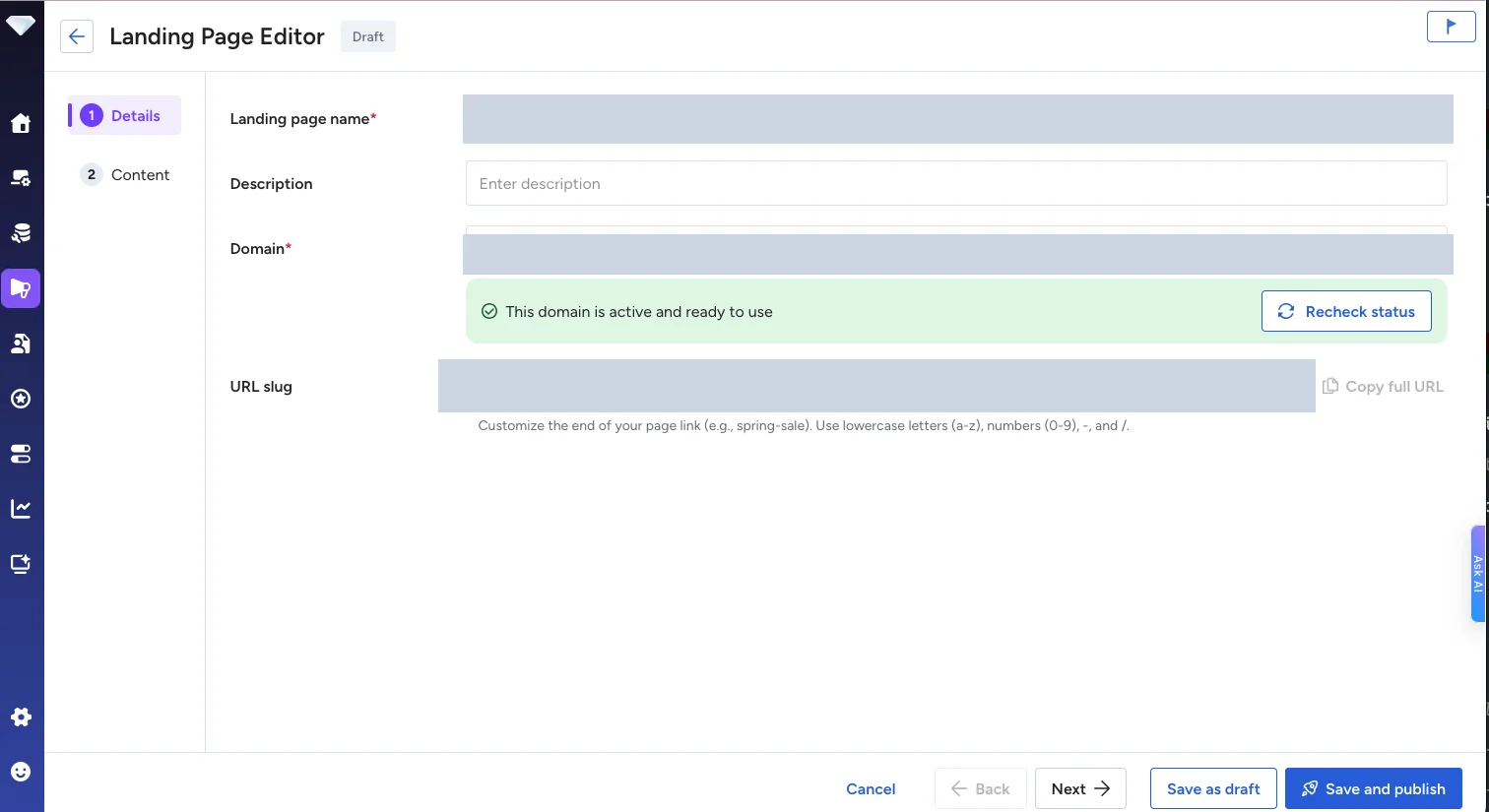
A landing page’s slug is locked while the page is Published. If you unpublish the page, it returns to Draft and you can edit the slug before publishing it again. Its custom subdomain cannot be changed after the page has first been published. Review both values before publishing.
Upload the completed static ZIP package to the draft before publishing it.
- Upload the static ZIP package. Your browser extracts the archive and uploads the allowlisted files.
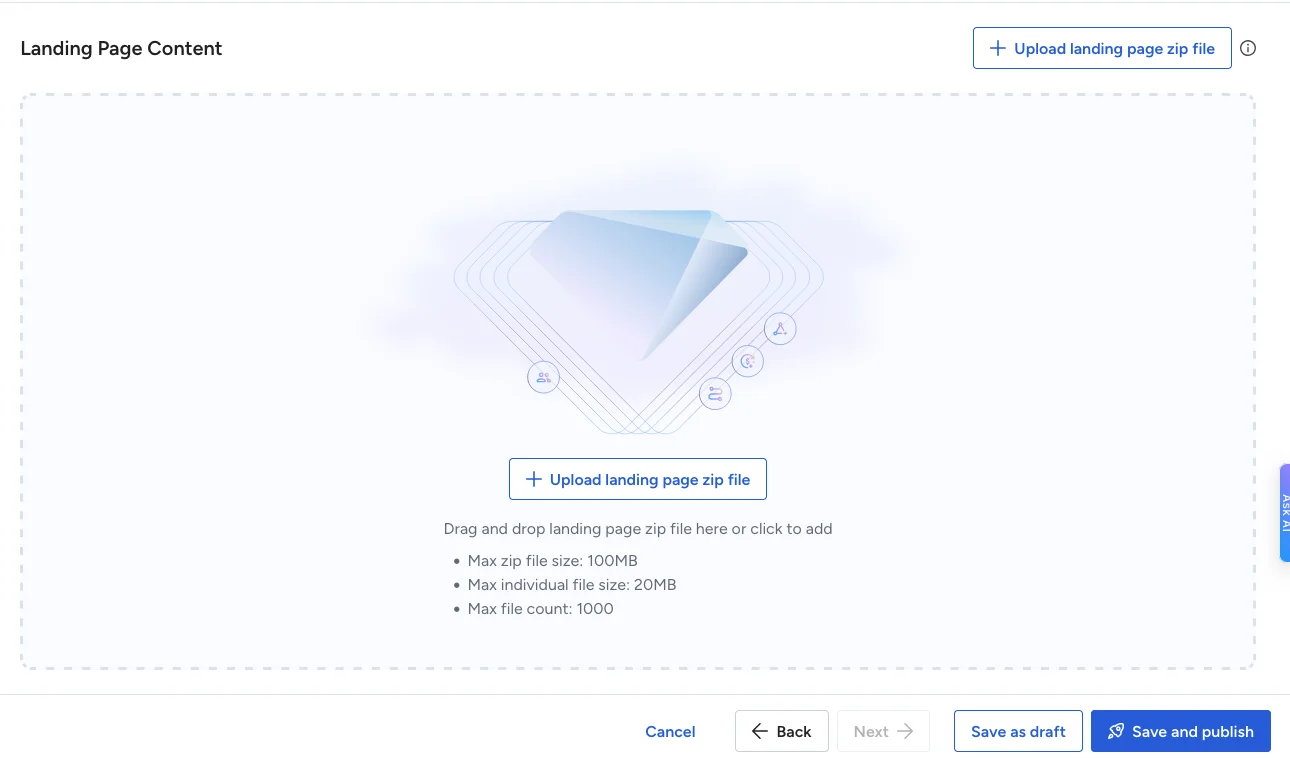
- Wait until the upload completes and the uploaded file list is verified without an error. The completed package is ready to publish.
- Review the draft content and its public URL before publishing.
Before you publish the landing page, confirm that the selected custom subdomain is Active, the static package upload completed successfully, and the draft uses the intended custom subdomain and URL slug. After the first publication, the custom subdomain cannot change. The URL slug is locked while the page is Published, but you can edit it after you unpublish the page.
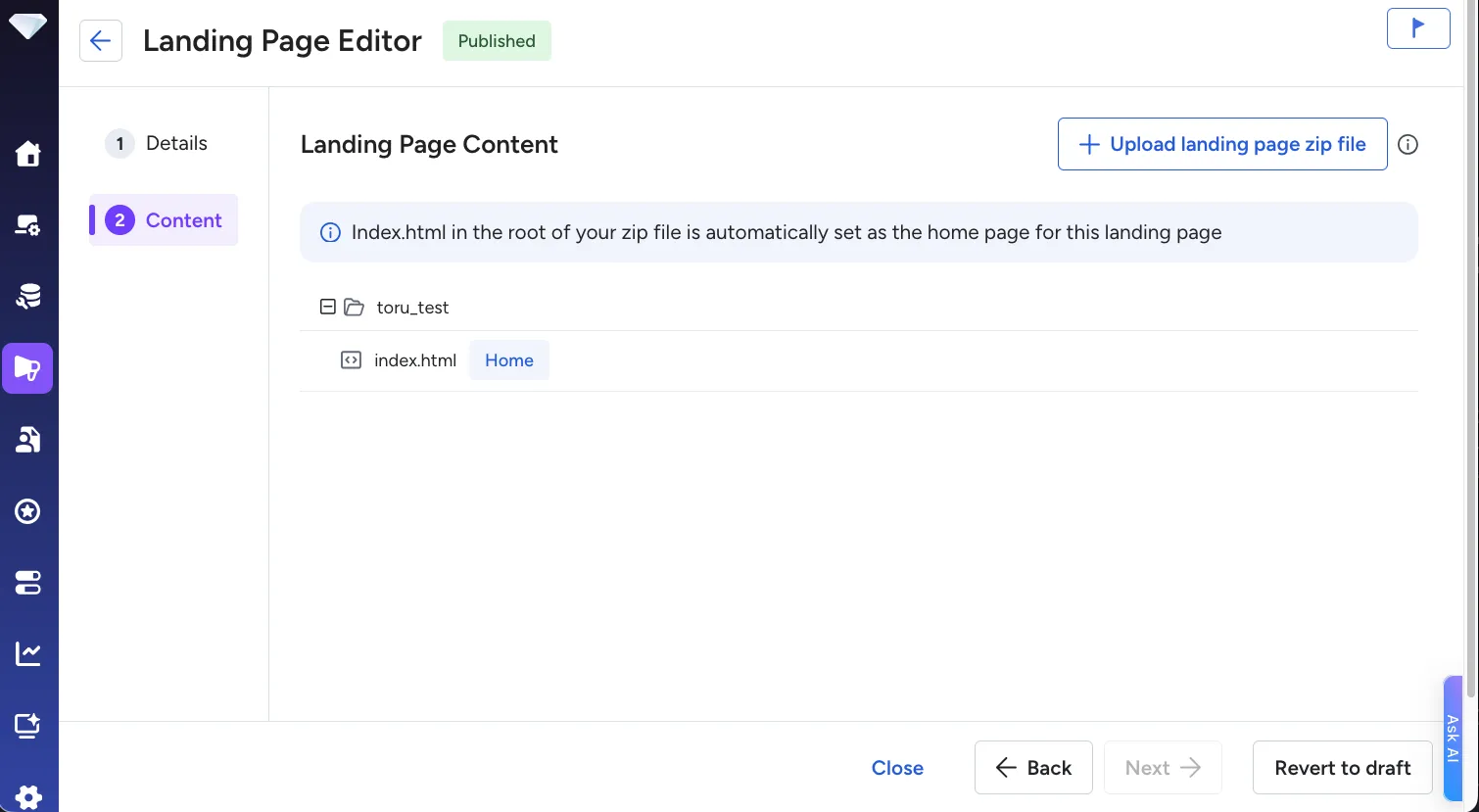
Publishing copies the completed static package to the page’s public HTTPS URL.
- In the landing page draft, publish the page. The page status changes from Draft to Published.
- Open the public URL in a browser without an Engage Studio session. Confirm that the page, styles, scripts, and images load over HTTPS.
Publish and unpublish changes can take about one minute, and occasionally longer, to reach the edge. If you reload the public URL immediately after either action, it may still show the previous state.
Updating a published landing page lets you replace its static content while keeping the same URL.
- Upload a revised static ZIP package to the published landing page. The page remains Published after the upload; after upload verification completes, the revised package is ready for the next publication.
- Publish the landing page again.
- After allowing time for the change to propagate to the edge, reload the public URL and confirm that the revised content is available.
Unpublishing stops public delivery but keeps the landing page available as a draft. Delete a page only after it is no longer published.
- In the published landing page, unpublish the page. The status returns to Draft.
- After allowing time for the change to propagate to the edge, reload the former public URL and confirm that it returns
404 Not Found. - Delete the draft landing page when it is no longer needed. The page is removed from the landing page list.