This guide outlines the foundational steps required to set up Engage Studio for your organization. Follow these steps to prepare your environment for building campaigns and orchestrating customer journeys.
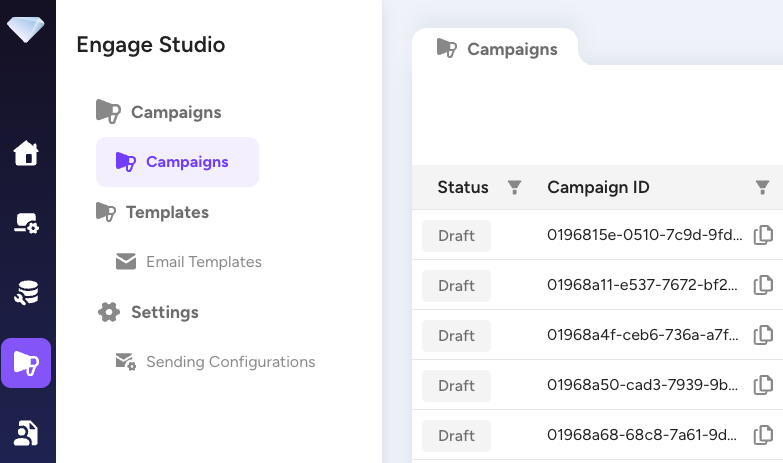
If the Engage Studio tab is not visible in your Treasure Console, you must request access.
- Action: Contact your Customer Success Manager or Treasure Support.
- Result: Once enabled, the Engage Studio tab will appear in the navigation bar.
Before creating campaigns, you should organize your resources (senders, templates, campaigns) using Workspaces and assign appropriate access rights using Policy-Based Permissions (PBP).
- Workspaces: define boundaries for your brands or regions.
- Permissions: control who can view, edit, or launch campaigns.
👉 Learn more about Workspaces and Permissions
You must configure at least one messaging channel to start sending campaigns.