HTML Email Hosting lets you serve a static copy of your email campaign as a web page under your own marketing domain. When a recipient clicks the View in Browser link in their inbox, they see the full email rendered in a browser tab hosted at your Email Domain.
HTML Email Hosting is currently in beta and requires feature enablement by Treasure AI Support. Contact your account team to request access.
When you launch an email campaign in Engage Studio, the platform automatically:
- Renders the email template as sanitized, static HTML.
- Uploads the HTML to a dedicated folder in the Digital Asset Manager (DAM).
- Publishes it at a stable HTTPS URL under your configured Email Domain.
- Stores the resulting URL in the
view_in_browser_urlfield on the campaign.
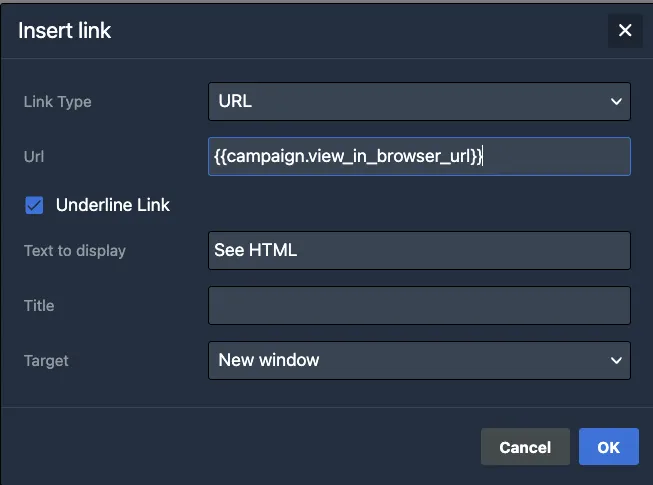
You can then insert {{campaign.view_in_browser_url}} anywhere in your email template — for example, as a link on a "View in Browser" text block — and the link resolves to the hosted page for each recipient.
| Capability | Supported |
|---|---|
| Static HTML rendering of email content | ✅ |
| Hosting under your Email Domain over HTTPS | ✅ |
| Per-recipient personalized HTML | ❌ |
| Landing Page builder UI | ❌ |
| Advanced page-view analytics | ❌ |
| General-purpose web hosting | ❌ |
HTML Email Hosting is not a landing page builder or a general-purpose hosting service. To publish a separately prepared static website package on a custom subdomain, use Landing Pages.
The hosted HTML is non-personalized. All Liquid control blocks ({% if %}, {% unless %}, {% for %}, and similar tags) and recipient-scoped variables ({{profile.*}}, {{sender.*}}) are stripped during rendering so that no private data is exposed in the publicly accessible page.
Before using HTML Email Hosting, you must:
Register and verify an Email Domain with Digital Assets enabled.
The hosting feature requires theDIGITAL_ASSETSDNS record to be deployed on your Email Domain. See Domain & DNS setup for instructions. After deployment, confirm thatUPDATE_TO_DIGITAL_ASSETS_COMPLETEDappears in the Deployment Events list on your domain configuration page.Have HTML Email Hosting enabled for your account.
Contact your Treasure AI account team or Treasure AI Support to enable it.Have Full or Edit access to the workspace and campaign.
Launching a campaign (which triggers HTML publishing) requires at least Edit-level workspace permission. See Workspaces and Permissions for details.
To insert the hosted URL into your email:
Open your email template in the Email Editor.
Add a text block or button where you want the link to appear (for example, "Having trouble viewing this email? View in Browser").
Select the link text or button and set its URL to:
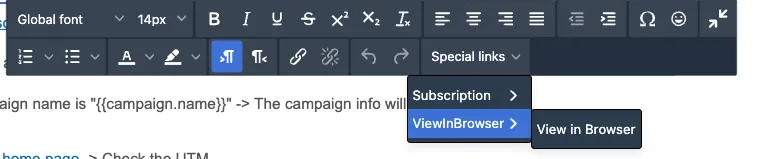
{{campaign.view_in_browser_url}}Alternatively, use the Special Links panel in the Beefree editor toolbar. Under the ViewInBrowser category, click the View in Browser link item to insert it automatically.
{{campaign.view_in_browser_url}} is populated at campaign launch time, not at email-send time. The link points to a single static page shared by all recipients. It is safe to include in every email template that targets an HTML Email Hosting-enabled campaign.
When HTML Email Hosting publishes the page, the URL uses the following pattern:
https://engage-assets.{email_domain}/_media/_cs/{asset_collection_id}/{media_folder_id}/index.html| Segment | Description |
|---|---|
{email_domain} | The Email Domain configured for your workspace |
{asset_collection_id} | UUID of the DAM asset collection (auto-generated) |
{media_folder_id} | UUID of the media folder inside the collection (auto-generated) |
The page is served over HTTPS only. HTTP requests are blocked or redirected. The URL does not contain any recipient-level identifiers.
When you launch a campaign, Engage Studio automatically:
- Renders the email template against an empty recipient context to produce static HTML.
- Strips all Liquid tags,
{{profile.*}}variables,{{sender.*}}tokens, and conditional blocks. - Uploads the sanitized HTML to the
preview_htmlDAM collection under a folder named after the campaign ID. - Sets the campaign's
view_in_browser_urlfield to the public HTTPS URL.
Re-launching a campaign overwrites the existing HTML at the same URL. Recipients who reload the page after a relaunch see the updated content.
Deleting a campaign removes the hosted HTML from DAM. Subsequent requests to the URL return 404 Not Found after the CDN cache expires.
Deleted campaign pages are permanently removed. If recipients click the View in Browser link after the campaign is deleted, they will see a 404 error. Avoid deleting campaigns that have recently sent emails.
HTML Email Hosting follows the same workspace permissions as campaigns.
| Permission level | Can launch campaign (publishes HTML) | Can delete campaign (removes HTML) |
|---|---|---|
| Full | ✅ | ✅ |
| Edit | ✅ | ✅ |
| View | ❌ | ❌ |
| None | ❌ | ❌ |
See Workspaces and Permissions for how to configure policies.
- Non-personalized HTML only. Liquid control blocks and recipient-scoped variables are removed. The hosted page shows the email content as it appears before personalization.
- No "Test Send" preview. Using Test Send in the email editor does not generate a hosted HTML page. The
view_in_browser_urllink is only available after a campaign is launched. - Single static version per campaign. Each campaign has one hosted HTML file. There is no versioning UI or rollback mechanism beyond re-launching the campaign.
- Maximum HTML file size: 10 MB. Emails whose rendered HTML exceeds 10 MB cannot be hosted.
- Publish failures block email delivery. If
DIGITAL_ASSETSDNS is configured but the HTML publish step fails (for example, due to a transient error), the campaign launch is blocked and emails are not sent.
If your Email Domain does not have DIGITAL_ASSETS DNS verification completed, the hosting step is skipped silently and view_in_browser_url remains empty. In this case the campaign still launches and emails are sent, but recipients will see a broken link when they click View in Browser. Confirm that UPDATE_TO_DIGITAL_ASSETS_COMPLETED appears in your domain's Deployment Events before launching.
Does the hosted page update automatically when I edit the email template?
No. The HTML is captured at launch time. To update the hosted page, re-launch the campaign.
Can I use a custom path or filename for the hosted URL?
Not in this release. The URL is generated automatically using internal asset collection and folder identifiers.
How long is the hosted page available?
The page remains accessible until the campaign is deleted. There is no automatic expiry in the current release.
Is the hosted page indexed by search engines?
The server sets X-Robots-Tag: noindex, nofollow on responses, instructing search engines not to index the page.
What happens if a recipient opens the page after the campaign is relaunched with updated content?
They see the latest version of the HTML, since re-launching overwrites the file at the same URL.