A Slack bot answers your requests in Slack, using a shared work folder in Treasure AI Studio. You message the bot directly or mention it in a channel, and it replies in the thread. Each request runs as you: with your permissions, your connections, and your credits, reading the one work folder the bot was set up with.
Read this page before you first use a bot, or when a bot does not reply the way you expect. Your team's Slack bot is set up by a work folder manager. Slack Bots explains how that is done.
The bot can answer only requests from people whose Slack user is linked to a Treasure AI Studio user in the bot's account. You link your Slack user once, and the link applies to every bot in that account and Slack workspace.
- Send the bot a message in a DM, or mention it in a channel. If you are not linked yet, the bot sends you a DM that says Please log in to AI Studio, then send your request again.
- In the DM, select Start login. The bot replies with two buttons: Log in with your browser and Enter confirmation code.
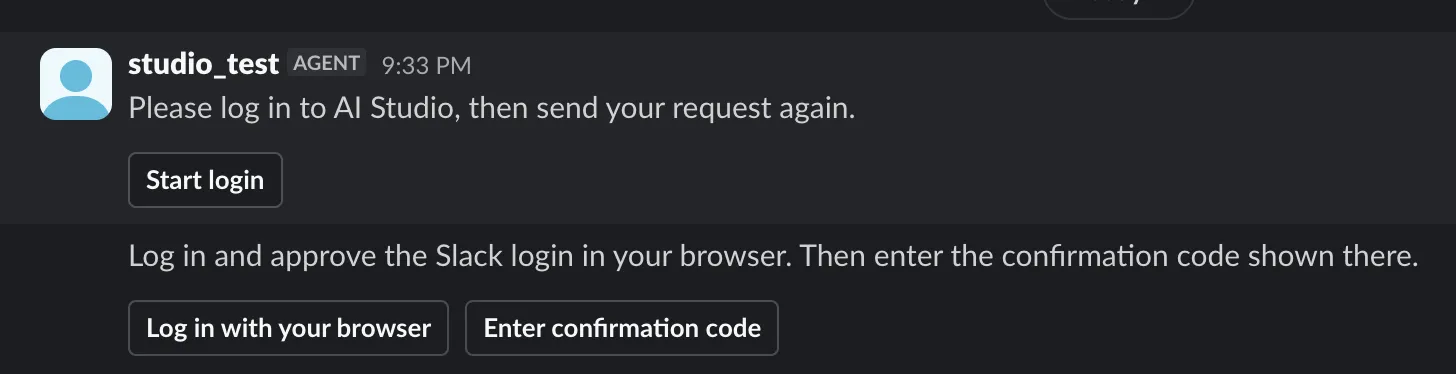
- Select Log in with your browser. Sign in to Treasure AI Studio as usual, if you are not signed in already.
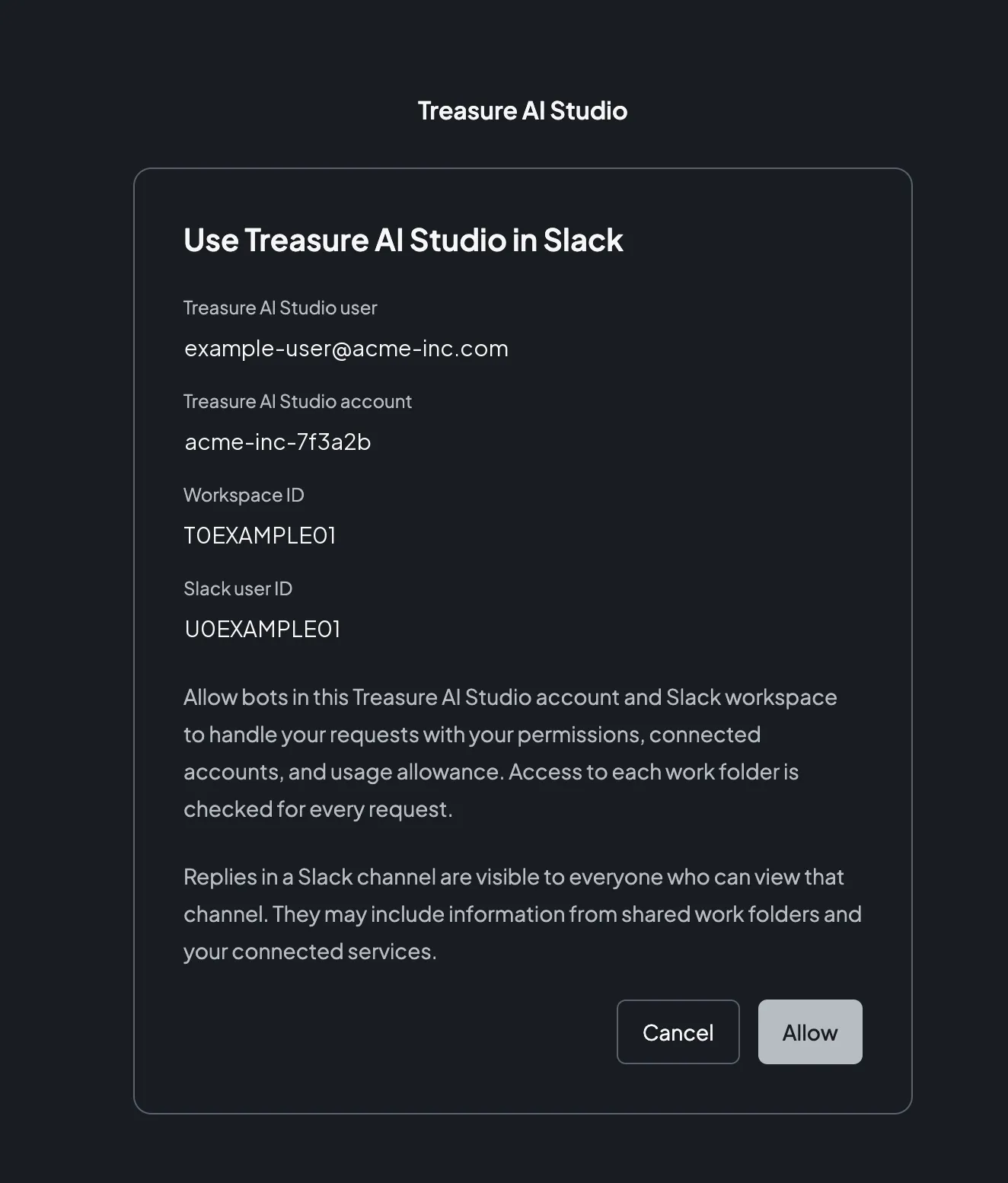
- Check the page. It shows your Treasure AI Studio user and account, the Slack workspace ID, and your Slack user ID. Read the explanation, then select Allow. Select Cancel to refuse. Nothing is linked when you cancel.
- The page shows an eight-digit Confirmation code and when it expires. Keep the page open.
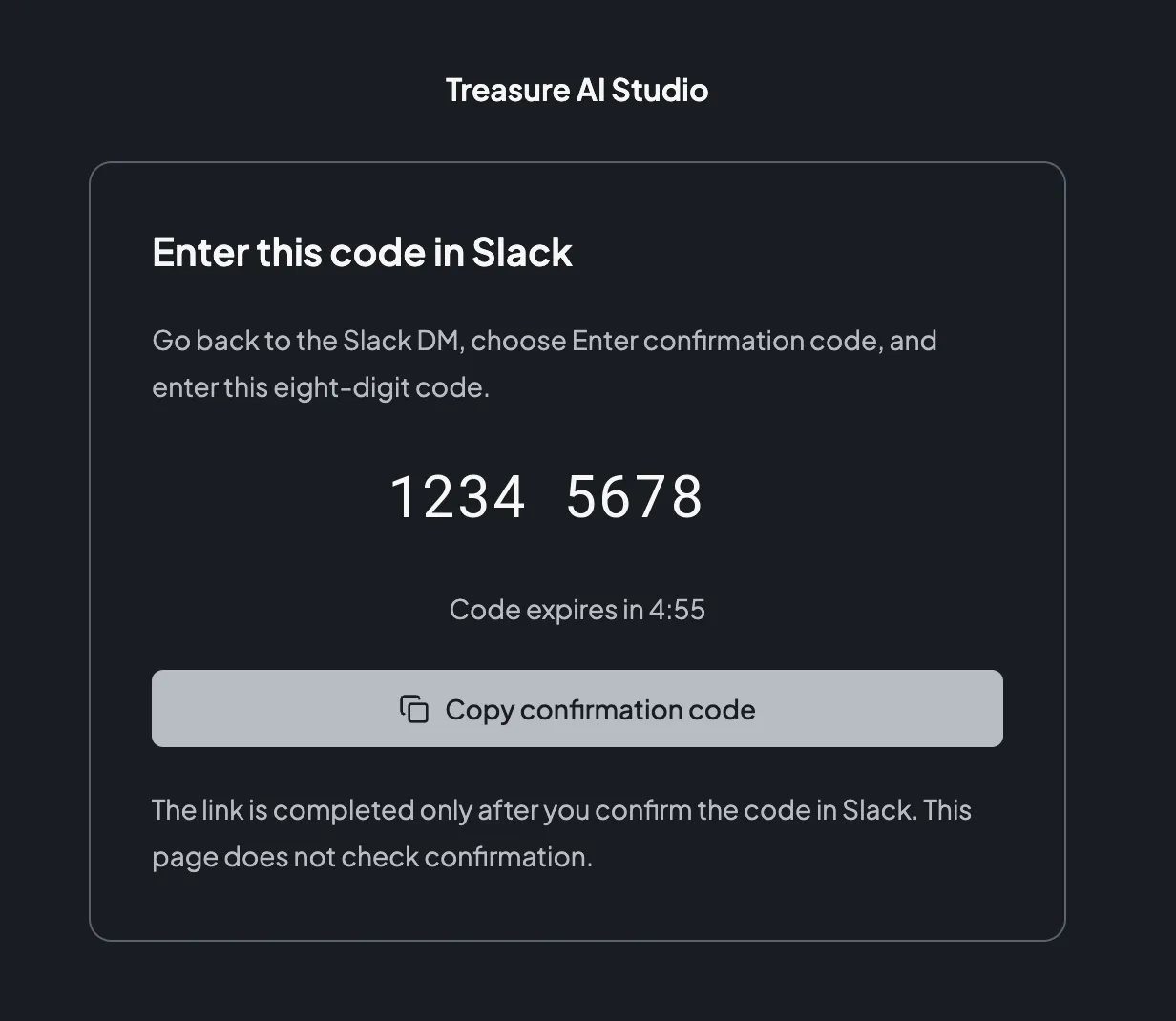
- Return to the Slack DM, select Enter confirmation code, type the eight digits, and select Log in.
- Slack shows a Logged in dialog. Select Close.
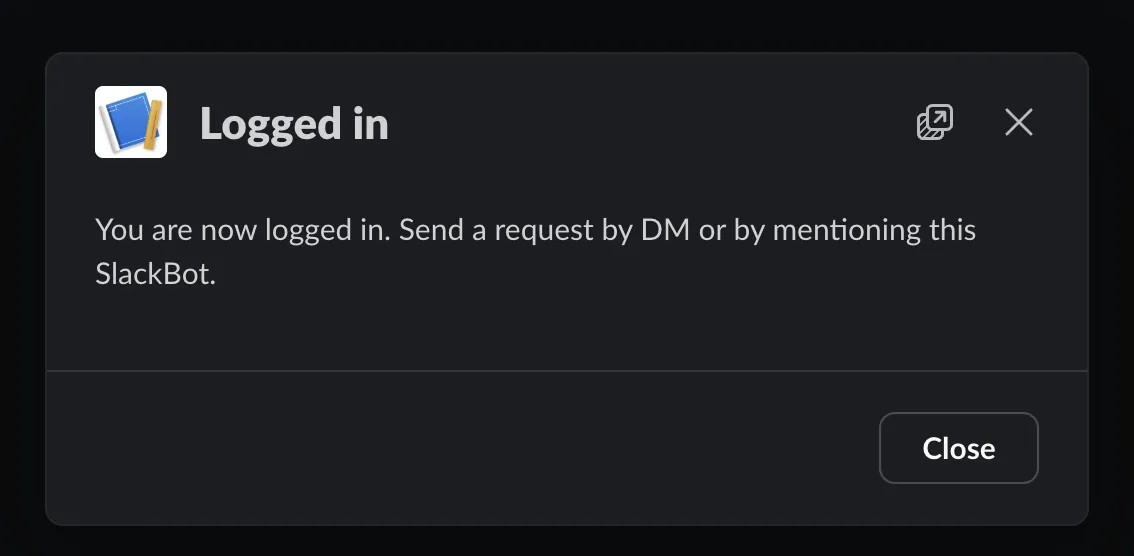
- Send your request. In the DM, send a new message to the bot. In a channel, mention the bot. For details, see Send Requests.
If you mention the bot in a channel, the sign-in DM is still sent to you, and nothing about signing in is posted in the channel. The exception is a mention in a thread that another person started. The bot replies in that thread with the ownership notice instead, and does not send the sign-in DM. Start your own chat in a new thread, as described in Send Requests.
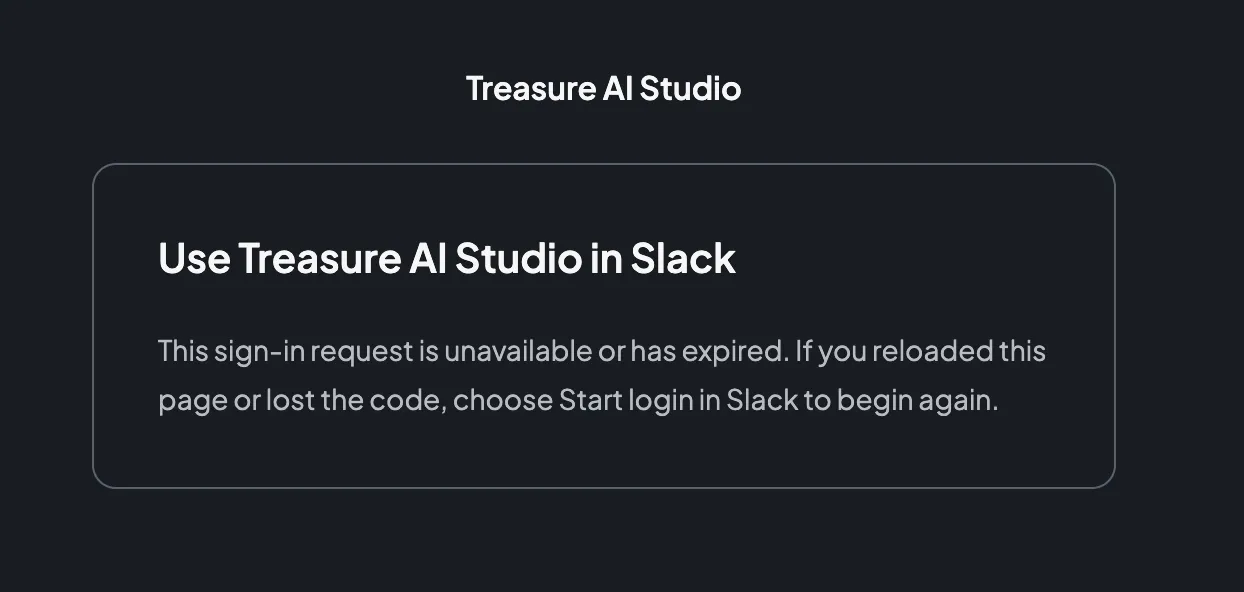
Sign-in has time limits. A sign-in attempt expires 15 minutes after Start login. The confirmation code expires 5 minutes after you select Allow, or when the sign-in attempt expires, whichever comes first. Five wrong codes end that attempt. If it expires, if you lost the code, or if you reloaded the page, select Start login in Slack again to begin a new attempt.
If you select Start login while you are already linked, the bot replies in the DM with You are already logged in. Send your request. To link a different Treasure AI Studio user, unlink your current Slack account first, as described in Linked Slack Accounts.

How the bot decides which chat your message belongs to depends on where you send it.
- In a DM, each new message you send at the top level starts a new chat. Replies you send in that message's thread continue the same chat, and you do not need to mention the bot.
- In a channel, mention the bot in a message to start a chat. The reply appears in a thread under that message. To continue the conversation, mention the bot again in that same thread.
- A reply in a channel thread without a mention is ordinary conversation between people. The bot does not treat it as a request.
- Only the person who started a channel chat can continue it. If someone else mentions the bot in that thread, the bot replies in the thread: Only the user who started this AI chat can continue it. Mention this SlackBot in a new thread to send a request. That person can start their own chat by mentioning the bot in a new thread.
- The bot reads only the text of your message. It does not read the contents of attached files or images. A message that Slack classifies as a file share is ignored altogether. Edited and deleted messages are ignored too.
Replies are streamed into the thread as the agent writes them. A long reply continues in more messages in the same thread, so nothing is cut off. The chat's title is taken from your request, cut to 200 characters. Treasure AI Studio may refine the title from the conversation later. A name you set yourself is kept.
Everyone who can view the channel can read the bot's replies in its threads. A reply may include content from the shared work folder and information from the services you connected. Ask in a channel only what the channel's members should see.
Sign-in and confirmation messages are sent only in the DM, never in a channel.
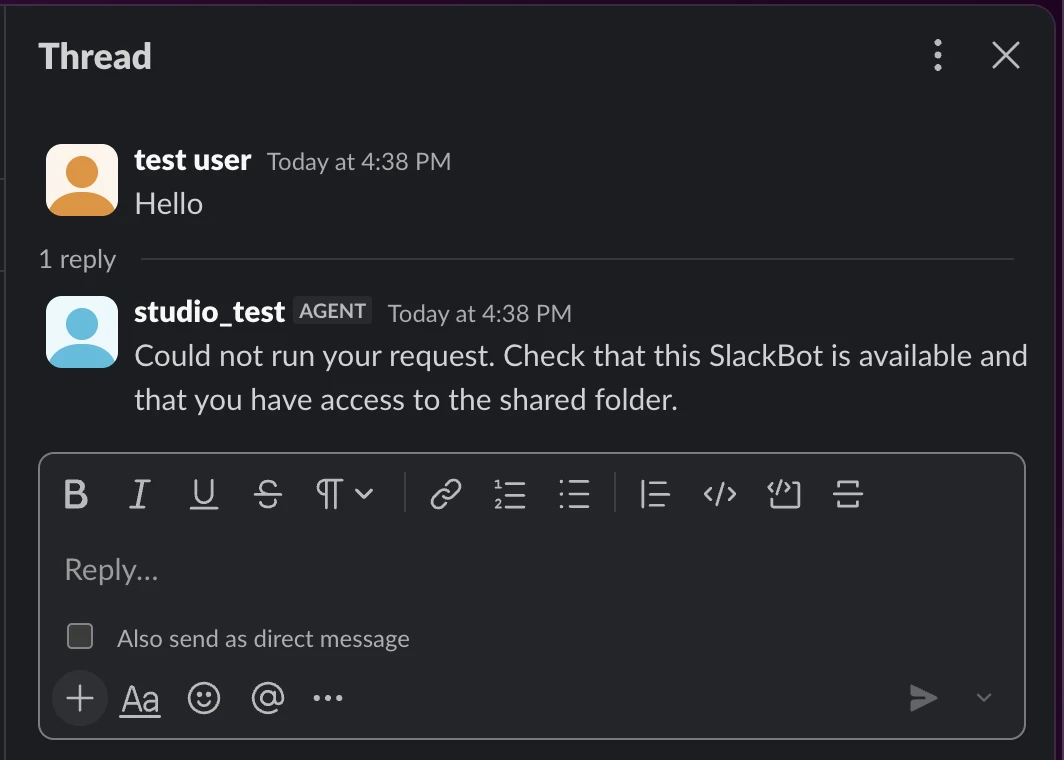
The bot also posts short notices in the thread when a request cannot complete. For example, when the bot cannot run a request, the thread shows this:
The notices you may see are:
| Notice | What it means |
|---|---|
| Could not run your request. Check that this SlackBot is available and that you have access to the shared folder. | Treasure AI Studio refused the request or could not run it. Causes include the bot being unavailable and your access to the shared work folder having been removed or never granted. Check the bot's status with its work folder's manager, and check your access to the work folder |
| Could not continue receiving or displaying the response. The chat may still be running. | Treasure AI Studio could not keep delivering the reply to the thread. The chat may still be running. Check the chat in Treasure AI Studio before you send the request again |
| Could not confirm whether your request was sent. The chat may have already started. | Treasure AI Studio could not confirm whether the request started. It does not resend it. Check the chat in Treasure AI Studio before you send the request again |
| Could not confirm that the chat stopped. It may still be running. | A stop request did not finish in time. The chat may still be running |
While the bot is writing a reply, Slack shows Stop with the bot's name. Select it to stop the reply. Stopping ends the chat's current turn and clears the requests queued behind it. The chat itself is kept. You can send another request in the same thread later.
A chat that a Slack bot starts is an ordinary Treasure AI Studio chat that belongs to you, with two limits.
- The shared work folder is read-only. The chat can read the work folder the bot was set up with and cannot change its files. It cannot reach your other work folders, including your private work folder.
- The chat has its own working area. The files it writes stay in that chat. Other chats cannot see them.
Otherwise the chat runs as you. It uses your credits, and the connections and permissions you hold in Treasure AI Studio. No setting narrows that for a particular bot.
Your permissions are checked again for each new request. If you lose access to the shared work folder, your next request is refused. A request that was already accepted keeps running with the access it started with.
If the agent asks you a question during a reply, the bot declines the question automatically, and the reply continues. Send the answer as your next request in the same thread.
To see the Slack accounts linked to you, open Settings → Profile in Treasure AI Studio and find Linked Slack accounts. The list shows the workspace ID, your Slack user ID, and when each link was confirmed.

To remove a link, select Unlink and confirm. Unlinking has a wider effect than it may seem.
- The link applies to every bot in the same Treasure AI Studio account and Slack workspace. After you unlink, all of those bots refuse your new requests until you sign in again.
- Unlinking does not sign you out of Slack or Treasure AI Studio.
- Unlinking does not stop a request that was already accepted. Your next request is refused.
You can sign in again at any time from Slack with Start login.
| Symptom | Cause and fix |
|---|---|
| The bot does not reply to a channel message | Mention the bot in the message. A message that does not mention the bot is not a request. Also make sure the bot has been added to that channel |
| The bot sends you a DM asking you to log in | You are not linked yet, or your link was removed. Select Start login in that DM and complete the steps above |
| The bot says only the person who started the chat can continue it | Someone else started this thread's chat. Mention the bot in a new thread to start your own chat |
| The bot sends Could not run your request | Check that the bot is available, and that you still have access to its shared work folder. If you were recently unlinked, sign in again |
| The confirmation code is rejected | Check the eight digits. After five wrong codes, the sign-in attempt is closed. Select Start login in Slack to start again |
| A reply stops partway through | Treasure AI Studio may have stopped processing the request. Check the chat in Treasure AI Studio, then send your request again if you need the rest of the answer |