Turn hours of manual Treasure AI console work into minutes of AI-assisted conversation. Treasure AI Studio lets you query data, build audiences, orchestrate journeys, and generate production-ready reports — all from a single chat interface across Web, Desktop, and Mobile.
Studio's AI operates inside a secure, server-side sandbox connected to your Treasure AI account. Every action — query execution, segment creation, file generation — is visible in real time so you stay in control.
- A Treasure AI account
- AI Credits provisioned for your account
- A modern browser (Web), macOS on Apple Silicon (Desktop), or iOS (Mobile)
Treasure AI Studio is available on three platforms. Choose the one that fits your workflow — all share the same AI capabilities and connect to the same Treasure AI account.
| Platform | Environment | Requirements | Key Characteristics |
| Web | US Region · Japan Region · Europe Region · Korea Region | No installation required · Supported browsers | Instant access from any machine. Full feature set including query execution, file viewers, and charts |
| Desktop | Download for macOS | Apple Silicon (M1 or later) | Same features as Web with native macOS integration. Auto-updates and offline session resumption |
| Mobile | iOS app (App Store) | iOS | Chat and file management on the go. Voice input for hands-free interaction. Charts are viewable via the HTML file viewer. Query results display as text rather than structured tables |
See Getting Started for installation and sign-in instructions for each platform.
Query your data without writing SQL. Describe what you want in plain English. Studio writes the query, executes it against your Treasure AI account, and renders results as interactive tables. Every generated query is visible in its tool call, so you can inspect the exact SQL or just read the summarized results.
Build CDP resources through conversation. "Create a segment of users who purchased in the last 30 days but haven't opened an email in 90." Studio creates the segment definition, validates it, and pushes it to your account. Same for journeys, activations, and workflows.
Power through tedious tasks. Explore segment definitions, compare journey configurations, and generate ad-hoc reports from query results — the kind of work that takes hours of clicking through the console.
Stay in control. Watch every step in real time — queries executing, APIs called, files written. Everything is transparent and reviewable.
The chat interface is where everything happens. Ask a question, give an instruction, or describe what you want — Studio streams the AI's response in real time so you can see it think and act.
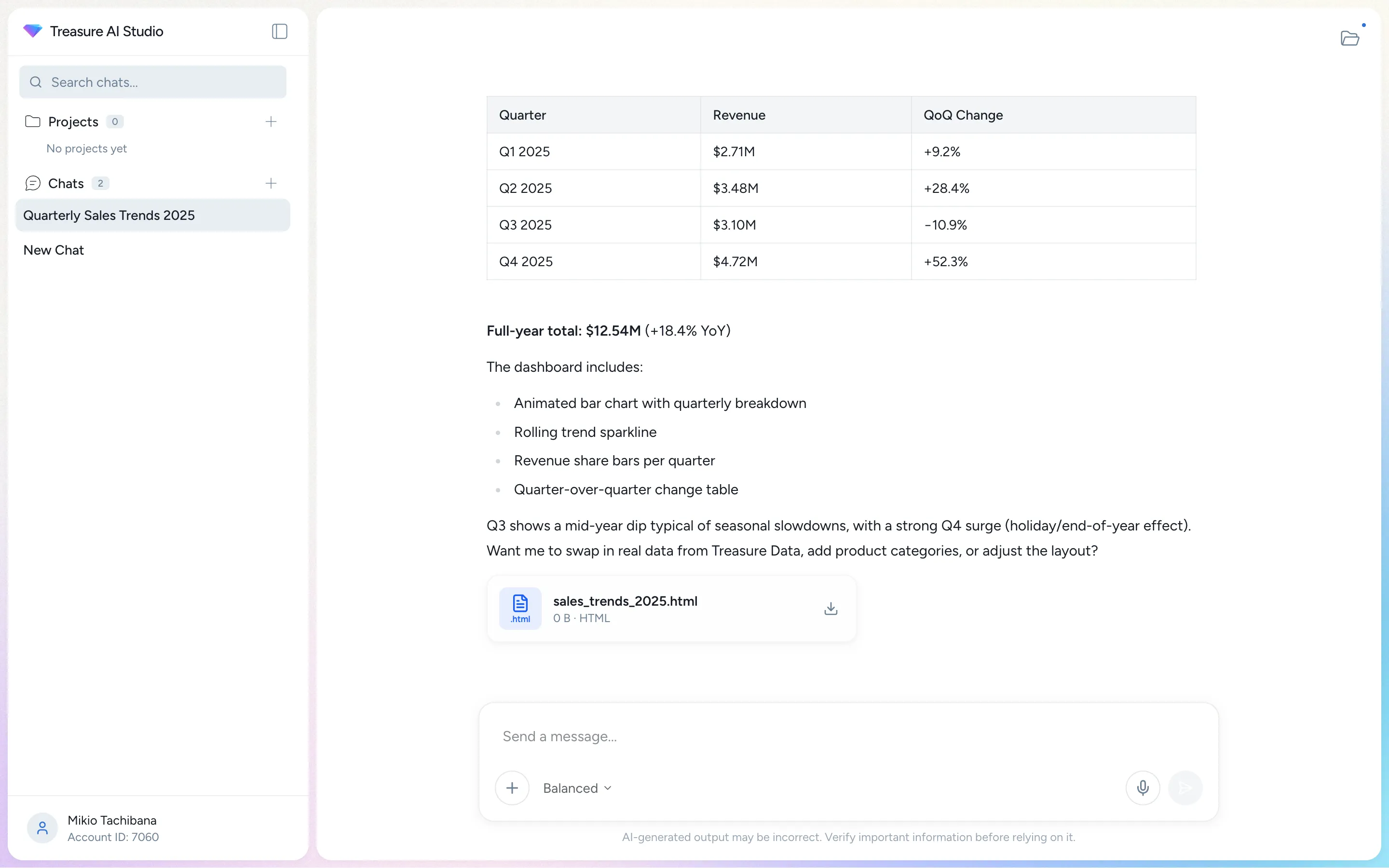
What makes it powerful:
- Real-time streaming — Responses stream in as the AI works, with a "Thinking" indicator while the model processes your request.
- Tool calls in real time — Watch the AI execute queries, read files, and call APIs. Every tool call is visible and expandable.
- In-session memory — The AI remembers context within your current session, so you can build on previous questions without repeating yourself.
- Auto-compact — Long conversations don't hit a wall. When the context window fills up, Studio automatically summarizes earlier messages so the conversation continues seamlessly.
Learn more: Chat Interface | Chat History | In-Session Memory
When the AI generates something visual — a chart, a table, a code file, a document — it appears in the file panel alongside the chat.
| Type | Examples |
|---|---|
| Spreadsheet | Query results, user lists, segment previews |
| Document | Word documents, analysis reports, documentation drafts |
| Presentation | PowerPoint slide decks with speaker notes |
| Image | Charts, visualizations, generated graphics |
| Code | SQL queries, YAML configs, workflow definitions |
| YAML | Journey definitions, segment configs, workflow files |
Generated files are interactive. You can sort tables, zoom into charts, copy code blocks, and download generated files.
Learn more: File Output | File Upload & Download
Studio includes a journey canvas viewer that renders journey YAML files as interactive diagrams — showing entry criteria, decision points, segment rules, and activation steps. To use it, save a journey definition with the .journey.yaml file extension. The viewer displays the full structure so you can verify the logic before pushing to your account.
Currently, AI-generated journey files are saved as standard .yaml files, which do not automatically trigger the canvas viewer. Rename the file to use the .journey.yaml extension to enable canvas rendering.
Learn more: Journey Canvas | Charts & Data Visualization
Every time you start a new analysis or workflow, you end up re-explaining context: which database, which segment, what conventions to follow. Work folders eliminate that.
A work folder is a saved workspace that carries persistent instructions into every new chat you start inside it:
- Name — Identifies the work folder in the sidebar and work folder switcher. You can rename it at any time.
- Instructions — Custom guidance the AI follows automatically in every chat in the folder — for example, "Always use the
marketingdatabase, and summarize results for a non-technical audience." Studio saves these as aCLAUDE.mdfile inside the work folder.
Each work folder keeps its own file space, so generated and uploaded files stay grouped with the work they belong to.
Work folders appear in the Work Folders section of the sidebar. Click the folder-plus icon next to the header to create a new work folder. Expand a work folder to browse its files in the sidebar, or click its name to open the work folder page, where you can organize files — create folders, rename, move, and delete. See Organizing Files in a Work Folder.
Projects appear on the home screen in a collapsible Projects section showing each project's chat count. Tap a project to view its chats.
On Mobile (iOS), work folders are currently labeled Projects.
Learn more: Core Concepts | Agent Orchestrator
Skills are pre-built capabilities that teach the AI how to handle specialized tasks — from writing optimized SQL to building CDP segments to managing workflows. Browse and install skills from the Skills page, which organizes them into Shared, Installed, and Develop tabs. Installing a skill makes it available in all your chats.
You can also build your own. The Develop flow copies a skill's files into a work folder where you can customize them and combine them, then share the result back to a registry. Administrators can register additional GitHub-hosted marketplaces so your team can install skills from your own repositories.
See Supported Skills Catalog for the skills available out of the box.
Learn more: Skills & Marketplace | Supported Skills Catalog
Studio renders file previews directly in the file panel. Files you upload appear in the file panel's file list — open one to preview it. Files the AI generates in the conversation open automatically.
| Format | Viewer |
|---|---|
| Multi-page viewer with zoom, fit-to-width, and page navigation | |
| DOCX | Word document preview via HTML rendering |
| PPTX | Slide-by-slide preview with speaker notes |
| XLSX | Spreadsheet view with sorting and multiple sheet tabs |
| Images | Zoomable, pannable image viewer |
| Code | Syntax highlighting for 20+ languages including JavaScript, TypeScript, Python, SQL, Go, Rust, Java, C, C++, and more |
| HTML | Sandboxed HTML rendering |
Learn more: File Viewers | File Upload & Download
| Feature | Web | Desktop (Mac) | Mobile (iOS) |
|---|---|---|---|
| Chat & AI | Yes | Yes | Yes |
| File Upload/Download | Yes | Yes | Yes |
| File Viewers | Yes | Yes | Yes |
| Query Execution | Yes | Yes | Yes |
| TDX Commands | Yes | Yes | Yes |
| Skills / Marketplace | Yes | Yes | Yes |
| Charts & Visualization | Yes | Yes | View only |
| File Output | Yes | Yes | Yes |
| Voice Input | — | — | Yes |
- Identify which platform you will use (Web, Desktop, or Mobile)
- Understand the three main areas: Chat, Files, and Work Folders
- Navigate to the Getting Started guide for your platform
| Issue | Solution |
|---|---|
| Studio page does not load | Check your network connection and verify your Treasure AI account is active. Try a different browser (Web) or restart the app (Desktop/Mobile) |
| Features described here are not visible | Some features are platform-specific. Check the Platform Availability table above to confirm availability on your platform |
- Getting Started — Access Studio on Web, Desktop, or Mobile
- SSO Login — Sign in with your Treasure AI account
- Supported Skills Catalog — See all available skills for SQL, segments, workflows, and more
- Core Concepts — Learn how work folders, models, and credits work together
- Settings — Set your language, theme, and default model tier
- Security — Configure permissions and security settings
- Access Control — Permissions, IP allowlists, and AI feature access