Policy-based permissions control which users can view, edit, and run Composable Audience Studio (CAS) parent segments and segment folders — the same policy engine you already use for standard Audience Studio, applied to composable parent segments. Configure these permissions so that only the right users on your team can see or activate a given composable segment, especially when a Cloud Data Warehouse (CDW) connection exposes attributes that shouldn't be open to every marketer.
Composable parent segments appear inside the same Audience Studio module as standard (Complete CDP) parent segments, so the permission model described in Policy Based Audience Studio Permissions applies to them too.
- The Policies feature enabled on your account — see About Policies and Permissions
- A Composable Audience Studio parent segment already configured for Snowflake, Databricks, or BigQuery
- Log in to the Treasure Console.
- Navigate to Control Panel > Policies.
- Create a new policy or select an existing one.
- Select the Permissions tab and scroll down to Audience Studio.
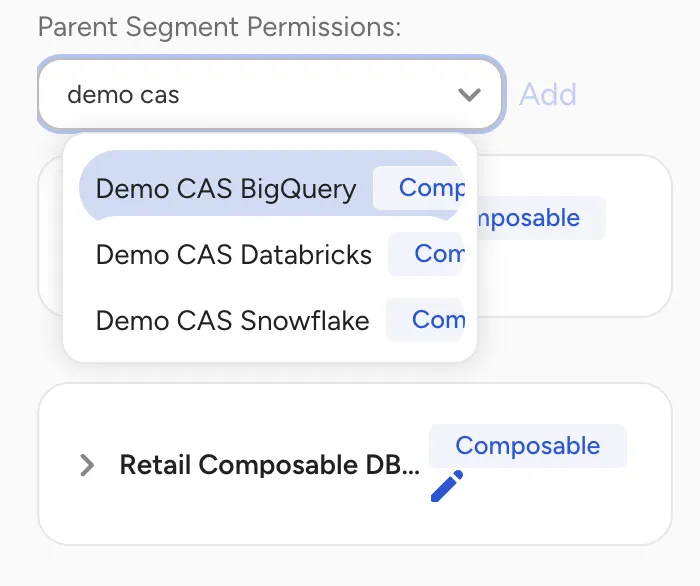
- Select Limited Access, then choose the parent segment to configure. Composable parent segments are marked with a Composable tag so you can tell them apart from standard parent segments.
| Option | Description |
|---|---|
| None | Users don't see Audience Studio in the navigation and can't view any Audience Studio features, including composable parent segments. |
| Full access | Users can view every composable parent segment and its segment folders. |
| Limited access | Account owners and administrators select specific parent segments — standard or composable — and drill down to segment folders. Users only see the parent segments and folders for which they have permissions. |
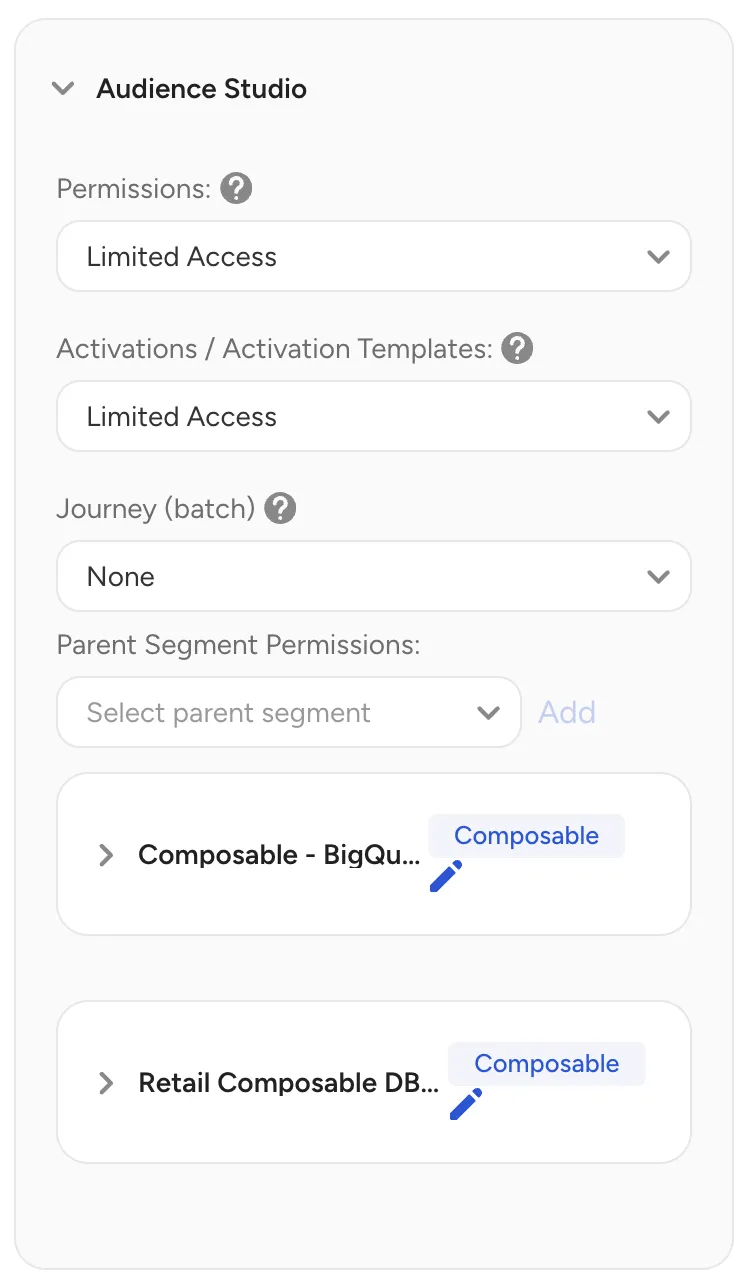
When you grant Limited Access to a composable parent segment, you can select Full Control or View permissions for all or specific segment folders within it — the same options available for standard parent segments.
| Scope | Access level | Description |
|---|---|---|
| All segment folders | Full Control | Users can view, create, delete, and modify any segment folder and its content within the composable parent segment. They cannot see profiles unless "Profile View" is also checked. |
| All segment folders | View | Users can view all segment folders and their contents within the composable parent segment. With "Profiles View" enabled, they can also view profiles in those folders. |
| Specific segment folders | Full Control | Users can view and edit the specified segment folders within the composable parent segment. They cannot see profiles unless "Profile View" is also checked. |
| Specific segment folders | View | Users can view the specified segment folders within the composable parent segment. With "Profiles View" enabled, they can also view profiles in those folders. |
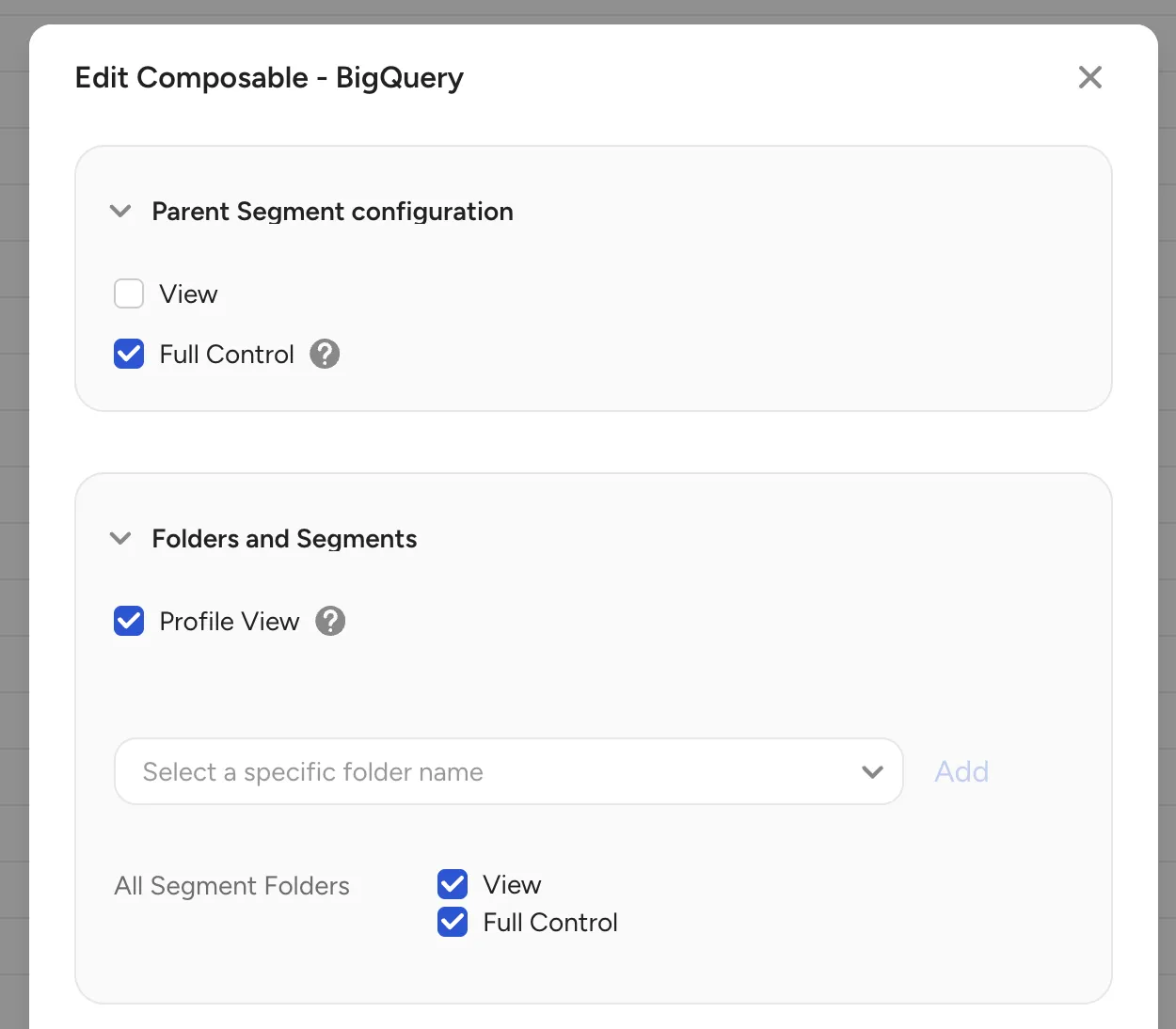
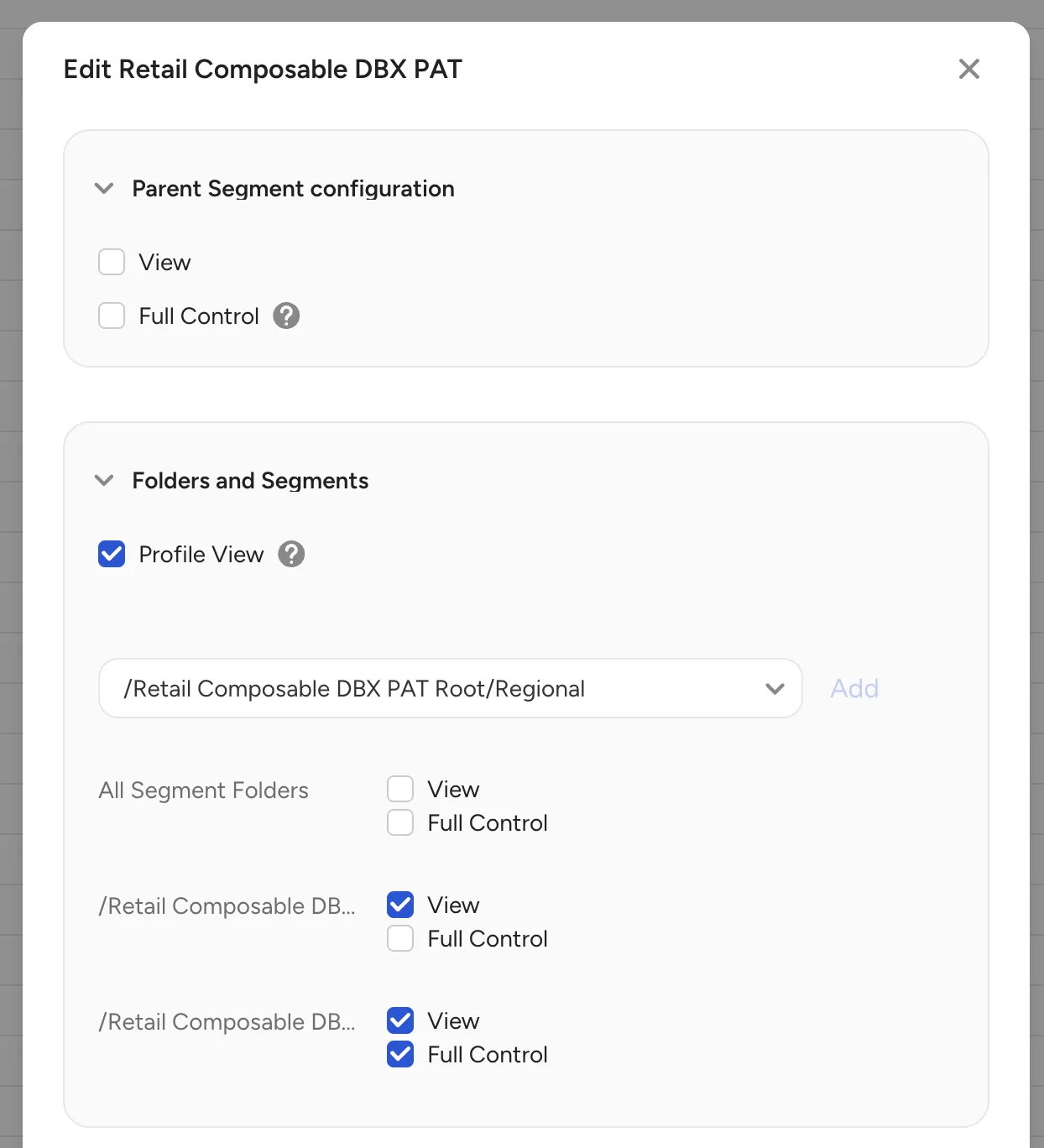
When selecting Full Control, View is automatically selected too. Keep View selected so the user retains access to the parent segment.