After you create a priority group and track its progress, you might want to change the priority of your journeys or add new ones.
- Traffic Control is enabled automatically for accounts with batch Journey Orchestration and applies only to batch journeys. If your account uses policy-based permissions, ask your account administrator to grant you Traffic Control permissions.
- You must have view access to the root folder to open Traffic Control.
- You must have full access permissions to edit and delete objects in Traffic Control.
- A parent segment must be run before priority group journey selection and capping changes will take effect.
- Open Treasure Console.
- Navigate to Audience Studio.
- Select a parent segment.
- Select a folder.
- Select Traffic Control.
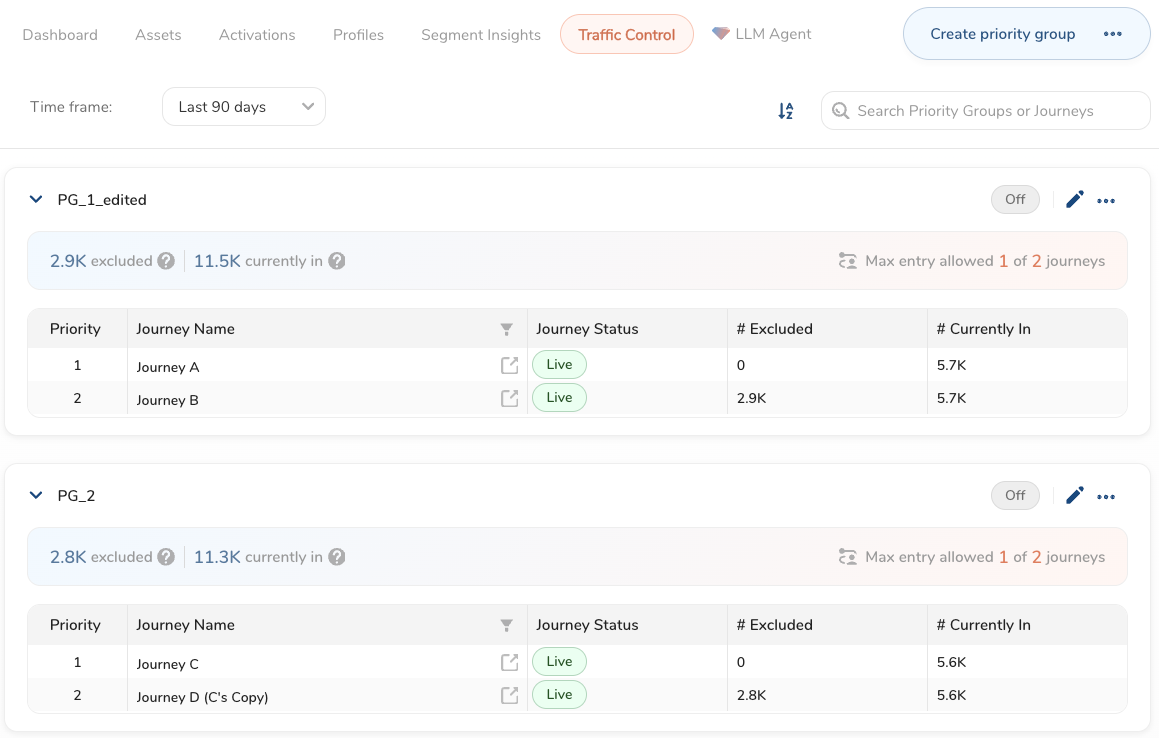
You can make changes to priority groups whether prioritization is on or off.
Within the Traffic Control UI you can:
- Edit a priority group to add or remove journeys, rearrange their order, or change the journey cap. Changes may be applied after the parent segment is refreshed.
- Delete a priority group that you no longer need.
- Duplicate an existing priority group. The duplicated group is created in the off state by default.