Effective June 1, 2026, Google will limit BigQuery Legacy SQL use. Whether your project can continue running Legacy SQL after that date depends on whether your organization or project used it between November 1, 2025 and June 1, 2026:
- Projects that did not use Legacy SQL during this period will be unable to use it after June 1, 2026.
- Projects that did use it can keep running existing workloads, but new Legacy SQL workloads might be blocked.
We recommend using Standard SQL (GoogleSQL) for new queries and migrating any remaining Legacy SQL queries. See Google's Migrating from Legacy SQL to GoogleSQL guide for details.
Learn more about Google BigQuery Export Integration V2.
The integration for Google BigQuery V2 enables the import of data from your BigQuery tables or from query results into Treasure Data.
- Basic knowledge of Treasure Data
- Basic knowledge of Google Cloud Platform (BigQuery, Cloud Storage and IAM)
- OAuth is no longer supported for this connector. Supported authentication methods are Service Account JSON keyfile and Workload Identity Federation (WIF).
- If your dataset is in a location other than the US or EU multi-region, you need to specify the location. Otherwise, your job in TD will fail with an error: Cannot find job_id xxxxx.
- This connector doesn't support importing external tables.
- Import from view must use with import type query instead of table
- Cannot use export to GCS in case table or query contain field that have data type Range. Otherwise error
Unsupported type for JSON export: RANGE - When import type query from partition table that was enable the Require partition filter option. Then sql statement must have partition field in WHERE clause. If not an error will return
Cannot query over table 'xxxxx' without a filter over column(s) '{partition field}' that can be used for partition elimination - When import type query and use legacy, source table that contains fields with data types as
INTERVAL, TIMESTAMP(12), JSON, or RANGEwill not support and return error:Querying tables with INTERVAL, TIMESTAMP(12), JSON, or RANGE type is not supported in Legacy SQL - Don’t support incremental for Partition Table that was enable the Require partition filter option in import mode table but can support in import mode query
The connector authenticates to Google BigQuery using one of two methods, selected with the auth_method parameter:
- Service Account JSON key (
json_key, default) — a long-lived JSON credential downloaded from Google Cloud. Simple to set up, but the key is a static secret that must be stored, rotated, and protected. - Workload Identity Federation (
wif) — keyless authentication. Treasure AI's workload (running on AWS) exchanges its AWS identity for a short-lived Google access token, so there is no long-lived key to store or leak. Google recommends WIF over service account keys for security and compliance, and it is the right choice for organizations that prohibit downloadable service-account keys.
Use json_key for the quickest setup. Use wif when your security policy disallows static credentials. Existing json_key configurations continue to work unchanged.
For use of this data connector, the identity the connector authenticates as (the service account for json_key, or the federated principal / impersonated service account for wif) must have the following permissions or IAM roles.
| Category | Required permissions | Minimum IAM roles |
|---|---|---|
| To use table loading | - bigquery.tables.get - bigquery.tables.getData | - BigQuery Data Viewer |
| To use query loading | - bigquery.jobs.create | - BigQuery Job User |
| To use "Import Large Dataset" | - bigquery.tables.export - bigquery.tables.delete - storage.buckets.get - storage.objects.list - storage.objects.create - storage.objects.delete - storage.objects.get | - BigQuery Data Editor - Storage Legacy Bucket Writer - Storage Legacy Object Reader |
For more details about IAM permissions and roles see the Google Cloud documents: BigQuery and Cloud Storage.
To use Workload Identity Federation, complete this GCP-side setup instead of downloading a service account key. It produces the Application Default Credentials (ADC) keyfile you paste into the connector's adc_keyfile field.
The setup creates a Workload Identity Pool that trusts Treasure AI's AWS account, letting the import workload exchange its AWS identity for short-lived Google access tokens — no long-lived key involved. Treasure AI's AWS account ID is shown in the connector's authentication form (the read-only Treasure AI's AWS Account ID field); use that value wherever 123456789012 appears below.
Enable the following APIs in your Google Cloud project: IAM, Resource Manager, Service Account Credentials, and Security Token Service.
- In the Google Cloud Console, go to IAM & Admin > Workload Identity Federation. Create a new pool (or select an existing one).
- Add a provider of type AWS, using Treasure AI's AWS account ID (shown in the connector's authentication form;
123456789012is used as a sample here).
Choose one of the two grant modes. Both are supported by the connector; the difference is only in the external_account JSON you download.
- Direct federated identity — grant BigQuery roles directly to the pool principal. The connector authenticates as the federated identity itself.
- Service account impersonation — grant the pool permission to impersonate an existing service account (which holds the BigQuery roles). The downloaded config includes a
service_account_impersonation_urlfield. This requires theroles/iam.serviceAccountTokenCreatorrole on the target service account.
Whichever mode you choose, grant the authenticating identity the roles described in Permissions and Roles for the import features you use (table loading, query loading, or Import Large Dataset). For direct federated identity, the principal takes the form principalSet://iam.googleapis.com/projects/PROJECT_NUMBER/locations/global/workloadIdentityPools/POOL_ID/*; for impersonation, grant the roles to the impersonated service account. A missing role or a misconfigured pool produces a runtime error — see Troubleshooting Workload Identity Federation for the specific messages.
From your Workload Identity Pool, select Download config for the AWS provider (Treasure AI's AWS account) and save the generated external_account JSON. This is the value you supply as adc_keyfile. See Worked Example: WIF adc_keyfile below for the expected structure.
| Error | Cause and Resolution |
|---|---|
Invalid value for "audience" | The audience in adc_keyfile is not the full provider resource name. Use //iam.googleapis.com/projects/PROJECT_NUMBER/locations/global/workloadIdentityPools/POOL_ID/providers/PROVIDER_ID, and confirm PROJECT_NUMBER is the numeric ID, not the project ID string. |
Permission bigquery.tables.get denied or Permission bigquery.tables.getData denied | The authenticating identity lacks table access. Grant BigQuery Data Viewer on the dataset for table loading. |
does not have bigquery.jobs.create permission | The identity cannot run query jobs. Grant BigQuery Job User on the project (dataset-level grants do not cover this). |
| STS 4xx/5xx errors during token exchange | The AWS→GCP token exchange failed. Verify the pool's AWS provider trusts Treasure AI's AWS account (shown in the connector's authentication form) and the attribute mapping (google.subject → assertion.arn) is correct. |
| Long-running jobs time out at 1 hour | The impersonated token lifetime is capped at 1 hour by default. To allow up to 12 hours, enable the constraints/iam.allowServiceAccountCredentialLifetimeExtension organization policy on the project. |
- Go to Integrations Hub > Catalog.
- Search and select Google BigQuery.
- A dialog will open. Select an Authentication Method: JSON keyfile or Workload Identity Federation.
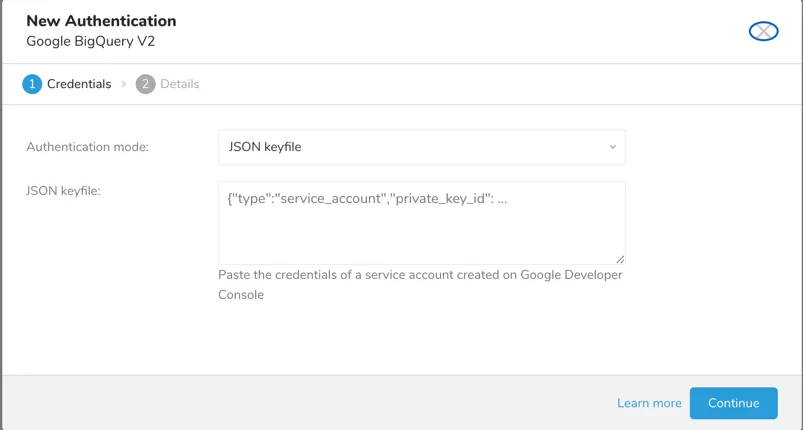
- For JSON keyfile: provide the JSON string of your service account key into the "JSON keyfile" section. See the Google Cloud document to create a new service account key.
- For Workload Identity Federation: provide the
external_accountJSON downloaded from your Workload Identity Pool into the "ADC keyfile" section. See Setting Up Workload Identity Federation (WIF) for how to obtain it.
If you want to load a SQL result, select "Query statement", then input an SQL query into the "SQL statement". Before creating a transfer, confirm that your query is valid in the BigQuery Web UI. https://docs.cloud.google.com/bigquery/docs/bigquery-web-ui
After creating the connection, you are automatically taken to the Authentications tab. Look for the connection you created and select Source.
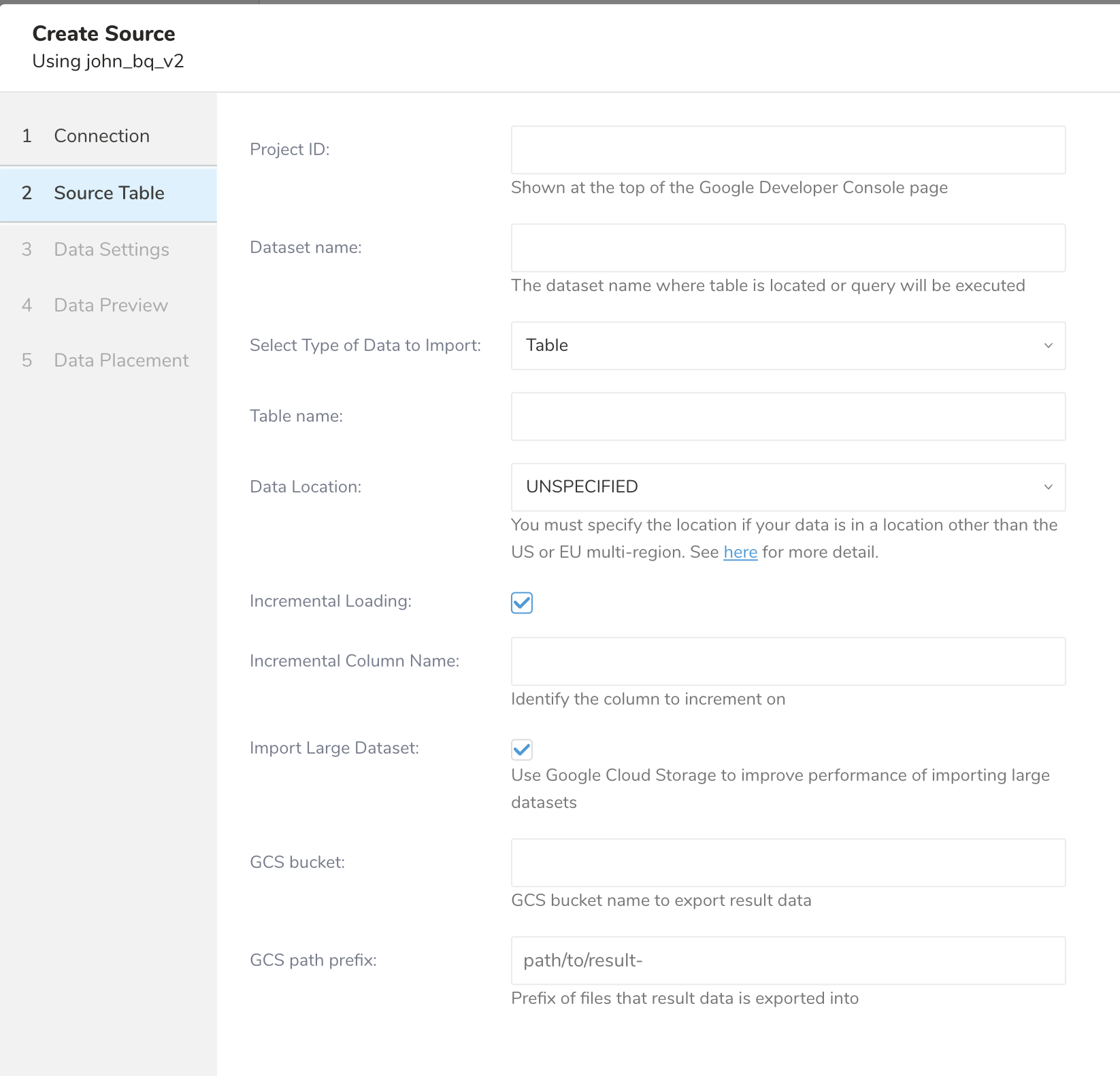
Configure the data source to import. Input an ID of your Google Cloud Platform project into "Project ID". Input a dataset name where store your table
Select a type of import, either loading a whole table (table loading) or loading a SQL result (query loading).
If you want to load a whole table, select "Table", then provide the "Table name" that you want to export.
If you want to load a materialized view, please select "Query Statement" instead.
If you want to load a SQL result, select "Query statement", then input an SQL query into the "SQL statement".
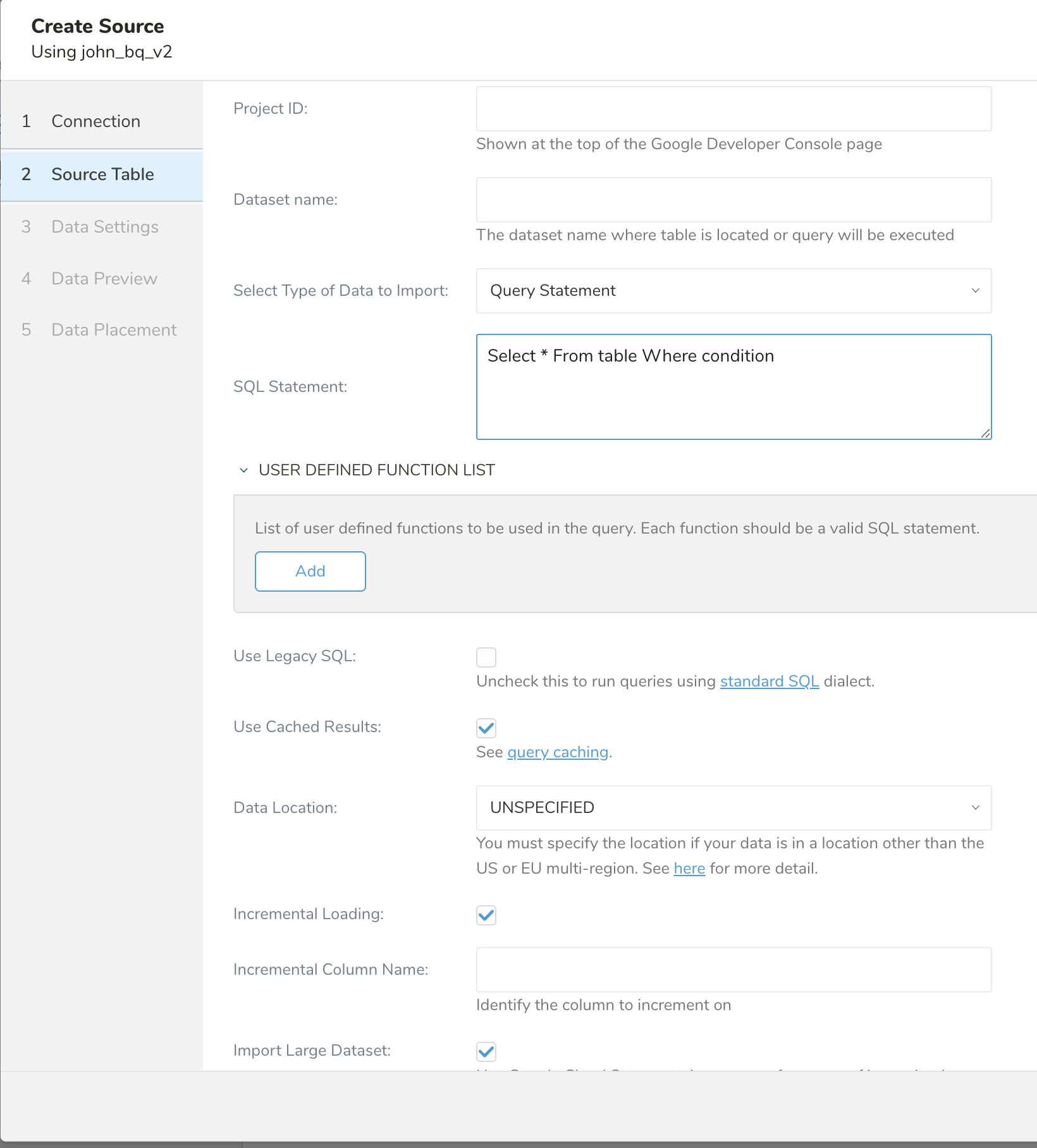
The default SQL dialect is Standard SQL (GoogleSQL). Check Use Legacy SQL if you want to use Legacy SQL.
By default, this connector uses cached result under specific conditions. Uncheck Use Cached Results if you want to disable caching.
User Defined Function List: the functions that use in your query
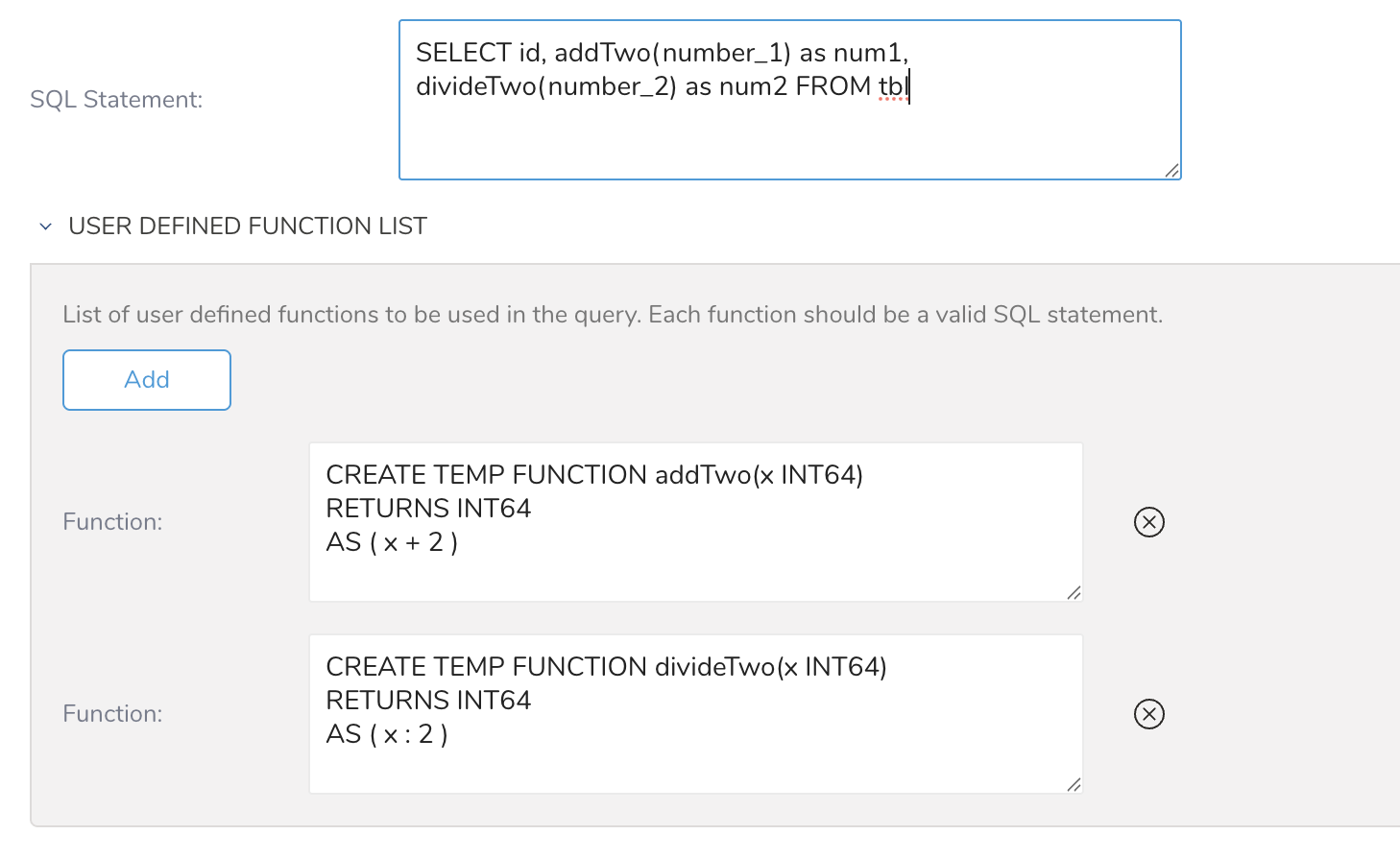
For legacy SQL follow: https://cloud.google.com/bigquery/docs/user-defined-functions-legacy#register
For Standard SQL follow: https://cloud.google.com/bigquery/docs/user-defined-functions#sql-udf-structure
The query can be error if the UDF already exist.
You must specify the location if your data is in a location other than the US or EU multi-region.
You must specify the location when your data in the asia-northeast1 region.
See the Google Cloud document for more details about the location.
Incremental loading can load only new records after last execution by using increasing, unique column(s), such as an auto-increment ID column or timestamp column for the created date.
To enable it, check Incremental Loading, then specify column name to increment into "Incremental Column Name." Only INTEGER type and TIMESTAMP type are supported as an incremental column.
This connector records "last record" which is the latest record ordered by the incremental column. In the next execution, it loads records by running a query built by the following rule using the last record:
With table loading, all fields are selected with the WHERE clause.
SELECT * FROM `${dataset}.${table}` WHERE ${incremental_column} > ${value_of_last_record}With query loading, the raw query is wrapped with the WHERE clause.
SELECT * FROM (${query}) embulk_incremental_ WHERE ${incremental_column} > ${value_of_last_record}When you load a large dataset (more than 500MB as a benchmark), we recommend that you use this "Import Large Dataset" option. This option exports the data as GCS (Google Cloud Storage) objects and loads the data in multiple tasks. Hence, loading is faster.
To enable this option, check Import Large Dataset then specify "GCS bucket" and "GCS path prefix".
- When running a query (query loading or table loading with incremental loading), the query result is exported to a temporary BigQuery table in your dataset config.
- Then the temp table is exported to "gs://my-bucket/data-connector/result-[12 digists number].jsonl.gz" as gzipped JSON Lines files to Google Cloud Storage Bucket with path prefix. The number of files depends on the size of result data.
- With a table loading without incremental loading, all the data in the source table is directly exported to GCS.
- After completion, the temp table and GCS objects are deleted.
- GCS bucket must be also in the same location as the tables unless the dataset is set to "US." You can export data from a US-based dataset to a Cloud Storage bucket in another region. See the Google Cloud export limitations document for more details.
You can see a preview of your data before running the import by selecting Generate Preview. Data preview is optional and you can safely skip to the next page of the dialog if you choose to.
- Select Next. The Data Preview page opens.
- If you want to preview your data, select Generate Preview.
- Verify the data.
For data placement, select the target database and table where you want your data placed and indicate how often the import should run.
Select Next. Under Storage, you will create a new or select an existing database and create a new or select an existing table for where you want to place the imported data.
Select a Database > Select an existing or Create New Database.
Optionally, type a database name.
Select a Table> Select an existing or Create New Table.
Optionally, type a table name.
Choose the method for importing the data.
- Append (default)-Data import results are appended to the table. If the table does not exist, it will be created.
- Always Replace-Replaces the entire content of an existing table with the result output of the query. If the table does not exist, a new table is created.
- Replace on New Data-Only replace the entire content of an existing table with the result output when there is new data.
Select the Timestamp-based Partition Key column. If you want to set a different partition key seed than the default key, you can specify the long or timestamp column as the partitioning time. As a default time column, it uses upload_time with the add_time filter.
Select the Timezone for your data storage.
Under Schedule, you can choose when and how often you want to run this query.
- Select Off.
- Select Scheduling Timezone.
- Select Create & Run Now.
- Select On.
- Select the Schedule. The UI provides these four options: @hourly, @daily and @monthly or custom cron.
- You can also select Delay Transfer and add a delay of execution time.
- Select Scheduling Timezone.
- Select Create & Run Now.
After your transfer has run, you can see the results of your transfer in Data Workbench > Databases.
BigQuery's data types are automatically converted to a corresponding Treasure Data type, as indicated in the following table. If you include unsupported types in the schema of the table or query result, you receive errors.
| BigQuery | Treasure Data |
|---|---|
| STRING | string |
| BYTES | string |
| INTERVAL | string |
| RANGE | string |
| GEOGRAPHY | string |
| INTEGER | long |
| FLOAT | double |
| NUMERIC | string |
| BIGNUMERIC | string |
| BOOLEAN | long (true is 1, false is 0) |
| TIMESTAMP | string (yyyy-MM-dd HH:mm:ss.SSS) |
| DATE | string |
| TIME | string |
| DATETIME | string |
| RECORD | string (as JSON) |
| REPEATED (PRIMITIVE or RECORD) | string (as JSON) |
Any quotas and limits of BigQuery and Cloud Storage are applied to your GCP project.
If you prefer, you can use the connector via TD Toolbelt.
Set up TD Toolbelt on the CLI.
Create configuration YAML file that is referred to as "config.yml" here.
- Example import from table with export to GCS and incremental
in:
  type: bigquery_v2
  json_keyfile:
    content: |
      {
      xxxxxxxx
      }
  project_id: xxxx
  dataset: xxx
  import_type: table
  table: xxxx
  location: US
  export_to_gcs: true
  gcs_bucket: xxxx
  gcs_path_prefix: xxxx
  incremental: true
incremental_column: xxxin:
type: bigquery_v2
json_keyfile:
content: |
{
xxxxxxxx
}
project_id: xxxx
dataset: xxx
import_type: query
query: xxxxxxx
location: US
udf:
- function: |
CREATE TEMP FUNCTION addTwo(x INT64)
RETURNS INT64
AS ( x + 2 )
- function: |
CREATE TEMP FUNCTION addTwo(x INT64)
RETURNS INT64
AS ( x + 2 )
location: US
export_to_gcs: true
gcs_bucket: xxxx
gcs_path_prefix: xxxx
incremental: true
incremental_column: xxxWhen using Workload Identity Federation, set auth_method to wif and provide the external_account JSON as adc_keyfile instead of json_keyfile. The connector reads the AWS identity from the EC2 instance metadata service (IMDSv2), so it must run on Treasure AI's AWS-based import workload whose IAM role your Workload Identity Pool trusts.
The external_account JSON downloaded from your pool has this structure (direct federated identity):
{
  "universe_domain": "googleapis.com",
  "type": "external_account",
  "audience": "//iam.googleapis.com/projects/PROJECT_NUMBER/locations/global/workloadIdentityPools/POOL_ID/providers/PROVIDER_ID",
  "subject_token_type": "urn:ietf:params:aws:token-type:aws4_request",
  "token_url": "https://sts.googleapis.com/v1/token",
  "credential_source": {
    "environment_id": "aws1",
    "region_url": "http://169.254.169.254/latest/meta-data/placement/availability-zone",
    "url": "http://169.254.169.254/latest/meta-data/iam/security-credentials",
    "regional_cred_verification_url": "https://sts.{region}.amazonaws.com?Action=GetCallerIdentity&Version=2011-06-15"
  }
}
audience must be the full resource name of your Workload Identity Provider, and PROJECT_NUMBER is the numeric project ID (not the project ID string). For service account impersonation, the downloaded JSON additionally contains a service_account_impersonation_url field, for example https://iamcredentials.googleapis.com/v1/projects/-/serviceAccounts/SA_NAME@PROJECT_ID.iam.gserviceaccount.com:generateAccessToken.
Example connector configuration using WIF (import from table):
in:
  type: bigquery_v2
  auth_method: wif
  adc_keyfile:
    content: |
      {
        "universe_domain": "googleapis.com",
        "type": "external_account",
        "audience": "//iam.googleapis.com/projects/PROJECT_NUMBER/locations/global/workloadIdentityPools/POOL_ID/providers/PROVIDER_ID",
        "subject_token_type": "urn:ietf:params:aws:token-type:aws4_request",
        "token_url": "https://sts.googleapis.com/v1/token",
        "credential_source": {
          "environment_id": "aws1",
          "region_url": "http://169.254.169.254/latest/meta-data/placement/availability-zone",
          "url": "http://169.254.169.254/latest/meta-data/iam/security-credentials",
          "regional_cred_verification_url": "https://sts.{region}.amazonaws.com?Action=GetCallerIdentity&Version=2011-06-15"
        }
      }
  project_id: xxxx
  dataset: xxx
  import_type: table
  table: xxxx
location: US| Name | Description | Type | Value | Default Value | Required |
|---|---|---|---|---|---|
| type | connector type | string | bigquery_v2 | N/A | Yes |
| auth_method | Authentication method | string | Supported values: - json_key - wif | json_key | No |
| json_keyfile | Google service account JSON key | Object with content property Ex: json_keyfile: content: | xxxxxxxx | N/A | N/A | Yes if auth_method is json_key |
| adc_keyfile | Workload Identity Federation external_account JSON key | Object with content property Ex: adc_keyfile: content: | xxxxxxxx | N/A | N/A | Yes if auth_method is wif |
| project_id | BigQuery project ID | string | N/A | N/A | Yes |
| dataset | BigQuery dataset | string | N/A | N/A | Yes |
| import_type | Source import | string | Support values: - table - query | table | Yes |
| table | Table Name | string | N/A | N/A | Yes if import_type is table |
| query | SQL statement | string | N/A | N/A | Yes if import_type is query |
| udf | User Defined Function List | Array of function Ex: udf: - function: | xxxxxxx - function: | xxxxxxxxx | N/A |
| use_legacy_sql | Use legacy SQL dialect | boolean | true/false | false | No |
| use_query_cache | Use cached results | boolean | true/false | true | No |
| location | Location (region) of your dataset | string | Supported values: UNSPECIFIED and list value from https://cloud.google.com/bigquery/docs/locations | UNSPECIFIED | No |
| incremental | Whether to enable incremental loading | boolean | true/false | false | No |
| incremental_column | Column name for incremental loading | string | N/A | N/A | Yes if incremental is true |
| export_to_gcs | Whether to use export to GCS feature | boolean | true/false | true | No |
| gcs_bucket | GCS bucket to export result | string | N/A | N/A | Yes if export_to_gcs is true |
| gcs_path_prefix | Prefix of file path of GCS files | string | N/A | N/A | Yes if export_to_gcs is true |
(Optional) Preview
Run td td connector:preview command to validate your configuration file
td connector:preview config.ymlRun td connector:create.
By the following example, a daily import session with BigQuery connector is created.
$ td connector:create daily_bigquery_import \ "10 0 * * *" td_sample_db td_sample_table config.yml Name : daily_bigquery_import Cron : 10 0 * * * Timezone : UTC Delay : 0 Database : td_sample_db Table : td_sample_table Config --- in: ...Connector sessions need at least one timestamp column in result data to be used as data partition key and the first timestamp column is chosen as the key by default. Use "--time-column" option if you want to explicitly specify a column.
$ td connector:create --time-column created_at \ daily_bigquery_import ...If your result data doesn't have any timestamp column, add the "time" column by adding the filter configuration as follows.
in:
  type: bigquery
  ...
filters:
  - type: add_time
    from_value:
      mode: upload_time
    to_column:
      name: time
out:
  type: td