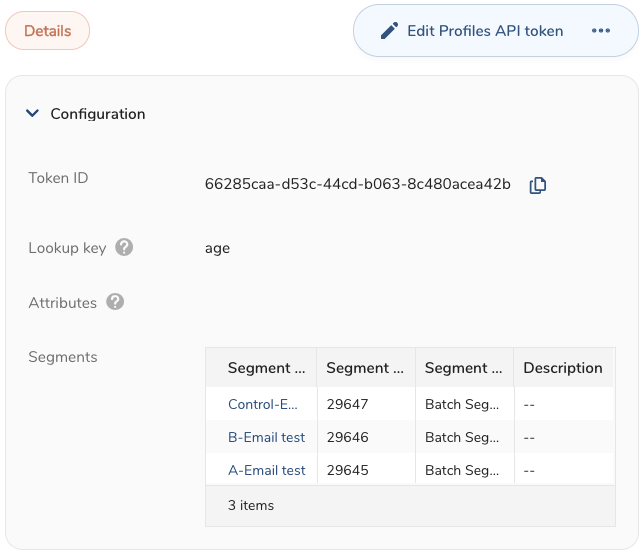
The ability to create a Profiles API token is based on your folder permissions.
This topic includes:
- Open Treasure Console.
- Navigate to Audience Studio and select a segment.
- Select a folder.
- Select Create New.
- Select Profiles API Token.
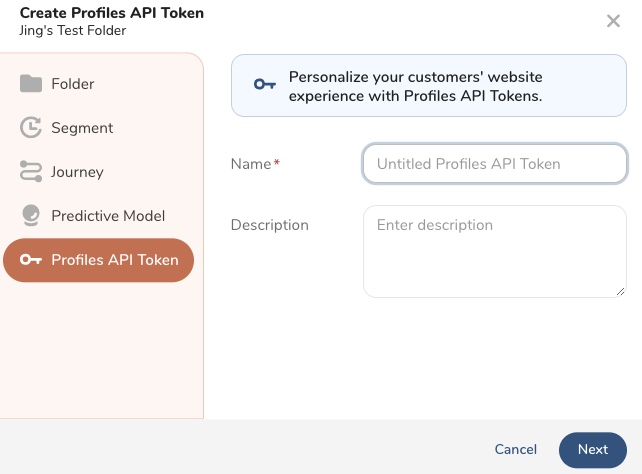
- Enter a name for your token and optionally enter a description. Select Next.
The name and description carry over from when you named the token. You can make changes.
- Enter a Lookup Key. A Lookup Key is a column with a unique value inside the Parent segment. This key identifies the correct profile.
The lookup key update will take effect once the token workflow finishes. When using td_global_id as the lookup key, the Profiles API retrieves the lookup value from the browser cookie instead of the API request's query param. For testing or verification purposes outside of a browser (eg, Postman), use a different column to pass in the lookup value manually.
- (Optional) Enter a maximum of five attributes.
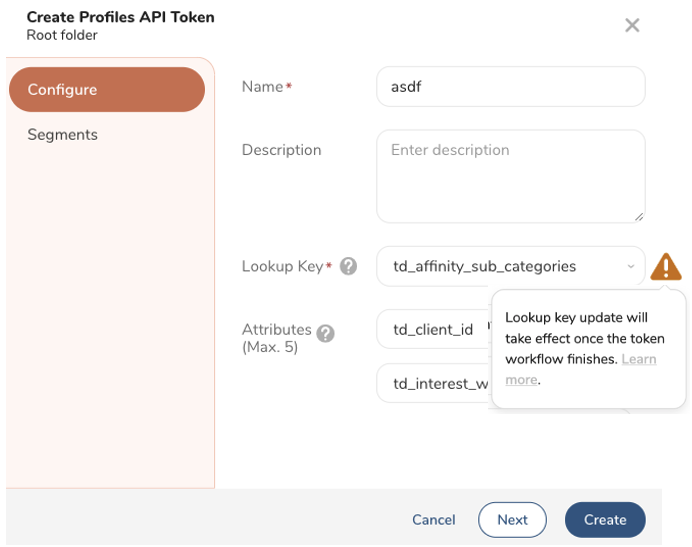
Choose one of the following:
- Select Next to continue and add segments.
- Select Create to configure the token. (You can add segments later if you want.)
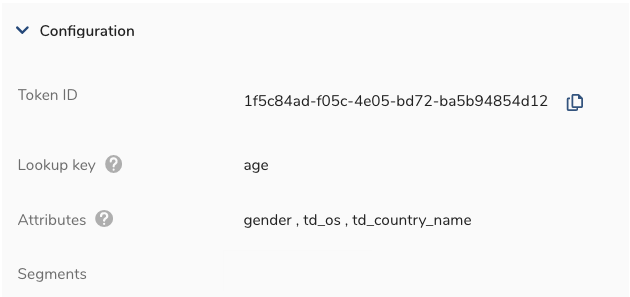
- Choose one of the following:
- After you configure your token, select Next.
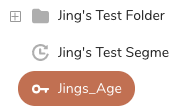
- Navigate to Audience Studio > Folder > Profiles API Token.
- Add up to 15 realtime segments to your Profiles API Token. The number of batch segments is not limited to 15, but the total response size must remain under 1 KB and is also subject to Treasure AI workflow limits.
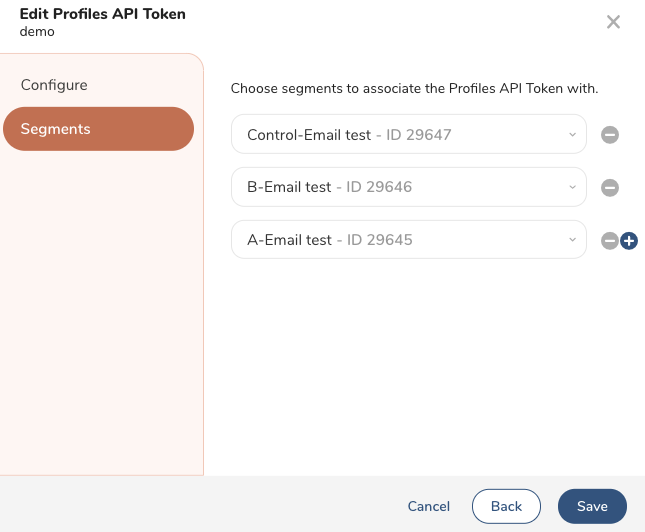
- Select Save.