The Yelp Conversions API (CAPI) connector enables server-side tracking and measurement of offline/server-side conversion events for Yelp Ads campaigns. By integrating directly with Yelp's Conversions API, this connector helps multi-location advertisers measure campaign performance, improve ad attribution, and optimize ROAS (Return on Ad Spend) measurement.
Key capabilities:
- Offline Conversions: Track purchases, leads, and other conversion events that happen outside of the Yelp platform
- PII Hashing: Automatic SHA-256 hashing of user identifiers (email, phone, name, etc.) for privacy-compliant matching
- Data Normalization: Automated field normalization to Yelp CAPI specifications
This server-side integration enables advertisers to close the attribution loop between Yelp Ads clicks and downstream conversions, providing more complete ROAS measurement.
- Basic knowledge of Treasure AI, including the TD Toolbelt.
- A Yelp Business account with Yelp Ads enabled.
- A Yelp API key (Bearer token) obtained from Yelp developer app credentials.
- Daily Rate Limit: 50,000 events/day cap may limit large-scale exports. Batching/scheduling across multiple days may be needed.
- Rate Limit: 100 requests/second. The connector implements throttling and exponential backoff.
- Limited Event Types: Custom events must be prefixed with
custom_and contain only alphanumeric characters, underscores, and hyphens. - Single Value Arrays: For array fields in user data (email, phone, country, state, zip_code, city, external_id), the connector sends these as arrays with a single value.
- No content_category/content_ids support:
custom_data.content_category,custom_data.content_ids,custom_data.contents, andcustom_data.event_labelsare not supported in the initial release.
If your security policy requires IP whitelisting, you must add Treasure Data's IP addresses to your allowlist to ensure a successful connection.
Please find the complete list of static IP addresses, organized by region, at the following document
Before running your query, you must create and configure the data connection in Data Workbench. As part of the data connection, you provide authentication to access the integration. Complete the following steps.
- Open Data Workbench.
- Navigate to Integrations Hub > Catalog.
- Search for and select Yelp Conversions API.
- Select Create Authentication.
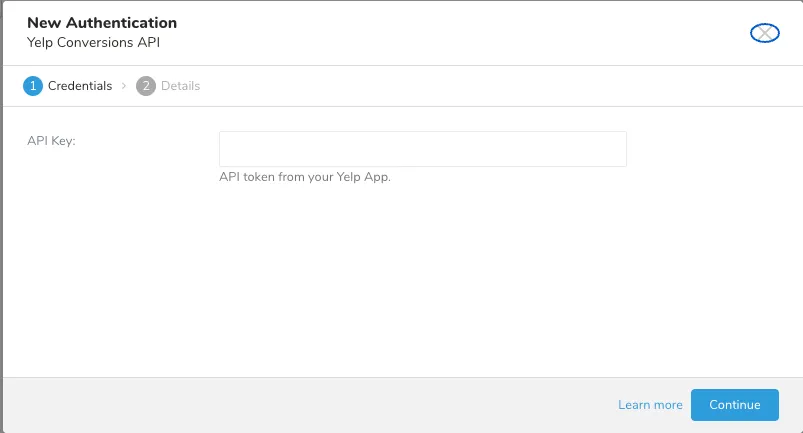
- Enter your API key and select Continue.
- Type a name for your connection and select Done.
| Parameter | Description |
|---|---|
| API key | Required. Yelp API key (Bearer token) obtained from your Yelp developer app credentials. |
- Navigate to Data Workbench > Queries.
- Select New Query.
- Run the query to validate the result set.
SELECT
  transaction_id AS event_id,
  time AS event_time,
  'purchase' AS event_name,
  'website' AS action_source,
  email,
  first_name,
  last_name,
  phone,
  birthday,
  gender,
  country,
  state,
  zip_code,
  city,
  external_id,
  ip_address,
  user_agent,
  lead_id,
  total_amount AS value,
  'USD' AS currency,
  order_id
FROM
  my_database.conversions
WHERE
  TD_TIME_RANGE(time, TD_TIME_ADD(TD_SCHEDULED_TIME(), '-1d'), TD_SCHEDULED_TIME())
AND email IS NOT NULL- You need to define the column mapping in the query. The columns in the query represent data to be sent to Yelp Conversions API.
At least one user identifier should be present for matching. Recommended identifiers:
- phone
- external_id
- lead_id
- Select Export Results.
- Select an existing Yelp Conversions API authentication or create a new one as described above.
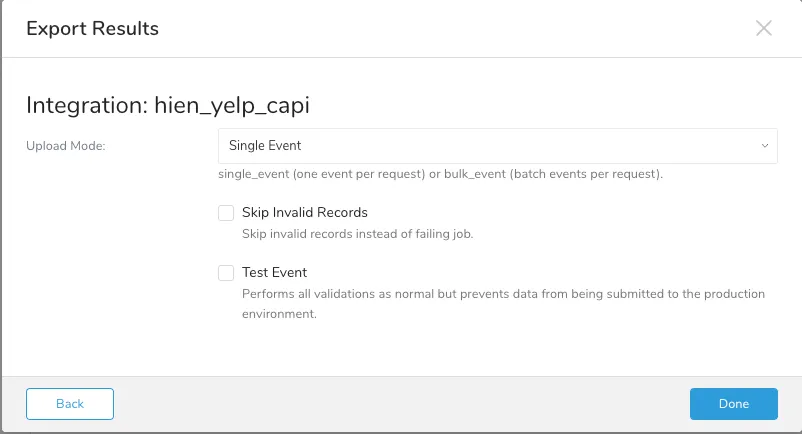
- Configure the export parameters:
| Field | Description |
|---|---|
| Upload Mode | Upload mode for sending events. Choose single_event to send one event per API request, or bulk_event to batch up to 1,000 events into a single request for higher throughput. Default: single_event |
| Skip Invalid Records | When checked, the connector will skip any records that fail validation instead of failing the entire job. Default: false |
| Test Event | When enabled, performs all validations as normal but prevents data from being submitted to the production environment. Use this to verify your data pipeline before sending live data. Default: false |
- Select Done.
To upload event data to Yelp Conversions API, you need to build a data export query that includes a combination of standard fields that adhere to Yelp CAPI guidelines. Ensure the column names match those listed in the "Field/Column-Level Specifications" section.
The connector automatically normalizes the column names (case-insensitive matching), so you do not need to worry about case sensitivity. For example, for the field "event_name," the column name in your export query can be written as "EVENT_NAME," "event_name," or "Event_Name."
To successfully upload conversion data to Yelp CAPI, you must construct an export query that adheres to specific data specifications. These specifications are divided into two levels:
- Export Query Specifications (Dataset-level data specs): Requirements and rules that apply to your entire query result dataset, such as the presence of required fields and cross-field validation rules.
- Field/Column-Level Specifications: Requirements and rules for individual fields/columns in your dataset, such as data types, formats, and normalization rules.
| Specification | Description |
|---|---|
| Required Fields | The following fields must be present in your export query:
|
| Conditionally Required Fields for PURCHASE Events | When your export query contains purchase events (event_name = 'purchase'), the following field is required:
|
| Standard Field Names | Column names for standard fields can be written in any case (e.g., "EVENT_NAME", "event_name", "Event_Name"). The connector automatically standardizes them. |
| Null Value Handling | Columns with NULL values are ignored during export. |
| Duplicated Columns | Duplicate column names within the export query are not allowed (case-insensitive check). |
| Date-Time Formatting | For the event_time field, the following formats are accepted:
|
Hashed Field Handling | For fields requiring SHA-256 hashing in the
You should provide raw (unhashed) data — the connector handles all normalization and hashing. |
| Column | Data Type | Required | Normalization | Description |
|---|---|---|---|---|
| event_id | string | No | Max 128 characters | Unique identifier for deduplication. |
| event_time | long/string/timestamp | Yes | Unix timestamp in seconds, must be in the past | Time the conversion event occurred. Accepts Unix epoch (seconds), ISO 8601 string, or timestamp type. |
| event_name | string | Yes | Max 50 chars. Custom values must start with "custom_" and contain only A-Z, a-z, 0-9, _, - | Conversion event type. Standard values: purchase, lead. Custom values must be prefixed with custom_. |
| action_source | string | Yes | Must be one of: website, app, physical_store | Source of the conversion event. |
The following fields are used to identify users for conversion matching. At least one user identifier (email, phone, external_id, or lead_id) is recommended for accurate matching.
| Column | Destination Field | Data Type | Required | Normalization | Description |
|---|---|---|---|---|---|
| user_data.em | string | No | Lowercase, trim, SHA-256 hash | User email address. Sent as array. | |
| first_name | user_data.fn | string | No | Lowercase, remove spaces and punctuation, SHA-256 hash | User first name. |
| last_name | user_data.ln | string | No | Lowercase, remove spaces and punctuation, SHA-256 hash | User last name. |
| phone | user_data.ph | string | No | Strip +/-/()/spaces. Digits only, no leading zeros. Should include country code (e.g., 12031231234). If 10 digits, leading 1 is prepended. SHA-256 hash | User phone number. Sent as array. |
| birthday | user_data.db | string | No | Format YYYYMMDD, SHA-256 hash | User date of birth. |
| gender | user_data.ge | string | No | Lowercase, must be one of: f, m, n. SHA-256 hash | User gender. |
| country | user_data.country | string | No | Lowercase 2-letter ISO-3166 code, SHA-256 hash | User country. Sent as array. |
| state | user_data.st | string | No | Lowercase 2-letter abbreviation, SHA-256 hash | User state/province. Sent as array. |
| zip_code | user_data.zp | string | No | Lowercase alphanumeric, SHA-256 hash | User zip/postal code. Sent as array. |
| city | user_data.ct | string | No | Lowercase, remove spaces and punctuation, SHA-256 hash | User city. Sent as array. |
| external_id | user_data.external_id | string | No | SHA-256 hash | External identifier for matching. Sent as array. |
| ip_address | user_data.client_ip_address | string | No | None (pass-through). Supports IPv4 and IPv6. | User IP address. |
| user_agent | user_data.client_user_agent | string | No | None (pass-through) | User browser agent string. |
| madid | user_data.madid | string | No | None (pass-through) | Mobile advertiser ID. |
| lead_id | user_data.lead_id | string | No | None (pass-through) | Yelp lead ID from click tracking. |
| Column | Destination Field | Data Type | Required | Normalization | Description |
|---|---|---|---|---|---|
| value | custom_data.value | double | Yes (for purchase) | Numeric, non-negative | Monetary value of the conversion. Required when event_name is "purchase". |
| currency | custom_data.currency | string | No | Must be one of: USD, CAD | Currency code for the conversion value. |
| order_id | custom_data.order_id | string | No | None (pass-through) | Order identifier. |
- Phone Number Format: Phone numbers should include country code, area code, and number. The connector strips allowed characters (+, -, parentheses, spaces), validates digits only, and applies the following rules:
- 10 digits: leading "1" is prepended automatically
- Starts with "1": must be exactly 11 digits
- Other country codes: maximum 15 digits
- Automatic Processing: The connector automatically handles field normalization (lowercase, trim, punctuation removal) and SHA-256 hashing for all PII fields.
- Error Collection: All validation errors for a record are collected and reported together, making it easier to diagnose data issues.
You can use Scheduled Jobs with Result Export to periodically write the output result to a target destination that you specify.
Treasure Data's scheduler feature supports periodic query execution to achieve high availability.
When two specifications provide conflicting schedule specifications, the specification requesting to execute more often is followed while the other schedule specification is ignored.
For example, if the cron schedule is '0 0 1 * 1', then the 'day of month' specification and 'day of week' are discordant because the former specification requires it to run every first day of each month at midnight (00:00), while the latter specification requires it to run every Monday at midnight (00:00). The latter specification is followed.
Navigate to Data Workbench > Queries
Create a new query or select an existing query.
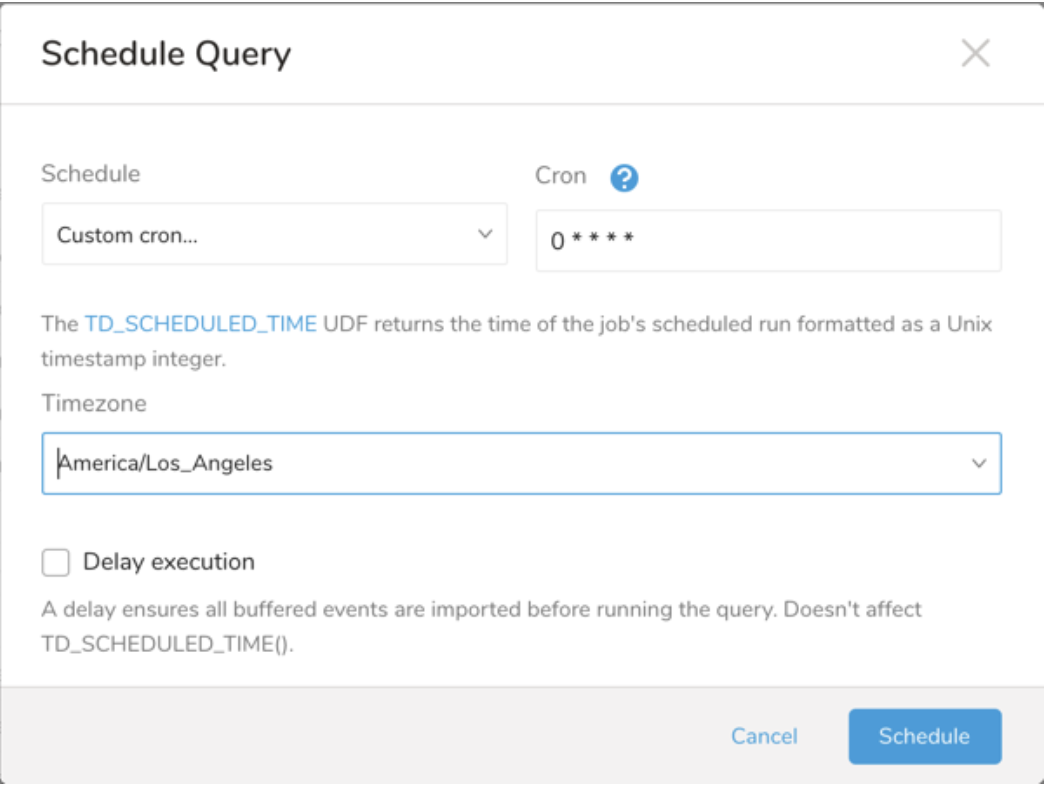
Next to Schedule, select None.

In the drop-down, select one of the following schedule options:
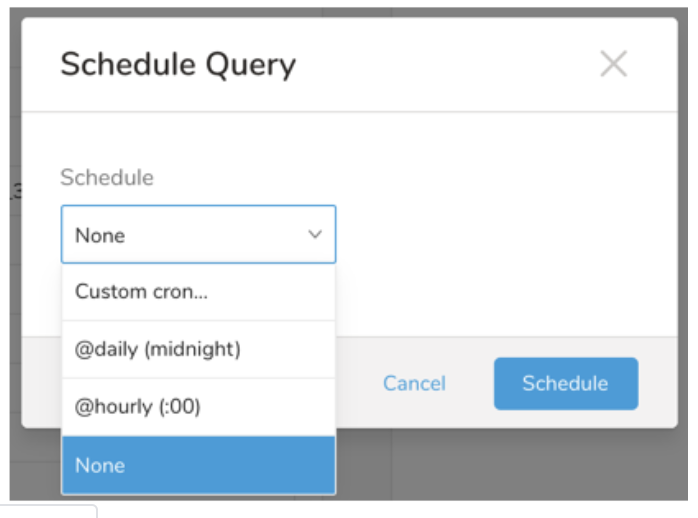
Drop-down Value Description Custom cron... Review Custom cron... details. @daily (midnight) Run once a day at midnight (00:00 am) in the specified time zone. @hourly (:00) Run every hour at 00 minutes. None No schedule.
| Cron Value | Description |
|---|---|
0 * * * * | Run once an hour. |
0 0 * * * | Run once a day at midnight. |
0 0 1 * * | Run once a month at midnight on the morning of the first day of the month. |
| "" | Create a job that has no scheduled run time. |
 *    *    *    *    *
 -    -    -    -    -
 |    |    |    |    |
 |    |    |    |    +----- day of week (0 - 6) (Sunday=0)
 |    |    |    +---------- month (1 - 12)
 |    |    +--------------- day of month (1 - 31)
 |    +-------------------- hour (0 - 23)
 +------------------------- min (0 - 59)
The following named entries can be used:
- Day of Week: sun, mon, tue, wed, thu, fri, sat.
- Month: jan, feb, mar, apr, may, jun, jul, aug, sep, oct, nov, dec.
A single space is required between each field. The values for each field can be composed of:
| Field Value | Example | Example Description |
|---|---|---|
| A single value, within the limits displayed above for each field. | ||
A wildcard '*' to indicate no restriction based on the field. | '0 0 1 * *' | Configures the schedule to run at midnight (00:00) on the first day of each month. |
A range '2-5', indicating the range of accepted values for the field. | '0 0 1-10 * *' | Configures the schedule to run at midnight (00:00) on the first 10 days of each month. |
A list of comma-separated values '2,3,4,5', indicating the list of accepted values for the field. | '0 0 1,11,21 * *' | Configures the schedule to run at midnight (00:00) every 1st, 11th, and 21st day of each month. |
A periodicity indicator '*/5' to express how often based on the field's valid range of values a schedule is allowed to run. | '30 */2 1 * *' | Configures the schedule to run on the 1st of every month, every 2 hours starting at 00:30. '0 0 */5 * *' configures the schedule to run at midnight (00:00) every 5 days starting on the 5th of each month. |
A comma-separated list of any of the above except the '*' wildcard is also supported '2,*/5,8-10'. | '0 0 5,*/10,25 * *' | Configures the schedule to run at midnight (00:00) every 5th, 10th, 20th, and 25th day of each month. |
- (Optional) You can delay the start time of a query by enabling the Delay execution.
You can also send segment data to the target platform by creating an activation in the Audience Studio.
- Navigate to Audience Studio.
- Select a parent segment.
- Open the target segment, right-mouse click, and then select Create Activation.
- In the Details panel, enter an Activation name and configure the activation according to the previous section on Configuration Parameters.
- Customize the activation output in the Output Mapping panel.
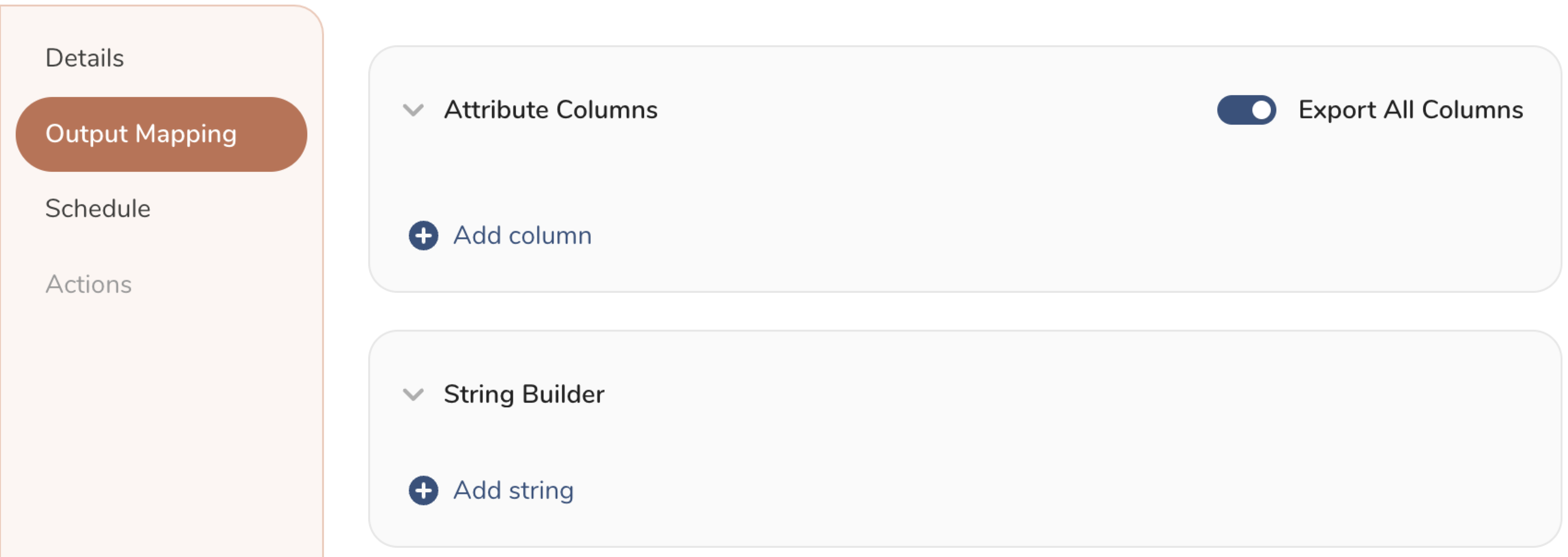
- Attribute Columns
- Select Export All Columns to export all columns without making any changes.
- Select + Add Columns to add specific columns for the export. The Output Column Name pre-populates with the same Source column name. You can update the Output Column Name. Continue to select + Add Columnsto add new columns for your activation output.
- String Builder
- + Add string to create strings for export. Select from the following values:
- String: Choose any value; use text to create a custom value.
- Timestamp: The date and time of the export.
- Segment Id: The segment ID number.
- Segment Name: The segment name.
- Audience Id: The parent segment number.
- + Add string to create strings for export. Select from the following values:
- Set a Schedule.
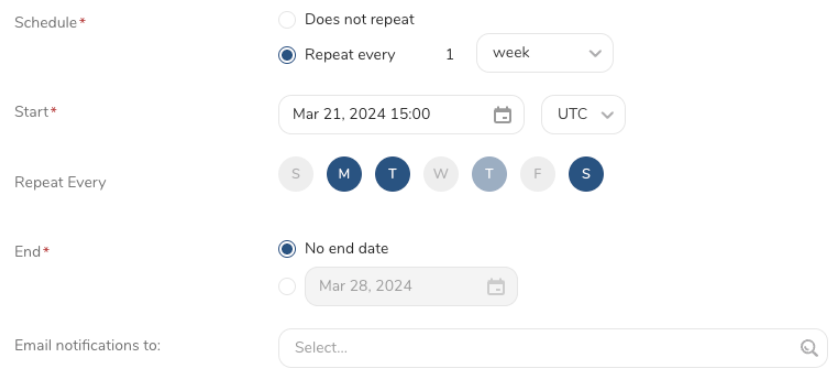
- Select the values to define your schedule and optionally include email notifications.
- Select Create.
If you need to create an activation for a batch journey, review Creating a Batch Journey Activation.
Within Treasure Workflow, you can specify the use of this integration to export data.
Learn more at Using Workflows to Export Data with the TD Toolbelt.
_export:
  td:
    database: my_database

+yelp_conversions_export:
  td>: export_yelp_conversions.sql
  database: ${td.database}
  result_connection: {your_connection_name}
  result_settings:
    upload_mode: single_event
    skip_invalid_records: false
test_event: falseYou can also use CLI (Toolbelt) for Result Export to Yelp Conversions API.
You need to specify the information for export to Yelp Conversions as --result option of td query command. About td query command, you can refer to this article.
The format of the option is JSON and the general structure is as follows.
{
  "type": "yelp_conversion",
  "api_key": "your-yelp-api-key-here",
  "upload_mode": "single_event",
  "skip_invalid_records": false,
  "test_event": false
}| Name | Data Type | Description | Default Value | Required |
|---|---|---|---|---|
| type | string | Connector type identifier. | N/A | Yes (must be yelp_conversion) |
| api_key | string | Yelp API key (Bearer token) for authentication. | N/A | Yes |
| upload_mode | string | Upload mode. Use single_event to send one event per request, or bulk_event to batch up to 1,000 events per request. | single_event | No |
| skip_invalid_records | boolean | When enabled, invalid records are skipped and the job continues. | false | No |
| test_event | boolean | When enabled, validates data without submitting to production. | false | No |
td query --result '{"type":"yelp_conversion","api_key":"your-api-key","upload_mode":"single_event","skip_invalid_records":false,"test_event":false}' -d my_database "SELECT transaction_id AS event_id, time AS event_time, 'purchase' AS event_name, 'website' AS action_source, email, total_amount AS value, 'USD' AS currency FROM conversions" -T presto