Shopify is a leading e-commerce platform that powers online stores for businesses of all sizes. With this Streaming Ingress Connector, you can receive real-time webhook events from your Shopify store into Treasure AI, enabling immediate analytics, triggers, and personalization based on customer purchases, cart activity, and product changes.
This integration receives webhook events sent by Shopify, organized into the following categories:
| Topic | Category | Description |
|---|---|---|
checkouts/create | Revenue and Recovery | When a new checkout is initiated |
checkouts/update | Revenue and Recovery | When an existing checkout is modified |
orders/create | Revenue and Recovery | When a new order is placed |
orders/paid | Revenue and Recovery | When an order payment is completed |
orders/updated | Revenue and Recovery | When an existing order is modified |
orders/fulfilled | Retention and Lifecycle | When an order is fulfilled |
orders/cancelled | Retention and Lifecycle | When an order is cancelled |
refunds/create | Retention and Lifecycle | When a refund is issued |
customers/create | Retention and Lifecycle | When a new customer account is created |
customers/update | Retention and Lifecycle | When customer information is updated |
customers/enable | Retention and Lifecycle | When a customer account is enabled |
customers/disable | Retention and Lifecycle | When a customer account is disabled |
carts/create | Engagement and Operations | When a new cart is created |
carts/update | Engagement and Operations | When a cart is modified |
inventory_levels/update | Engagement and Operations | When inventory levels change |
products/update | Engagement and Operations | When product information is modified |
collections/update | Engagement and Operations | When a collection is updated |
draft_orders/create | Engagement and Operations | When a new draft order is created |
For a complete list of webhook events and their data structures, refer to the Shopify Webhooks documentation.
- Basic knowledge of Treasure AI
- Basic knowledge of Shopify
- A Shopify store with webhook configuration permissions
- A Treasure AI API key (write-only)
- You must create a database and table in Plazma before creating a source to ingest data
- The Shopify webhook client secret is required for HMAC-SHA256 signature validation
- Maximum payload size is subject to Shopify's webhook payload limits
- Webhook events for unsupported topics are silently filtered
- Duplicate webhook deliveries are automatically deduplicated within a 24-hour window
If your security policy requires IP whitelisting, you must add Treasure Data's IP addresses to your allowlist to ensure a successful connection.
Please find the complete list of static IP addresses, organized by region, at the following document
- Open Treasure AI Console.
- Select Integrations Hub.
- Select Catalog.
- Search for the Shopify Streaming connector in the Catalog; hover your mouse over the icon and select Create Authentication.
- Ensure that the Credentials tab is selected and then enter credential information for the integration.
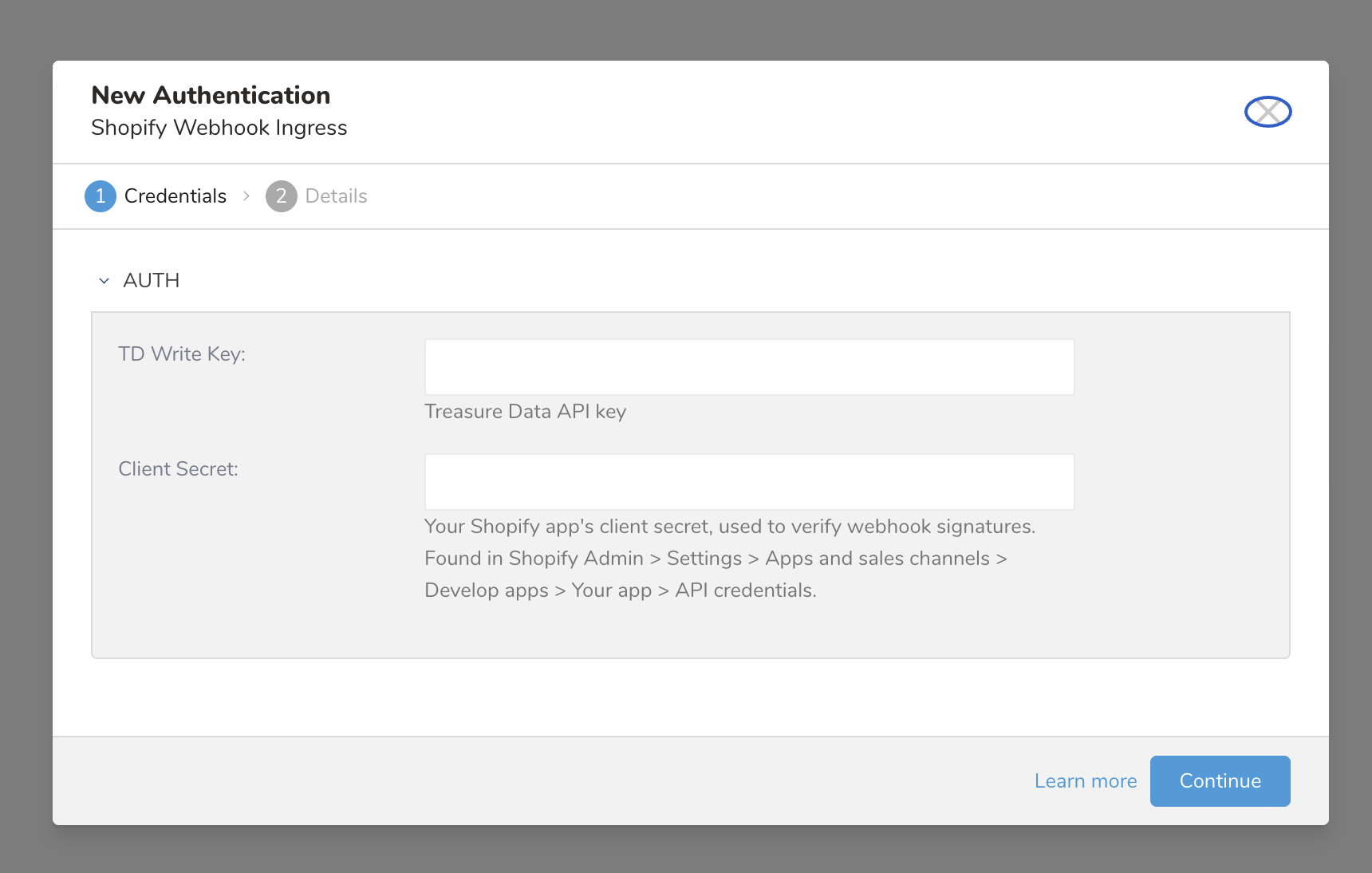
| Parameter | Description |
|---|---|
| Treasure API Key | Your Treasure AI API key (write-only) |
| Client Secret | Your Shopify webhook client secret. This is used to validate incoming webhook signatures via HMAC-SHA256. |
- Open Treasure AI Console.
- Navigate to Integrations Hub > Authentications.
- Locate your new authentication and select New Source.
| Parameter | Description |
|---|---|
| Data Transfer Name | You can define the name of your transfer. |
| Authentication | The authentication name that is used for a transfer. |
- Type a source name in the Data Transfer Name field.
- Select Next.
- The Create Source page displays with the Source Table tab selected.
Before proceeding, ensure you have created a database and table in Plazma. This integration requires a pre-existing database and table to store the Shopify data.
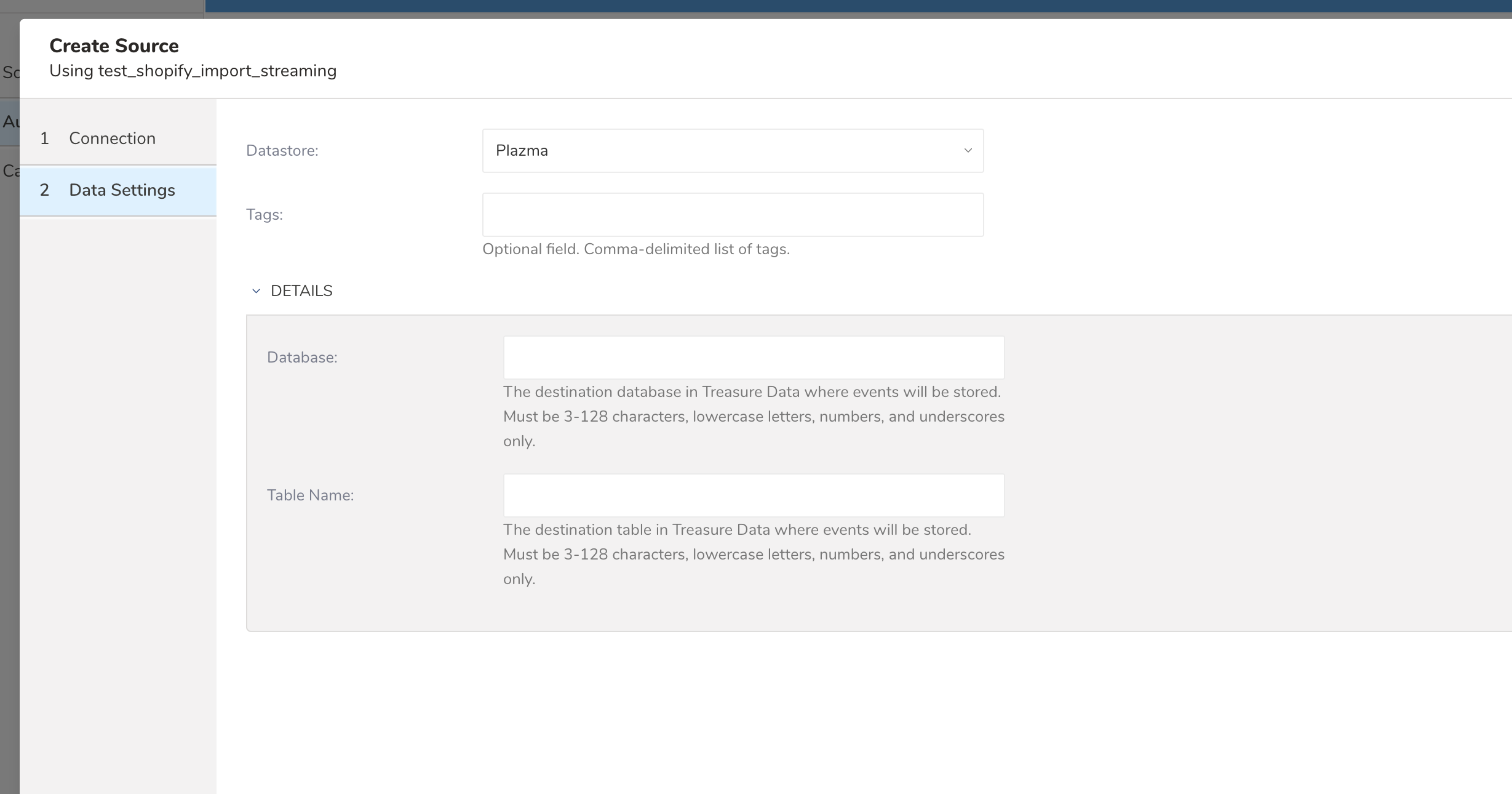
- Configure the destination table where Shopify data will be stored and select Next.
| Parameter | Description |
|---|---|
| Datastore | Plazma is the available option. |
| Tags | Optional. Tags can be used to find this source. |
| Database | Specify the database within Treasure AI where you want to import data. |
| Table | Specify the table within the database where you would like the event data placed. |
The source ID (UUID v4) is issued upon Source creation.
To prevent misuse, the Source ID should not be disclosed to any unauthorized persons.
After creating the Source, you are automatically taken to the Sources listing page.
- Search for the source you created.
- Click on "..." in the same row and select Copy Unique ID.
This Unique ID is the Source ID required when configuring the webhook URL in Shopify.
To receive Shopify events in Treasure AI, you must configure a webhook in your Shopify admin.
- Log in to your Shopify Admin.
- Navigate to Settings > Notifications > Webhooks.
- Select Create webhook.
- Choose the event topic you want to subscribe to (for example,
Order creation). - Set the Format to JSON.
- Enter the webhook URL for your Treasure AI region. Replace
{source_id}with the Source ID you copied in the previous step.
https://shopify-in-streaming.treasuredata.com/v1/task/{source_id}- Select the latest Webhook API version.
- Select Save.
You need to create a separate webhook subscription for each event topic you want to receive. Repeat the steps above for each topic listed in the Supported Webhook Events section that you want to track.
The Client Secret shown on the Shopify Webhooks settings page must match the Client Secret you entered during authentication setup in Treasure AI. This secret is used to validate that incoming webhooks are genuinely from Shopify.
Shopify sends the following HTTP headers with each webhook delivery. The connector uses these headers for authentication, deduplication, and metadata:
| Header | Purpose |
|---|---|
| X-Shopify-Hmac-Sha256 | Base64-encoded HMAC-SHA256 signature for validating the webhook payload |
| X-Shopify-Topic | The webhook event topic (e.g., orders/create) |
| X-Shopify-Shop-Domain | The Shopify store domain that triggered the event |
| X-Shopify-Webhook-Id | Unique delivery ID used for deduplication |
| X-Shopify-API-Version | The Shopify API version used for the webhook payload |
| X-Shopify-Triggered-At | ISO 8601 timestamp of when the event was triggered |
| X-Shopify-Event-Id | Unique identifier for the event |
The connector starts ingesting Shopify event data into Treasure AI as soon as the first event is triggered after successful webhook configuration and source creation.
The connector returns the following HTTP status codes to Shopify:
| Status Code | Meaning |
|---|---|
| 200 OK | Event received and processed successfully. Also returned for duplicate webhooks and unsupported topics (silently filtered). |
| 401 Unauthorized | Invalid or missing HMAC-SHA256 signature. Verify that the Client Secret matches. |
| 403 Forbidden | Source not found or source is not in an active state. |
| 410 Gone | Source has been stopped. |
| 500 Internal Server Error | An unexpected error occurred during event processing. |
Shopify automatically retries webhook deliveries that return non-2xx status codes. If you see repeated 401 errors, verify that the Client Secret configured in Treasure AI matches the one shown in your Shopify webhook settings.
The connector automatically flattens nested JSON payloads from Shopify webhooks. Nested objects are flattened using underscore-separated keys, and arrays are serialized as JSON strings.
| JSON Data Type | Stored Data Type | Handling |
|---|---|---|
| string | string | Preserved as-is |
| number | long | Preserved as-is |
| boolean | string | Preserved as-is |
| object | Flattened fields | Keys joined with _ (e.g., customer.id becomes customer_id) |
| array | string (JSON) | Serialized as a JSON string |
| null | — | Ignored |
- Lowercase letters and underscores only
- Top-level scalar fields:
field_name - Nested fields:
parent_child(e.g.,shipping_address_country)
Each event record includes the following metadata fields in addition to the flattened webhook payload:
| Column Name | Data Type | Description |
|---|---|---|
| raw_data | string | The complete original JSON webhook payload |
| topic | string | The webhook event topic (e.g., orders/create, customers/update) |
| shop_domain | string | The Shopify store domain that sent the webhook |
| received_time | long | Unix timestamp (seconds) when the event was received by Treasure AI |
| webhook_id | string | Unique webhook delivery ID from Shopify, used for deduplication |
| api_version | string | Shopify API version used for the webhook (e.g., 2026-01) |
| triggered_at | string | ISO 8601 timestamp of when the event was triggered in Shopify |
| event_id | string | Unique event identifier |
| headers | string | Request headers (stringified) |
| time | long | Unix timestamp when the record was written to the database. This field is automatically added by the Treasure AI platform. |
Order Creation Event Example:
{
  "topic": "orders/create",
  "shop_domain": "example-store.myshopify.com",
  "api_version": "2026-01",
  "webhook_id": "b1234567-89ab-cdef-0123-456789abcdef",
  "triggered_at": "2026-01-15T10:30:00.000Z",
  "received_time": 1768473000,
  "id": 5678901234,
  "email": "customer@example.com",
  "created_at": "2026-01-15T10:30:00-05:00",
  "updated_at": "2026-01-15T10:30:00-05:00",
  "total_price": "59.99",
  "currency": "USD",
  "financial_status": "paid",
  "fulfillment_status": null,
  "customer_id": 1234567890,
  "customer_email": "customer@example.com",
  "customer_first_name": "Jane",
  "customer_last_name": "Doe",
  "shipping_address_city": "New York",
  "shipping_address_country": "United States",
  "shipping_address_province": "New York",
  "line_items": "[{\"id\":9876543210,\"title\":\"Example Product\",\"quantity\":1,\"price\":\"59.99\"}]",
  "time": 1768473005
}
Customer Creation Event Example:
{
  "topic": "customers/create",
  "shop_domain": "example-store.myshopify.com",
  "api_version": "2026-01",
  "webhook_id": "c2345678-90ab-cdef-1234-567890abcdef",
  "triggered_at": "2026-01-15T09:15:00.000Z",
  "received_time": 1768468500,
  "id": 1234567890,
  "email": "newcustomer@example.com",
  "first_name": "John",
  "last_name": "Smith",
  "phone": "+1-555-0100",
  "created_at": "2026-01-15T09:15:00-05:00",
  "updated_at": "2026-01-15T09:15:00-05:00",
  "orders_count": 0,
  "state": "enabled",
  "total_spent": "0.00",
  "default_address_city": "San Francisco",
  "default_address_province": "California",
  "default_address_country": "United States",
  "default_address_zip": "94105",
  "time": 1768468505
}
Array columns like line_items, discount_codes, and tax_lines contain serialized JSON data. You can parse these using Treasure AI's JSON functions in your queries to extract specific fields.
To query the ingested data, use SQL queries. Example:
SELECT
  id AS order_id,
  topic,
  email,
  total_price,
  currency,
  financial_status,
  customer_first_name,
  customer_last_name,
  shipping_address_city,
  shipping_address_country,
  line_items,
  time
FROM
  your_database.your_table
WHERE
  topic = 'orders/create'
  AND TD_INTERVAL(time, '-1d', 'JST')