LINE Messaging Office Account (OA) helps you collect customers' conversational and behavioral data and then use it for analytics, triggers, and personalization for marketing purposes. With this integration, you can import message/event data from LINE OA into Treasure Data.
This integration receives all webhook events sent by LINE Messaging API, including:
- Message events (text, image, video, audio, file, location, sticker)
- Follow events (when users add your account as a friend)
- Unfollow events (when users block your account)
- Join events (when your account joins a group or room)
- Leave events (when your account leaves a group or room)
- Member join/leave events
- Postback events
- Beacon events
- Account link events
- Device link/unlink events
For a complete list of webhook events and their data structures, refer to the LINE Messaging API documentation.
- Basic Knowledge of Treasure Data.
- Basic knowledge of LINE Messaging Office Account
- Support fetching conversational data
- The LINE webhook has to be enabled
- The LINE Messaging API has to be enabled
- The webhook link should be set up correctly
- You must create a database and tables in Plazma before creating sources to ingest data in those tables
- LINE Messaging API only allows one webhook URL per channel. If you need to use multiple tools that require webhooks or have existing system integrations, you must use an intermediary service like Zapier to distribute webhook events to multiple destinations including Treasure Data
If your security policy requires IP whitelisting, you must add Treasure Data's IP addresses to your allowlist to ensure a successful connection.
Please find the complete list of static IP addresses, organized by region, at the following document
- Perform the following steps to create a new authentication with a set of credentials.
- Select Integrations Hub.
- Select Catalog.
- Search for your Integration in the Catalog; hover your mouse over the icon and select Create Authentication.
- Ensure that the Credentials tab is selected and then enter credential information for the integration.
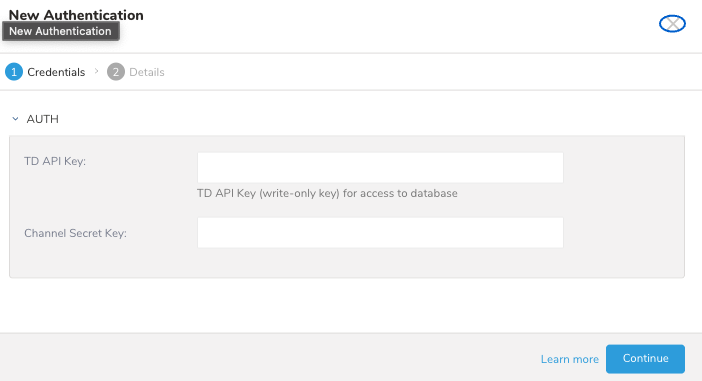
| Parameter | Description |
|---|---|
| Treasure API Key | Your Treasure API Key, write-only key |
| Channel Secret Key | Your LINE Channel Secret Key |
- Open Treasure Console.
- Navigate to Integrations Hub > Authentications.
- Locate your new authentication and select New Source.
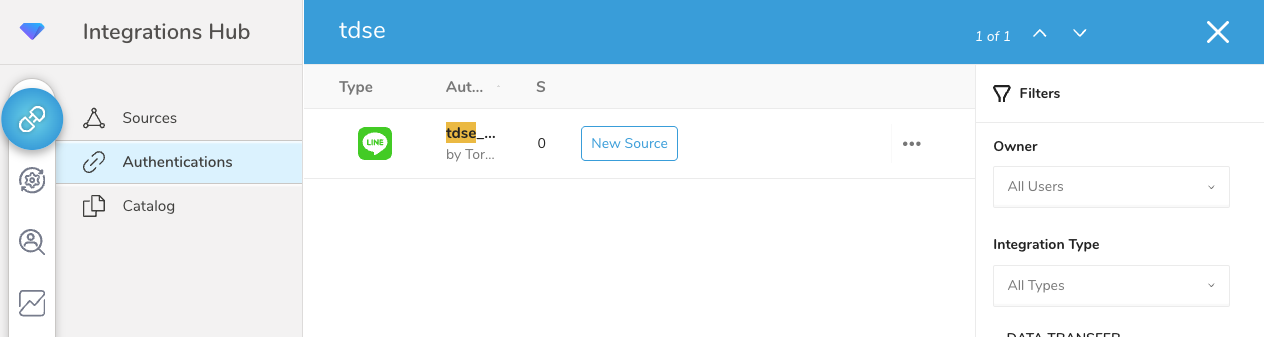
| Parameter | Description |
|---|---|
| Data Transfer Name | You can define the name of your transfer. |
| Authentication | The authentication name that is used for a transfer. |
- Type a source name in the Data Transfer Name field.
- Select Next.
- The Create Source page displays with the Source Table tab selected.
Before proceeding, ensure you have created a database and tables in Plazma. This integration requires pre-existing database and tables to store the LINE OA data.
- Configure the destination table where LINE OA data will be stored.
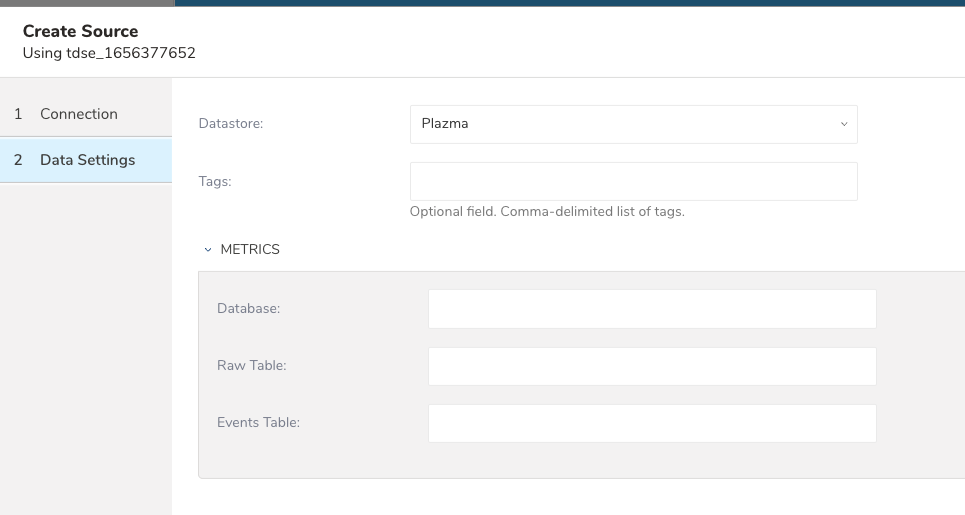
| Parameter | Description |
|---|---|
| Datastore | Plazma is the available option. |
| Tags | Optional. Tags can be used to find this source. |
| Database | Specify the database within Treasure Data for which you want to import data into. |
| Raw Table | Specify the table within the database where you would like the raw message data placed. |
| Events Table | Specify the table within the database where you would like the event data placed. |
| Return response immediately (asynchronous delivery) | Optional, unchecked by default. When enabled, the connector answers LINE as soon as the webhook is accepted and validated, and writes the event in the background. This changes the delivery guarantee — read Asynchronous Delivery before enabling it. Config key: async_delivery. |
- Select Next.
You can see a preview of your data before running the import by selecting Generate Preview. Data preview is optional and you can safely skip to the next page of the dialog if you choose to.
- Select Next. The Data Preview page opens.
- If you want to preview your data, select Generate Preview.
- Verify the data.
For data placement, select the target database and table where you want your data placed and indicate how often the import should run.
Select Next. Under Storage, you will create a new or select an existing database and create a new or select an existing table for where you want to place the imported data.
Select a Database > Select an existing or Create New Database.
Optionally, type a database name.
Select a Table> Select an existing or Create New Table.
Optionally, type a table name.
Choose the method for importing the data.
- Append (default)-Data import results are appended to the table. If the table does not exist, it will be created.
- Always Replace-Replaces the entire content of an existing table with the result output of the query. If the table does not exist, a new table is created.
- Replace on New Data-Only replace the entire content of an existing table with the result output when there is new data.
Select the Timestamp-based Partition Key column. If you want to set a different partition key seed than the default key, you can specify the long or timestamp column as the partitioning time. As a default time column, it uses upload_time with the add_time filter.
Select the Timezone for your data storage.
Under Schedule, you can choose when and how often you want to run this query.
- Select Off.
- Select Scheduling Timezone.
- Select Create & Run Now.
- Select On.
- Select the Schedule. The UI provides these four options: @hourly, @daily and @monthly or custom cron.
- You can also select Delay Transfer and add a delay of execution time.
- Select Scheduling Timezone.
- Select Create & Run Now.
After your transfer has run, you can see the results of your transfer in Data Workbench > Databases.
The source ID (UUID v4) is issued upon Source creation.
To prevent misuse, the Source ID should not be disclosed to any unauthorized persons.
After creating the Source, you are automatically taken to the Sources listing page.
- Search for the source you created.
- Click on "..." in the same row and select Copy Unique ID.

This Unique ID is the Source ID required when configuring the webhook URL in LINE Messaging API.
To receive LINE OA events in Treasure Data, you must configure the webhook URL in your LINE Messaging API settings.
Log in to the LINE Developers Console.
Select your LINE Official Account channel.
Navigate to the Messaging API tab.
In the Webhook settings section, enter the webhook URL:
For US region:
https://line-in-streaming.treasuredata.com/v1/task/{source_id}For Tokyo region:
https://line-in-streaming.treasuredata.co.jp/v1/task/{source_id}Replace
{source_id}with the Source ID you copied in the previous step.Click Verify to test the webhook connection.
Enable the Use webhook toggle.
Optionally, enable Webhook redelivery to retry failed webhook deliveries.
Click Update to save the settings.
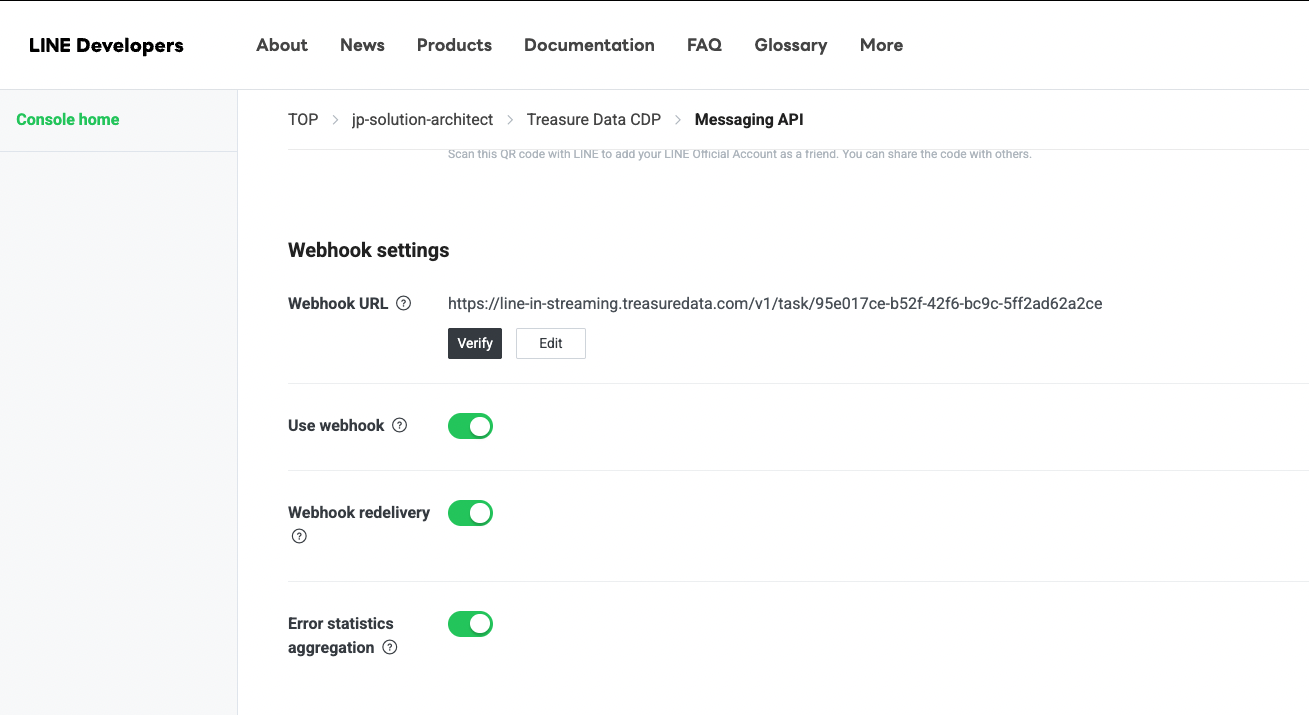
Ensure that the Webhook URL is correctly configured and verified before enabling the webhook. Hostnames for other regions will follow the same pattern but with region-specific domains.
The connector can start ingesting LINE OA event data into Treasure Data as soon as the first event is triggered after successful webhook configuration and source creation.
Asynchronous delivery makes the LINE OA connector answer LINE as soon as a webhook has been accepted — authenticated, signature-verified, and checked against the source configuration — and then write the event to Treasure AI on a background worker. It is off by default and is enabled per source with the Return response immediately (asynchronous delivery) checkbox (config key async_delivery).
By default, the connector writes the event before it answers LINE, so the response takes as long as the write takes. LINE Messaging API abandons a webhook after roughly 2 seconds, while a throttled write can hold the request open for around 11 seconds. When that happens, LINE records a relay error such as [WebhookRelayError] ... Net::ReadTimeout even though the connector was still working, and the event is retried or dropped depending on the sender.
Enable asynchronous delivery for a source whose webhooks are timing out on the LINE side. Leave it off for a source that would rather be slow than lose an event.
With the default synchronous behavior, LINE is the retry mechanism: a failed write returns an error, LINE retries, and the event eventually lands. Asynchronous delivery opts out of that, which is both the point of the setting and its risk:
- LINE is told the event was accepted. If the background write then fails, LINE never learns, and nothing retries the event.
- LINE's Webhook redelivery setting does not cover this case. It applies only when LINE sees a failed delivery, and an accepted event was answered with
200 OK. - Events still queued when the connector restarts can be lost.
- During a sustained internal failure the connector refuses new webhooks with
503so LINE retries them. That protects events not yet accepted; it does nothing for an event already answered with200 OK.
Failed background deliveries are logged internally with the LINE webhookEventId of each affected event, so Treasure AI support can identify what was lost during an incident. Identifying a lost event is not the same as recovering it: enable this setting only where a small, silent loss rate is an acceptable trade for eliminating webhook timeouts.
| Situation | Asynchronous delivery off (default) | Asynchronous delivery on |
|---|---|---|
| Invalid LINE signature | Rejected with an error | Rejected with an error |
| Missing Database, Raw Table, or Events Table | Rejected with an error | Rejected with an error — the source configuration is validated before the connector answers |
| Write to Treasure AI fails | Error response, and LINE retries the event | 200 OK was already sent, so the event is lost |
| Response time | As long as the write takes | Only as long as accepting the event takes |
| Rows written | Raw table and events table | Raw table and events table, unchanged |
time column | Time the webhook arrived | Time the webhook arrived, unchanged |
| Write order | Events are written in arrival order | Events for the same LINE user can be written out of order, because deliveries run in parallel |
Because the source configuration is validated before the connector answers, a source pointed at a database or table that does not exist still gets an error response instead of a 200 OK followed by a background failure.
The Events Table contains detailed webhook event data from LINE Messaging API. Each row represents a single webhook event with the following structure:
| Column Name | Data Type | Description |
|---|---|---|
| event_mode | string | Event mode status (e.g., "active") |
| event_type | string | Type of webhook event (e.g., "message", "postback", "follow", "unfollow") |
| event_deliverycontext | JSON string | Delivery context information including isRedelivery flag |
| event_timestamp | long | Unix timestamp in milliseconds when the event occurred |
| destination | string | LINE Official Account user ID that received the webhook |
| event_source | JSON string | Source information including userId and type (user, group, or room) |
| event_postback | JSON string | Postback event data (only for postback events) including data and params |
| event_webhookeventid | string | Unique webhook event ID from LINE |
| event_replytoken | string | Reply token for responding to the event |
| record_uuid | string | Unique identifier generated by Treasure Data for this record |
| event_message | JSON string | Message event data including text, markAsReadToken, quoteToken, message ID, and type |
| time | long | Unix timestamp when the record was ingested into Treasure Data |
Message Event Example:
{
  "event_mode": "active",
  "event_type": "message",
  "event_deliverycontext": "{\"isRedelivery\":false}",
  "event_timestamp": 1764739548058,
  "destination": "U26272c69eb9c705cdb310034a13d8a2c",
  "event_source": "{\"userId\":\"U7df7e1515baea0a9898c2d8553d016d1\",\"type\":\"user\"}",
  "event_webhookeventid": "01KBHAS125354QY30EQDB80MXV",
  "event_replytoken": "a24d6cd95f4e4cceb74505a3c67fa1f0",
  "record_uuid": "c32f42c1-6464-312e-8a73-64b19c6c8116",
  "event_message": "{\"text\":\"Hello\",\"id\":\"590404062261018659\",\"type\":\"text\"}",
  "time": 1764739556
}
Postback Event Example:
{
  "event_mode": "active",
  "event_type": "postback",
  "event_deliverycontext": "{\"isRedelivery\":false}",
  "event_timestamp": 1764739548788,
  "destination": "U26272c69eb9c705cdb310034a13d8a2c",
  "event_source": "{\"userId\":\"U7df7e1515baea0a9898c2d8553d016d1\",\"type\":\"user\"}",
  "event_postback": "{\"data\":\"second-menu\",\"params\":{\"newRichMenuAliasId\":\"second-menu\",\"status\":\"SUCCESS\"}}",
  "event_webhookeventid": "01KBHAS1TNJ9W3GZZSAYG8WSEW",
  "event_replytoken": "e6a713af40ed416e8844db6638705d01",
  "record_uuid": "5289e93e-d7c2-3a7d-9ba0-8de86cc53e4f",
  "time": 1764739552
}
JSON string columns like event_source, event_message, and event_postback contain nested JSON data. You can parse these using Treasure Data's JSON functions in your queries to extract specific fields.