An Engage Studio SMS campaign sends a promotional message to a Parent Segment and Target Segment. Use this page when your sender and audience are ready and you want to create a One-off Campaign or Always-on Campaign.
Complete Set Up SMS Sending first. You also need:
- A phone-number column in E.164 format.
- Consent and opt-out filtering in the audience or activation.
- A campaign send window that matches the audience's jurisdiction.
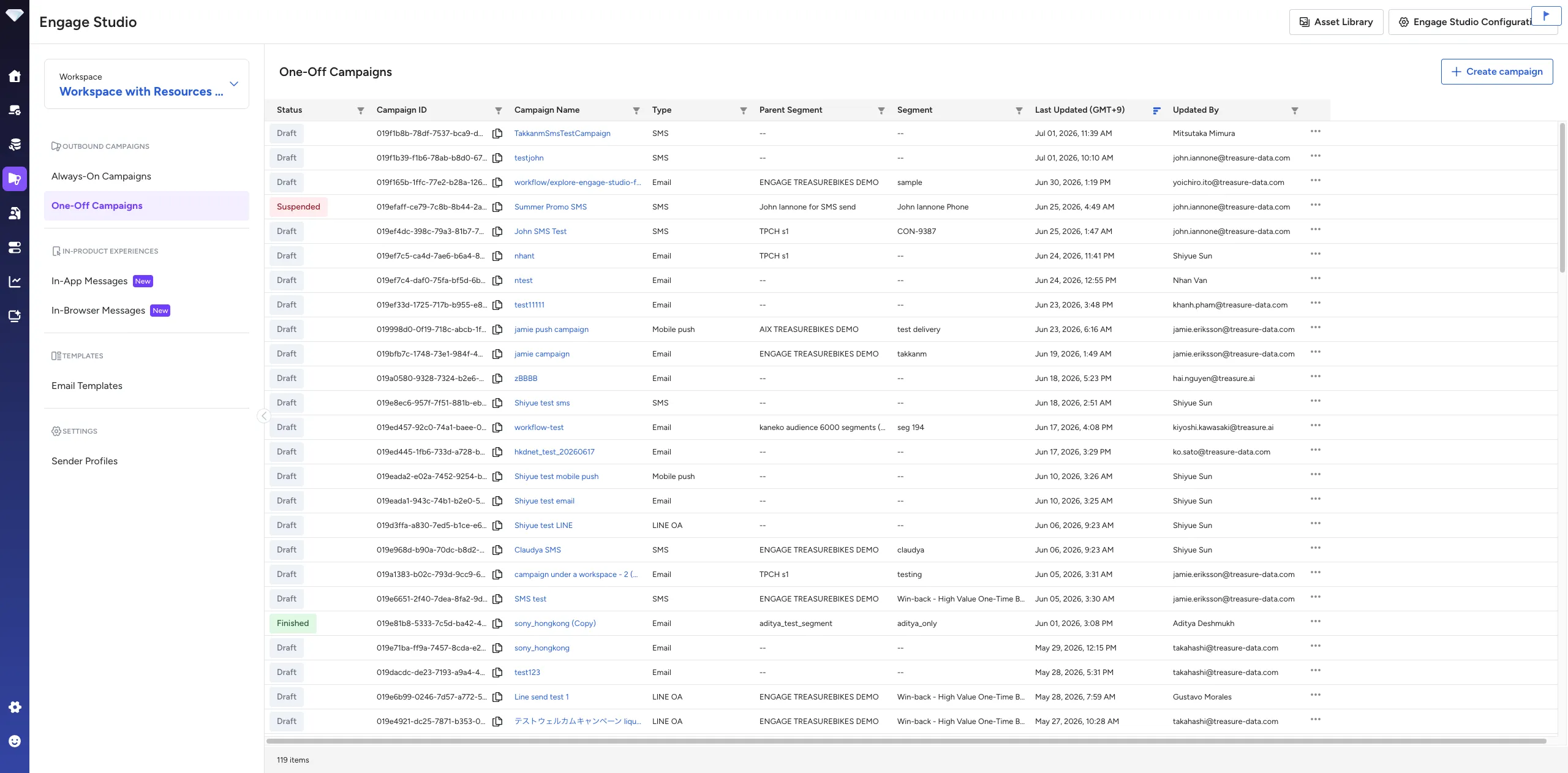
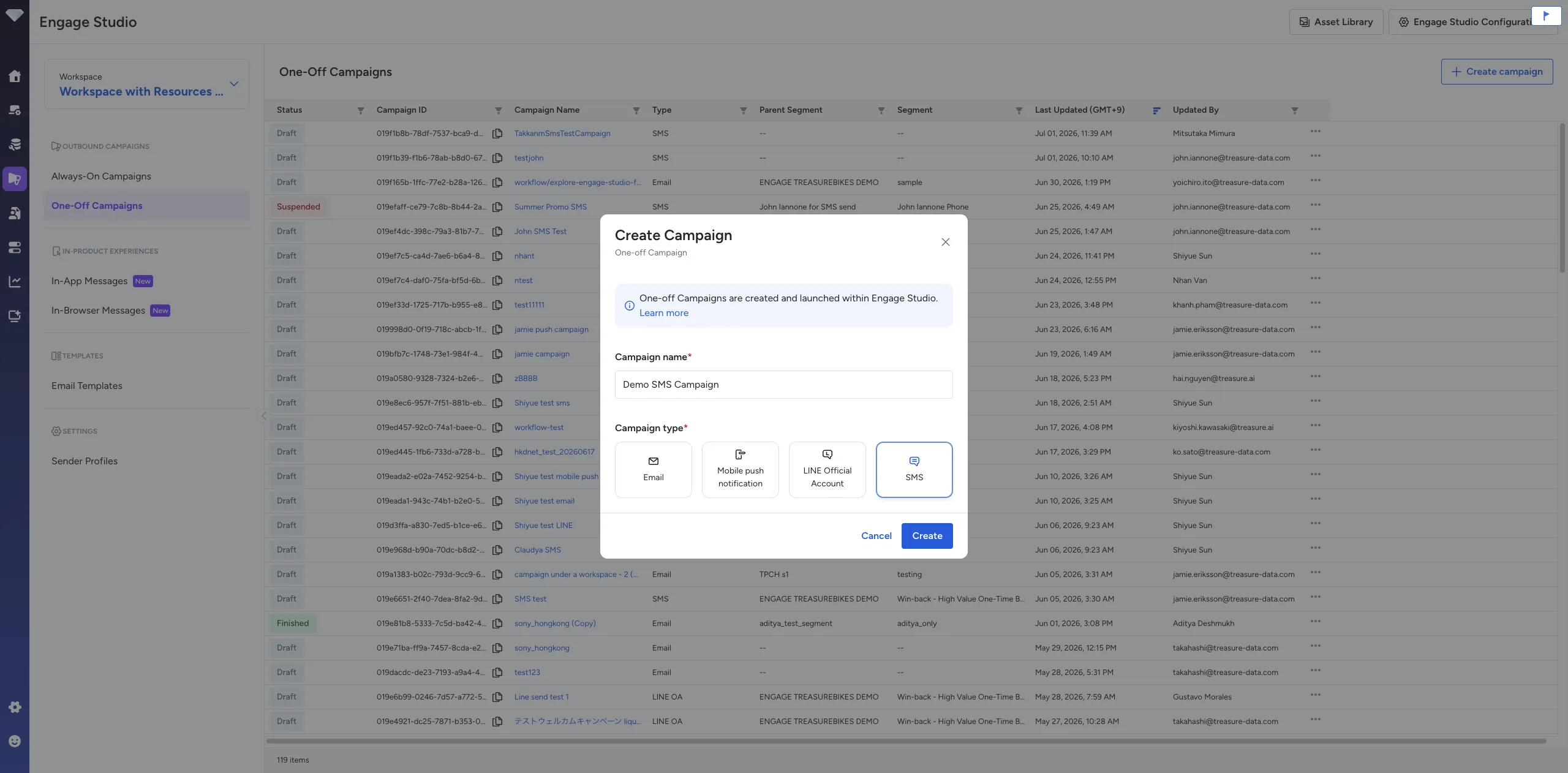
- Select Create Campaign.
- Select SMS as the channel.
- Enter a campaign name.
- Select Create.
- Choose a Parent Segment.
- Choose a Target Segment.
- Select Next.
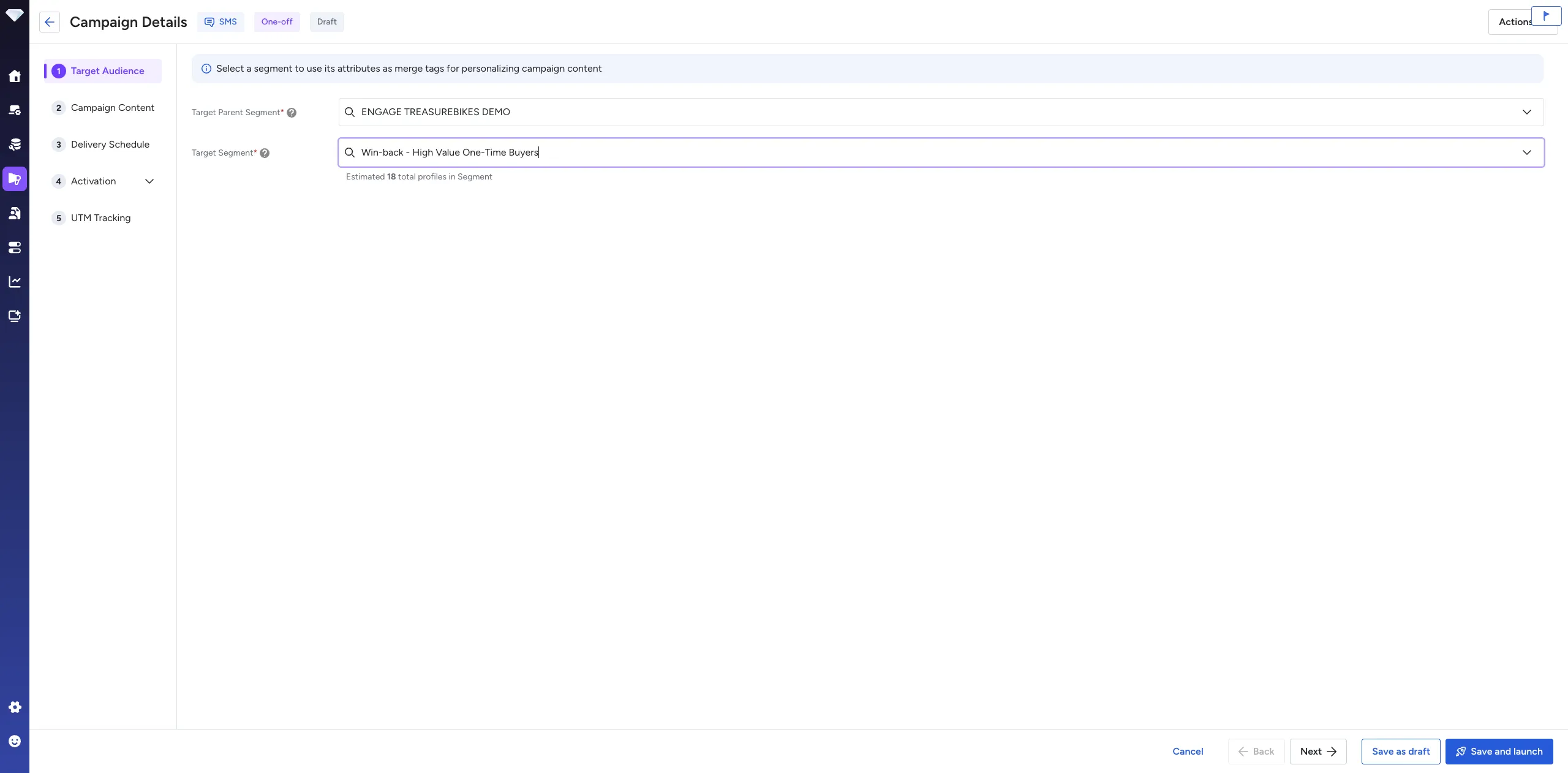
Opted-out recipients are not automatically excluded from the audience. Confirm that the Parent Segment or activation excludes them before you launch the campaign.
- Enter the message body.
- Review the sender and live segment count.
- Add Liquid variables when you need profile personalization.
- Confirm that each Liquid variable has a corresponding output mapping.
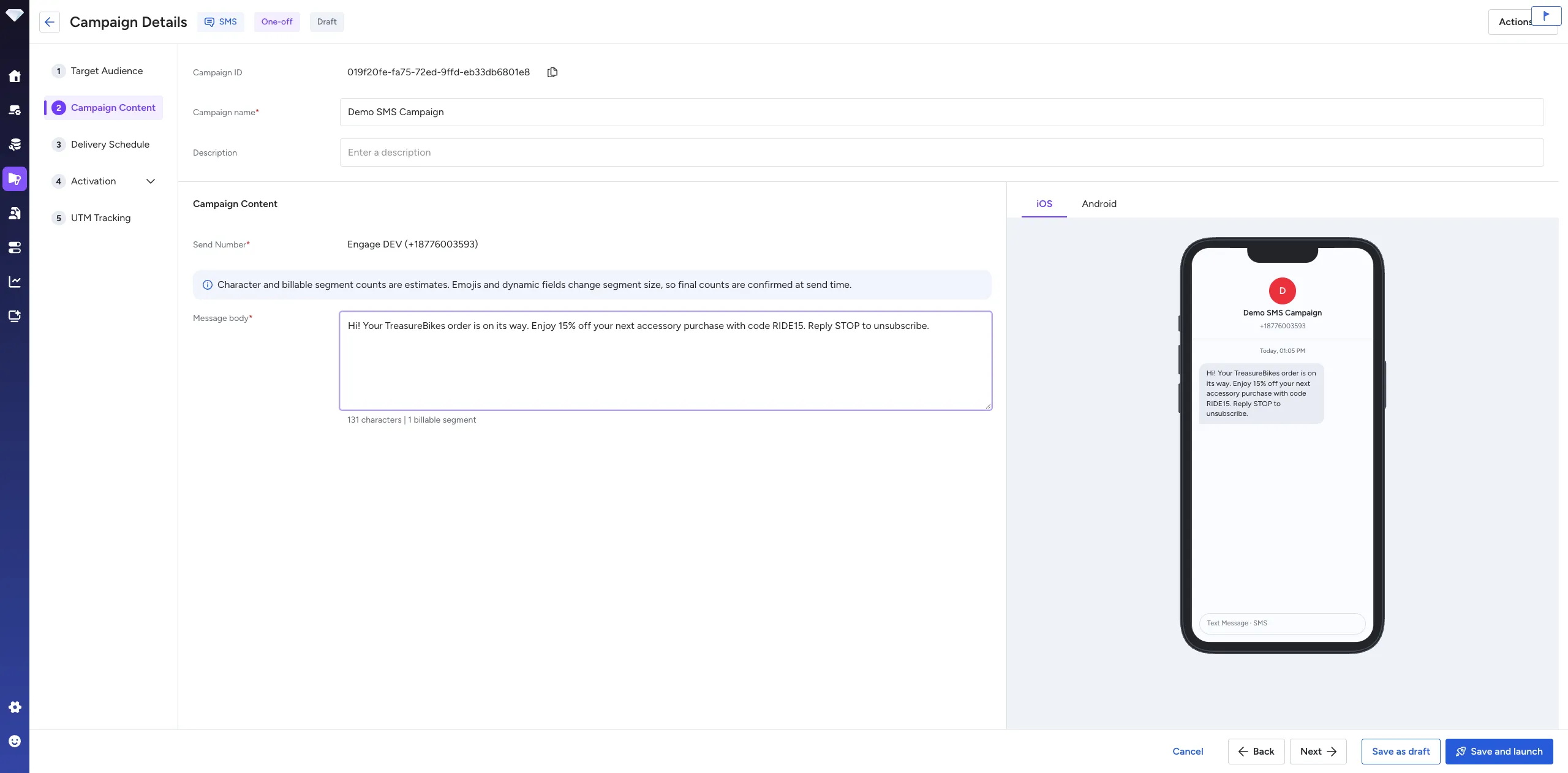
For example:
Hi {{ profile.first_name }}, your offer is ready.For character encoding, segment counts, and mapping requirements, see SMS Message Requirements and Limits.
Configure the campaign's allowed delivery time before you schedule or launch it. The send window applies uniformly to every recipient in the audience; Engage Studio does not resolve a different window for each recipient. See Configure SMS Delivery Windows.
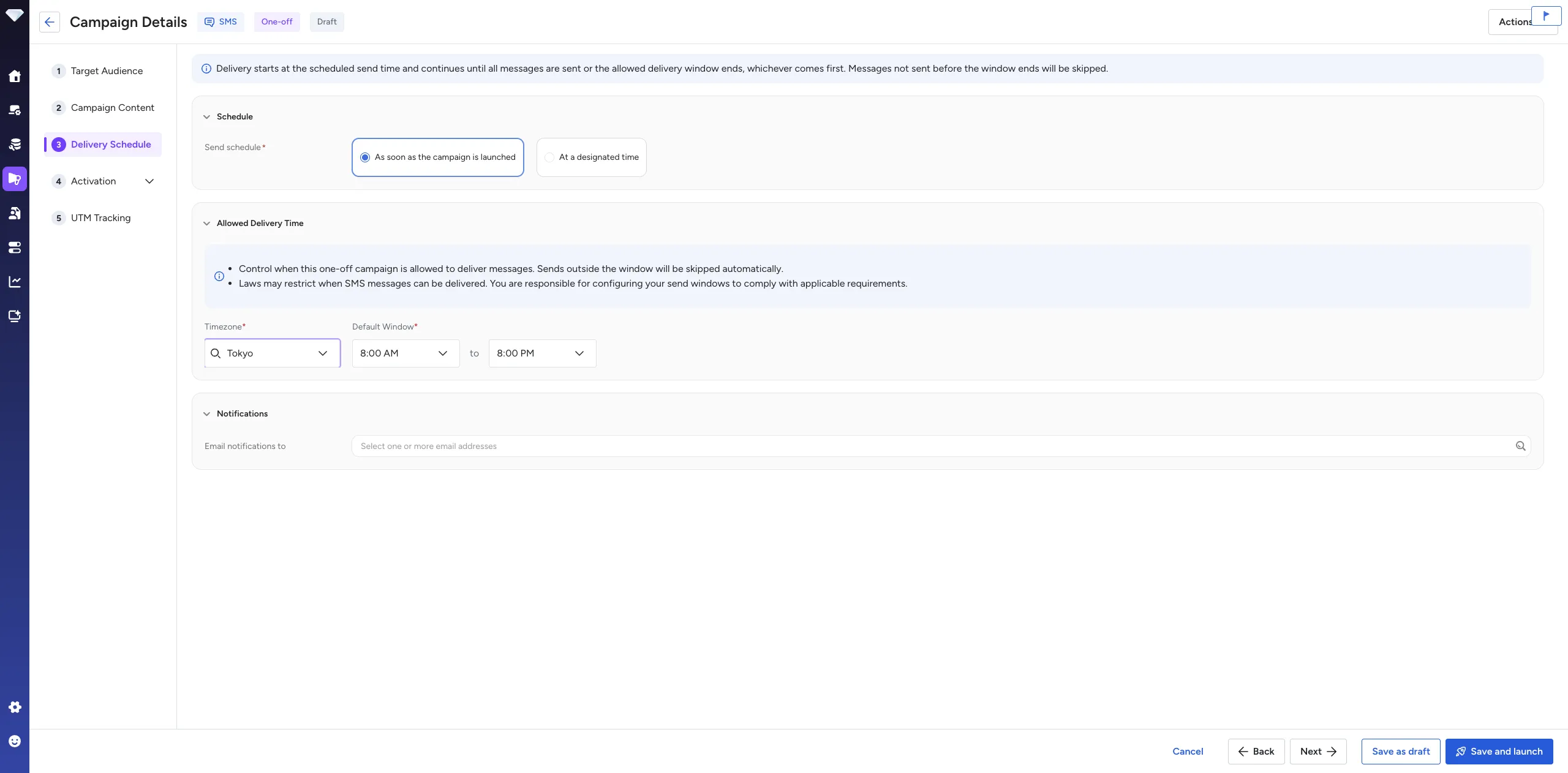
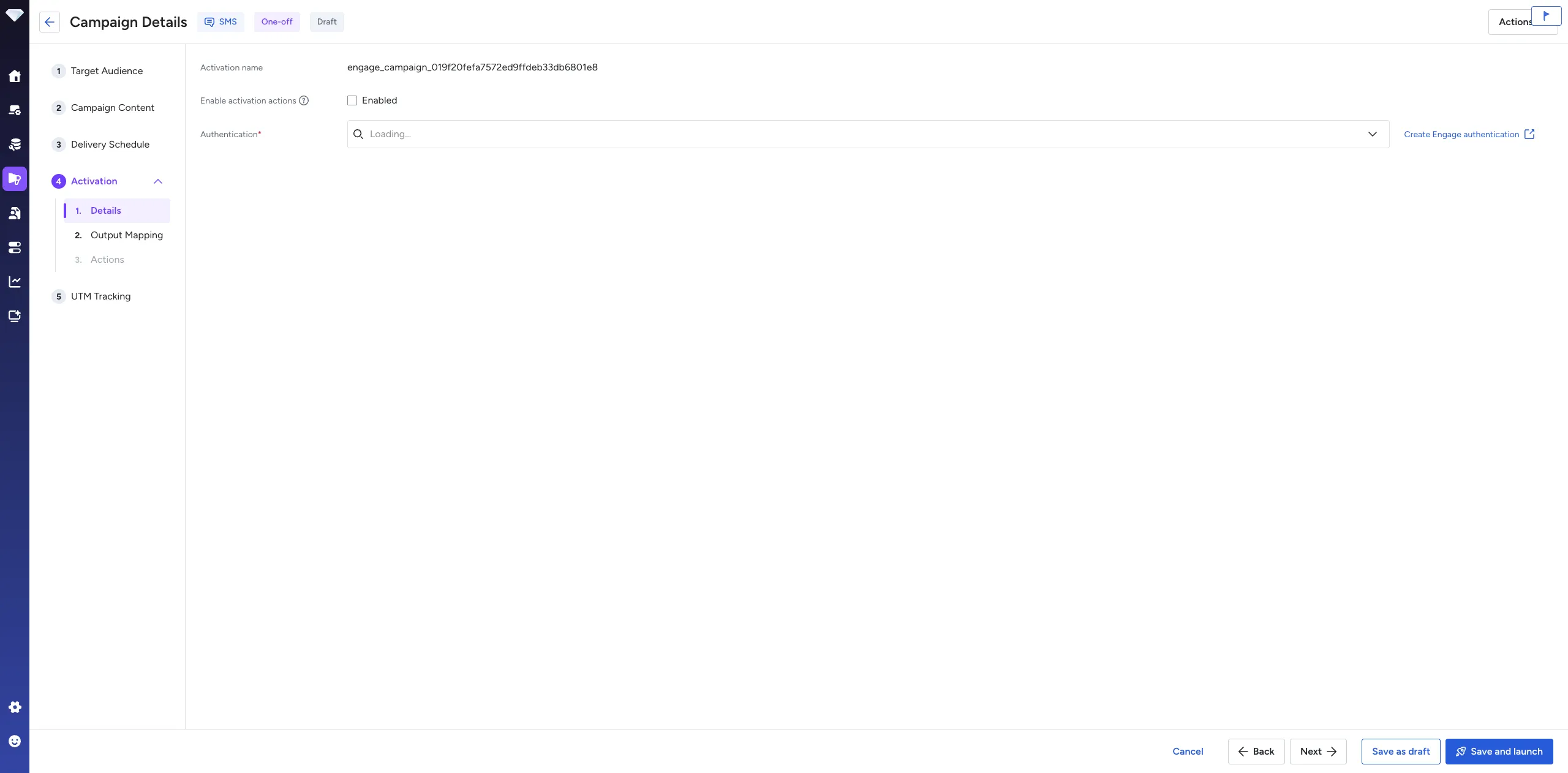
Select the activation used for delivery. The activation details can include:
| Field | Description |
|---|---|
| Activation Name | System-generated identifier for the activation |
| Enable Activation Actions | Controls whether Activation Actions are used for delivery |
| Authentication | Engage connector used for delivery logging |
| Batch Size | Records processed per batch; the default and maximum is 1,000 |
| Thread Count | Parallel send threads; the default is 1 and the maximum is 10 |
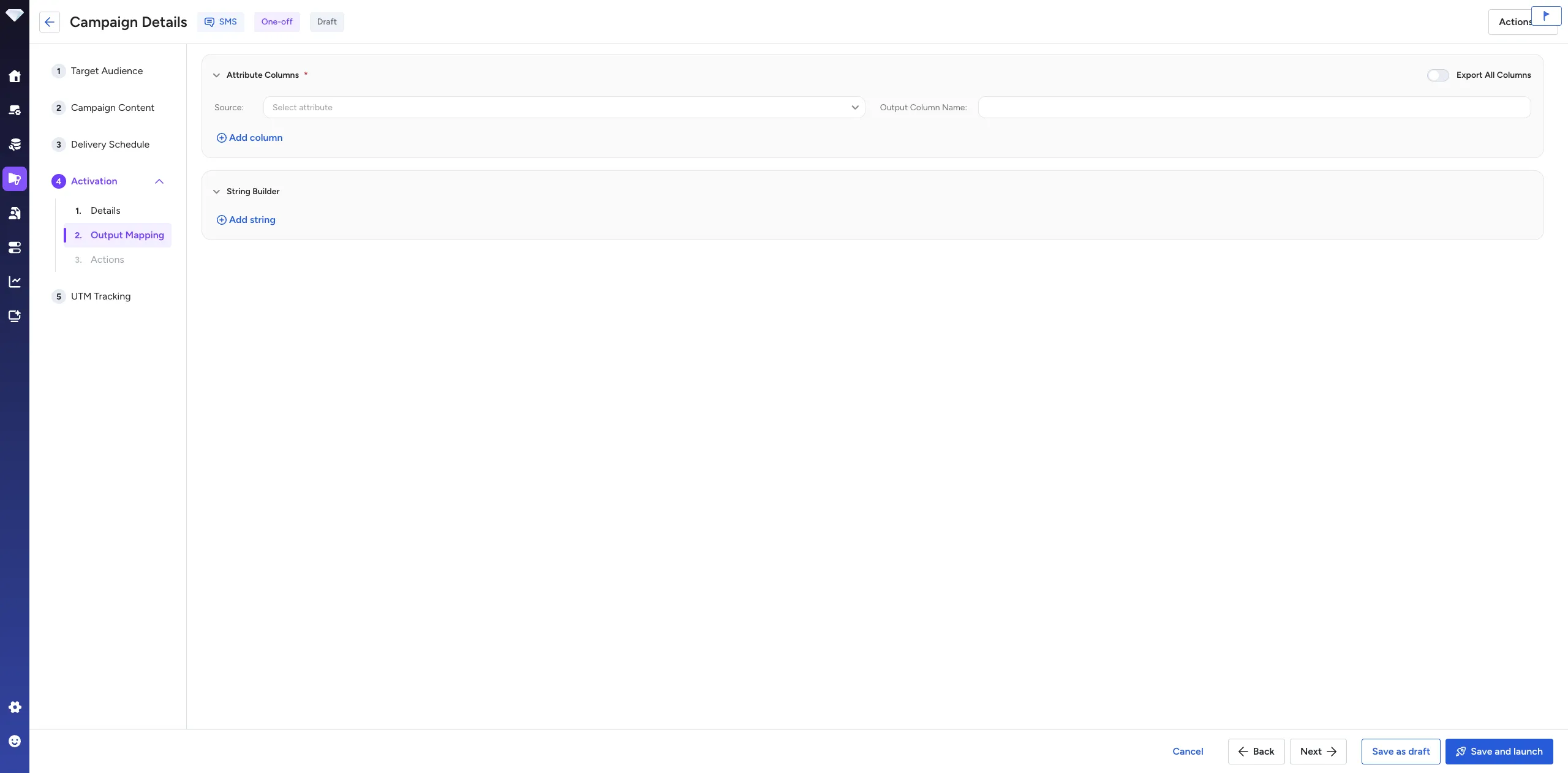
Map the audience columns used by the delivery pipeline:
phone_numberis required and must contain a phone number in E.164 format.- Every profile column referenced in the message, such as
first_nameorloyalty_points, must have an output mapping.
- Select Send immediately to send when you launch the campaign, or select Schedule for later and choose a future date and time.
- Review the audience, message, send window, and activation.
- Select the launch action for the campaign.
Use View SMS Delivery Events to verify the resulting delivery statuses.