Engage Studio provides Modal, Banner, and Hosted Pages for Mobile In-App Messaging. Choose a message type based on the customer experience you want to create, then configure the settings that the app integration uses to display it.
| Message type | Content source | Display | Appearance settings |
|---|---|---|---|
| Modal | Engage Studio HTML | Centered overlay | Supported |
| Banner | Engage Studio HTML | Top or bottom banner | Supported |
| Hosted Pages | Hosted URL | Full-screen WebView | Not used |
Choose Modal when the message should capture attention over the current app screen. The integration layer can apply the message frame, placement, overlay, close button, and background interaction settings.
Typical uses include:
- Coupons and important offers.
- Welcome or onboarding prompts.
- Notices that require an explicit customer action.
Choose Banner when the message should remain lightweight and allow the customer to continue using the app outside the message area.
Typical uses include:
- Contextual reminders.
- Lightweight promotions.
- Top-of-screen or bottom-of-screen announcements.
Choose Hosted Pages when the content is hosted at a URL and needs a full-screen WebView. Use Hosted Pages for coupons, stamp cards, lotteries, surveys, forms, and other interactive campaign pages.
Hosted Pages has a dedicated configuration and content contract. See Hosted Pages for URL requirements, SDK context, links, security, and measurement.
Appearance settings apply to Modal and Banner messages. The native SDK interprets these settings; Hosted Pages uses the hosted page's own layout.
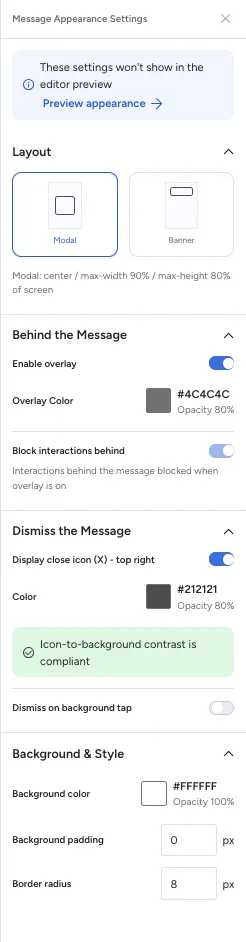
| Setting group | Settings | What it controls | Detailed behavior |
|---|---|---|---|
| Layout | Placement, inset | The position of the message frame. | Modal is centered by default and is constrained to the mobile viewport. Banner is anchored to the top or bottom edge. Inset adjusts the frame position. |
| Behind the Message | Overlay enabled, overlay color, background interaction | The visual layer and touch behavior behind the message. | When the overlay is enabled, the overlay color and opacity cover the app behind the message. Blocking background interaction prevents accidental taps on the underlying app. |
| Dismiss the Message | Close button visibility and outside-tap behavior | How the customer closes the message. | The close icon is rendered at the top-right by the SDK. Its size is not configurable. When outside-tap dismissal is disabled, tapping the overlay does not close the message. |
| Background & Style | Background color, padding, border radius | The frame around the campaign content. | These settings style the SDK-owned frame outside the HTML content. Padding creates space between the frame and the content; border radius rounds the frame corners. |
Select Modal for a centered overlay or Banner for a message attached to the top or bottom edge. A Modal uses a constrained mobile viewport; a Banner is designed to occupy a narrow edge region and normally allows the rest of the app to remain usable.
Enable the overlay when the message should separate the customer from the screen behind it. Choose an overlay color and opacity that preserve enough contrast between the message and the app. When background interaction is blocked, touches do not reach the app behind the message while the message is visible.
Use the close-icon setting to decide whether customers can close the message manually. Configure the icon color and position so it remains visible against the message frame. The editor reports when the icon-to-background contrast is compliant. Enable outside-tap dismissal only when closing the message by tapping the overlay is appropriate for the campaign.
Use the background color, padding, and border radius to style the frame that surrounds the campaign content. These settings are applied by the SDK outside the HTML; campaign HTML should not create a second frame that conflicts with them.
Hosted Pages does not use these appearance settings. Configure the layout and close behavior in the Hosted Pages page instead.
| Behavior | Modal | Banner | Hosted Pages |
|---|---|---|---|
| Uses Engage Studio HTML | Yes | Yes | No |
| Uses a hosted URL | No | No | Yes |
| Uses appearance settings | Yes | Yes | No |
| Uses the SDK-generated frame | Yes | Yes | Full-screen WebView |
Uses window.TDContext in the preview SDK | Yes | Yes | Yes |
| Campaign measurement in the preview SDK | Yes | Yes | Only when returned as a campaign offer |
- Modal and Banner HTML should provide the campaign content, not a second SDK-owned overlay.
- Hosted Pages pages should provide a clear way to leave the full-screen experience.
- App-owned Deep Links must be validated by the app before navigation.
- Custom actions must be authorized and validated by the app.
- Do not put API keys, Personalization tokens, or unnecessary personal data in message content or profile context.