To access and work in Treasure Workflow, permissions must be granted by the account administrator or owner. You can grant permissions globally for all workflows or limit them to specific projects.
Workflow projects are visible in Treasure Console when you have either global permissions or permissions to individual workflow projects. Workflows to which you do not have access are filtered out.
You can grant access to global workflow permissions, or limit access to specific workflow projects so that permissions only apply to workflows within that project.
| Permission Type | Description |
|---|---|
| Global permissions | Provides full access to View, Edit, and/or Run on all workflows in all projects. |
| Limited permissions | Limits permissions to View, Run, and/or Edit specific workflow projects—restricting which workflows users can access. |
| Combination of permissions | For example, you can allow global permissions for View and then project-level permissions for Edit and Run. |
Example:
An account has segregated their production workflow as one project and their development workflow in a separate project. You want more teammates to have access to your development project, but you want limited access to your production project.
For development, you can choose View, Run, Edit or any combination of project-level permissions.
- All users have full access to their development projects and can create new workflows in the project.
For production, choose global View permissions for all users and Edit and Run permissions for specific users.
- Permissions are additive, so specific users will have View, Edit, and Run permissions for the production project and other users will only have View permissions on the production project.
- Users with Edit permissions can create, modify, and delete workflows in the production project.
With project-level workflow permissions, you can assign permissions to system-generated workflow projects from Audience Studio, including Parent Segment, Predictive Scoring, and Activation workflow projects.
The following types of workflows can have project-level permissions:
- Parent Segment
- Predictive Scoring
- Activation
- Access to Audience Studio system-generated workflows is limited with workflow project-level permissions.
- Only Parent Segment creators and users that have MasterSegmentConfig permissions automatically have access to the corresponding system-generated workflow projects including Activation, Predictive, and Parent Segment workflow projects.
- Other users must be given explicit access to individual parent segment, activation, and/or predictive workflow projects.
You can set global permissions through Treasure Console. Project-level permissions can be configured from both Treasure Console and the API.
- Open Treasure Console.
- Navigate to Control Panel > Security > Policies.
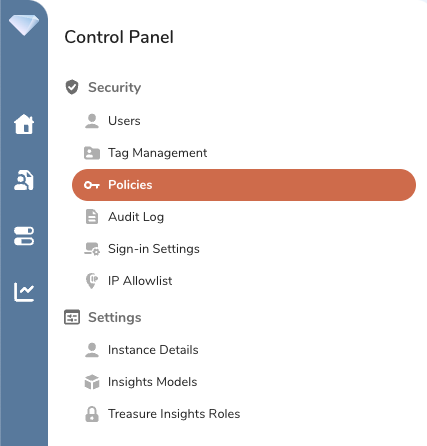
- Select the policy and then select Permissions.
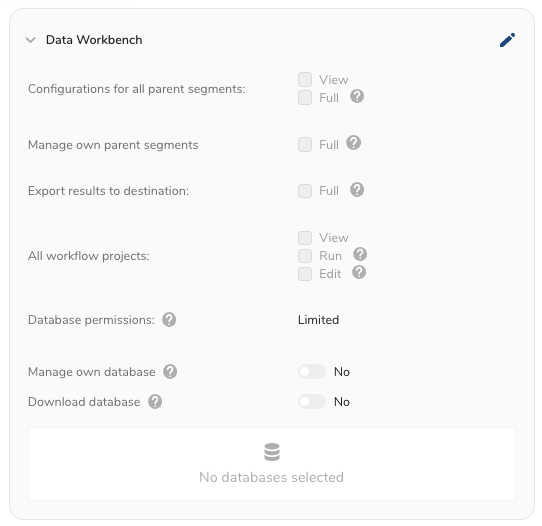
- Select the pencil icon.
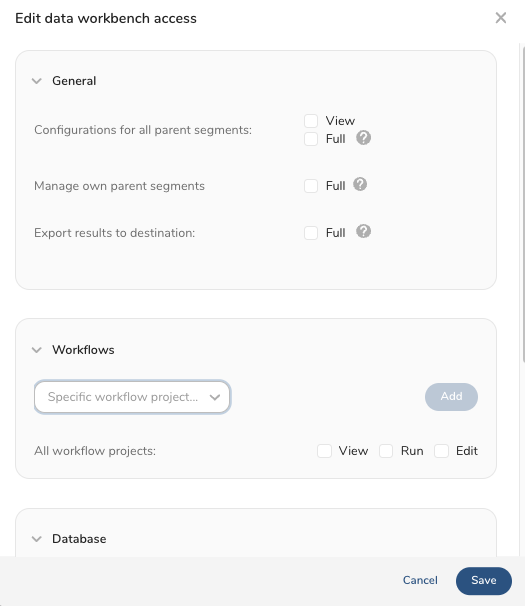
- Set workflow access permissions.
- Select Save.
| Permission Options | Description |
|---|---|
Configurations for all parent segments |
Important Do not remove the automatic selection of View All Parent Segment Configurations. This is a system requirement—other parent segment actions depend on this base permission being enabled. |
| Manage own parent segments | Users can create new parent segments and run, edit, and delete parent segments they own. |
| Export Results to Destination | If selected, the user can export results. |
| All Workflow Projects |
|
- Open Treasure Console.
- Navigate to Control Panel.
- Select Users.
- Select a specific user.
- Select Policies.
- Select Show All Permissions.
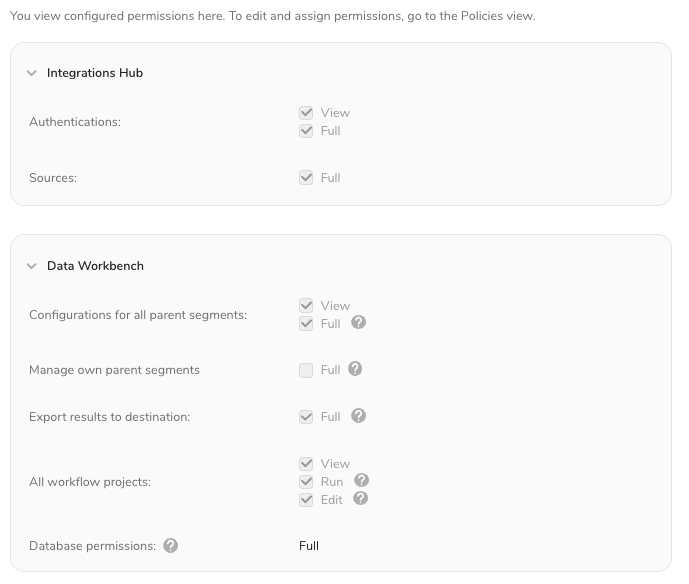
Project-level workflow permissions can be set through Treasure Console and the API. If you are interested in workflow project-level permissions, contact your account representative.
After the workflow permissions are set, the system might take a maximum of five minutes to enforce the permissions.