title: Summary Templates | Treasure AI Voice
Treasure AI Voice lets you control how recordings are summarized using Summary Templates. A template defines an instruction block that tells the AI how to structure the summary — what sections to include, how detailed to be, and what to extract as action items.
Tap Profile in the app's bottom tab bar, then tap Summary Templates.
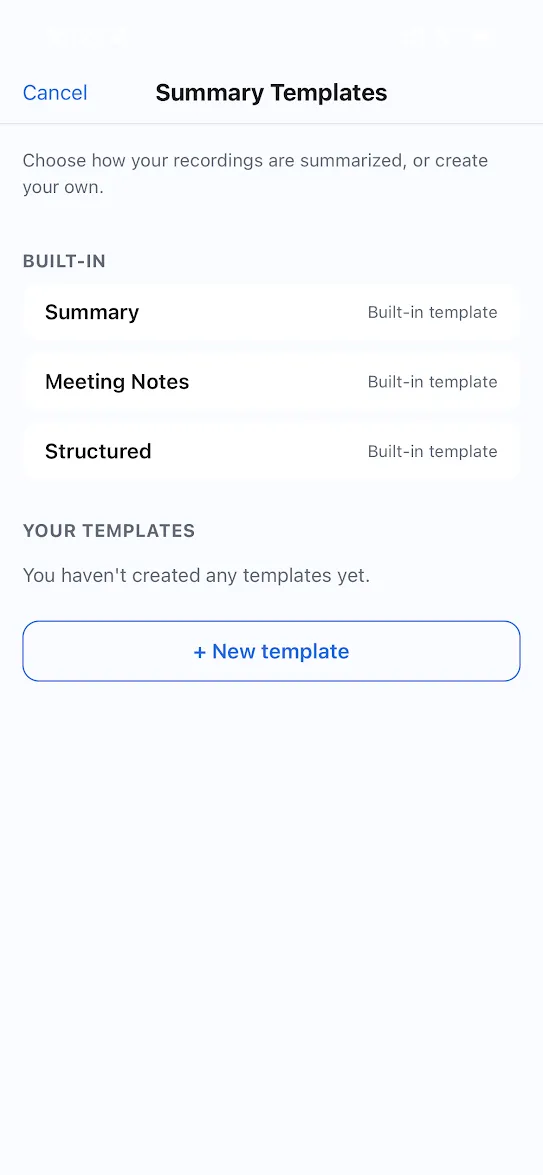
The screen is divided into two sections:
- BUILT-IN — Three system presets, read-only
- YOUR TEMPLATES — Templates you have created
Check whether one of the three built-in templates meets your needs before creating a custom one. Built-in templates cannot be edited or deleted. To modify the behavior of a built-in, create a new custom template based on it.
| Template | Description |
|---|---|
| Summary (default) | Concise 2–3 paragraph overview. Applied to any recording that has no template explicitly selected. |
| Meeting Notes | Detailed notes covering participants, topics discussed, decisions made, and outcomes. |
| Structured | Fixed four-section format: Context, Key Points, Decisions, Next Steps. Produces a consistent structure on every recording. |
Tap + New template at the bottom of the Summary Templates screen.
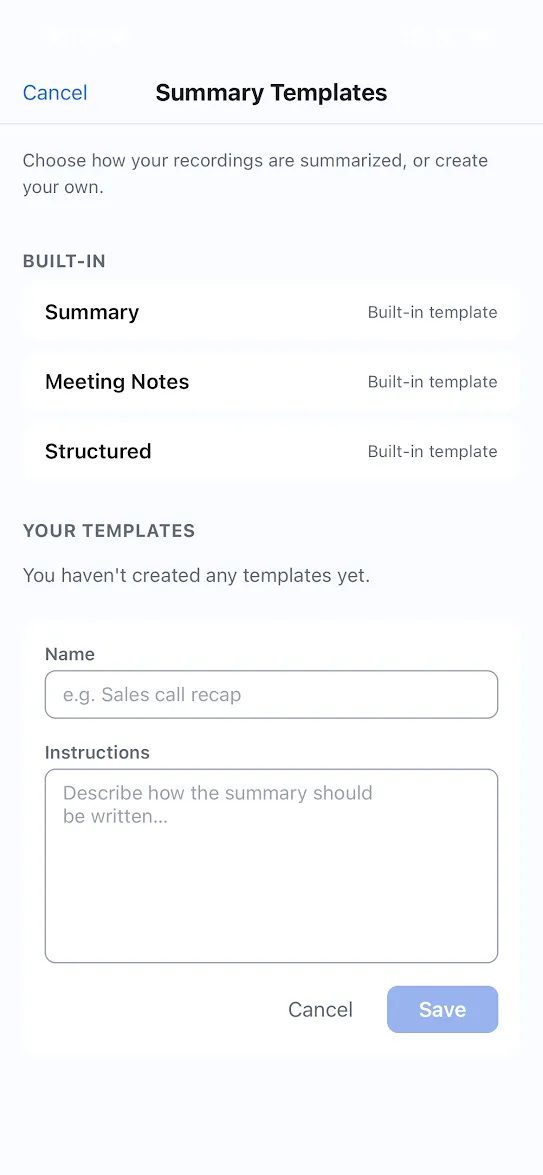
Enter a Name for the template (e.g.,
Sales call recap).Enter Instructions — the text telling the AI how to write the summary.
Tap Save.
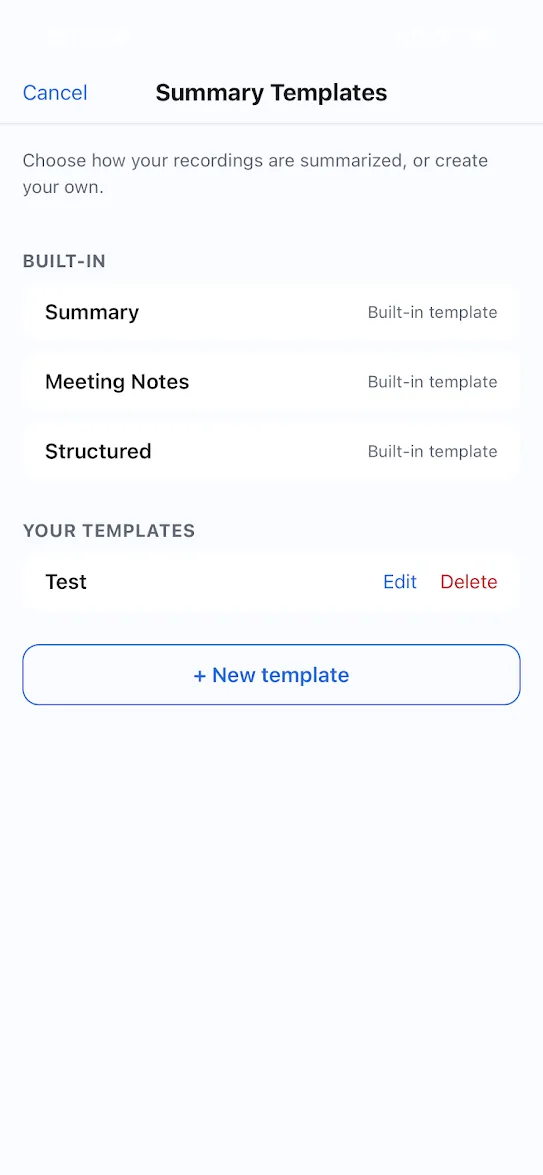
Your saved templates appear in the YOUR TEMPLATES list. Tap Edit or Delete at the end of a row to modify or remove a template.
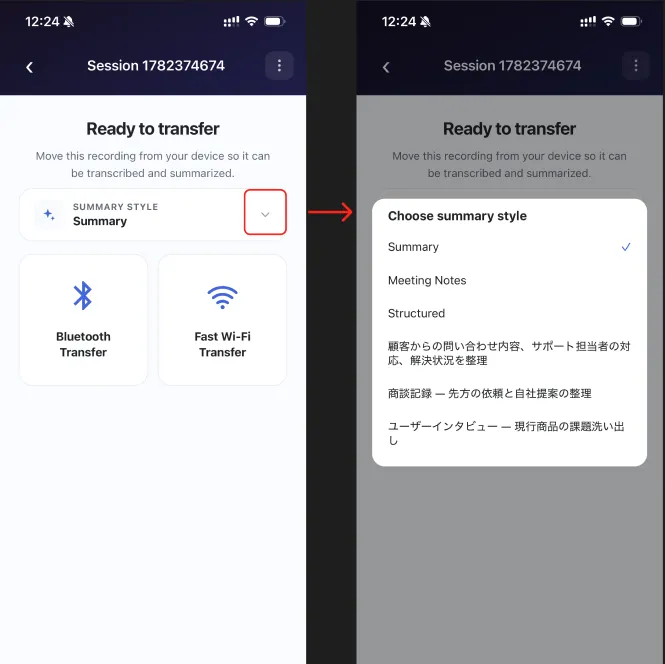
Templates are applied at upload time. After stopping a recording, an upload confirmation screen appears with a template selector. The template used on the previous upload is pre-selected. Tap it to switch to a different template before starting the upload.
Write Instructions in English. Japanese is also accepted, but English produces more accurate and consistent results.
The underlying AI model has the most training data in English and interprets English instructions more reliably. Even writing just the section names in English (e.g., Customer Issue, Next Steps) improves structural consistency. Writing Instructions in English does not affect the output language — that is controlled separately by the app's language setting.
Regardless of the template, a summary always returns exactly four fields. The template controls what goes into each field, not the fields themselves.
| Field | Displayed as | What to specify in Instructions |
|---|---|---|
| Summary | Body text | Length, paragraph count, section structure |
| Action Items | Checkbox list | What to extract, level of detail, owner and deadline capture |
| Inferred Name | Recording title | Style, word count limit |
| Tags | Tag labels | Number of tags, words per tag |
Option A — Length only (simplest)
A concise summary (2-3 paragraphs covering the main topics and outcomes)Works well for recurring meetings where the content changes each time and a fixed structure would feel forced.
Option B — List the elements to include
A summary covering: who attended, what was discussed, what was decided, and what remains unresolved.Works well for meetings you will refer back to as a record.
Option C — Fixed sections (most consistent)
The summary must always use these sections in this order, even if a section is brief:
- Background: why this conversation happened and who was involved
- Key Points: the main topics discussed
- Decisions: what was agreed or concluded
- Next Steps: what happens next
Works well when multiple people need to produce records in a uniform format.
Action items appear as a checkbox list in the app. Writing a more explicit instruction produces more useful items.
Minimal (content only):
Action items (specific tasks mentioned during the conversation)With owner and deadline:
Action items (specific tasks mentioned, with the person responsible and any deadlines if mentioned)Detailed extraction:
Action items: extract every concrete task or follow-up mentioned.
For each item, write it as a clear action sentence (e.g. "Send the proposal to the client").
If a responsible person is named, include them. If a deadline is mentioned, include it.
For recordings where no tasks are expected (lectures, presentations):
Tell the AI to return an empty list when nothing is found. Without this, the AI may infer tasks that were not actually stated.
Action items: if any concrete tasks or follow-ups were explicitly mentioned, list them.
If none were mentioned, return an empty list.
When an empty list is returned, the checkbox section is not shown in the app.
The AI infers tasks from the transcript. The more explicitly tasks are stated in the conversation ("I'll send that over", "Can you follow up on…"), the more accurately they are extracted. Detailed Instructions cannot compensate for a transcript that contains no actionable content.
Combine instructions for all four fields into a single numbered list. This structure makes it easier for the AI to map each instruction to the correct output field.
Analyze this transcription and provide:

1. [Summary body instruction]
2. [Action items instruction]
3. A few-word inferred name based on the content. Don't go beyond 6 words.
4. Key topics as short tags (3-8 tags, each 1-3 words)Copy and paste any of the following templates as a starting point. Adjust the wording to match your specific needs.
Organizes the customer's issue, the agent's response, and the resolution status.
Analyze this customer support call transcription and provide:

1. A structured summary with these sections:
   - Customer Issue: what the customer was experiencing or asking about
   - Support Response: how the support agent responded and what was explained
   - Resolution: whether the issue was resolved, and if so, how
   - Escalation or Follow-up Needed: any items that require further action

2. Action items: any follow-up tasks for the support team or the customer, with owners if named and deadlines if mentioned

3. A few-word inferred name based on the issue and product area. Don't go beyond 6 words.

4. Key topics as short tags (3-8 tags, 1-3 words each, e.g. "login issue", "billing", "refund request")Extracts pain points, feature requests, and key insights from a user research session.
Analyze this user interview transcription and provide:

1. A structured summary with these sections:
   - Interviewee Profile: brief description of who was interviewed (role, context)
   - Current Workflow: how the user currently does the task or uses the product
   - Pain Points: specific frustrations, difficulties, or inefficiencies mentioned
   - Feature Requests or Suggestions: any improvements the user explicitly or implicitly wanted
   - Key Insights: notable findings or quotes that stand out

2. Action items: any follow-up tasks for the product or research team based on what was heard, with owners if named

3. A few-word inferred name based on the user's role and main topic. Don't go beyond 6 words.

4. Key topics as short tags (3-8 tags, 1-3 words each, e.g. "onboarding", "data export", "search usability")Separates the client's requests from your side's proposals, and records the outcome of each.
Analyze this business meeting transcription and provide:

1. A structured summary with these sections:
   - Client Requests: what the client asked for, requested, or wanted to discuss (list each item separately)
   - Our Proposals: what our side proposed, suggested, or committed to (list each item separately)
   - Outcomes: for each request and proposal, briefly note the conclusion — agreed, declined, deferred, or pending
   - Open Items: anything that was left unresolved or requires further confirmation

2. Action items: next steps with clear owners (use "Client" or "Us" to distinguish sides) and any deadlines mentioned

3. A few-word inferred name based on the client name and main topic. Don't go beyond 6 words.

4. Key topics as short tags (3-8 tags, 1-3 words each)Can I share a template with my team or organization?
Template sharing is not currently supported. A custom template is personal to the user who created it and is not visible to other users. To use the same template across a team, share the Instructions text and have each person create their own copy via + New template.
Can I re-summarize a recording with a different template?
Re-summarization is not currently supported. Templates are applied at upload time and cannot be changed after a summary has been generated. To get a summary using a different template, re-upload the same audio file and select the desired template on the upload confirmation screen.
Before saving a new template, verify the following:
- Instructions are written in English (Japanese works but may reduce accuracy)
- The summary body format (length or sections) is clearly specified
- The action items instruction asks for specific, concrete tasks
- If no tasks are expected (lecture, seminar), the instruction includes
return an empty list - The inferred name instruction includes a word count limit (
Don't go beyond X words) - The tags instruction includes a count range and per-tag word limit
- The Instructions are concise — excessive explanation can confuse the AI