Identity Federation のセットアップを完了するには、Microsoft Entra ID(旧 Azure AD)で設定を行う必要があります。
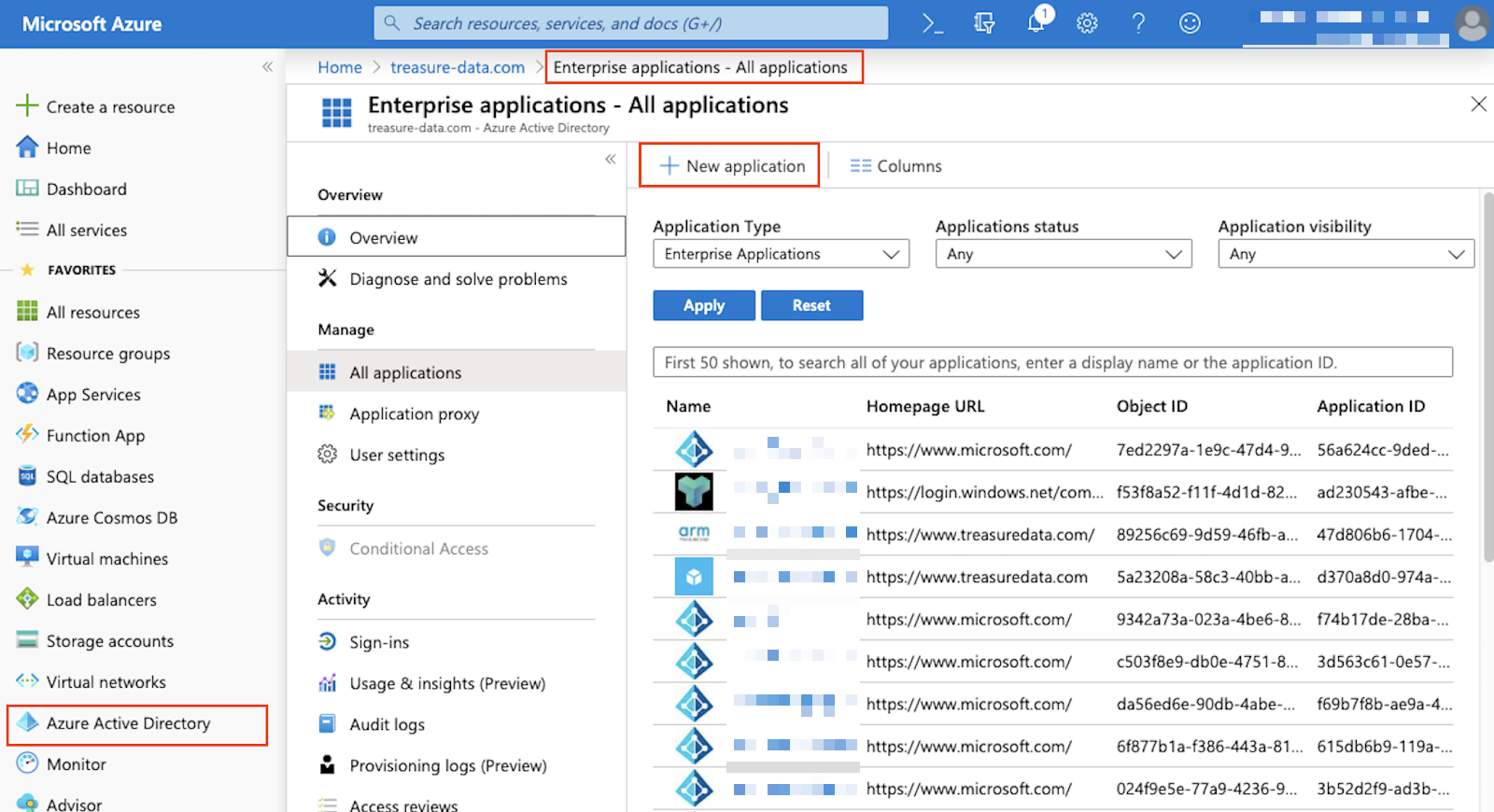
- Microsoft Entra ID を開きます。
- Enterprise applications - All Applications に移動します。
- New application を選択します。
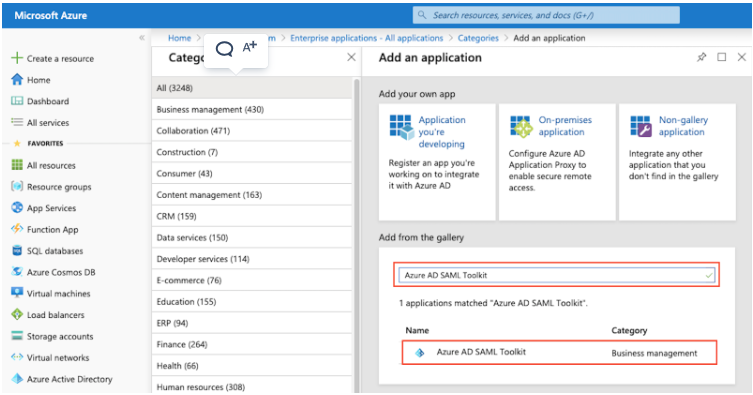
- Add from the gallery> Microsoft Entra ID SAML Toolkit を選択します。
- アプリケーションに使用する名前を入力します。
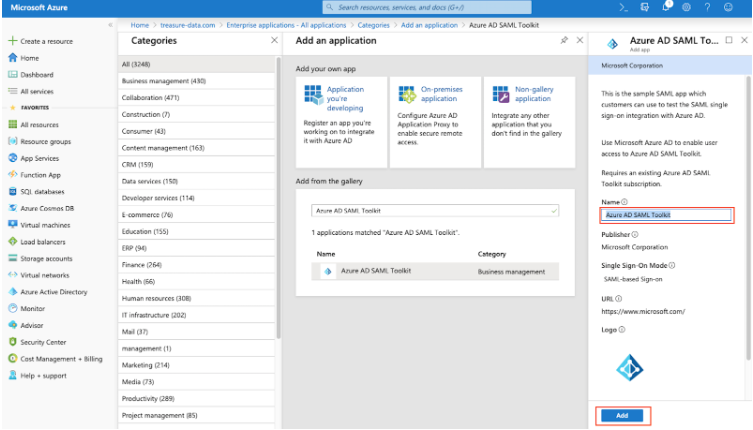
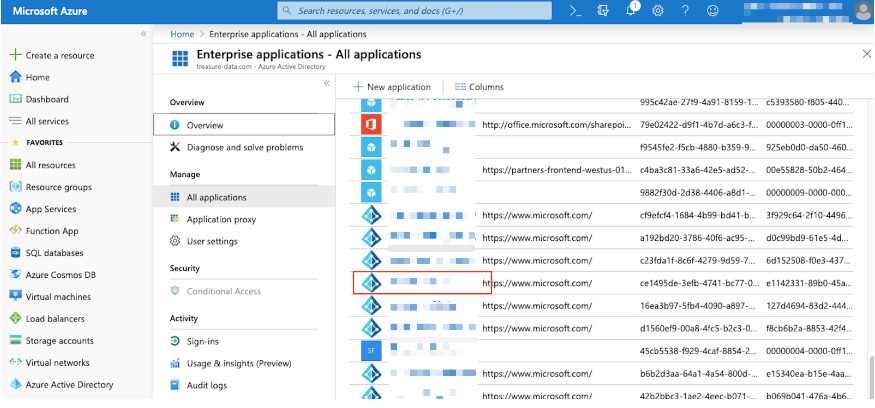
- Visit Enterprise Applications に移動します。
<your_app>を選択します。
- Manage > Single sign-on を選択します。
- SAML を選択します。
- Set up single sign-on with SAML ページで、Basic SAML Configuration を編集します。
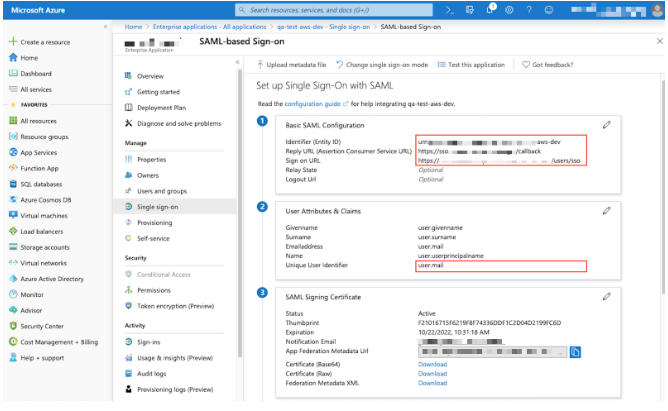
- Basic SAML Configuration で以下のフィールドを変更します。
Identifier (Entity ID): 例:
urn:treasuredata:sso:aws:<your_account_name>urn:treasuredata:sso:aws-tokyo:<your_account_name>urn:treasuredata:sso:eu01:<your_account_name>
Reply URL: https://sso.treasuredata.com/login/callback
Sign-on URL:
- US:
https://console.us01.treasuredata.com/users/initiate_sso?account_name=<your_account_name> - JP:
https://console.treasuredata.co.jp/users/initiate_sso?account_name=<account_name> - Europe:
https://console.eu01.treasuredata.com/users/initiate_sso?account_name=<account_name>
Treasure コンソール で Administration > Sign In Settings > Identity Federation の下にある Entity ID を確認します。
Azure コンソールに戻ります。Attributes & Claims セクションに移動します。Unique User Identifier に使用する値を選択します。
user.mailが指定されている場合は、メールアドレスで TD ユーザーを設定できます。値が[user.name](<http://user.name>)の場合は、ユーザー名でフィールドを設定します。Save を選択します。
Enterprise applications - All Applications に移動します。
目的のアプリケーションを選択します。
Users and groups > Add user を選択します。
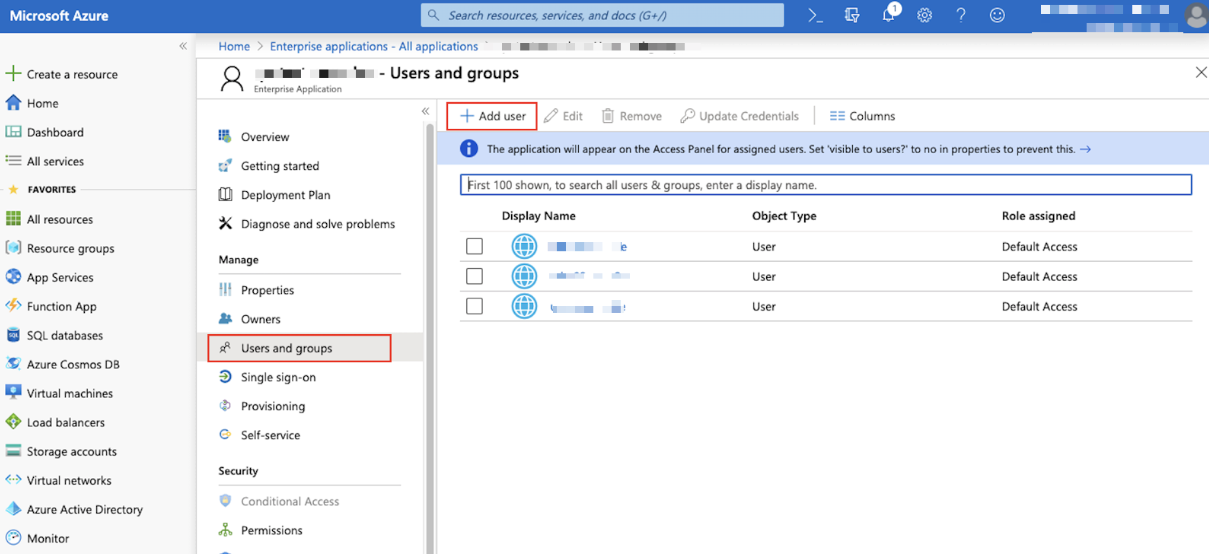
ユーザーを追加し、ロールを割り当てます。
ユーザーの割り当てが完了したら、Single sign-on に移動します。
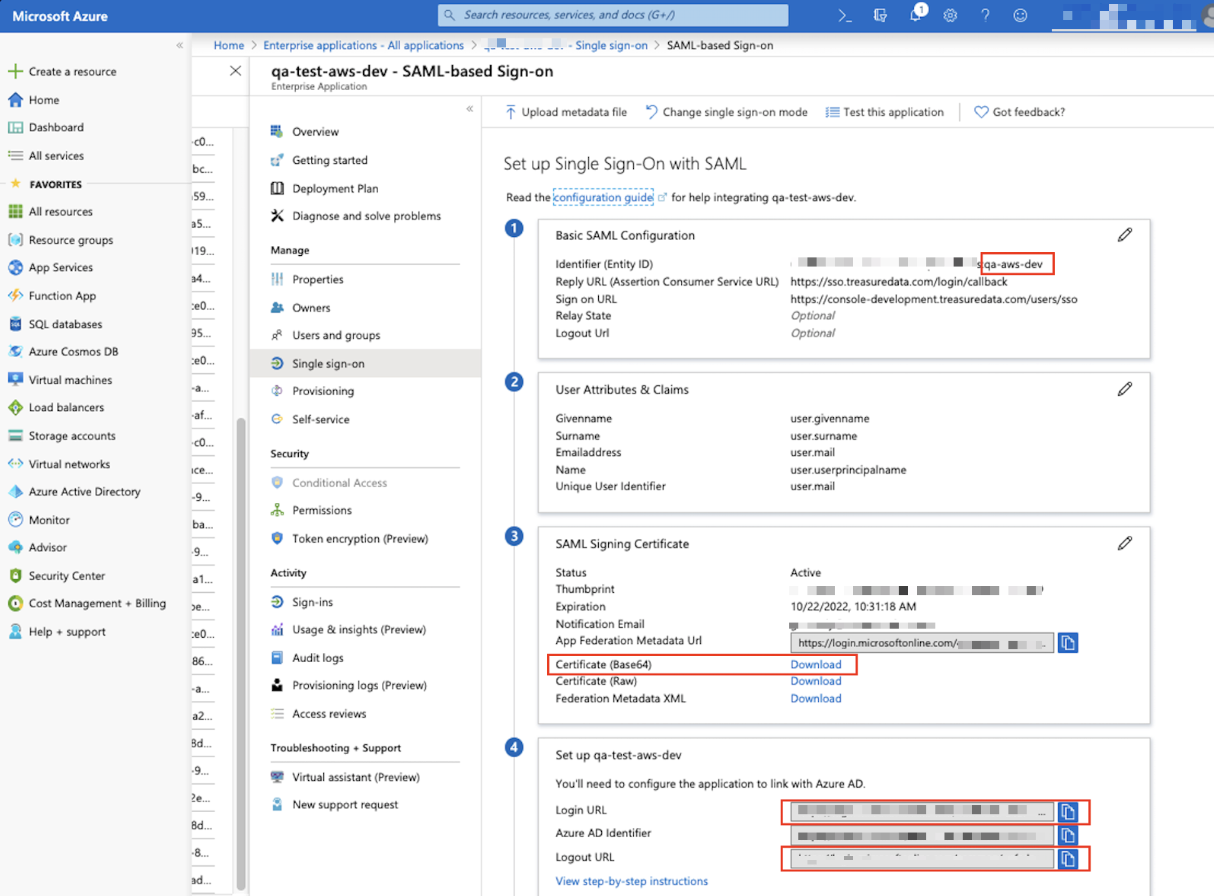
Single sign-on ページから以下の項目を取得し、Treasure コンソール 内で設定を完了します。正しい Entity ID の設定を確認していることを確認してください。
- US:

次のエラーが表示された場合、"Could not authenticate you from Auth0 because "Recipient is invalid. configured: https://sso.treasuredata.com/login/callback"。
Identity サーバーの URL を確認してください。URL が正しく設定されていない可能性があります。