This TD import allows you to transfer data from your Batch Platform account to Treasure AI.
- Basic knowledge of Treasure AI, including TD Toolbelt
- A Batch account
- A REST API Key and Project Key from your Batch account
- Importing from the CLI requires the Ruby Gem for TD Toolbelt.
- The Batch API limits segment-filtered attribute exports to 5 requests per hour. When importing ATTRIBUTES with a segment filter, the connector automatically waits 12 minutes between requests.
- Date ranges for EVENTS and REACHABILITY sources must be within the last 90 days and cannot be in the future.
To import from Batch.com, you need a REST API Key and a Project Key.
- Log in to your Batch.com dashboard.
- Navigate to Settings > API Keys.
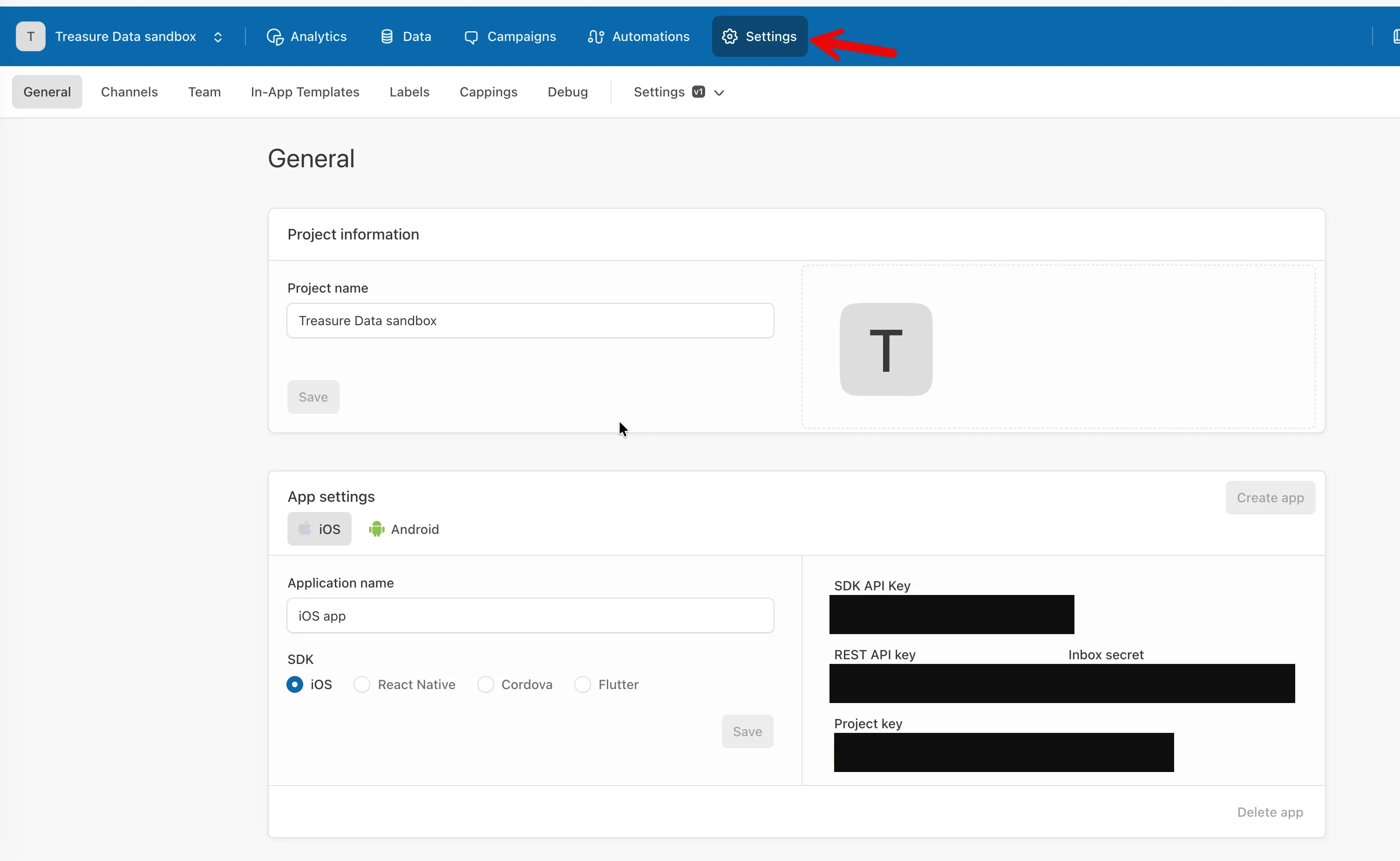
- Copy your REST API Key and Project Key and store them securely.
Your first step is to create a new authentication with your credentials.
- Open TD Console.
- Navigate to Integrations Hub > Catalog.
- Search for and select Batch.
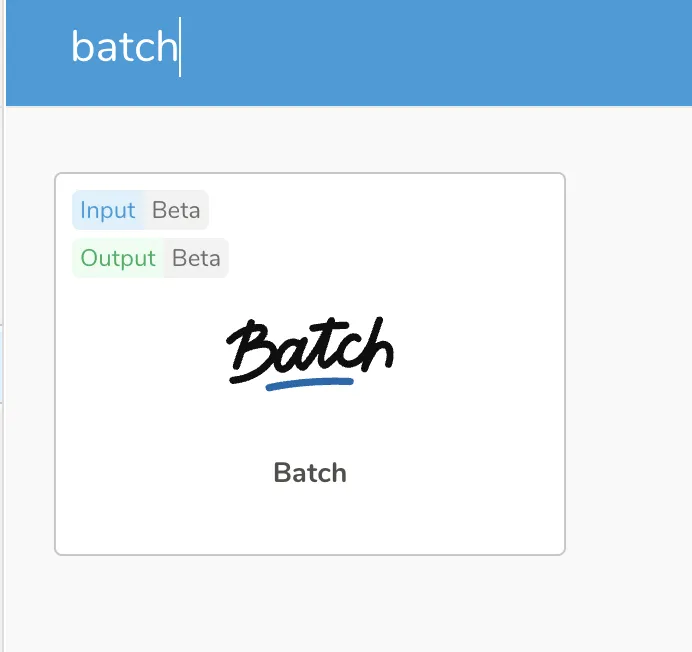
- Select Create Authentication.
- Enter your REST API Key and Project Key. Select Continue.
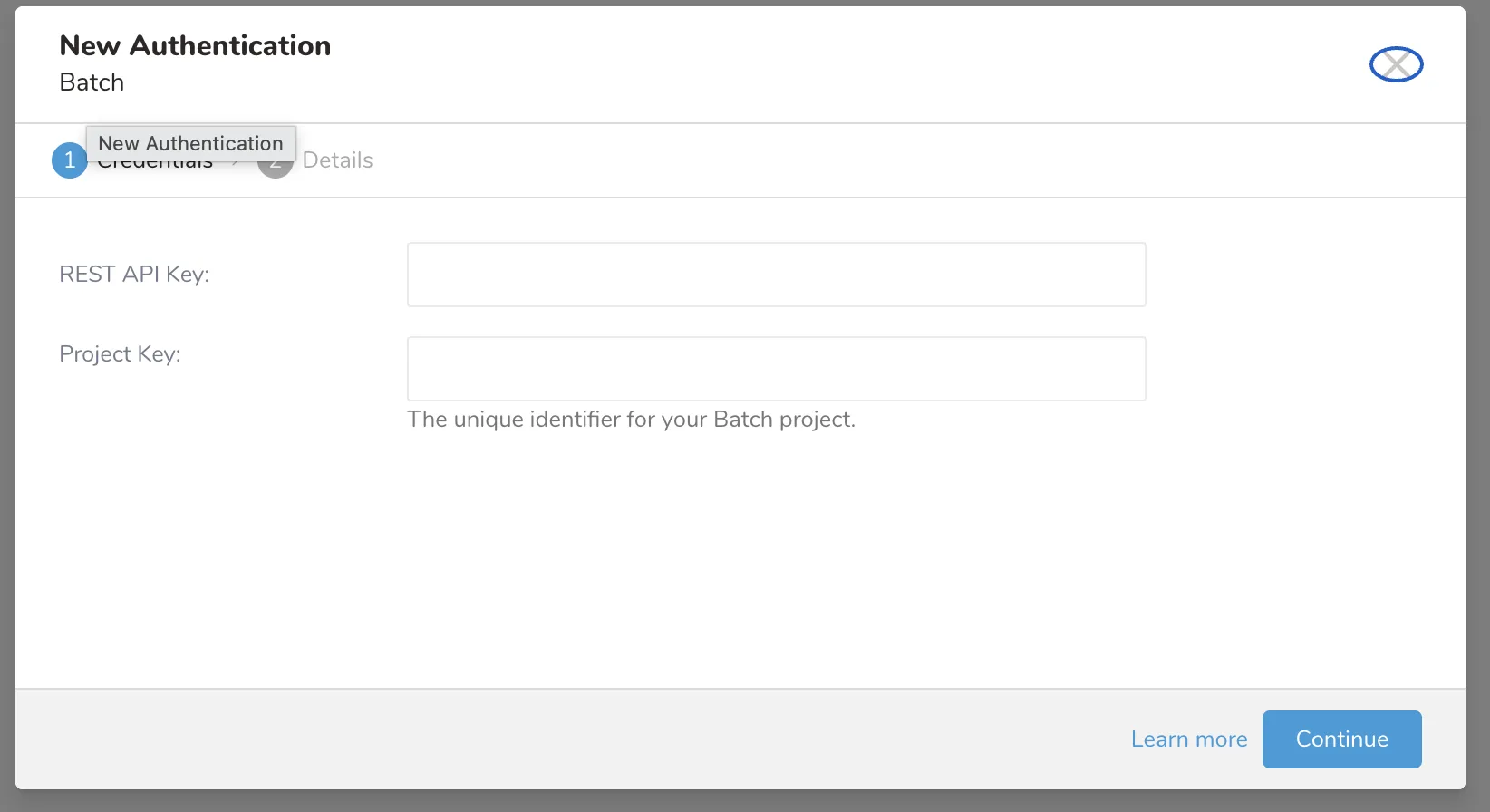
- Enter a name for your connection. Select Done.
After creating the authenticated connection, you are automatically taken to Authentications.
- Search for the connection you created.
- Select New Source.
- Type a name for your Source in the Data Transfer field.
- Select Next. The Source Table dialog opens.
- Edit the following parameters:
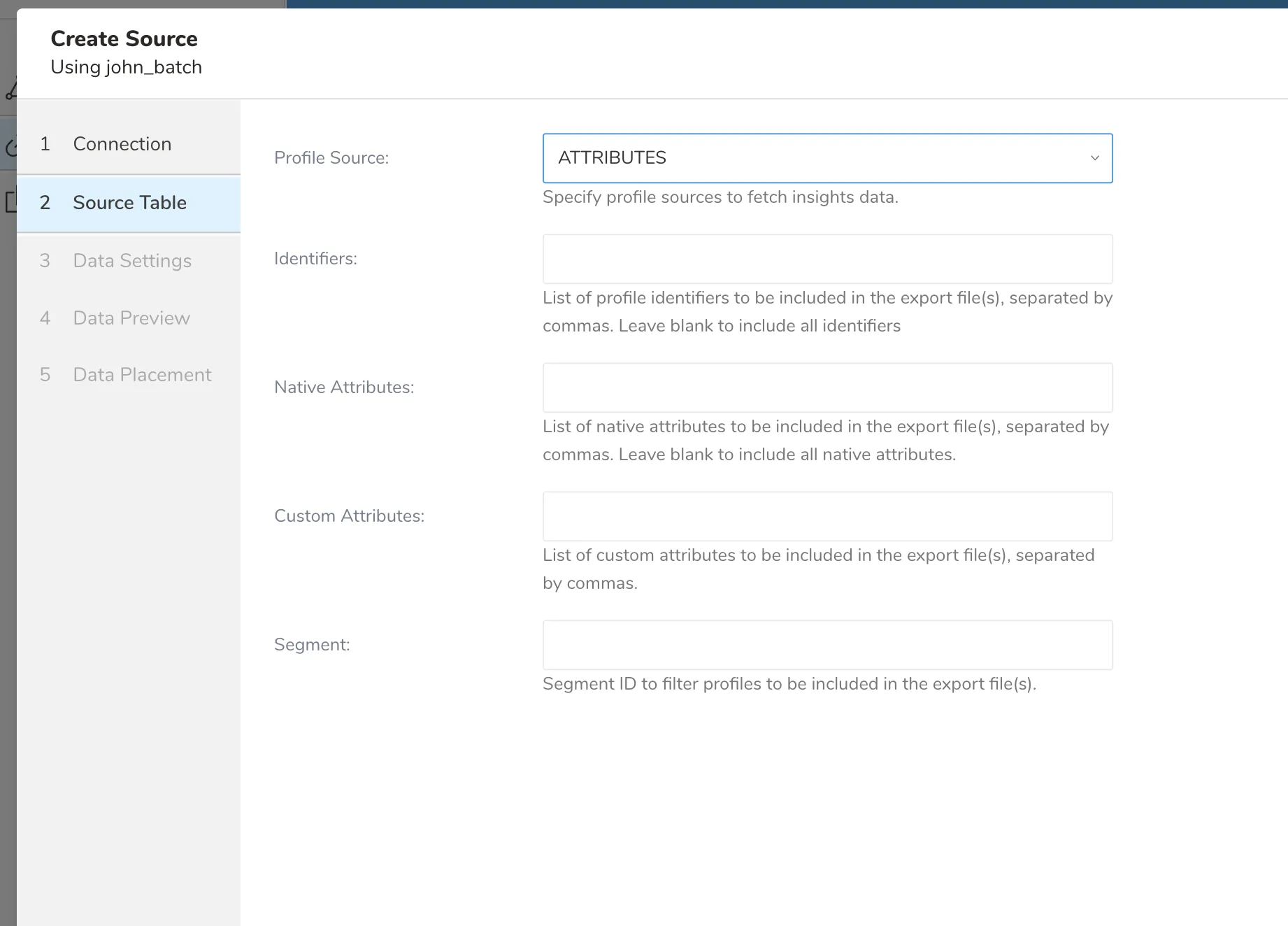
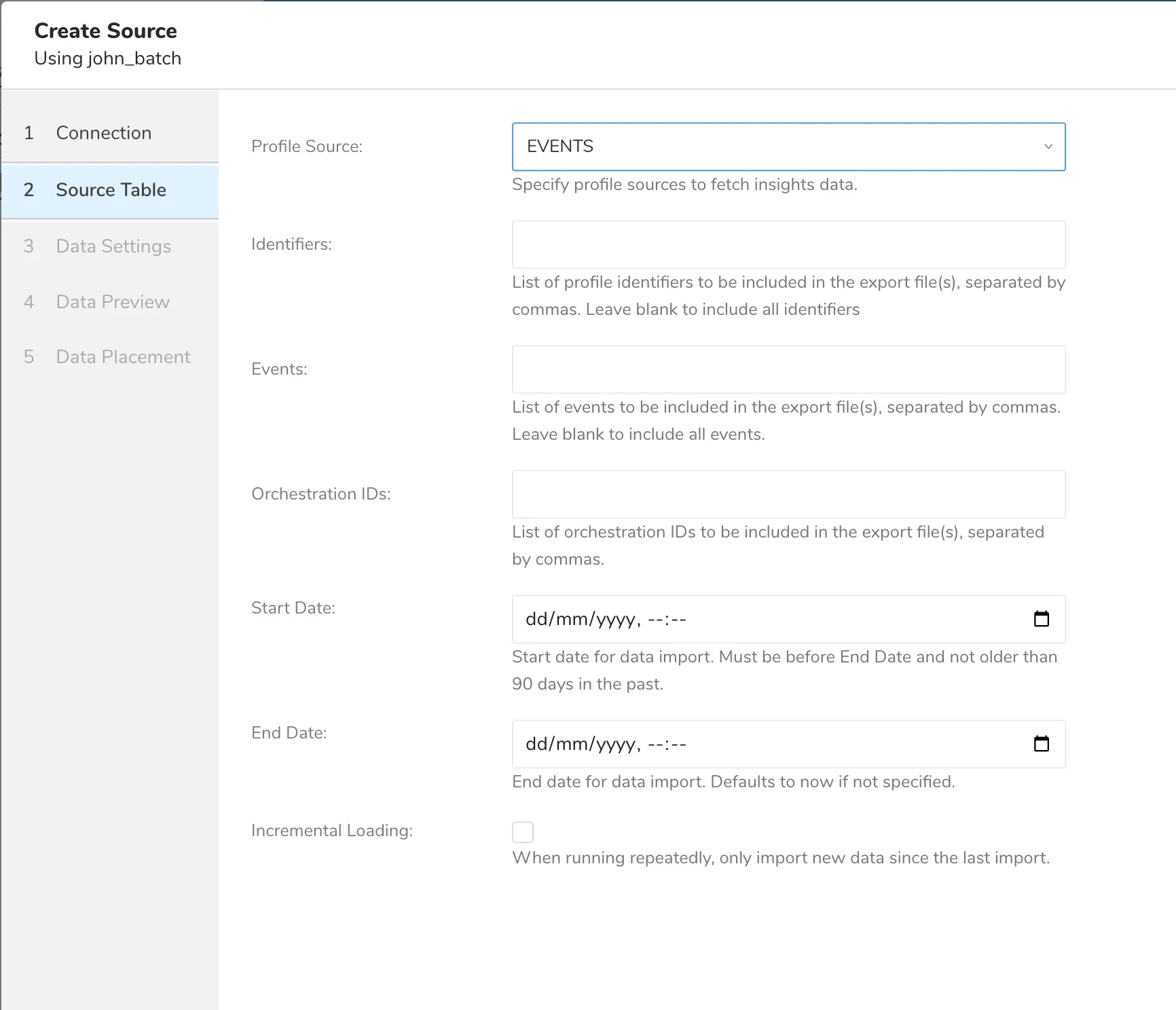
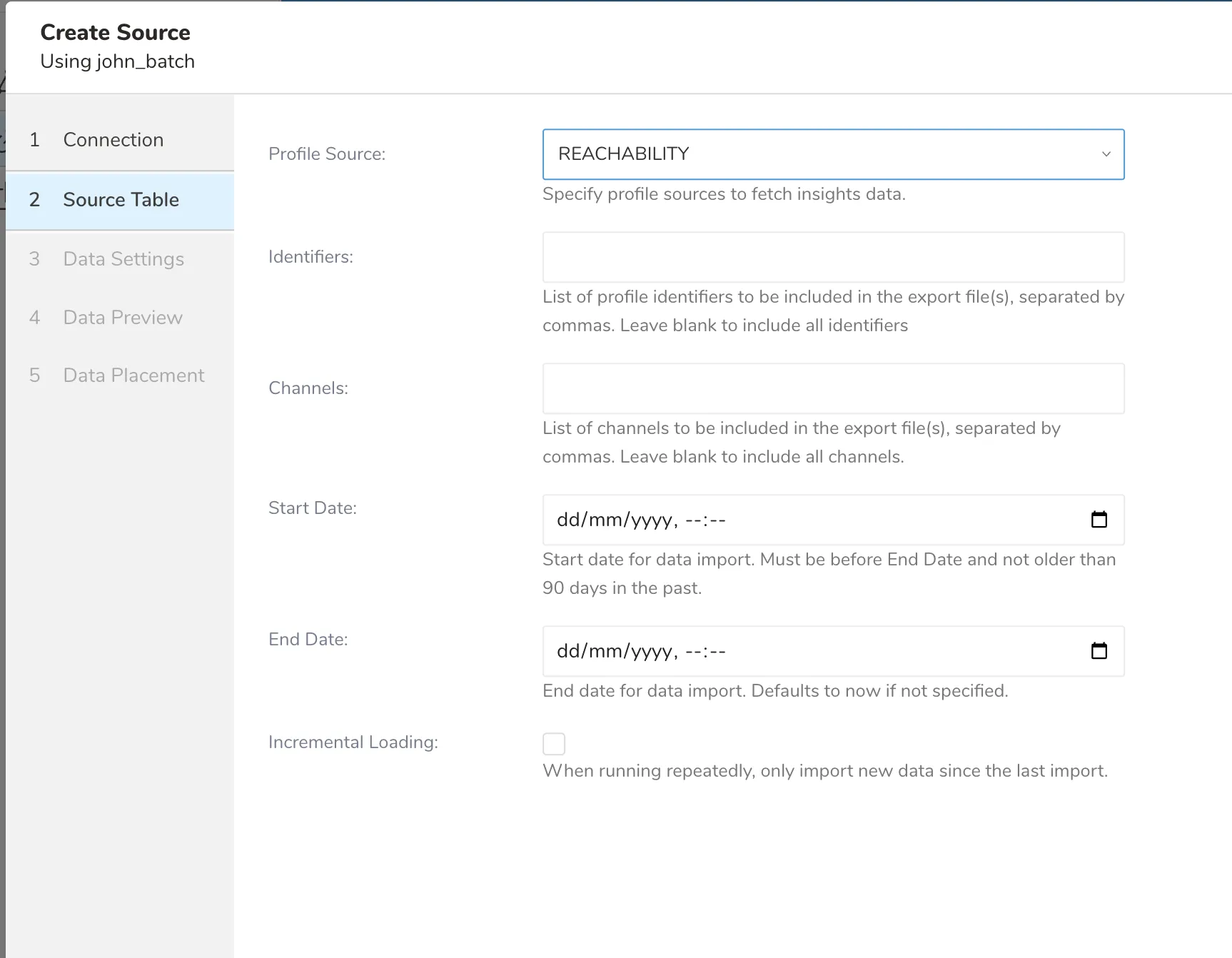
The following table describes the parameters for configuring a source table:
| Parameter | Mandatory | Description |
|---|---|---|
| Profile Source | Yes | Specify which data you need to ingest. Supported values:
|
| Identifiers | No | Specify which identifier columns to include. For Attributes: custom_id, installation_ids. For Events/Reachability: custom_id, installation_id. Defaults to all valid identifiers if not specified. |
| Native Attributes | No | Only applicable for Attributes source. Comma-separated list of native Batch attributes to include (e.g., $email_address,$city). Defaults to all native attributes if not specified. List native attributes: [$city, $creation_date, $email_address, $email_marketing, $language,$last_activity, $last_email_marketing_click, $last_email_marketing_open,$last_email_transactional_click, $last_email_transactional_open, $last_visit_date,$phone_number, $region, $sms_marketing, $timezone, $push_subscriptions,$install_date, $email_open_tracking_consent, $topic_preferences] |
| Custom Attributes | No | Only applicable for Attributes source. Comma-separated list of custom attribute names to include. Attribute names must be lowercase alphanumeric and underscores only, up to 30 characters each. |
| Segment | No | Only applicable for Attributes source. Specify a Segment Code to filter exported profiles to a specific segment. |
| Events | No | Only applicable for Events source. Comma-separated list of event types to include (e.g., email_sent,email_open). Defaults to all event types if not specified. List events: [email_bounced, email_delivered, email_click, email_open, email_sent,email_spam_complaint, email_unsubscribed, sms_sent, sms_bounced, sms_delivered, sms_unsubscribed, push_sent, push_bounced, push_open] |
| Orchestration IDs | No | Only applicable for Events source. Comma-separated list of orchestration IDs to filter events. |
| Channels | No | Only applicable for Reachability source. Comma-separated list of channels to include: email, push, sms. Defaults to all channels if not specified. |
| Start Date | Yes if Profile Source is Events or Reachability | Start date for data import in ISO 8601 format (e.g., 2024-01-01T00:00:00Z). Must be within the last 90 days and not in the future. |
| End Date | No | End date for data import in ISO 8601 format. Defaults to the current time if not specified. Must be after Start Date and not in the future. |
| Incremental Loading | No | Only applicable for Events and Reachability sources. When enabled, only imports new data since the last successful import. |
Select Next to define Data Settings.
Select Next to preview your data.
- To preview your data, select Generate Preview. Optionally, select Next to skip to the next section.
- Define Your Data Placement.
In the Storage section, specify details for where you want the data to reside in TD:
- Database — Select the database where you want to save your data.
- Table — The destination table where you want to store your imported data.
- Method
- Append — Add records to your existing table. (Be aware that data may be duplicated.)
- Always Replace — Always clear your destination table before adding records.
- Replace on new data — If new data is found, then old data will be overwritten by the new data.
- Timestamp-based Partition Key — Select your custom timestamp column used as the partition key.
- Data Storage Timezone — The expected timezone for your database.
In the Schedule section, you can choose when and how often you want to run this query:
- Repeat — Select On or Off.
- Schedule — The dropdown list provides these options: @daily (midnight), @hourly (:00), or Custom cron.
- Delay Transfer — You can specify a delay to the execution time.
- Scheduling Timezone — Select the timezone for scheduling.
- Select Create & Run Now.
After your transfer has run, you can see the results of your transfer in Data Workbench > Databases.
Create and run a workflow:
_export:
  td:
    database: workflow_batch
    table: batch_profiles
+import_from_batch:
  td_load>: imports/seed.yml
  database: ${td.database}
  table: ${td.table}
Modify the seed.yml file with your connection details for the import:
in:
  type: batch
  rest_api_key: "{your_rest_api_key}"
  project_key: "{your_project_key}"
  profile_source: ATTRIBUTES
  identifiers: "custom_id"
  native_attributes: "$email_address,$city,$language"
  custom_attributes: "loyalty_tier,signup_source"
  segment: "premium_users"
out:
mode: appendin:
type: batch
rest_api_key: "{your_rest_api_key}"
project_key: "{your_project_key}"
profile_source: EVENTS
events: "email_sent,email_open,email_click"
orchestration_ids: "orch_068jtte5476ffqc6pe64qxgyj3kkadk7"
start_date: "2024-01-01T00:00:00Z"
end_date: "2024-12-31T00:00:00Z"
incremental: true
out:
mode: appendin:
type: batch
rest_api_key: "{your_rest_api_key}"
project_key: "{your_project_key}"
profile_source: REACHABILITY
channels: "email,sms"
start_date: "2024-01-01T00:00:00Z"
end_date: "2024-12-31T00:00:00Z"
incremental: true
out:
mode: append| Parameter | Data Type | Mandatory | Description |
|---|---|---|---|
| rest_api_key | string | Yes | Your Batch REST API key. |
| project_key | string | Yes | Your Batch project key. |
| profile_source | string | Yes | Specify which data you need to ingest. Supported values:
|
| identifiers | string | No | Comma-separated identifier columns to include. For ATTRIBUTES: custom_id, installation_ids. For EVENTS/REACHABILITY: custom_id, installation_id. Defaults to all valid identifiers if not specified. |
| native_attributes | string | No | Only applies to ATTRIBUTES source. Comma-separated native Batch attribute names (e.g., $email_address,$city). Defaults to all native attributes if not specified. List native attributes: [$city, $creation_date, $email_address, $email_marketing, $language,$last_activity, $last_email_marketing_click, $last_email_marketing_open,$last_email_transactional_click, $last_email_transactional_open, $last_visit_date,$phone_number, $region, $sms_marketing, $timezone, $push_subscriptions,$install_date, $email_open_tracking_consent, $topic_preferences] |
| custom_attributes | string | No | Only applies to ATTRIBUTES source. Comma-separated custom attribute names. Names must match [a-z0-9_] and be at most 30 characters. |
| segment | string | No | Only applies to ATTRIBUTES source. Segment Code to filter which profiles are exported. |
| events | string | No | Only applies to EVENTS source. Comma-separated event types to include. Defaults to all supported event types if not specified. List events: [email_bounced, email_delivered, email_click, email_open, email_sent,email_spam_complaint, email_unsubscribed, sms_sent, sms_bounced, sms_delivered, sms_unsubscribed, push_sent, push_bounced, push_open] |
| orchestration_ids | string | No | Only applies to EVENTS source. Comma-separated orchestration IDs to filter events. |
| channels | string | No | Only applies to REACHABILITY source. Comma-separated channels: email, push, sms. Defaults to all channels if not specified. |
| start_date | string | Yes if profile_source is EVENTS or REACHABILITY | Start date in ISO 8601 format (e.g., 2024-01-01T00:00:00Z). Must be within the last 90 days and not in the future. |
| end_date | string | No | End date in ISO 8601 format. Defaults to the current time if not specified. Must be after start_date and not in the future. |
| incremental | boolean (true/false). Default is false | No | Only applies to EVENTS and REACHABILITY sources. When enabled, only imports new data since the last successful import. |
You can import data from Batch.com using the TD Toolbelt.
Install the latest TD Toolbelt using Ruby Gem:
$ gem install td
$ td --version
0.16.10
There are other install methods. For more information, see Treasure AI Toolbelt.
Create a config.yml configuration file:
in:
  type: batch
  rest_api_key: {your_rest_api_key}
  project_key: {your_project_key}
  profile_source: ATTRIBUTES
  identifiers: "custom_id"
  native_attributes: "$email_address,$city,$language"
  custom_attributes: "loyalty_tier"
out:
...........You can preview the data your config file will pull in:
$ td connector:preview config.ymlYou can schedule periodic data connector execution for periodic Batch imports. By using this feature, you no longer need a cron daemon on your local data center.
A new schedule can be created using the td connector:create command. The following data needs to be specified:
- Name of the schedule
- The cron-style schedule
- The database and table where your data will be stored
- The Data Connector configuration file is required.
$ td connector:create \
  daily_batch_import \
  "10 0 * * *" \
  sample_db \
  sample_table \
  config.yml
The cron parameter also accepts three special options: @hourly, @daily and @monthly. For more details, see Scheduled Jobs.
By default, the schedule is set up in the UTC timezone. You can set the schedule in a timezone using the -t or --timezone option. The --timezone option supports only extended timezone formats like 'Asia/Tokyo', 'America/Los_Angeles', etc. Timezone abbreviations like PST and CST are not supported and may lead to unexpected schedules.
You can see the list of currently scheduled entries by entering td connector:list.
$ td connector:list
  +--------------------+------------+----------+-------+-----------+--------------+
  | Name               | Cron       | Timezone | Delay | Database  | Table        |
  +--------------------+------------+----------+-------+-----------+--------------+
  | daily_batch_import | 10 0 * * * | UTC      | 0     | sample_db | sample_table |
+--------------------+------------+----------+-------+-----------+--------------+td connector:show shows the execution setting of a schedule entry.
$ td connector:show daily_batch_import
  Name     : daily_batch_import
  Cron     : 10 0 * * *
  Timezone : UTC
  Delay    : 0
  Database : sample_db
  Table    : sample_table
td connector:history shows the execution history of a schedule entry. To investigate the results of each individual execution, use td job:show jobid.
  | 577914 | success | 20000   | sample_db | sample_table | 0        | 2025-04-16 00:10:03 +0000 | 152      |
  | 577872 | success | 20000   | sample_db | sample_table | 0        | 2025-04-15 00:10:04 +0000 | 163      |
  | 577810 | success | 20000   | sample_db | sample_table | 0        | 2025-04-14 00:10:04 +0000 | 164      |
  | 577766 | success | 20000   | sample_db | sample_table | 0        | 2025-04-13 00:10:04 +0000 | 155      |
  | 577710 | success | 20000   | sample_db | sample_table | 0        | 2025-04-12 00:10:05 +0000 | 156      |
  | 577610 | success | 20000   | sample_db | sample_table | 0        | 2025-04-11 00:10:04 +0000 | 157      |
+--------+---------+---------+-----------+--------------+----------+---------------------------+----------+td connector:delete removes the schedule.
$ td connector:delete daily_batch_import